





 Tools for Jira
 Tools for monday.com





Your work may live in Jira, but your budget most likely resides elsewhere, in a spreadsheet or a finance system. The reason is simple: Jira was designed for project management, not budgeting. Still, it doesn’t mean Jira can’t help you to streamline your budgeting process.
In this article, we share three templates for budget cycle management: planning, regular budget tracking check, and retro. You’ll also find out how to set them up in Jira and adapt them to your own process. On top of that, we explain what Jira can do with budget numbers natively and where it falls short.
Key Takeaways
- Jira has no dedicated budget tracking feature. Number fields, formula fields, and automation can still hold planned and actual amounts and flag overspend or underspend.
- Numbers usually stay in a spreadsheet or finance system. Jira can hold the routine around them: approvers, due dates, and decisions.
- Three templates cover a full budget cycle: annual planning, a monthly budget check, and a year-end retro.
What Is Jira Budget Tracking?
 Definition
Jira budget tracking is the process of regularly checking actual spend against the planned budget, managed within Jira. While financial numbers usually live elsewhere, Jira can hold the routine around them: who runs the check, when it’s due, and what was decided.
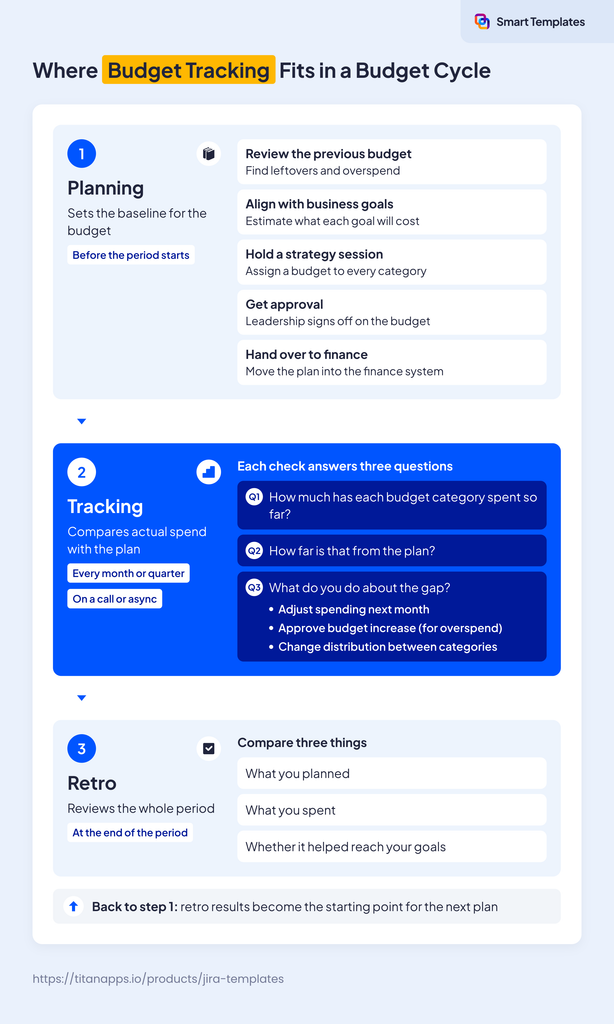
Budget tracking is the middle stage of a budget cycle, which includes planning, tracking, and retro. Planning sets the baseline, monthly or quarterly checks compare actual spend with it, and the retro reviews the whole period. Each check answers three questions: how much each category spent, how far that is from plan, and what to do about the gap.
Cloning vs Templates: How to Reuse a Budget Routine in Jira
Surely, you can reuse last cycle’s work using only native Jira. Cloning duplicates a work item within the same space, and an epic’s child work items can come along. With Jira automation, a work item can even clone itself on a schedule.
However, a clone copies most of the original’s content, including the Summary and Description. Details that change between cycles, like the year, people, and dates, need manual updates. And you still have to find the right work item to clone.
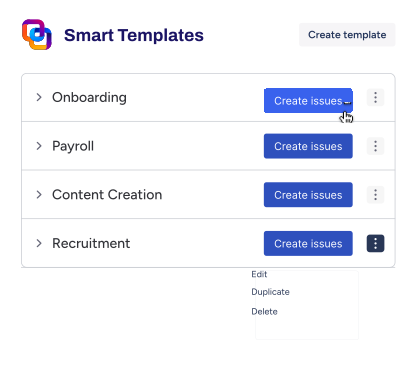
Atlassian Marketplace apps can fill this native Jira gap. In particular, you can rely on Smart Templates by TitanApps to create a work item template – a saved set of Jira work items you reuse each cycle, such as an epic with a task for each step. It suits routines with several owners and deadlines, like annual planning. Unlike cloning, it allows you to use variables to fill in the details that may change from cycle to cycle, like a finance contact or approver.
Three Jira Budgeting Templates for a Marketing Team
The Scenario: A Yearly Marketing Budget in a Spreadsheet
A marketing team has a yearly budget split into categories such as paid ads, influencers, events, link building, SaaS subscriptions, and infrastructure. The budget itself lives in a spreadsheet, and finance moves the approved numbers into its own system.
Templates Overview
The three templates cover the main stages of the budgeting process:
- Template 1: Annual Budget Planning – 1 epic + 5 tasks with checklists for steps
- Template 2: Monthly Budget Check – 1 task with checklist, repeated monthly, with the Budget Planning epic as a parent
- Template 3: Budget Retro – 1 task with checklist
Smart Templates allows you to save the work item structure behind those templates. In this case, it works in tandem with another TitanApps product, Smart Checklist, which creates a checklist template, a list of steps inside a single work item to complete a task, like a regular spend review.
Who Owns Each Step of the Budget Cycle
- Budget owner: answers for the whole budget, like the Marketing Lead in our example
- Category managers: run parts of the budget, such as events or link building
- Finance contact: moves the approved budget into the finance system and shares actual spend
- Approver: signs off on the annual budget, usually someone from leadership.
When to Apply Each Template
Each template matches one stage of the budget cycle. Here is how the timing may look for a budget that follows the calendar year:
- Annual Budget Planning. Apply when you know most of this year’s spend (October, November). That way, the approved plan is ready before the new year starts.
- Monthly Budget Check. The Smart Templates Scheduler creates it on the 1st of every month, starting in February. Each check covers the previous month’s actual spend.
- Budget Retro. Apply it after finance closes the books for the year (e.g., mid-January). Its lessons feed the next planning cycle.
If your budget year starts in another month, shift these dates to match.
Template 1: Annual Budget Planning
Suggested variables:
- {{Year}}
- {{Budget owner}}
- {{Approver}}
- {{Finance contact}}
Epic: Marketing Budget Planning {{Year}}
Assignee: {{Budget owner}}
Task 1: Review This Year’s Spending
Assignee: {{Budget owner}}
Due date: {{now.plusBusinessDays(5)}}
Checklist:
-! Compare planned and actual spend to date for each category
- List categories with overspend or underspend
- Collect the overspend/underspend reasons from this year’s monthly checks
- Read the lessons from the latest budget retro
Task 2: Align Business Goals with the Budget
Assignee: {{Budget owner}}
Due date: {{now.plusBusinessDays(10)}}
Checklist:
-! Link the goals planning work item to the Marketing Budget Planning {{Year}} epic as related
- Check what this year’s spend achieved in each category
- Estimate the budget each goal for {{Year}} needs
Task 3: Hold the Strategy Session with Finance
Assignee: {{Budget owner}}
Due date: {{now.plusBusinessDays(15)}}
Checklist:
- Invite finance and category managers
- Assign a budget to each category and time period
- Agree on who manages each category
-! Record the agreed budgets in the budget sheet
Task 4: Get Leadership Approval
Assignee: {{Approver}}
Due date: {{now.plusBusinessDays(20)}}
Checklist:
-! Get approval for the budget and high-level categories
- Record any changes leadership asks for
Task 5: Hand Over the Approved Budget to Finance
Assignee: {{Finance contact}}
Due date: {{now.plusBusinessDays(25)}}
Checklist:
-! Confirm finance moved the approved budget to the finance system
- Agree on how and when finance shares actual spend each month
Planning sets the budget for each category. To split a single marketing campaign’s budget across channels, see our campaign planning template.
Template 2: Monthly Budget Check
This template has no variables to fill in, so it can run on a schedule. In the Scheduler tab, choose Interval and repeat it every month on the 1st day. Start from the first month after your budget year begins.
Pro Tip
To skip weekends, choose the CRON trigger and enter 0 9 1W * *. The check then appears at 9 AM on the weekday nearest to the 1st.
Task: Monthly Budget Check
Assignee: the budget owner, set as a fixed user. Parent: this year’s planning epic
Due date: {{now.plusBusinessDays(5)}}
Checklist:
# Get the numbers
-! Get last month’s actual spend by category from finance
# Compare
- Compare actual and planned spend for each category
-! Record each underspend and overspend and the reason for it
# Decide
- Choose what to do about each overspend/underspend
- Adjust the budget sheet for the next period in case of any changes
Recording the overspend/underspend reason matters because it feeds the retro and next year’s plan.
Here is who may own each step:
- Get the numbers: the finance team collects the numbers, and the finance contact shares them with the budget owner
- Compare: the budget owner, with each category manager checking their own categories
- Record the reason: the category manager whose category went over or under plan
- Choose what to do about each overspend/underspend: the budget owner, though an increase may need the approver’s sign-off
- Update the budget sheet: the budget owner.
Note
To review channel results along with the spending, see our marketing report template.
If you want each item to show its owner, Smart Checklist has a dedicated Assignee column for every checklist item.
Template 3: Budget Retro
Suggested variables:
- {{Year}}
- {{Budget owner}}
Task: Budget Retro {{Year}}
Assignee: {{Budget owner}}
Due date: {{now.plusBusinessDays(10)}}
Checklist:
# Final actuals
-! Get final actual spend by category from finance
- Match it with the budget sheet
- Flag any differences to the budget owner
# Results
- Compare planned spend, actual spend, and goal results for each category
- List overspends and underspends and the reasons recorded in monthly checks
# Retro session
- Invite finance and category managers
- Agree on lessons for next year
-! Add the lessons to this task’s description
# Improve
- Update the Annual Budget Planning and Monthly Budget Check templates if necessary
- Outline the required changes to the next yearly budget
- Set the new planning epic as the parent in the Monthly Budget Check template
Note
The last item keeps all monthly checks for the year under one epic, so you can see their results in one place.
How to Use These Jira Budgeting Templates
- Install the apps. Add Smart Checklist and Smart Templates from the Atlassian Marketplace.
- Build templates. In Smart Templates, create a template for each example and add its work items, such as the planning epic and its five tasks. You can also build them in Jira first and save them as a template.
- Add variables. Add the suggested variables, with the User Picker type for roles. Put them in the Assignee field, so each task goes straight to the right person. You can make them required, so nobody applies the template with a blank value.
- Add due dates. For due dates, enter the Smart Variables from the example. The due dates count business days from the day the work items are created. Adjust them to the time your team needs for each step.
- Paste the checklists. Copy each checklist and paste it into the Smart Checklist tab of the matching work item. Then add the mandatory items validator to your workflow.
- Apply or schedule. Apply Annual Budget Planning and Budget Retro by hand with Create issue(s), so Smart Templates asks for the variable values. Schedule only the Monthly Budget Check.
- Link the checks to the plan. During each retro, enter the new planning epic’s key in the Parent field of the Monthly Budget Check template. That way, the January check for December stays under last year’s epic. All checks for the year then appear under one epic, including scheduled ones.
For other settings, see the Smart Templates documentation and the Smart Checklist documentation.
How to Adapt the Templates to Your Process
- Quarterly checks. In the Scheduler, set the check to repeat every 3 months, starting on the first day of a quarter. Then change “last month” to “last quarter” in the checklist.
- Different roles. Rename the variables to match your team. Add one for an extra approver, or remove a role you don’t have, along with its task.
- Different steps. Add, remove, or reorder checklist items. If a step needs its own owner and deadline, turn it into a separate task. If not, keep it as a checklist item.
- Project budgets. For project budget management, replace {{Year}} with a {{Project}} text variable. Apply the planning template at kickoff, once the project scope is set, and the retro when the project ends.
Finally, update the templates after each retro. The retro checklist already includes this step, so your templates improve with every cycle.
Why Use Jira Templates for Managing Your Budget Cycle?
Each of your budget cycles is likely to have the same stages. Without a template, you rebuild them from memory, old work items, or a colleague’s notes. Smart Templates helps to keep that routine in Jira, next to the rest of your project management work.
Let’s have a closer look at what that gives you:
- A head start on every cycle. Planning doesn’t start from a blank page. The steps, owners, and checklists are already in place, starting with a review of this year’s spending. A new manager can follow the same steps without asking for last year’s notes.
- Clear ownership and deadlines. Each step has an assignee and a due date. Finance, the budget owner, and category managers can see what’s theirs and when it’s due. That should cut the back-and-forth before strategy sessions and approvals.
- Steps that don’t get skipped. Mandatory checklist items, such as the leadership sign-off, can keep a work item from closing until they’re done. So an approval doesn’t get lost in a busy month.
- A record of every decision. Approvals, budget changes, and overspend/underspend reasons go into the work item, not into a call or a chat thread. Stakeholders can check what was decided and why.
- Checks that don’t slip. A scheduled template creates the monthly check on time, whether or not anyone remembers it.
- Lessons that carry over. The retro template asks the same questions every year. Its answers, together with the overspend and underspend reasons, become the starting point for the next plan.
How Do You Track Costs in Jira?
Jira has no built-in budget feature, but its fields and formulas can cover the basics of tracking budget numbers.
Let’s look at what you can set up natively in Jira Cloud:
- Number fields. A Number custom field can hold the planned amount and the actual spend on any work item. Note that a Jira admin can format a Number field as currency, so amounts display as money.
- Formula fields. A formula field calculates a value from other fields on the same work item, such as planned budget minus actual spend. Atlassian documentation lists calculating remaining budgets and flagging overspend among its uses. Formula fields also work in JQL, so a saved filter can list every work item over plan.
- Time tracking. With Jira time tracking, you can log time on work items and set an original estimate. Jira reports then show original and current estimates, and whether work is ahead of or behind schedule. That works well if your budget is in hours.
- Budget Creation template. Atlassian’s ready-made template helps you manage and approve budget proposals. It covers the request stage, not what happens after approval.
Surely, those features can be useful. However, each one has a limit you’ll hit quickly:
- Roll-ups need automation. A formula only uses data from its own work item. It can’t add up costs across an epic or a space (Jira project). You need a rule to look up the child work items of an epic and add up their actual spend in the epic’s own field. The epic’s formula field then updates each time the rule runs.
- Hours don’t turn into money. Jira’s time tracking settings cover working hours, working days, and time formats. They don’t include hourly rates.
- Overruns can be flagged, not prevented. The spending happens outside Jira, so a filter or rule only tells you after the fact.
If you need financials at the portfolio level, Atlassian also offers Funds in Focus, part of its Strategy Collection. Funds tracks budgets, baselines, forecasts, and actuals, and it’s designed to work alongside your primary financial systems.
Wrap-Up: How to Streamline Jira Budget Tracking, Planning, and Review with Templates
Budget tracking in Jira is a routine: you compare actual spend with the plan at a fixed cadence. Native Jira can’t turn logged hours into costs. Unless you add a dedicated budget management app, cost calculations and financial reports will likely stay in your finance tools. Still, templates can keep the routine going. A scheduled check appears automatically every month or quarter, and each overspend or underspend reason can be logged in the work item. The planning and retro templates support that routine, so details are less likely to slip. This makes it easier to standardize and improve from cycle to cycle.
Frequently Asked Questions about Jira Budget Tracking
Is Jira cost tracking the same as budget tracking?
Not quite. Cost tracking usually means recording what work costs, often by turning logged hours into money with hourly rates. Budget tracking compares that spend with the planned budget on a fixed cadence, such as monthly. In Jira, cost tracking typically needs a Marketplace app, because native Jira doesn’t turn logged time into money. The budget check itself can run as a recurring work item with a checklist.
Can Jira track hours and labor costs?
Yes for hours, but not natively for labor costs. You can set an original estimate and log time on any work item. Jira’s Time Tracking Report then shows original estimates, time spent, and time remaining for a version. However, Jira’s time tracking settings have no hourly rates, so Jira records hours but not their cost. To turn hours into costs, use a Marketplace app that applies hourly rates to logged time or apply your rates in a budget sheet.
How do I roll up costs to an epic in Jira?
With a Jira automation rule. The rule looks up the epic’s child work items and adds up their actual spend in the epic’s own field. A formula field on the epic then shows the remaining budget. Note that the total only updates when the rule runs. Use the Scheduled trigger to refresh the total on a set cadence.
Can Jira create financial reports?
Not natively. Jira’s built-in reporting capabilities cover work progress and time, such as sprint, epic, and time tracking reports. None of them track spending. You can export filter results to Microsoft Excel and build charts there. Dedicated budget reports usually come from Marketplace apps. For portfolio-level financials, Atlassian offers Funds in Focus, which tracks budgets, forecasts, and actuals.
How do I set up a regular budget check in Jira?
With a scheduled work item template. In Smart Templates, create a template for the check, such as the Monthly Budget Check example above. Add the steps as a checklist with Smart Checklist. Then set the template’s Scheduler to create the check every month or quarter. Note that a scheduled run doesn’t fill in your own variables, so keep the template’s details generic. Smart Variables, like due dates, still work.