






 Tools for Jira
 Tools for monday.com







Trusted by 4000+ clients























Can Jira be used for QA testing?
Yes, for the manual part
Jira runs your full QA workflow, from writing test cases to release sign-off. Teams use it for manual testing, regression testing, and bug reporting, so testing lives where the work already happens.
Out of the box, Jira has no test steps inside the ticket. Testers keep the checks in a spreadsheet or a separate tool, and steps often get skipped.
Smart Checklist fills the Jira checklist needs for QA:
- One template holds your test cases with headers, steps, and expected results, reusable across every release
- Custom statuses like Failed, Blocked, and Skipped match how testing actually runs
- Mandatory items block the transition to Done until all the checks are completed
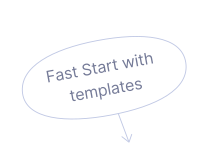
One checklist template forevery stage of your QA workflow
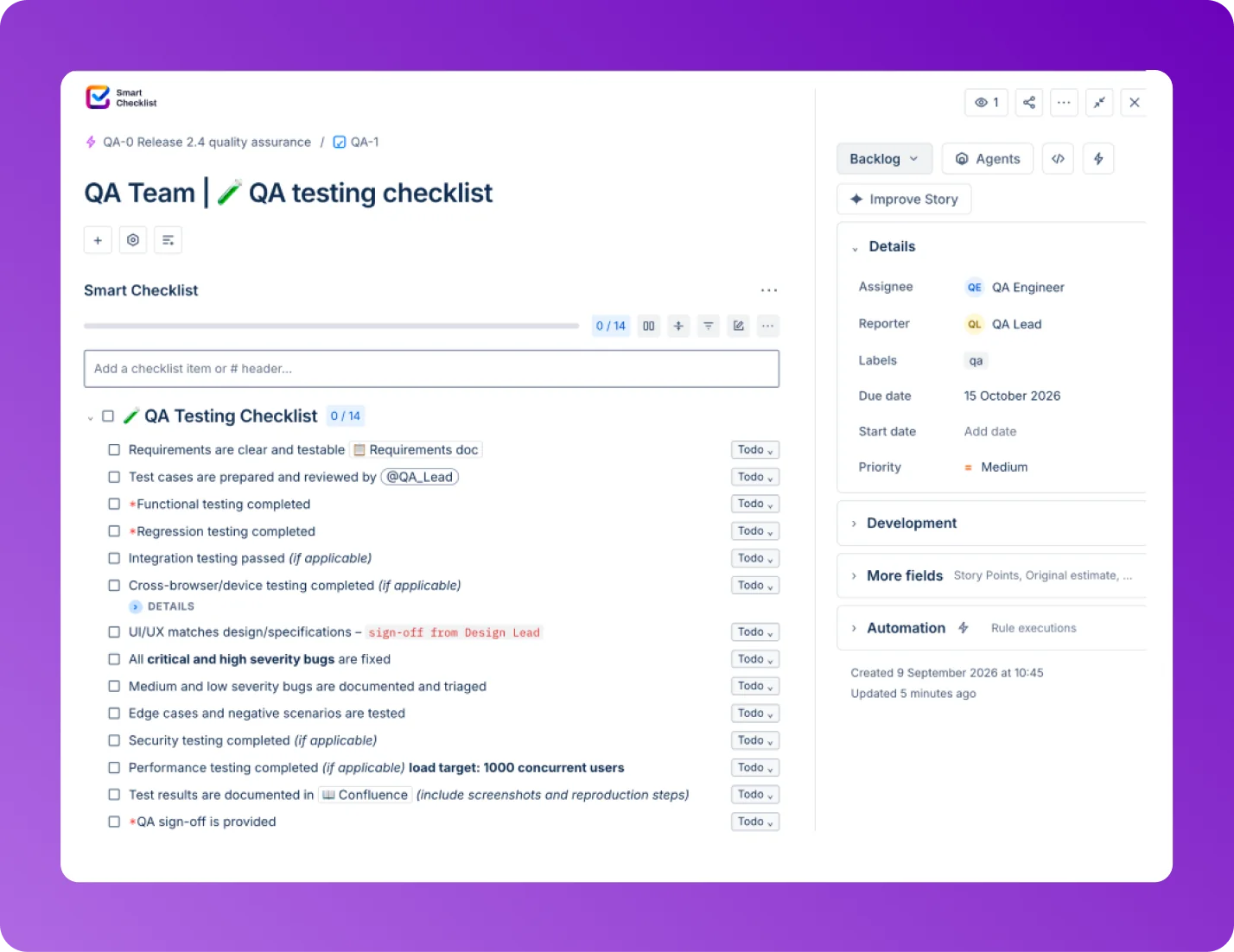
## QA Testing Checklist
- Requirements are clear and testable
- Test cases are prepared and reviewed by @QA_Lead
-! Functional testing completed
-! Regression testing completed
- Integration testing passed (if applicable)
- Cross-browser/device testing completed (if applicable)
> Add browsers and devices to cover here
- UI/UX matches design/specifications – `sign-off from Design Lead`
- All critical and high severity bugs are fixed
- Medium and low severity bugs are documented and triaged
- Edge cases and negative scenarios are tested
- Security testing completed (if applicable)
- Performance testing completed (if applicable) – load target: 1000 concurrent users
- Test results are documented (include screenshots and reproduction steps)
-! QA sign-off is provided
Test case template
Turn your test plan into one reusable checklist, no subtask for every test case. Headers hold the test topic, checklist items hold the steps, Details holds the expected results.
Write test case once, save as a template, reuse it every sprint.
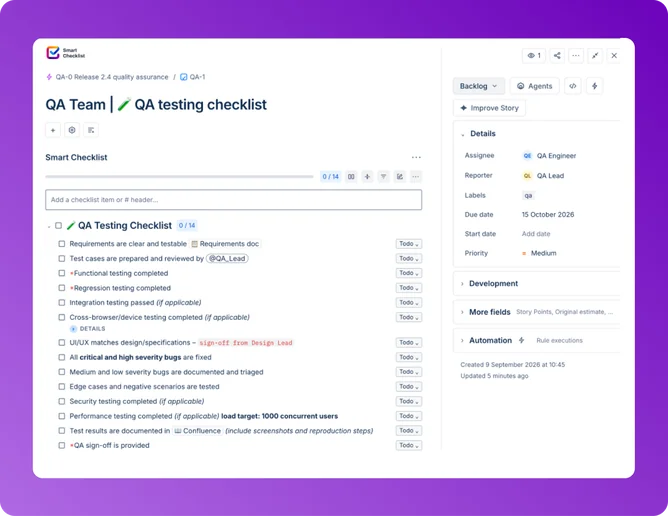
## Checkout regression – Release 2.4
- User can sign in with valid credentials
- Error message is shown for an invalid password
- Product is added to the cart from the product page
- Cart updates quantity and total price
- Valid discount code is applied
- Payment with a saved card
- Payment with PayPal
- Order confirmation email is sent
- Order appears in order history
- Guest checkout completes without an account
- Checkout works on mobile Safari
- Keyboard navigation through checkout
Test run
The checklist lands on its own when an issue moves to Ready for Testing. Testers mark each step Passed, Failed, Blocked, or Skipped, and progress updates in real time to match your process.
Test execution happens in the ticket. No second tab, no second login.
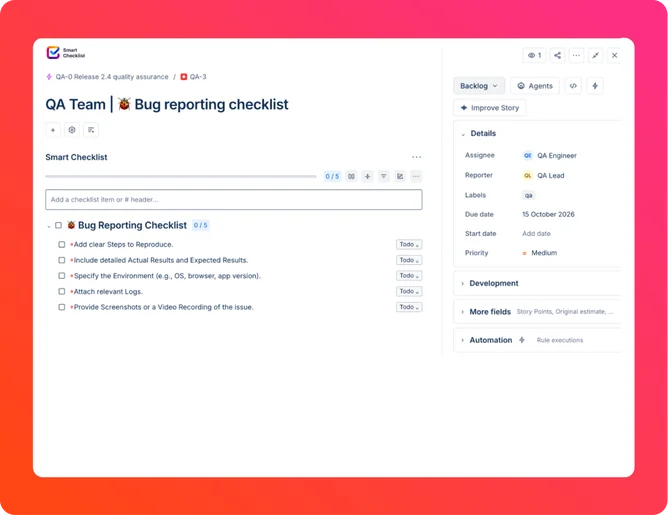
## 🐞 Bug Reporting Checklist
-! Add clear Steps to Reproduce.
-! Include detailed Actual Results and Expected Results.
-! Specify the Environment (e.g., OS, browser, app version).
-! Attach relevant Logs.
-! Provide Screenshots or a Video Recording of the issue.
Bug reporting
Set a checklist template as default for the Bug issue type. Every new bug ticket arrives with reproduction steps, environment details, and severity checks already in place.
Better defect management starts with a complete bug report, not a follow-up thread.
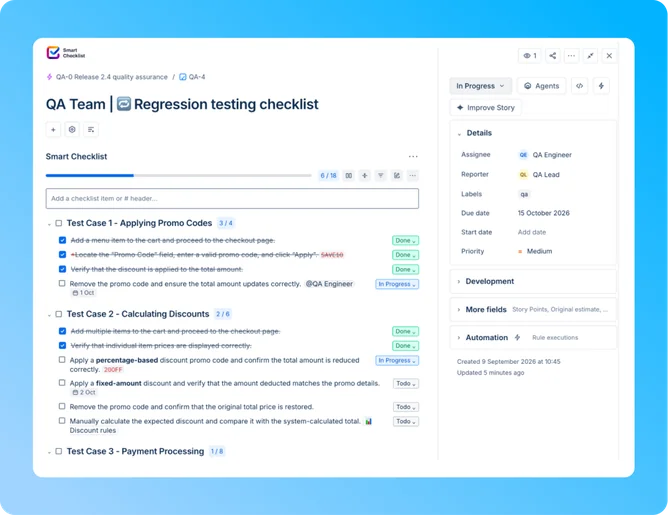
## Test Case 1 - Applying Promo Codes
- Add a menu item to the cart and proceed to the checkout page.
- Locate the "Promo Code" field, enter a valid promo code, and click "Apply".
- Verify that the discount is applied to the total amount.
- Remove the promo code and ensure the total amount updates correctly.
## Test Case 2 - Calculating Discounts
- Add multiple items to the cart and proceed to the checkout page.
- Verify that individual item prices are displayed correctly.
- Apply a percentage-based discount promo code and confirm the total amount is reduced correctly.
- Apply a fixed-amount discount and verify that the amount deducted matches the promo details.
- Remove the promo code and confirm that the original total price is restored.
- Manually calculate the expected discount and compare it with the system-calculated total.
## Test Case 3 - Payment Processing
- Add items to the cart and proceed to the checkout page.
- Review the order summary and select a payment method (credit card, PayPal, Apple Pay, etc.).
- Enter valid payment details and confirm the payment.
- Verify that a payment confirmation message appears.
- Check the email inbox for a payment receipt.
- Attempt a payment with insufficient funds and confirm that the transaction fails with an appropriate error message.
- Attempt a payment with an expired credit card and verify that an error message appears.
- Close the app before payment confirmation and reopen it to verify that the order status is correctly updated.
Regression testing
Treat each release as one Epic with a checklist on every issue underneath. Skipped items stay visible, and progress rolls up to the Epic.
Regression testing stops depending on memory.
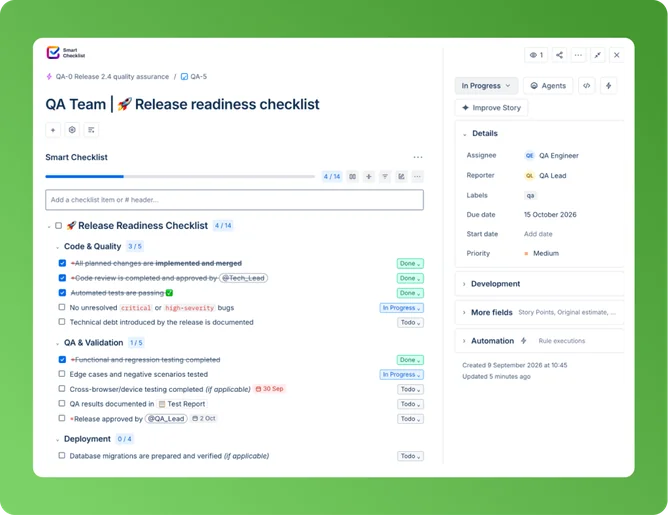
# 🚀 Release Readiness Checklist
## Code & Quality
-! All planned changes are implemented and merged
-! Code review is completed and approved by @Tech_Lead
- Automated tests are passing ✅
- No unresolved `critical` or `high-severity` bugs
- Technical debt introduced by the release is documented
## QA & Validation
-! Functional and regression testing completed
- Edge cases and negative scenarios tested
- Cross-browser/device testing completed (if applicable)
- QA results documented
-! Release approved by @QA_Lead
## Deployment
- Database migrations are prepared and verified (if applicable)
- Feature flags and environment variables are configured
- Deployment steps are documented
- Rollback plan is prepared
> Add rollback steps and owner here
## Release
- Release notes are prepared
- Monitoring and alerts are configured
-! Production deployment approved by @Release_Manager
- Post-deployment smoke test completed 🔍
- Release status communicated to @Team
Release readiness
Split every release into pre-release, deploy, and post-deploy sections, each with its own progress. A validator blocks the transition until each section is done. It attaches automatically when Labels contain Release.
No release ships on a half-finished checklist.
## QA Testing Checklist
- Requirements are clear and testable
- Test cases are prepared and reviewed by @QA_Lead
-! Functional testing completed
-! Regression testing completed
- Integration testing passed (if applicable)
- Cross-browser/device testing completed (if applicable)
> Add browsers and devices to cover here
- UI/UX matches design/specifications – `sign-off from Design Lead`
- All critical and high severity bugs are fixed
- Medium and low severity bugs are documented and triaged
- Edge cases and negative scenarios are tested
- Security testing completed (if applicable)
- Performance testing completed (if applicable) – load target: 1000 concurrent users
- Test results are documented (include screenshots and reproduction steps)
-! QA sign-off is provided
Test case template
Turn your test plan into one reusable checklist, no subtask for every test case. Headers hold the test topic, checklist items hold the steps, Details holds the expected results.
Write test case once, save as a template, reuse it every sprint.
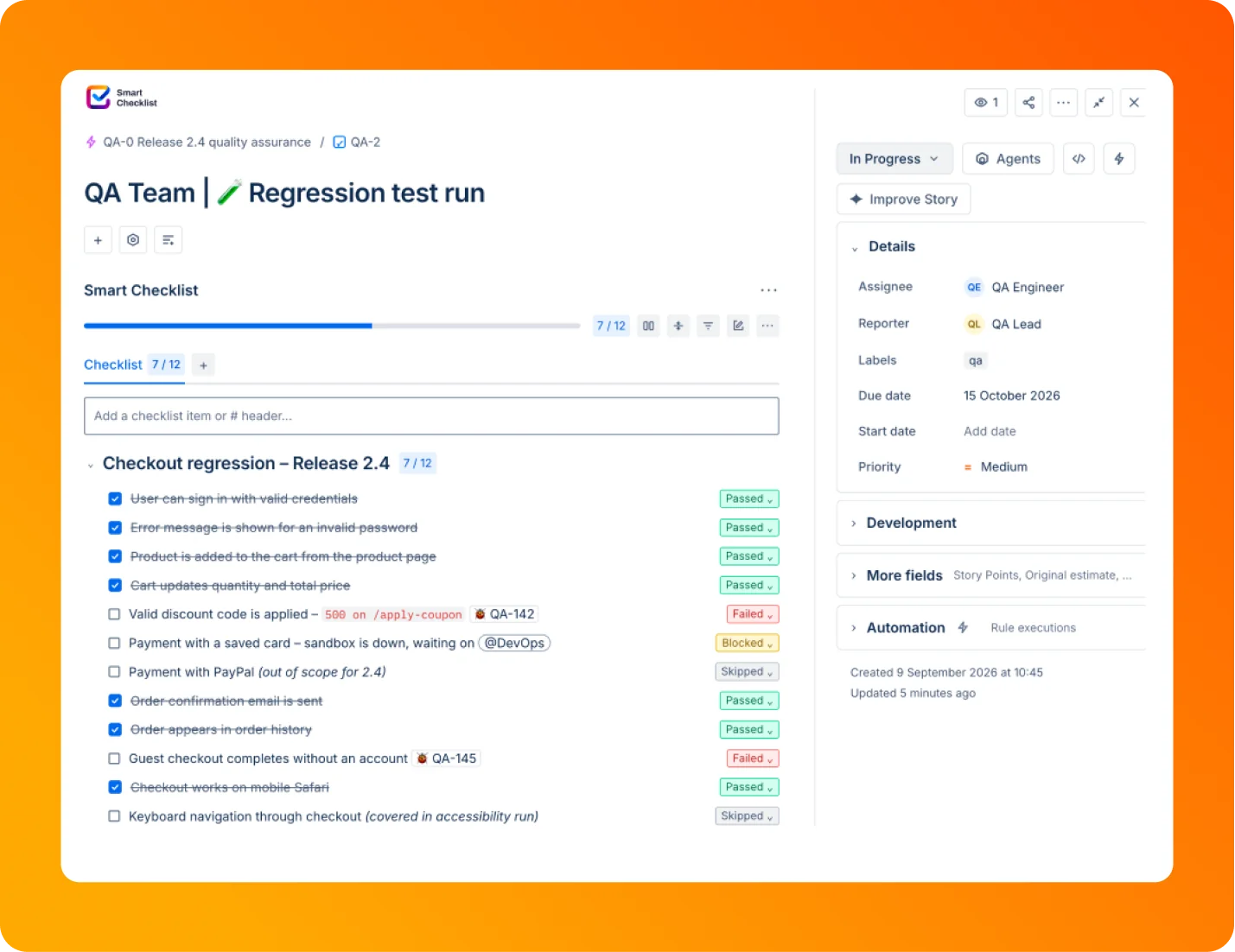
## Checkout regression – Release 2.4
- User can sign in with valid credentials
- Error message is shown for an invalid password
- Product is added to the cart from the product page
- Cart updates quantity and total price
- Valid discount code is applied
- Payment with a saved card
- Payment with PayPal
- Order confirmation email is sent
- Order appears in order history
- Guest checkout completes without an account
- Checkout works on mobile Safari
- Keyboard navigation through checkout
Test run
The checklist lands on its own when an issue moves to Ready for Testing. Testers mark each step Passed, Failed, Blocked, or Skipped, and progress updates in real time to match your process.
Test execution happens in the ticket. No second tab, no second login.
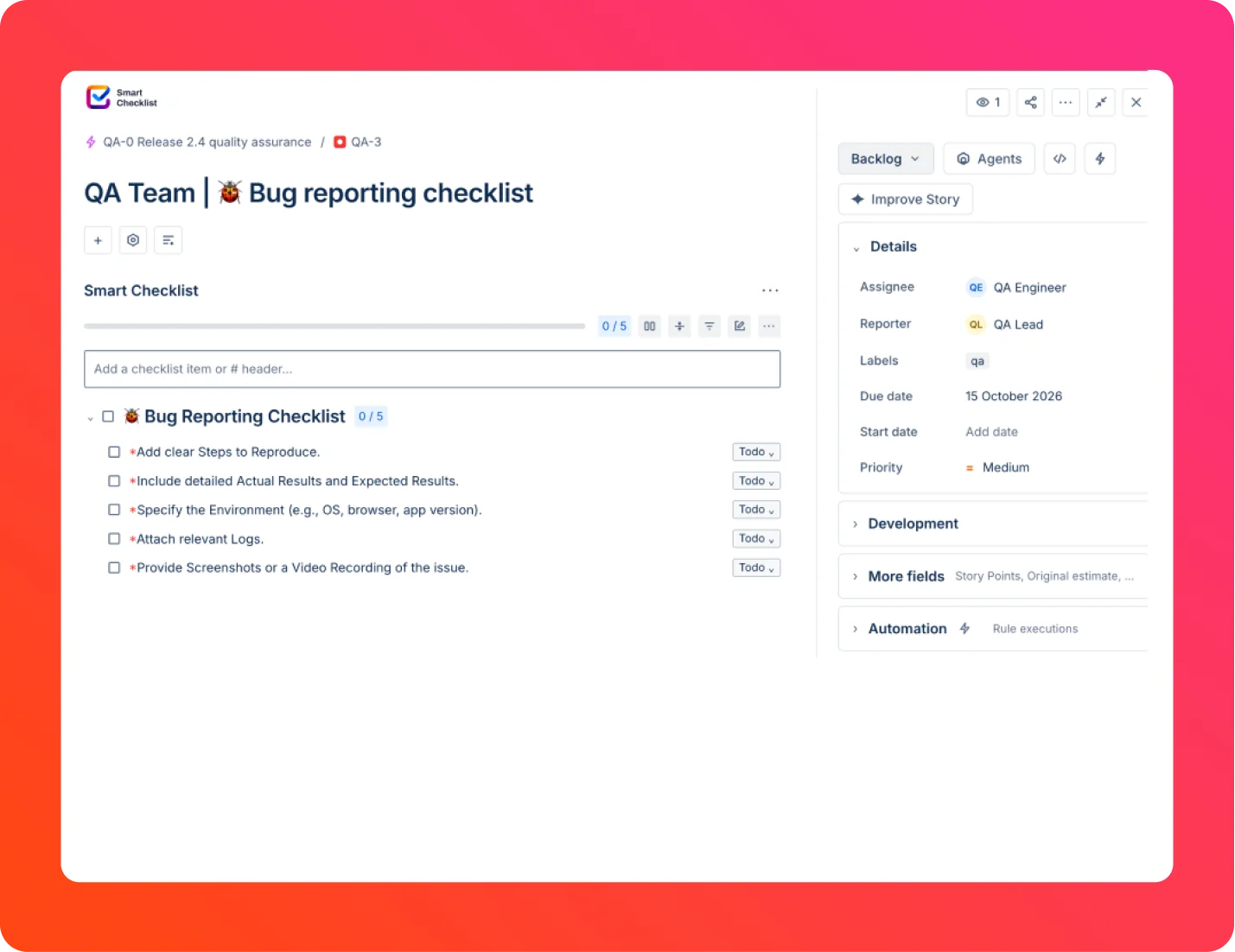
## 🐞 Bug Reporting Checklist
-! Add clear Steps to Reproduce.
-! Include detailed Actual Results and Expected Results.
-! Specify the Environment (e.g., OS, browser, app version).
-! Attach relevant Logs.
-! Provide Screenshots or a Video Recording of the issue.
Bug reporting
Set a checklist template as default for the Bug issue type. Every new bug ticket arrives with reproduction steps, environment details, and severity checks already in place.
Better defect management starts with a complete bug report, not a follow-up thread.
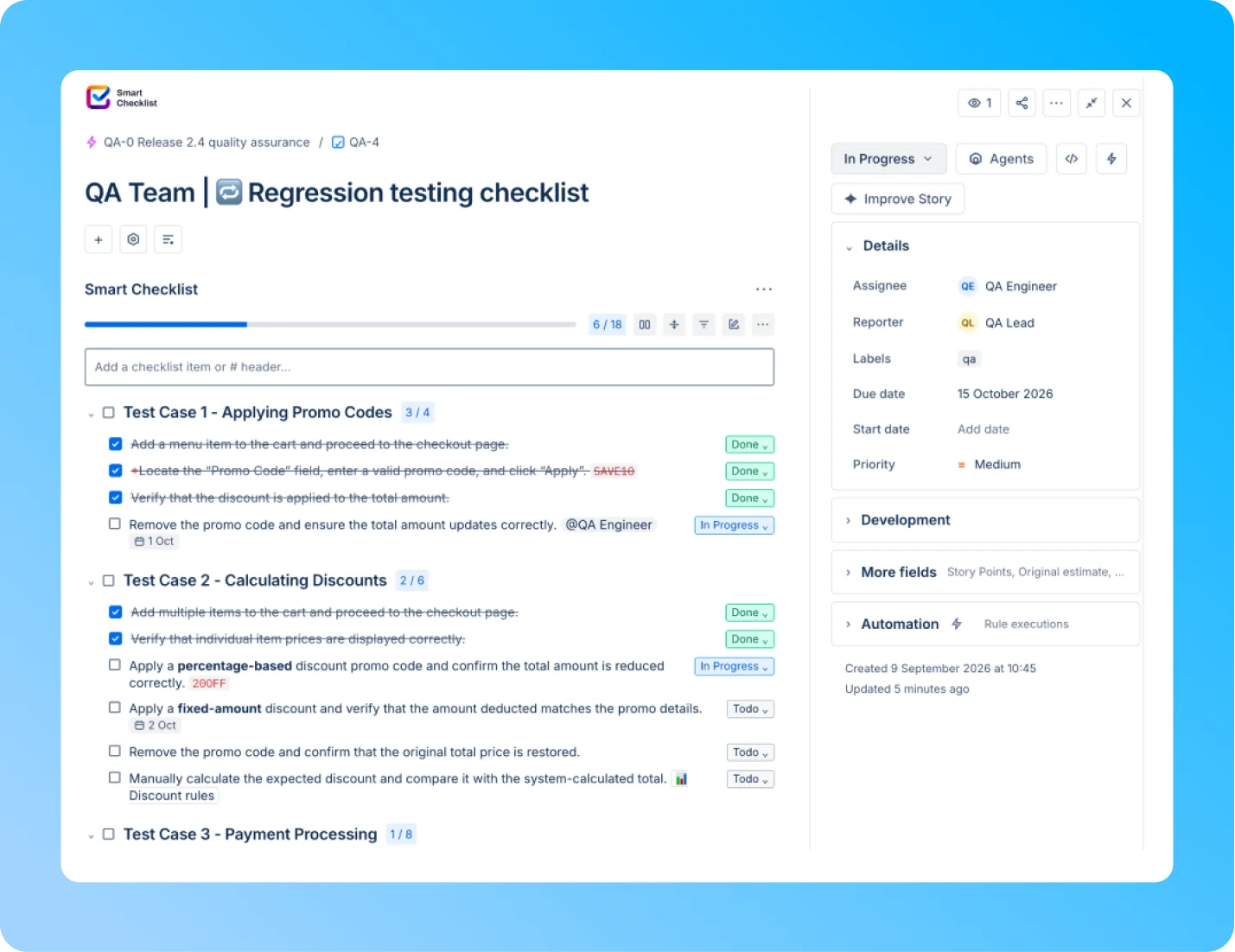
## Test Case 1 - Applying Promo Codes
- Add a menu item to the cart and proceed to the checkout page.
- Locate the "Promo Code" field, enter a valid promo code, and click "Apply".
- Verify that the discount is applied to the total amount.
- Remove the promo code and ensure the total amount updates correctly.
## Test Case 2 - Calculating Discounts
- Add multiple items to the cart and proceed to the checkout page.
- Verify that individual item prices are displayed correctly.
- Apply a percentage-based discount promo code and confirm the total amount is reduced correctly.
- Apply a fixed-amount discount and verify that the amount deducted matches the promo details.
- Remove the promo code and confirm that the original total price is restored.
- Manually calculate the expected discount and compare it with the system-calculated total.
## Test Case 3 - Payment Processing
- Add items to the cart and proceed to the checkout page.
- Review the order summary and select a payment method (credit card, PayPal, Apple Pay, etc.).
- Enter valid payment details and confirm the payment.
- Verify that a payment confirmation message appears.
- Check the email inbox for a payment receipt.
- Attempt a payment with insufficient funds and confirm that the transaction fails with an appropriate error message.
- Attempt a payment with an expired credit card and verify that an error message appears.
- Close the app before payment confirmation and reopen it to verify that the order status is correctly updated.
Regression testing
Treat each release as one Epic with a checklist on every issue underneath. Skipped items stay visible, and progress rolls up to the Epic.
Regression testing stops depending on memory.
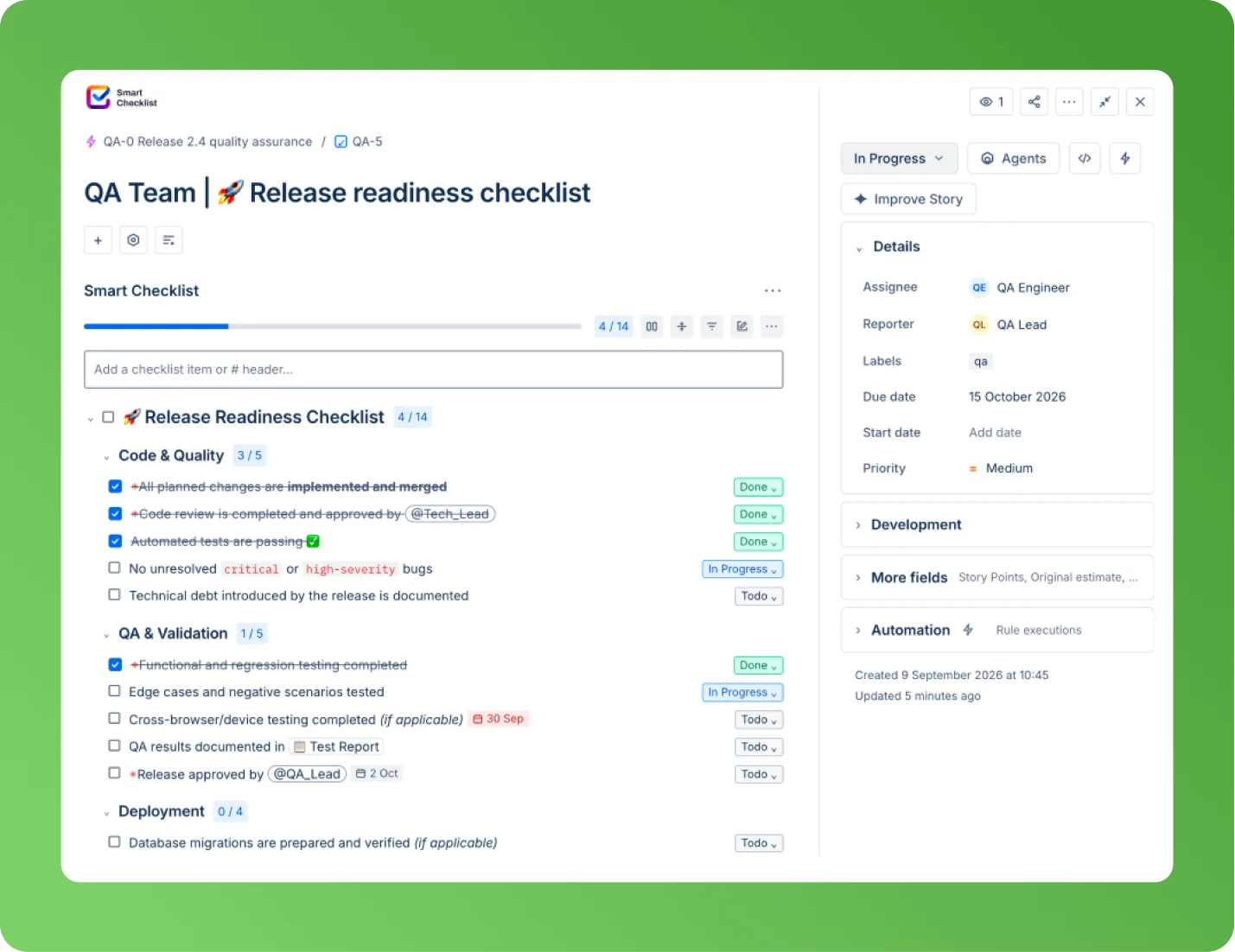
# 🚀 Release Readiness Checklist
## Code & Quality
-! All planned changes are implemented and merged
-! Code review is completed and approved by @Tech_Lead
- Automated tests are passing ✅
- No unresolved `critical` or `high-severity` bugs
- Technical debt introduced by the release is documented
## QA & Validation
-! Functional and regression testing completed
- Edge cases and negative scenarios tested
- Cross-browser/device testing completed (if applicable)
- QA results documented
-! Release approved by @QA_Lead
## Deployment
- Database migrations are prepared and verified (if applicable)
- Feature flags and environment variables are configured
- Deployment steps are documented
- Rollback plan is prepared
> Add rollback steps and owner here
## Release
- Release notes are prepared
- Monitoring and alerts are configured
-! Production deployment approved by @Release_Manager
- Post-deployment smoke test completed 🔍
- Release status communicated to @Team
Release readiness
Split every release into pre-release, deploy, and post-deploy sections, each with its own progress. A validator blocks the transition until each section is done. It attaches automatically when Labels contain Release.
No release ships on a half-finished checklist.
QA teams manage test cases with Smart Checklist
Manual testing is more than a solo job. At Kateryna's SaaS company, a 10-person QA team ran test plans in TestRail while the rest of the work lived in Jira. One Smart Checklist template per test case brought manual testing processes fully into Jira.
"We had TestRail for test plans and Jira for tracking. We couldn't adapt it to fit how we worked, and not everyone even had access to TestRail. We moved to Confluence first, then Smart Checklist made it actionable, right where the work was already happening."

Tired of finding the skipped steps after release?




With Smart Checklist QA teams can
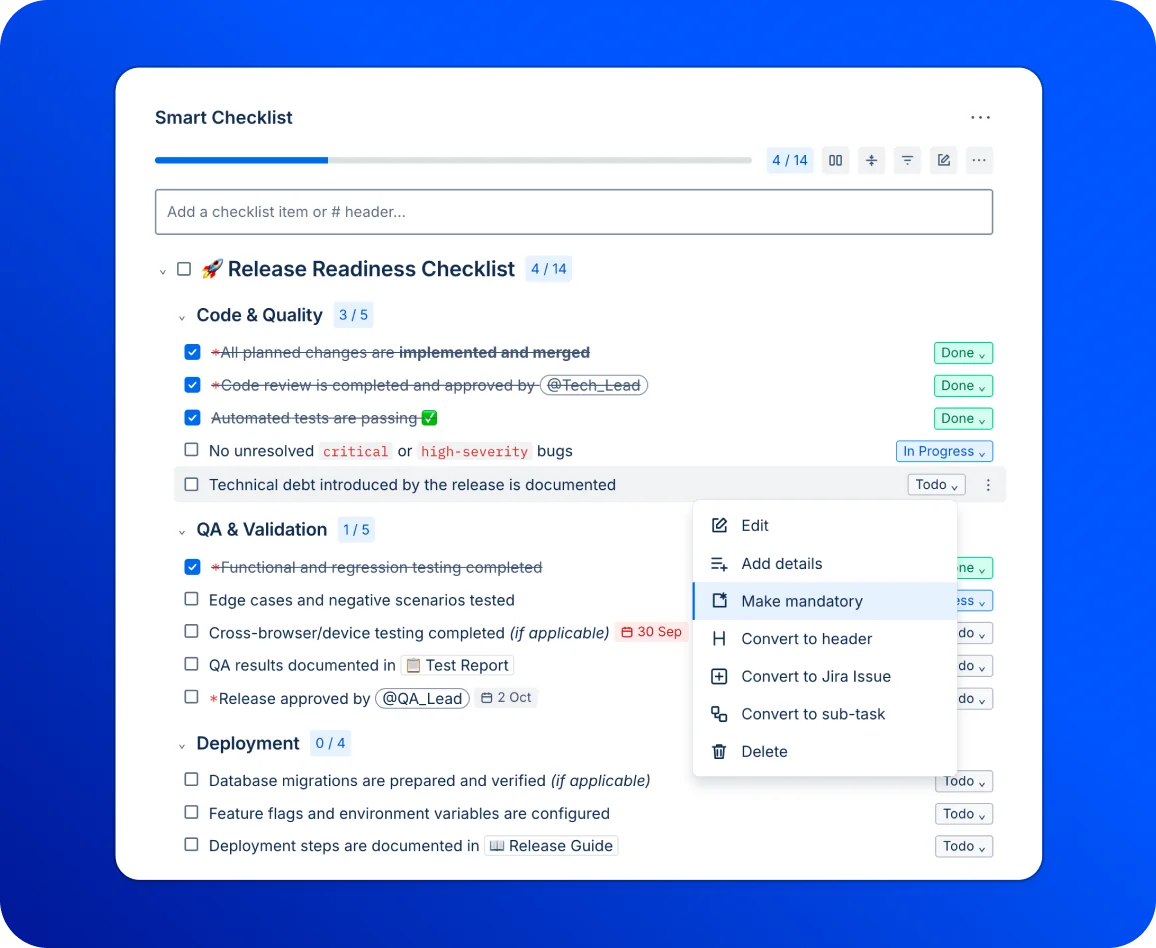
Prevent tickets from closing with failed checks
Mark the checks that must pass before Done. A workflow validator holds the transition until every mandatory item is complete, and the tester sees exactly which item is blocking.
- Set any test case step as mandatory, using default or custom statuses
- Add a Post Function so the checklist updates when an issue hits Ready for Testing
- Works on company-managed Jira Cloud projects and Data Center
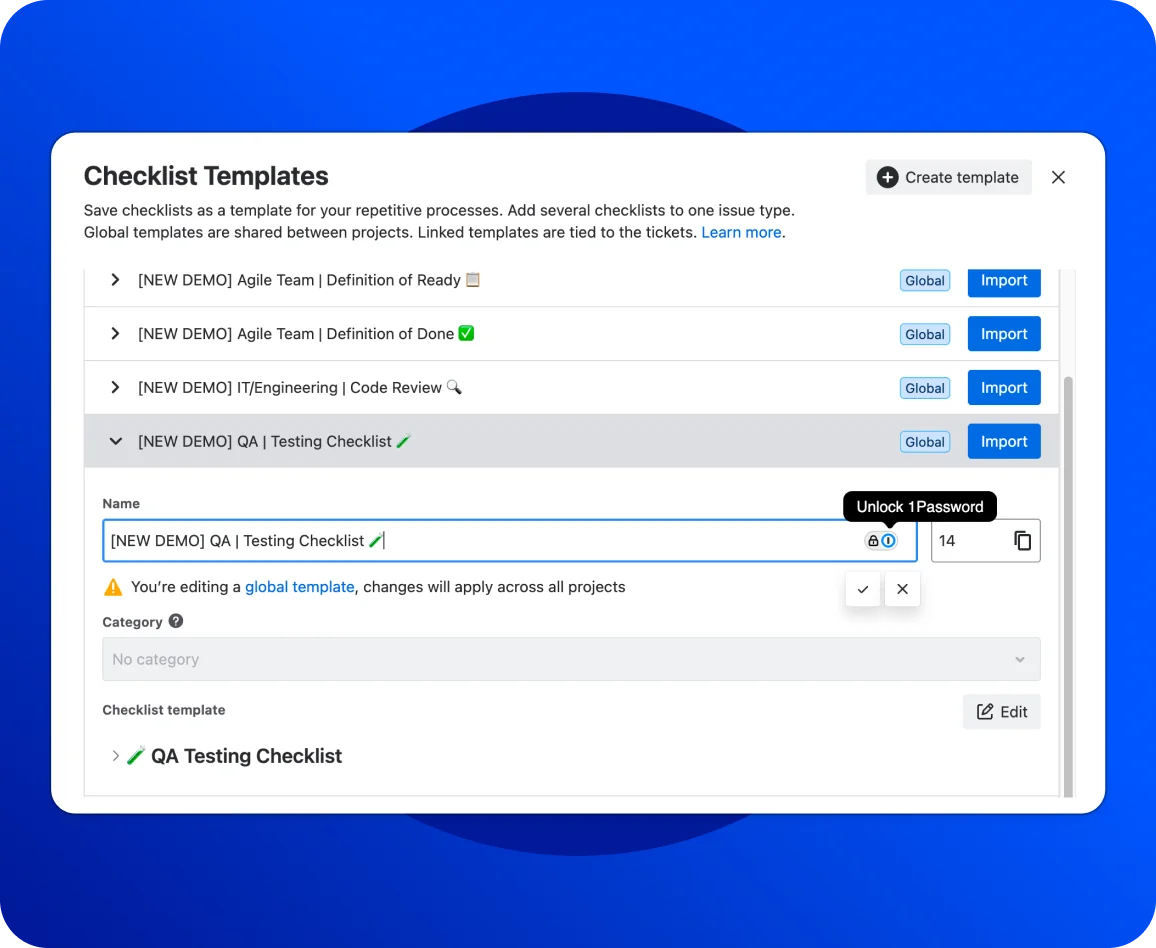
Reuse your test cases across every release
Save your checks once as a template, then apply it wherever it fits.
- Set a test case template as default by issue type, field value, or transition
- Group long checklists with headers for test topic and suite
- Store expected results in the Details block under each item
- Edit one linked template and update every live checklist at once
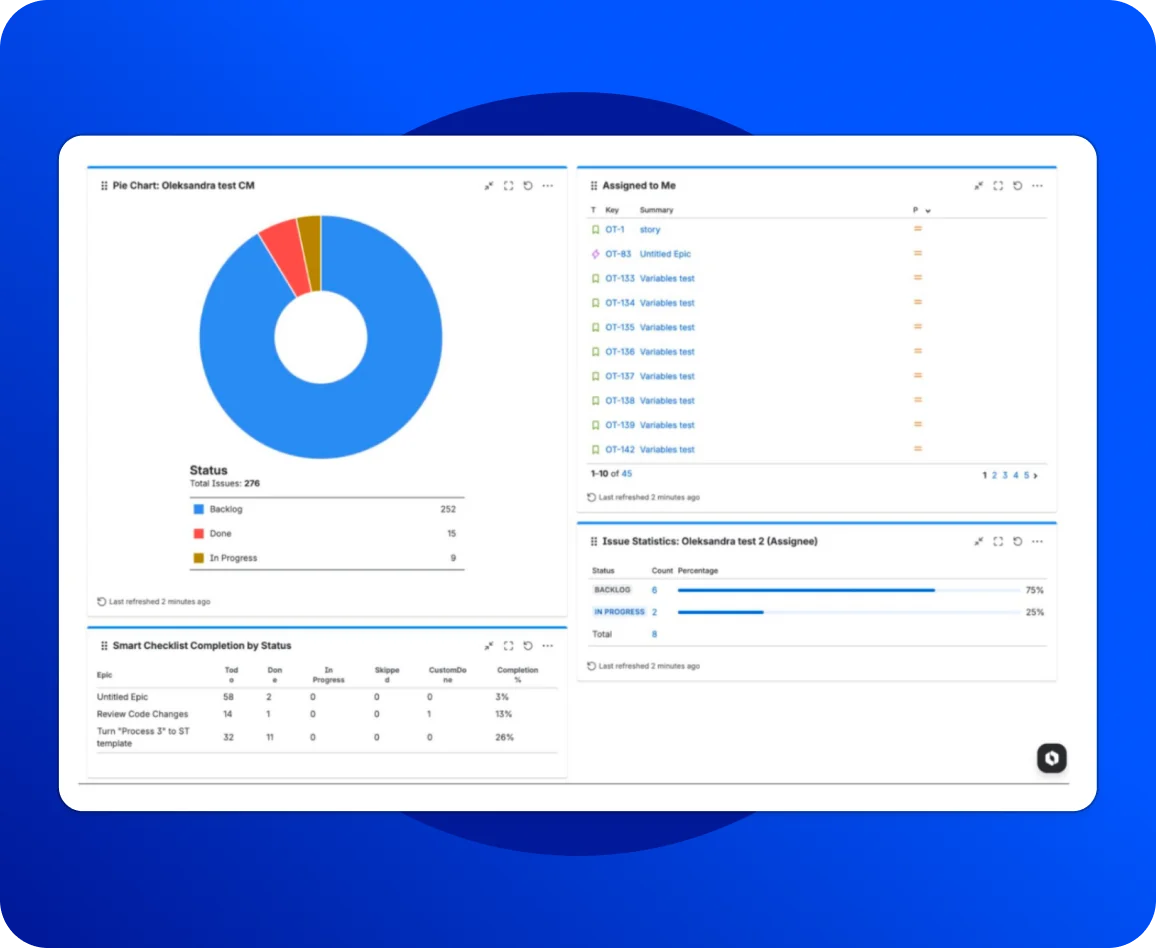
See where testing stands across every ticket
Track QA workflow progress from one view, without opening each issue.
- Search item status in JQL to find every failing step, across sprints and epics
- Assign individual items to a specific assignee with a due date and priority
- Add the Checklist Completion gadget to a dashboard for status distribution
Checklist state joins custom fields in the same filter you already use.
Visit MarketplaceWorks with the Jira
you already run
Smart Checklist installs from the Atlassian Marketplace in a couple of clicks and runs inside your Jira Software projects.
Pair it with Jira Service Management when bugs arrive from customers. A defect submitted through the portal picks up its checklist automatically, with reproduction steps and severity checks ready for the tester.
Link a Confluence page for test documentation, so your test plans stay the single source and every checklist item points to the latest version.
Your QA stack finally shares one source of truth. Checklist progress shows on the board your team already reads, alongside your sprints and epics.
Use Jira for testing without a second dashboard, triggered by a Jira automation rule, a webhook, or a status change.
Tired of tickets closing before QA testing is done?
Frequently Asked Questions 🤔
Haven't found an answer? Try our blog or contact support
Yes, for manual test cases. Jira handles issue tracking and defect management natively, and Smart Checklist adds the test steps inside the ticket. Statuses show progress in testing, and mandatory items block the transition until every check passes.
Smart Checklist runs manual testing inside the issue. It does not do everything a test management tool does, and it should not pretend to.
Xray, Zephyr, QMetry, and TestRail own test cycles, traceability reports, and test coverage analytics. They plug into Selenium and your CI pipeline for automated tests and formal test execution records mapped to requirements. Xray is the go-to when audit trails matter.
QMetry suits enterprise teams standardizing across many projects. Zephyr ships as a Squad or Scale edition depending on volume. Choose by scale and how formal the process needs to be. QMetry in particular targets teams that need heavy governance.
Plenty of teams run both. Kateryna kept TestRail for automated testing and moved manual test execution into Jira. Pick the split that fits your process.
Yes. Teams use Jira for testing every day as their issue tracking and defect management hub. Adding a checklist app is what turns each ticket into a runnable test case.
Jira is the tracker QA teams already use for bugs, user stories, and release work. Adding checklists puts the test cases in the same ticket, so testers stop switching tools mid-check.
Most QA teams combine a tracker, a framework like Selenium for automated tests, and somewhere to hold test cases. Jira plus Smart Checklist covers the tracker and the manual test cases side.
Sub-tasks clutter the backlog and need their own workflow. Checklist items live in the parent issue, carry statuses and an assignee, and cost nothing in board noise. Use Jira for testing without spawning ten tickets per bug.
Mandatory items, workflow validators, headers, tabs, and Linked Templates are Pro. Custom statuses, JQL search, and board progress work on the free plan.