






 Tools for Jira
 Tools for monday.com





Most teams spend more time setting up recurring Jira issues than they should. A bug report needs the same fields every time. A user story needs the same acceptance criteria format. An onboarding task follows the same sequence, regardless of who the new hire is. The work is identical – only the details change.
Jira issue template is the answer to these challenges. A Jira issue template is a reusable work item and work item hierarchy structure that pre-fills fields, descriptions, sub-tasks, and checklists – so teams can launch consistent work in seconds rather than minutes. Unlike ready-made templates for new projects, issue templates work at the individual work item level: each bug report, user story, or recurring task starts from a defined baseline.
Jira does not offer native issue templates for work items. Teams either clone issues as a workaround, use Jira automation rules, or install a dedicated app from the Atlassian Marketplace. Each approach has different trade-offs, which this guide covers.
This article explains what Jira issue templates are, when they genuinely pay off, and how seven common workflow patterns map to a template structure. If you manage recurring work in Jira – whether in software development, project management, HR, or IT service management – this guide gives you a practical starting point.
Key Takeaways
- Jira does not include native issue templates for work items. The two built-in workarounds are cloning and Jira automation rules, both with significant limitations.
- A Jira issue template can hold pre-filled fields, a description field, sub-tasks, custom fields, variables, and checklists – covering the full structure of a recurring work item.
- Issue templates pay off most when the same work item structure repeats across sprints, projects, or teams – such as bug reports, user stories, test cases,payrolls, onboarding workflows and more.
- Smart Templates for Jira supports full issue hierarchies, variables for dynamic fields, a built-in Scheduler for recurring task creation, and integration with Smart Checklist and with Automation for Jira.
- Global Templates in Smart Templates let you share one default template across multiple Jira projects – useful for cross-team standardization.
What is a Jira issue template?
 Definition
A Jira issue template is a reusable blueprint for a Jira work item that pre-fills fields, descriptions, sub-tasks, and checklists – so teams can create consistent, complete issues without rebuilding them from scratch each time. When someone creates an issue from a template, the structure is already in place – they only fill in what changes from one instance to the next.
Teams use issue templates to standardize recurring work. A bug report template ensures every bug includes environment details and reproduction steps. A Jira user story template checks that acceptance criteria are never skipped. An onboarding template guarantees every new hire goes through the same sequence of tasks – regardless of who sets it up.
The term “Jira issue template” is sometimes used interchangeably with “Jira ticket template” or “issue templates for Jira.” All refer to the same concept: a reusable structure that removes repetitive setup from issue creation and makes task tracking consistent across the team.
Does Jira have native issue templates?
Jira offers several types of templates, but none of them are native issue templates for individual work items.
- Project templates set up a new project with pre-configured workflows, issue types, and boards.
- Request type templates in Jira Service Management define intake forms for specific service request types.
- Work item layouts in team-managed projects control which fields appear on an issue screen and in what order.
These are useful for project setup and field configuration – but they do not let you reuse a work item’s content across sprints or projects.
For that, teams rely on two workarounds.
Cloning as a substitute
Cloning copies an existing issue and creates a new one with the same content. It works for simple, one-off cases: reusing a description, copying field values, or duplicating a flat task structure. However, it carries real limitations. Cloned issues carry over all original content, including outdated details that need manual cleanup. There is no central template list – teams lose track of which issue was meant to be the source. Cloning also does not support deep hierarchies: if you clone an Epic, Jira copies the Epic and its direct child issues, but not their sub-tasks.
For more on how cloning works in practice, see the guide to cloning in Jira.
Automation as a substitute
Jira automation rules can generate issues with pre-filled fields based on a trigger – for example, creating a standard set of tasks when a new Epic is created. This scales better than cloning and supports scheduled or event-based triggers. But it requires admin access via project settings to set up and maintain. Errors in automation rules are only visible and fixable by admins, which slows down teams. There is no template library – all configuration lives inside the rule itself. And like cloning, automation does not support deep hierarchies beyond one parent level.
For an overview of what Jira automation can and cannot do, see Jira ticket creation automation.
Smart Templates for Jira as an alternative solution to jira native issue templates
Both workarounds can handle simple cases. They break down when the work is complex – multi-level hierarchies, recurring tasks on a schedule, variable content, or cross-project sharing. A dedicated app from the Atlassian Marketplace fills this gap. Smart Templates – Issue Templates for Jira is built specifically for this purpose, with a template library, full hierarchy support, and automation options that go beyond what native Jira tools allow.
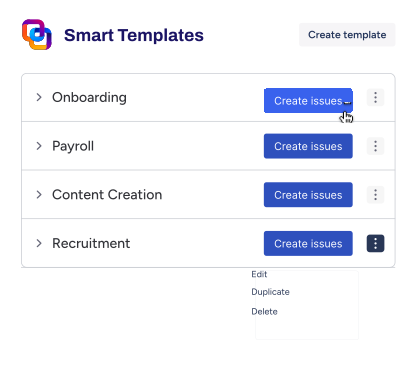
Using Smart Templates is significantly more convenient for creating copies of a Jira issue. You can save a whole epic as a template with all its hierarchy. Just add the generalized structure, descriptions, and fields, and use variables to manage dynamic values of the template for information that changes from one issue to another. All your smart templates will be stored in one place as a list. Anyone on your team will know where to find them and will be able to access them easily.
Smart Templates allow you to save an epic or another issue as a template and then create new issues from it whenever you need to. The new epic will include all the tasks, subtasks, and checklists from the original epic. Fields, issue descriptions, assignees, and other information will be preserved as well.
In the example below, we’ve created an issue template for the recruitment process. The original epic with its tasks, subtasks, and checklists was saved as a template. It also includes pre-filled issue fields and variables that helped make one template applicable to manage all recruitment processes. Now, we make a copy of it every time we need to launch the recruitment process for a new position.
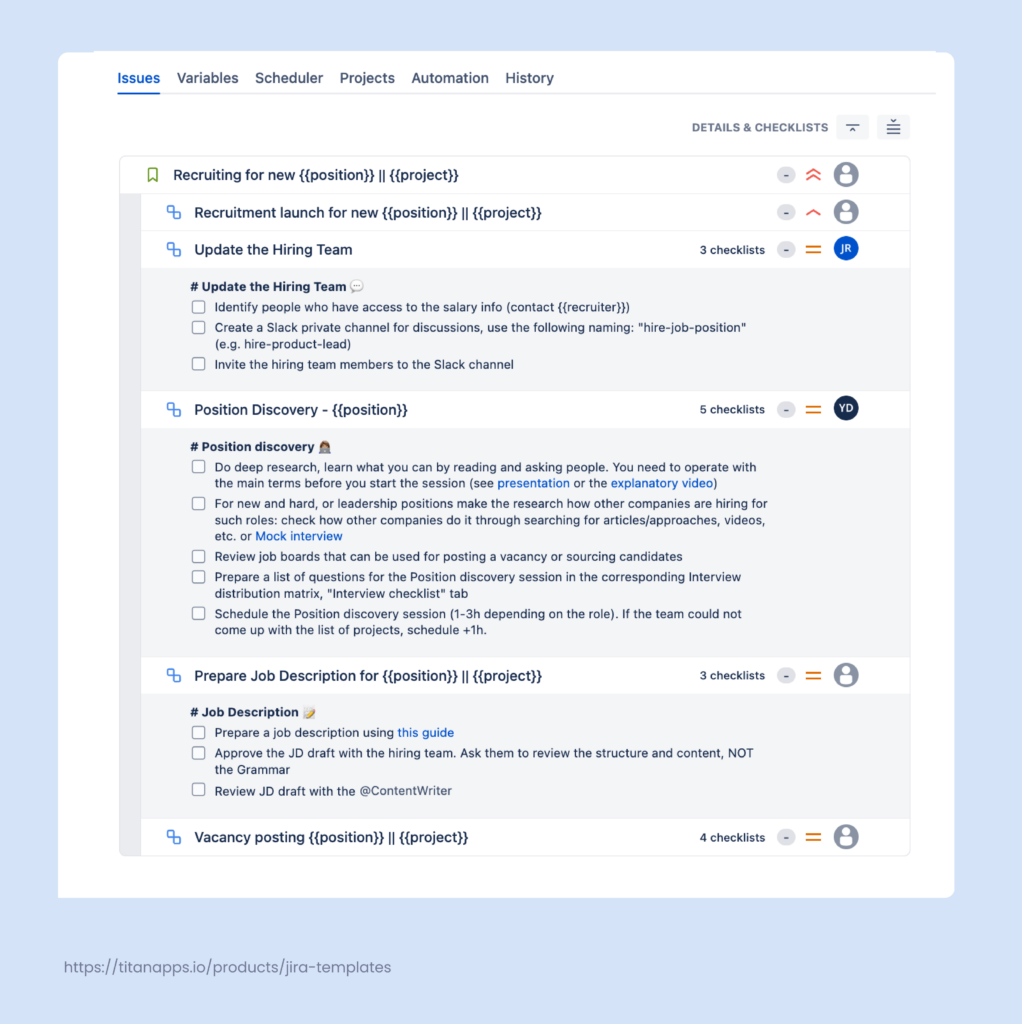
Smart Templates for Jira also overcomes the limitations of Jira’s native automation. Smart Templates can generate work items in bulk and preserve work item hierarchies, regardless of their complexity.
This can be an epic with tasks, subtasks, and checklists, or even an initiative with multiple epics, each including tasks and subtasks. This functionality allows you to reuse any work item structures. All the details of individual tasks will be preserved, including summaries, descriptions, assignees, and other fields, including custom ones. It is also possible to create multiple issue hierarchies in one template.
In this example, we have a template for onboarding that consists of a parent task with multiple subtasks. As you can see, the template uses variables for dynamic values, such as {{employee_name}} and {{position}}.
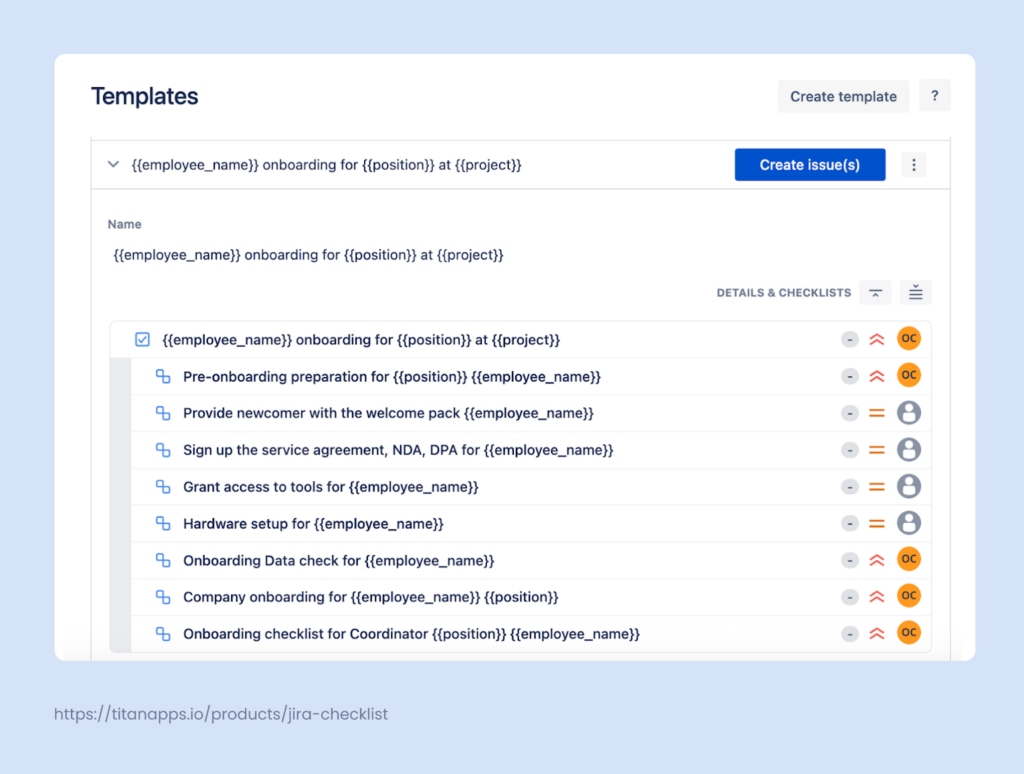
You can use custom variables as standalone placeholders you define for specific recurring data, such as a project name, client, or event title. They let you reuse the same dynamic values across various fields and issues throughout your template, ensuring structural consistency across the entire workflow.
7 workflow patterns where Jira issue templates pay off
Issue templates are not useful for every type of work. They deliver the most value when the same structure repeats – and when missing a field or step has a real cost. The seven patterns below cover the most common cases across software development, project management, HR, and IT service management.
Pattern 1 – Bug reports
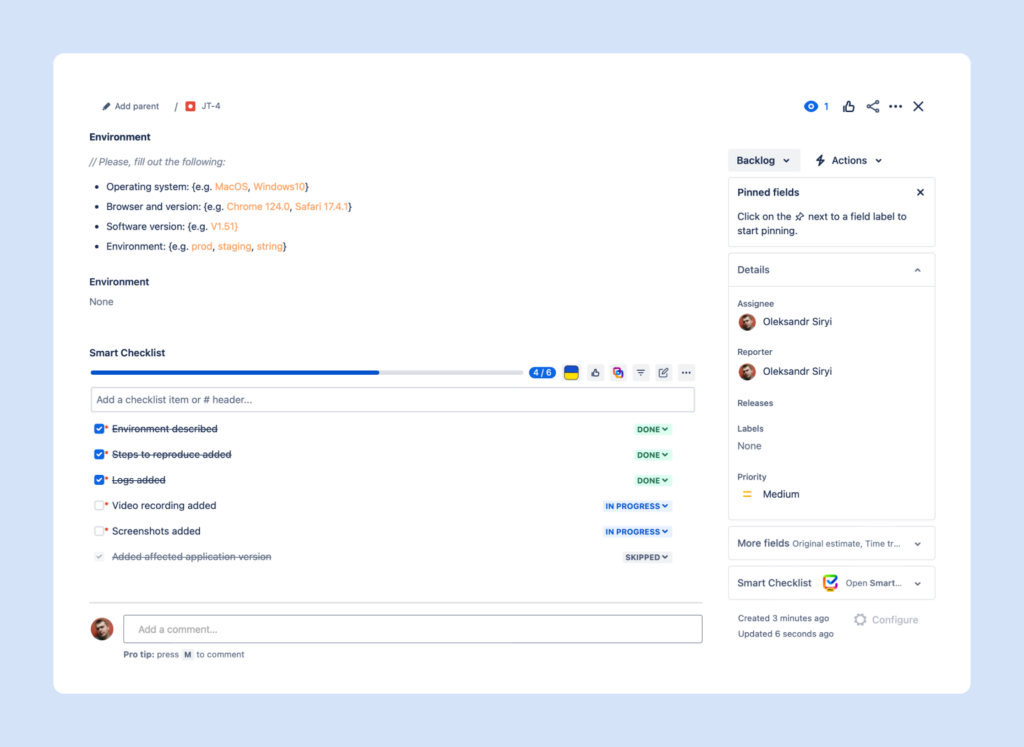
Bug reports are the most common case for issue templates in software development teams. Reliable bug-tracking requires the same information every time: environment details (OS, browser, software version), steps to reproduce, actual result, and expected result. Without a template, engineers fill out what they remember. Reviewers then spend time chasing missing details.
A bug report issue template pre-fills the description field so reporters only complete the blanks. The summary, priority, and assignee fields can be set as defaults or left as variables for the reporter to fill in.
Combined with Smart Checklist, mandatory items can block the issue from moving forward until the required fields are completed.
The TitanApps blog covers this pattern in detail in the Jira bug report guide.
Pattern 2 – User stories with acceptance criteria
A Jira user story template locks in the standard format: “As a [user type], I want [goal], so that [benefit].” The structure is stable. What changes is the content.
The template places acceptance criteria as a required description field section and can pre-fill story point estimates, components, or linked epics as variables. This removes the cognitive overhead of recalling the format mid-sprint planning and ensures every story is review-ready from the moment it lands in the backlog.
For teams running Scrum, this pattern also supports sprint velocity: stories that arrive in the correct format take less time to estimate and less time to move through review. Explore this pattern in more detail on our article on user story template in jira.
Pattern 3 – Recurring test cases
QA teams that release on a regular cadence – bi-weekly sprints, monthly updates – run the same test suite repeatedly. Test case issues share a fixed structure: preconditions, numbered test steps, expected results, and pass/fail status per step.
Rather than rebuilding the test suite each cycle, a QA team can save the full test Epic as a template in Smart Templates. The Epic holds the suite structure; each child issue holds one test case with the standard fields pre-filled. At the start of each release cycle, creating issues from the template generates the full suite in one click – pre-assigned, pre-structured, and ready to run.
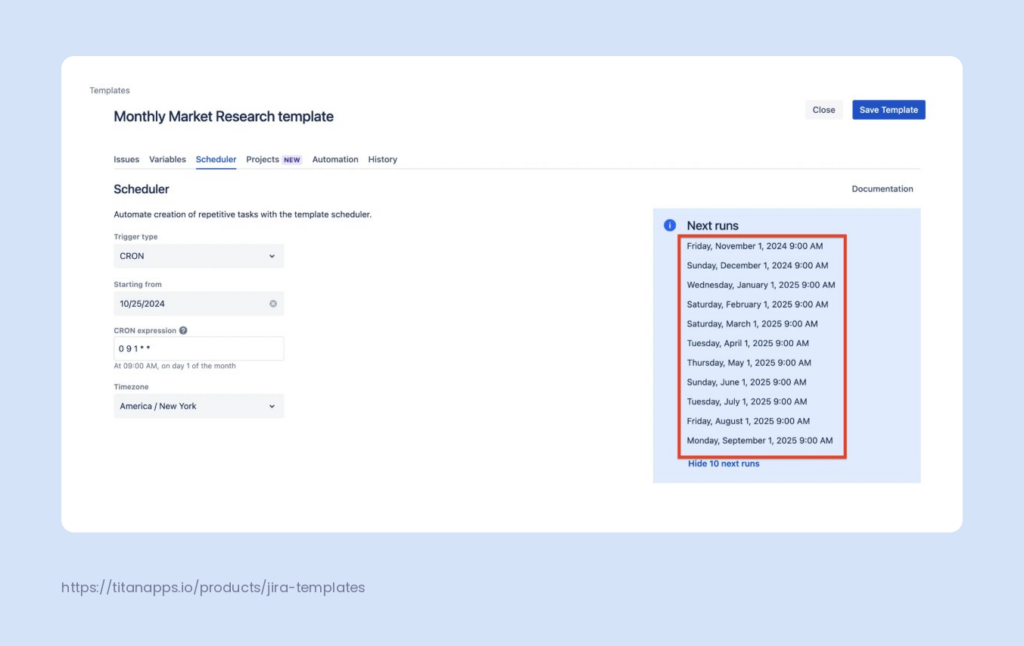
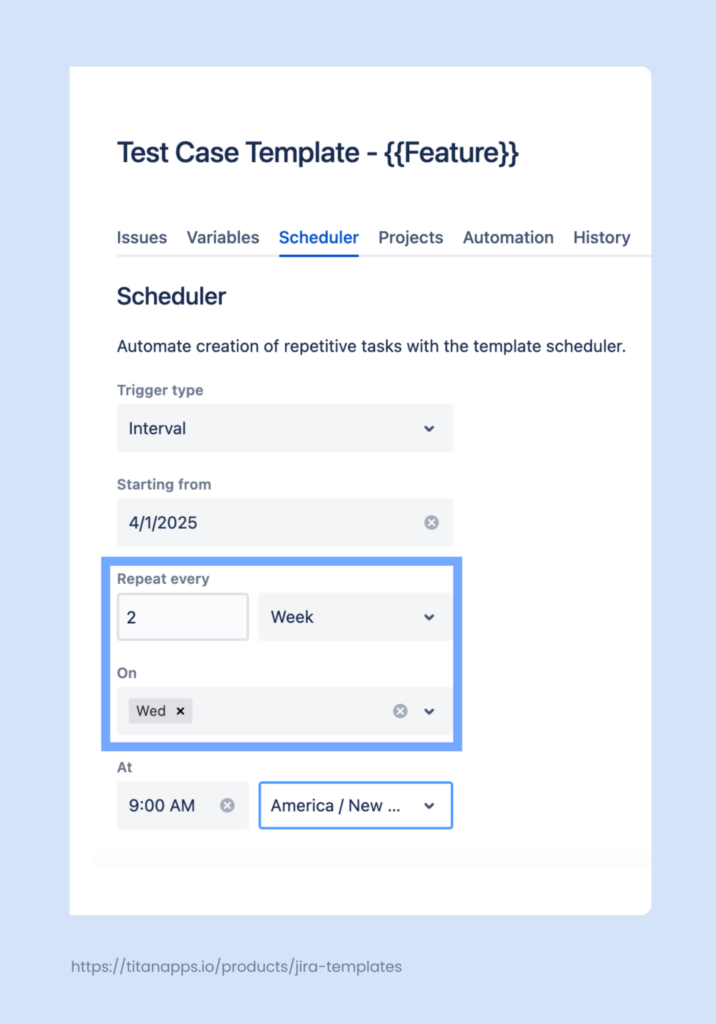
The built-in Scheduler automates recurring tasks like this further. A team running regression testing every other Wednesday can configure a CRON schedule on the template so the suite generates automatically, without any manual trigger.
Pattern 4 – Employee onboarding
Onboarding is a multi-week process with defined stages: pre-day-one setup, first-week introductions, 30-day check-ins, and 90-day reviews. Each stage involves different assignees and different tasks – IT, HR, the hiring manager, and the new hire’s team all play a role.
A flat task or single issue cannot hold this structure cleanly. An Epic template with a full issue hierarchy works better. The template captures the Epic, its child tasks per stage, and sub-tasks for specific actions – each pre-assigned to the right role using Smart Variables. The {{reporter}} variable auto-fills the hiring manager as the issue reporter, and {{now.plusDays(7)}} sets the first check-in due date automatically.
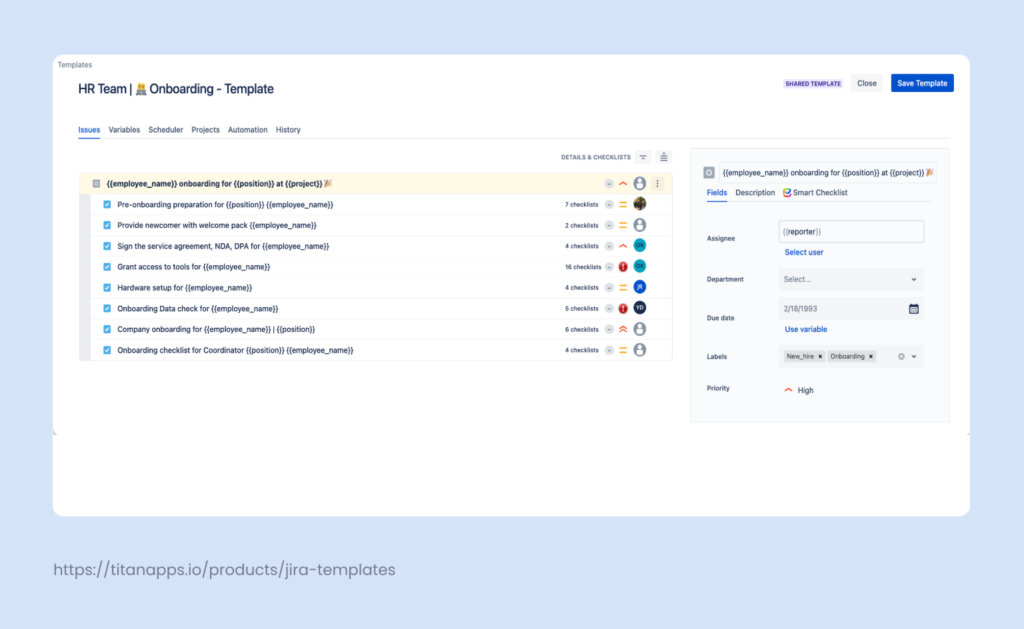
Every time a new hire joins, the team creates a new onboarding Epic from the template in seconds. The employee onboarding template for Jira article covers this use case in depth.
Pattern 5 – Release readiness checklists
Release go-live involves a fixed sequence of checks: code freeze confirmation, deployment verification, rollback plan review, stakeholder sign-off, and post-release monitoring. Delivery managers typically enforce this sequence, but the steps live in their heads or in a Confluence page no one reads at 11pm.
A release template in Jira brings the checklist into the workflow. The template holds the parent issue for the release plus child tasks per stage, each with a Smart Checklist attached. Mandatory checklist items block the issue from transitioning to Released until every gate is confirmed. This removes the risk of skipping a step under pressure.
For teams that ship on a regular cadence, the Scheduler generates the release issue automatically – so the structure is ready before the release cycle begins. The release readiness checklist article covers the full release gate model.
Pattern 6 – Service desk request intake
Service desk teams handle request types that each need a specific set of information. An Onboard new employee request needs different fields than a Request new software or Report a security incident request. Without a consistent structure, agents spend time chasing details before they can even start resolving.
Issue templates for Jira service desk requests pre-define the description field for each request type. When an agent creates an issue for an incoming request, the template applies the correct format – including pre-filled priority, linked issues for related requests, and a Smart Checklist of resolution steps the agent must complete before closing the ticket.
For teams using Jira Service Management, Smart Templates supports JSM projects and the tempalte can be triggered through Jira automation when a specific request type is submitted.
Here is a reusable description template for a common IT service desk request:
{{Requester_Name}}, {{Department}}, and {{Due_Date}} are variables set when the issue is created from the template. The checklist items can be added via Smart Checklist with mandatory items blocking closure until all approvals are confirmed.
For more on how Jira Service Management handles request workflows, see Jira Service Management.
Pattern 7 – Compliance and security reviews
Security certifications, GDPR audits, and compliance reviews follow a fixed process that repeats on a regular cycle – quarterly, annually, or when a new product goes through review. Each cycle involves the same sequence of evidence-gathering tasks, sign-offs, and documentation checks.
A compliance Epic template captures the full audit sequence as a hierarchy: the parent Epic, child tasks per review domain, and sub-tasks for specific controls. Variables handle what changes between cycles – the product name, review period, and assigned auditor.
Because compliance audits recur on a fixed schedule, the Scheduler triggers the audit Epic automatically at the start of each review period. This removes the risk of a missed review window and gives the compliance team a running start.
Here is a reusable description template for a compliance review issue:
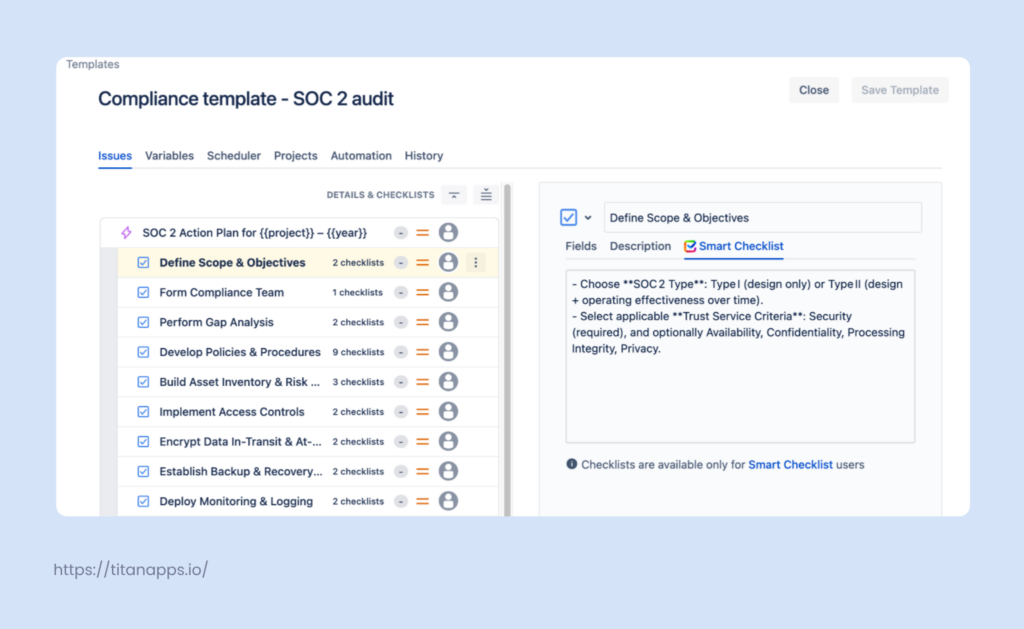
The checklist items map directly to Smart Checklist mandatory items on the parent Epic. None can be checked off without documented evidence, and the issue cannot transition to Completed until all are done. For a deeper look at structuring compliance work in Jira, see the compliance audit template in Jira and Atlassian Cloud data protection.
How to create Jira issue templates with Smart Templates
Smart Templates for Jira is a dedicated issue template app available on the Atlassian Marketplace – for both Jira Cloud and Jira Data Center. It provides a template library, full issue hierarchy support, variables, a Scheduler for recurring tasks, and direct integration with Smart Checklist.
Getting started
Install Smart Templates – Issue Templates for Jira from the Atlassian Marketplace, or go to Apps through Jira project settings. The Get Started guide in the Smart Templates documentation walks through install and first setup.
Once installed, access the template list from the Apps menu in the Jira sidebar or from any project’s navigation bar. Templates support all standard Jira system fields – summary, description field, assignee, priority, components, labels, story points, due date, and more – as well as supported custom field types. See the full supported fields reference for details. Note that a field must be added to the Create issue screen in project settings to appear in templates.
From the template list, create a new template from scratch or save an existing Jira issue as a reusable template. To save an existing issue: open the issue hierarchy or the parent issue you want to save, click the Smart Templates icon, and select Save as template. The full issue structure is captured – summary, description, all pre-filled fields, linked sub-tasks, and any Smart Checklist content attached to the issue.
Smart Templates works in both company-managed and team-managed Jira projects. For team-managed projects, Global Templates require matching issue type names across the projects you share them with.
Three capabilities that make the difference
Full issue hierarchy. Smart Templates captures the complete parent-child structure: an Epic with Tasks, Sub-tasks, and nested checklists – including multiple parent issues in a single template if needed. See Edit Templates for how to build and modify a hierarchy.
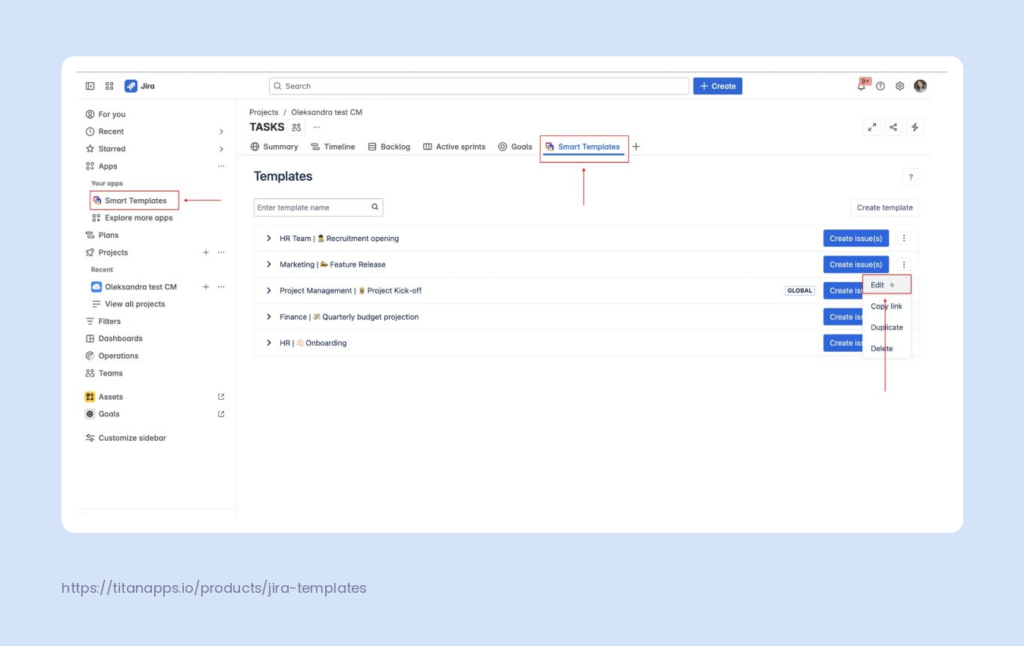
This is what separates it from cloning or automation workarounds, which support only one hierarchy level. Teams running multi-stage processes – onboarding, compliance reviews, release cycles – rely on this to launch a full work structure from a single template.
Variables for dynamic values. Variables replace static content with prompts filled in at creation time. A template for a recurring test suite might use {{Feature_Name}} in the summary and {{QA_Lead}} as the assignee variable.
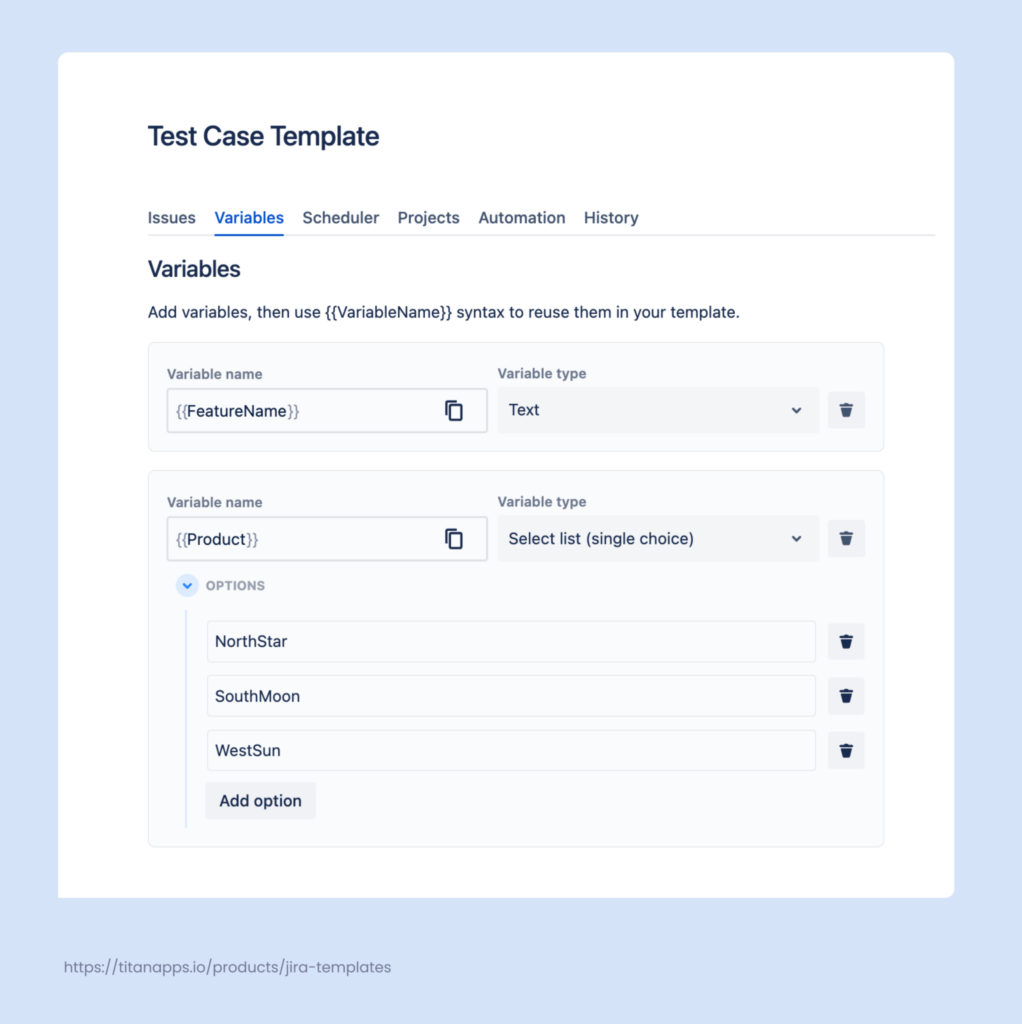
Let’s see an example showing how to use variables in Jira work item templates. Go to the Variables tab in the Smart Templates menu. Provide variable names and types – these can be dates, drop-down lists, people (Jira users), and so on.
Smart Templates supports two types of variables. Field variables turn any existing issue field – like Assignee, Start Date, or Labels – into a prompt that appears when the template is applied. Custom variables are standalone placeholders you define on the Variables tab. Choose from four types: Text (for names, titles, or descriptions), User Picker (for assigning or mentioning a specific person), Select List (single or multiple choice, for things like department or environment), and Date Picker (for kick-off dates, deadlines, or review dates).
Variables marked as Required block issue creation until a value is entered – useful for fields that should never be left blank. For a full overview of variable types and setup steps, see the Smart Templates documentation.
When creating a new work item, you will be prompted to provide/select values for the variables. In the example below, we had Test Case: {{Feature_name}} || {{Product}}. When we created a new work item from this template, variables were substituted with the actual feature name and product name.
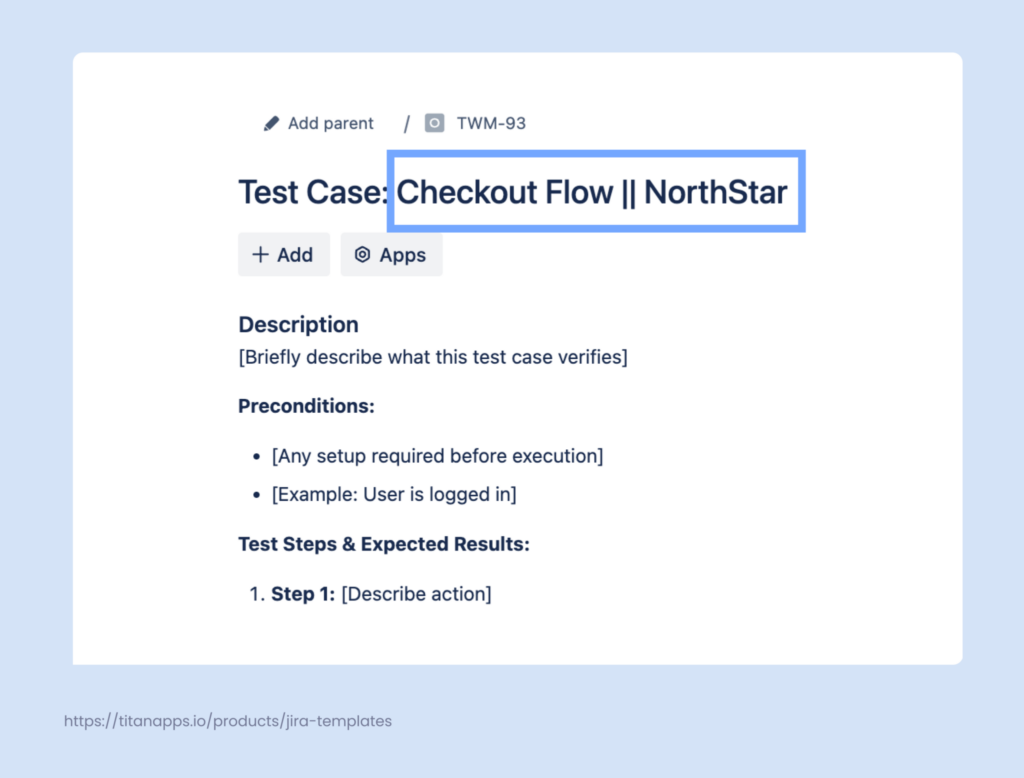
This allows you to easily adjust description templates to specific tasks.
When the team creates issues from the template, they complete a short form and the correct values are inserted across all issues in the hierarchy. Smart Variables extend this: {{now}} inserts the current date, and {{now.plusDays(14)}} sets a due date two weeks out automatically.
Scheduler for recurring task creation. The Scheduler automates issue creation for work that repeats on a fixed cadence – bi-weekly test suites, monthly audits, quarterly reviews – via CRON expression or interval. Smart Templates generates the full issue hierarchy at the right time without any manual trigger.
Template History lets you track every set of issues created from each template, including creation date and status. For a broader look at automating Jira processes, including scheduling patterns, see the linked article.
Adding checklists to templates
Smart Templates integrates directly with Smart Checklist. Open a template, select an issue within it, and add checklist content to the Smart Checklist panel using standard Markdown syntax. The checklist is saved as part of the template and applied to every issue created from it. Mandatory checklist items – marked with ! in the syntax – block issue transitions until completed.
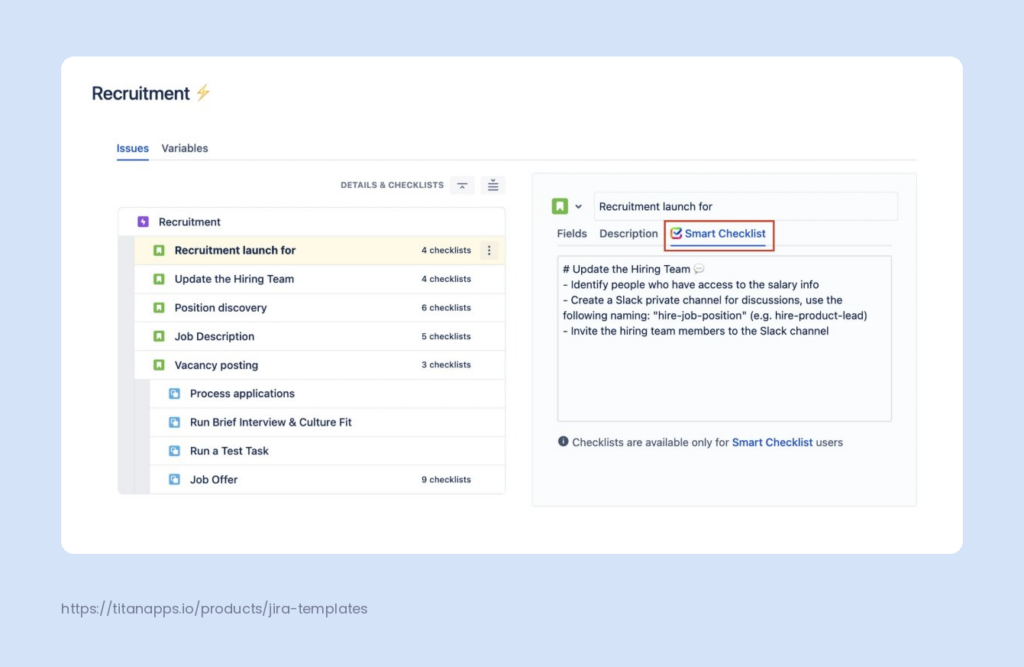
For full setup instructions, see Smart Checklist & Smart Templates in the Smart Templates documentation.
Webhook automation for advanced scenarios
For teams with more complex automation needs, Smart Templates supports webhook links. A webhook generates a URL that triggers issue creation from a template via Jira automation rules or third-party tools.
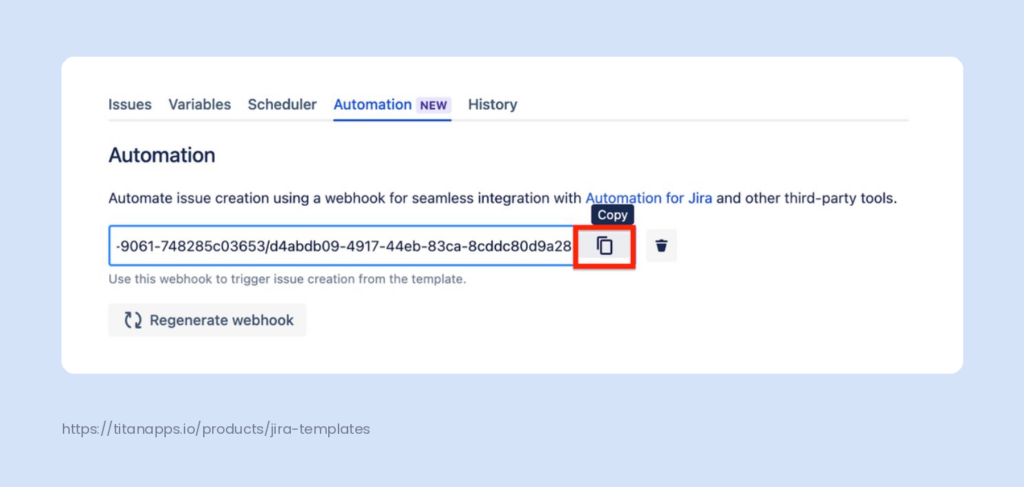
This works well for cross-tool workflows: when a specific event in an external system should automatically create a structured set of Jira issues from a template.
Global Templates for cross-project standardization
By default, templates are project-scoped. Global Templates let you share a single default template across multiple Jira projects – by specific project, by project category, or across all projects including newly created ones.
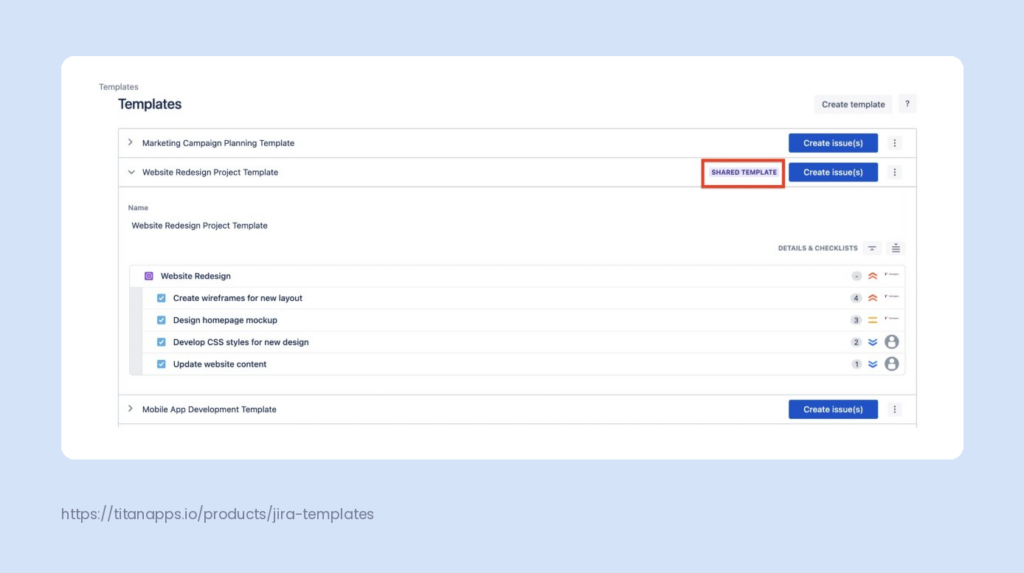
A delivery manager at a 200-person engineering organization can maintain one release readiness template and share it with every product team. Any update propagates automatically. For more on structuring work across a Jira instance, see Jira issue hierarchy.
Best practices for Jira issue templates
Keep each template focused on one use case. A template that tries to cover both bug reports and feature requests ends up serving neither well. One template per workflow type makes it easier for teams to find the right one and reduces cleanup after creation.
Use variables for everything that changes. Names, dates, sprint numbers, assignees – anything that differs between instances should be a variable, not static text. Required variables in Smart Templates enforce this: the issue cannot be created until every required field is filled in.
Set a default template per issue type. For teams that create the same issue type repeatedly – bug reports, user stories, service desk requests – configure a default template in project settings so the correct structure loads automatically on issue creation. This removes the step of selecting a template manually.
Name templates so anyone can find them. Use a naming convention that includes the team or process type: “QA – Regression Test Suite,” “HR – New Hire Onboarding,” “Security – Quarterly Compliance Review.” Avoid generic names like “Template 1” or “Bug.”
Review templates when your process changes. When a team updates its Definition of Done, changes its sprint cadence, or revises its compliance controls, update the relevant templates at the same time. In Smart Templates, updating a Global Template once propagates the change to all projects sharing it.
Include checklists for multi-step processes. For workflows where steps must happen in a specific order – or where missing a step has a downstream cost – add a Smart Checklist to the template. See Smart Checklist & Smart Templates for setup details. Mandatory items create a lightweight enforcement layer without adding Jira workflow complexity.
Conclusion
Jira issue templates remove the most common source of inconsistency in recurring work: the gap between what a team knows a good issue looks like and what actually gets created under time pressure. When the structure is already in place, teams spend their time on the work itself rather than on setup.
The seven patterns in this guide – bug reports, user stories, test cases, onboarding, release readiness, service desk intake, and compliance reviews – cover the most common recurring workflows across software, IT, HR, and operations. Each one maps cleanly to a template structure that Smart Templates can hold, schedule, and share across projects.
Install Smart Templates – Issue Templates for Jira from the Atlassian Marketplace to start building reusable issue templates for your team.
Frequently asked questions on issue templates for jira
What is a Jira issue template?
A Jira issue template is a reusable work item structure that pre-fills fields, description, sub-tasks, variables, and checklists for a Jira issue. Teams use issue templates to standardize recurring work – ensuring the same structure is applied every time a bug report, user story, or recurring task is created, without rebuilding it manually.
Does Jira have native issue templates?
Jira does not include native issue templates for individual work items. It offers project templates, request type templates in Jira Service Management, and work item layouts – but none of these let you reuse the content of a specific work item. Teams use cloning or Jira automation as workarounds, or install a dedicated app like Smart Templates – Issue Templates for Jira from the Atlassian Marketplace.
What is the difference between cloning an issue and using an issue template?
Cloning creates a copy of a specific issue with all its current content. There is no central library, no variable support, and no scheduling. An issue template is a dedicated reusable structure stored in a template list. It supports variables for dynamic content, full hierarchy capture, automated recurring task creation on a schedule, and Template History for tracking. Cloning works for one-off duplication. Templates work for recurring, standardized workflows.
Can I create issue templates that include a full Epic hierarchy with sub-tasks?
Yes, with Smart Templates. The app captures the full issue hierarchy – an Epic with Tasks, Sub-tasks, and nested checklists – as a single reusable template. When you create issues from the template, the entire structure is generated at once with pre-filled fields and variables applied across every level. This is not possible with Jira’s native cloning or automation, which support only one level of hierarchy.
Does Smart Templates support a REST API or webhook integration?
Smart Templates supports webhook links for automation – you can trigger issue creation from a template via Jira automation rules or third-party tools using a webhook URL generated from the template’s Automation tab. For programmatic access to Jira issues created from templates, use the standard Jira REST API.
How do I add a checklist to a Jira issue template?
Install both Smart Templates and Smart Checklist. Open your template in Smart Templates, select the issue you want to add a checklist to, and add items in the Smart Checklist panel using Markdown syntax. The checklist is saved as part of the template and applied to every issue created from it. Mark items as mandatory with ! to block issue transitions until they are completed. Full instructions are in the Smart Checklist & Smart Templates documentation.