





 Tools for Jira
 Tools for monday.com




Jira offers many different ways to check the status of your work items. Yet many teams default to one or two views and sometimes miss faster, more informative ways to track progress.
This article walks you through the most practical ways to organize Jira issue tracking. We cover everything from agile boards to custom cross-project views and granular checklist progress inside individual work items.
What Does “Issue Tracking” Mean in Jira?
In Jira, an issue is any unit of work your team needs to complete. This can be a task, a bug, a story, an epic, or any other issue type your project uses. You’ll also hear the term “Jira work item,” which means the same thing as “Jira issue.”
 Definition
Jira issue tracking is the process of following a work item’s status as it progresses through various stages and moves from Backlog to Done. Simply put, this means knowing where each work item stands in its lifecycle and understanding overall progress toward a goal.
Is this task in progress, blocked, or done? Is the sprint on track? How close is the release to being ready? Jira issue tracking helps you answer these questions.
Who on the Team is Responsible for Jira Issue Tracking?
The short answer: everyone. But the depth and scope of tracking differ by role.
- Individual contributors (developers, QA engineers, designers) track their own tasks, update statuses, and identify blockers. For multi-step work, checklist-level tracking helps them stay on top of details.
- Team leads and Scrum Masters monitor sprint progress, identify bottlenecks, and keep work flowing. The board, list view, and sprint reports are their go-to tools.
- Project managers track progress across epics, releases, and sometimes multiple projects using the Timeline, Release Hub, dashboards, and hierarchy views.
- Product managers and product owners focus on feature completeness, release readiness, and roadmap alignment. They use release tracking, dashboards, and cross-project views.
- Stakeholders and leadership rely on dashboards, Jira Plans, and shared filters for high-level reporting.
In practice, these boundaries overlap. Most teams benefit from combining several tracking methods to cover different needs.
9 Ways to Organize Jira Issue Tracking for Your Team
Each of the approaches below solves a different tracking problem. Some are built into Jira natively, while others extend it with Marketplace apps. Let’s look at what each one does, when to use it, and where it fits.
TL;DR: A Comparison Table of the Key Jira Issue Tracking Options
Use this table to quickly identify which tracking method fits your role, scope, and goals. We provide a more detailed overview of these methods further in the article.
| # | Tracking Approach | What it’s Best For | Tracking Scope | Tracking Focus | Who Uses It Most | Limitations |
|---|---|---|---|---|---|---|
| 1 | Jira Board | Quick visual overview of current work | Sprint or project; cross-project with a saved JQL filter | Status flow across columns | Team members, Scrum Masters | Can get cluttered when too many issues are in progress at once |
| 2 | List View | Sorting, filtering, and inline editing in bulk | Project-specific; cross-project with advanced filters | Any field: status, assignee, priority, sprint, version | Team leads, Project managers | Flat or basic hierarchy; less visual than boards |
| 3 | Timeline | Tracking deadlines and dependencies | Project | Start/end dates, dependencies between work items | Project managers, Product owners | Requires dates on work items; not useful for teams that don’t set deadlines |
| 4 | Saved Filters & JQL | Building precise, reusable queries | Any: from a single-project to an entire instance | Fully customizable: any combination of fields and conditions | Team leads, Advanced users | JQL has a learning curve; filters need manual setup |
| 5 | Release Hub (Fix Versions) | Tracking delivery milestones | Project (one or more versions) | What’s included in the release, and how much is done | Project managers, Release managers | Project-specific; requires discipline in assigning work items to versions |
| 6 | Dashboards | Visual reporting and cross-project tracking | Any: from a single-project to an entire instance | Aggregated data via gadgets: charts, workload, filter results | Managers, Stakeholders, Leadership | Dashboards need manual setup; gadget selection can be overwhelming |
| 7 | Jira Plans (Advanced Roadmaps) | Portfolio-level planning and cross-project visibility | Multiple projects and teams | Capacity, dependencies, and progress across teams | Portfolio managers, Leadership | Premium/Enterprise plan required; complex setup |
| 8 | Smart Hierarchy | Structured, multi-level oversight of issue hierarchies in a nested view | A complete hierarchy within the work item view | Parent-child relationships, hierarchy-based progress, complex custom hierarchies | Project managers, Team leads | Marketplace app (requires installation) |
| 9 | Smart Checklist | Step-by-step visibility inside individual work items | Individual work items (epic, task, subtask, etc.) | Granular progress tracking for multi-step tasks - without creating multiple child issues | All team members | Marketplace app (requires installation) |
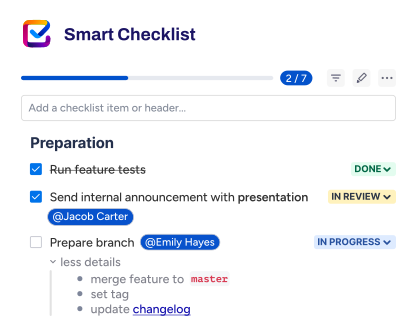
1. Tracking Issues on the Jira Board – for a Quick Visual Overview
The Jira board is the most intuitive way to track your team’s current work at a glance. It organizes your workflow into columns, allowing you to instantly see which tasks are ToDo, InProgress, or Done. As team members complete tasks, they drag cards across columns to reflect progress. For daily standups, quick check-ins, or simply staying on top of your own tasks, the board is where most teams start.
Jira offers two types of boards, each supporting a different way of working.
The Scrum board is built around sprints. It displays only the work items committed to the active sprint, keeping the view focused and manageable. This makes it easy to see at a glance how the sprint is progressing and whether the team is on pace.
You can also switch to the table view in the active sprint for a more structured, row-based view of the same data.
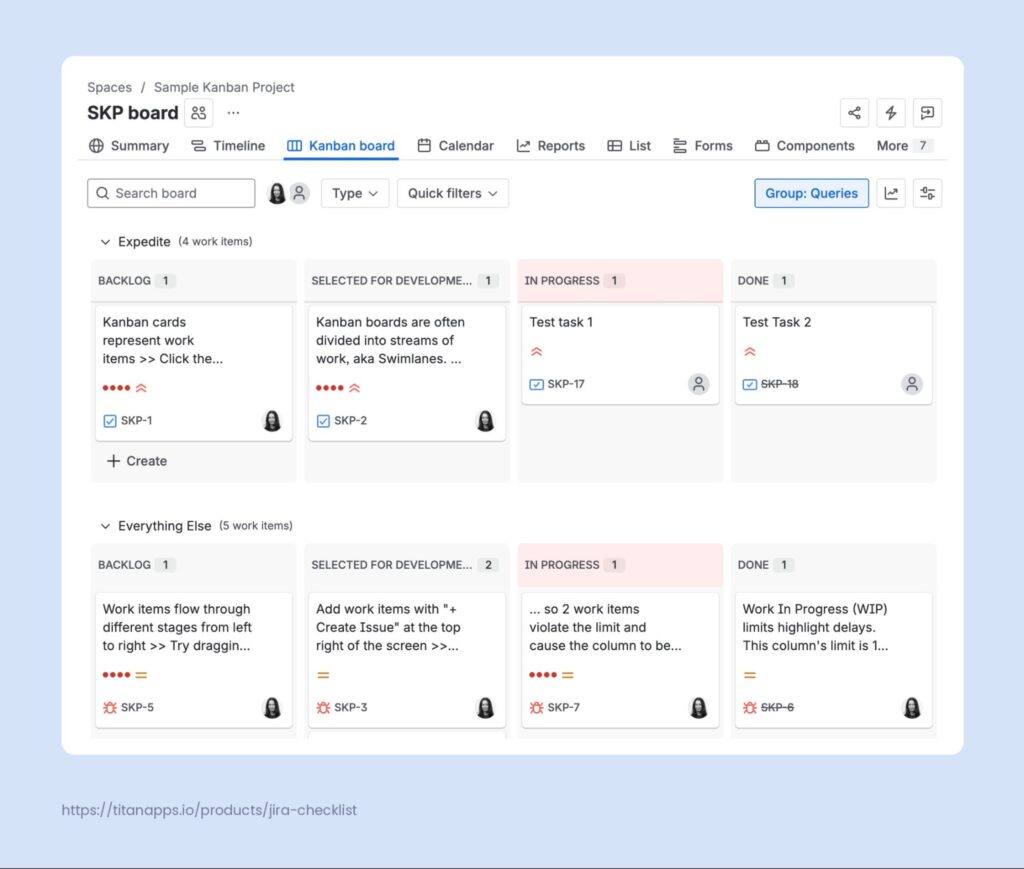
The Kanban board takes a different approach. Instead of sprints, it shows a continuous flow of work items moving through your workflow. New work enters the board as it comes in, and items move from left to right as they progress.
Kanban boards also support WIP (Work in Progress) limits, which cap the number of items allowed in a given column. This helps prevent bottlenecks and keeps work flowing steadily. The Kanban board is well suited for marketing teams, operations teams, or any group that handles a steady stream of incoming requests rather than planned sprints.
Both board types support quick filters at the top, allowing you to narrow the view by assignee, label, or custom criteria. This is useful for checking your in-progress tasks or isolating a specific area of work during a standup.
When to Use the Board for Tracking
The board is your best option for daily standups, quick team check-ins, and for visually identifying blocked or stale work items. It’s also the easiest way for team members to check their own in-progress tasks.
If your team works across several projects, you can use a saved JQL filter to bring issues from multiple projects onto a single board, providing everyone with a single view for standups. If you’re new to Jira issue tracking, the board is a natural starting point.
2. Jira Issue Tracking With the List View – For a Detailed Picture
When you need to scan, sort, and edit multiple work items at once, the board view can feel limiting. Jira’s List view displays your work items in a spreadsheet-style table, giving you more control over what you see and how you interact with it.
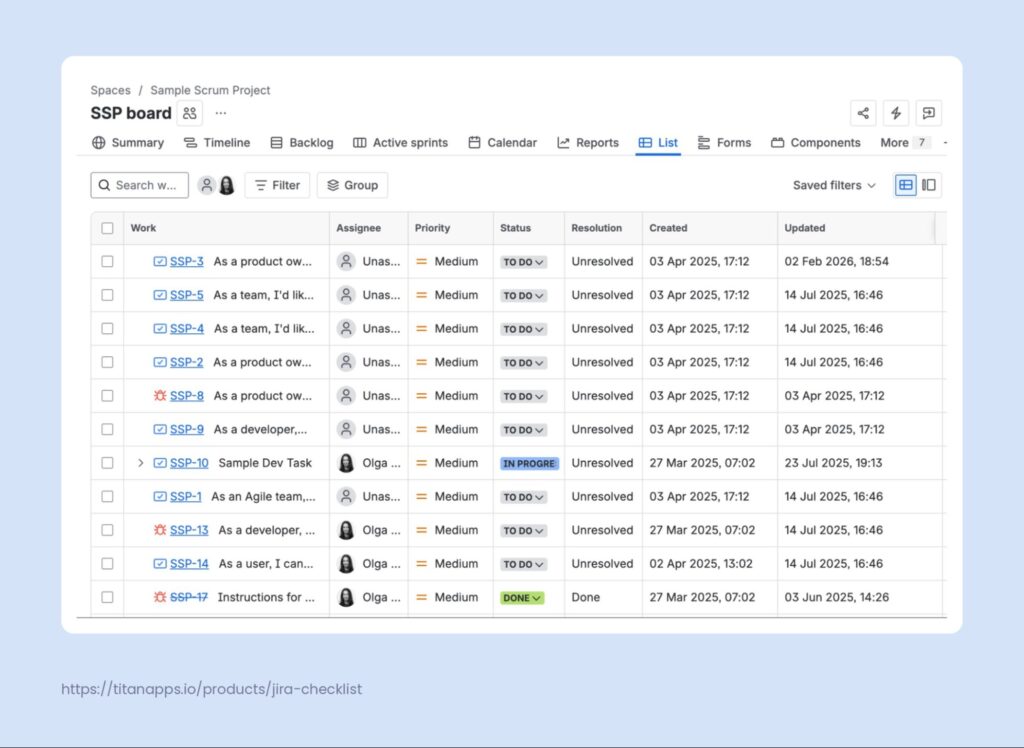
The List view lets you customize which columns are visible, sort by any field, and apply filters to narrow down what you see. Filtering supports three modes: a basic field picker for quick filtering, an advanced mode for combining multiple conditions, and full JQL for custom queries, including cross-project ones.
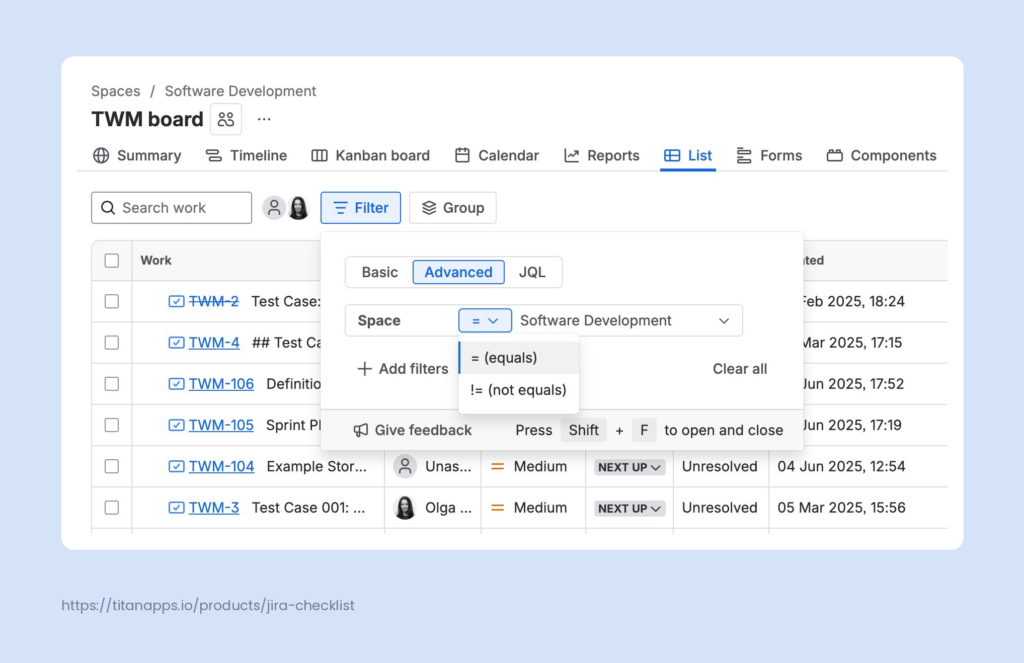
You can also group work items by fields like assignee, priority, sprint, or fix version to quickly see how work is distributed.
One of the List view’s biggest advantages is inline editing. You can change status, assignee, or other fields right from the table without opening each work item. The view also supports saved filters, so you can build a query once and return to it later.
When to Use the List View for Tracking
The list view is ideal for bulk triage, sprint planning, backlog grooming, and prioritization. It works well when you need to update multiple work items at once or compare items across different statuses and assignees.
3. Monitoring Jira Issues on the Timeline – for Managing Deadlines and Dependencies
Some tracking questions aren’t about status. They’re about timing. Is this epic going to finish before the deadline? Are two teams working on overlapping tasks? Which work items depend on each other?
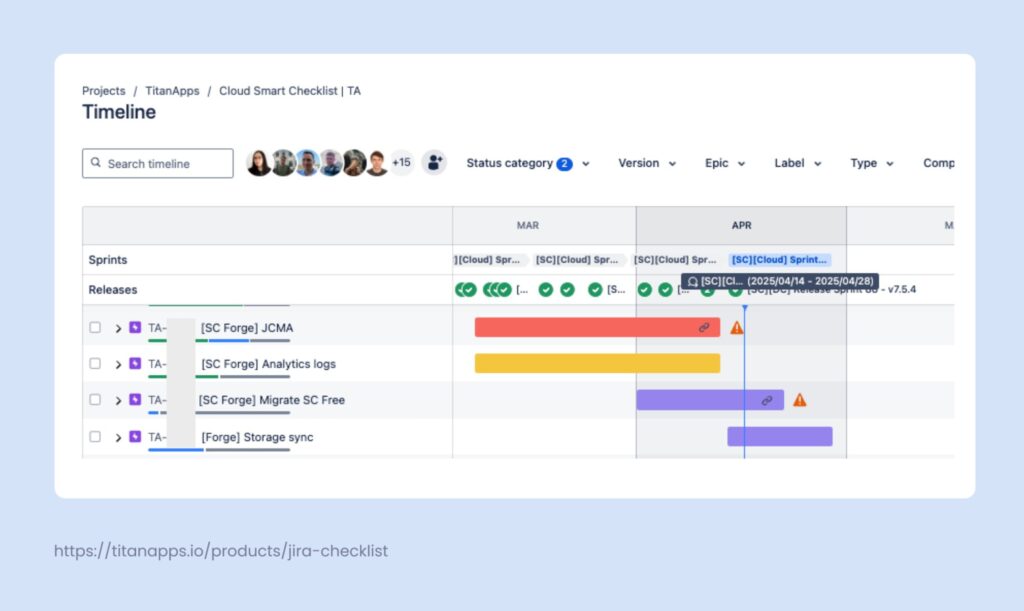
The Timeline, formerly called Roadmap, answers these questions. It shows epics and their child work items on a Gantt-style horizontal chart, plotted against a calendar. Each bar represents the planned duration of a work item, and parent items can automatically roll up start and due dates from their children.
This gives you an up-to-date picture of scheduling without manual updates. The Timeline is available in both team-managed and company-managed projects.
When to Use the Timeline for Jira Issue Tracking
The Timeline is most useful when you need to track whether an epic is on schedule, visualize dependencies and overlapping work, or present progress to stakeholders in a time-based format.
4. Tracking Jira Issues With Saved Filters and JQL – for a Customized View
Every tracking view in Jira shows a pre-defined slice of your data. But sometimes you need something more specific. Maybe you want to see all high-priority bugs across three projects that haven’t been updated in a week. Or all items assigned to your team that are overdue and still in progress.
That’s where saved filters come in. Using JQL, you can build precise queries that pull exactly the work items you care about. Once you’ve built a query that works, you can save it as a filter and reuse it across Jira. Saved filters can power board views, feed data into dashboard gadgets, and trigger email notifications.
The real strength of saved filters is consistency. Here are some examples:
- A team lead can create a filter for all in-progress items without an assignee and share it with the team.
- A project manager can set up a filter for overdue items in a release and check it every morning.
Because filters are based on JQL, they work across projects and can combine any number of conditions.
When to Use Saved Filters for Tracking
Filters are ideal for teams that need repeatable, cross-project tracking views tailored to their specific workflow. They’re especially useful for building recurring status reports, monitoring overdue items, and feeding data into dashboards. They do require some comfort with JQL, but once set up, they become one of the most flexible issue tracking tools in Jira.
5. Tracking Issues by Release (Fix Version) – for Meeting Delivery Milestones
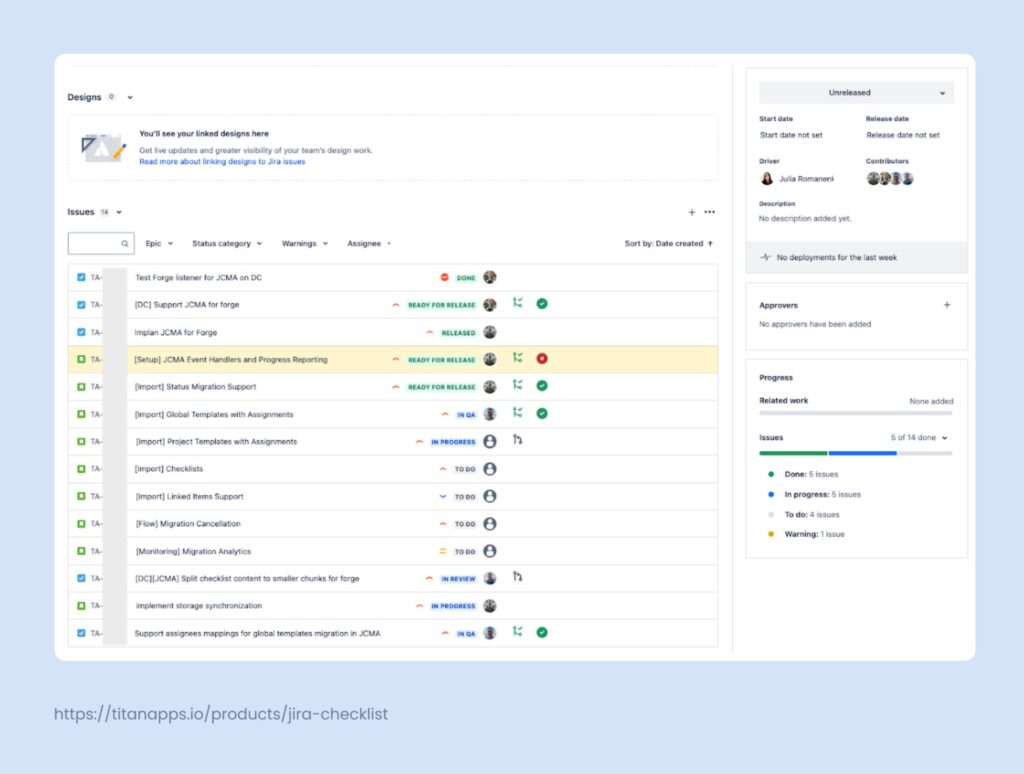
When you use Jira’s releases (fix versions) to plan your delivery, you need a way to track what’s included, what’s done, and what’s still pending for each version. Jira’s Release Hub is designed for exactly this.
The Release Hub lets you see all versions in your project: unreleased, released, and archived. Each version shows a progress bar that indicates how many assigned work items are done versus in progress and to do. You can click into a version to see the full list of work items and their statuses.
For Scrum teams, the Release Burndown chart helps track whether the release is on pace. This is particularly useful toward the end of a development cycle, when the team needs to understand how much work remains before go-live.
When to Use Release for Jira Issue Tracking
This approach works best for teams that organize their delivery around fix versions. Release managers use it to confirm readiness before deployment. Stakeholders rely on it to answer the question “what’s included in the next release?”
For deeper coverage of version and release setup in Jira, please see our other articles on this topic:
- How to Plan a Product Release in Jira
- Free Release Readiness Checklist Template
- Jira Feature Release Template for Delivery Managers
6. Tracking Jira Issues With Dashboards – for Customized Reporting
Filters help you find the right work items. Dashboards help you visualize them. A Jira dashboard is a customizable page where you combine multiple gadgets to create a reporting view tailored to your needs.
Each gadget displays a specific piece of information. Some show filter results as tables, while others render pie charts, burndown charts, workload distributions, or status breakdowns. You choose which gadgets to include, configure their data sources, and arrange them on the page. Most gadgets are powered by saved filters, which means the same JQL query can feed multiple visualizations at once.
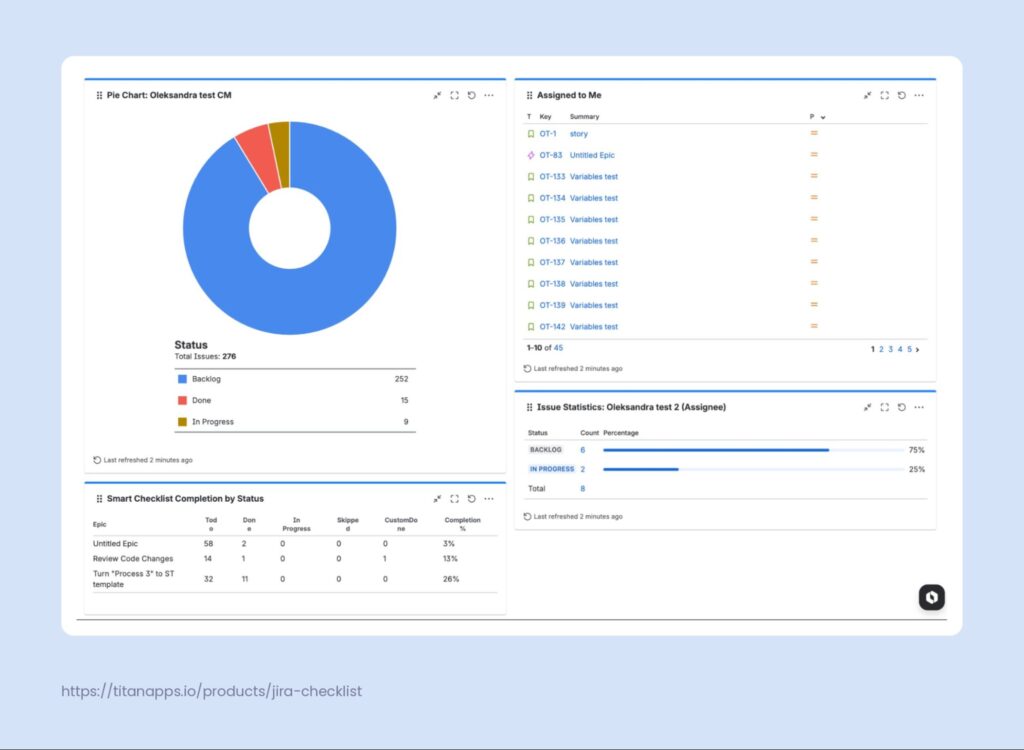
You can create personal dashboards for your own daily tracking or shared dashboards that give the whole team a common view. This makes dashboards especially valuable for managers and stakeholders who need to monitor progress without opening individual work items or navigating project boards.
One of the key advantages of dashboards is cross-project visibility. Because gadgets can pull data from any saved filter, a single dashboard can combine metrics from multiple projects.
When to Use Dashboards for Jira Issue Tracking
Dashboards work best for recurring reporting, stakeholder updates, and cross-project oversight. They’re also useful for managers who want a single page to monitor team health – without navigating between boards and filters.
7. Issue Progress Monitoring with Jira Plans – For Cross-Project Visibility
Jira Plans (formerly known as Advanced Roadmaps) give you a portfolio-level view across multiple projects. Their key capabilities include a cross-team timeline, capacity planning, dependency mapping, and scenario modeling.
The Plans summary screen shows you work item progress and key dependencies at a glance. Plans can pull data from different boards, projects, and filters in Jira, allowing you to create a custom view. They also support custom hierarchy levels above the epic level, such as Jira Themes and Initiatives.
All this makes Plans a powerful tool for program managers and leadership who need to understand how different workstreams connect. Dependency mapping helps you spot risks early, such as when one team’s work is blocked by another team’s deliverables.
When to Use Jira Plans for Tracking
Jira Plans are designed for portfolio-level tracking across multiple teams and projects. They’re only available on Premium and Enterprise Jira plans, and the configuration is more complex than with other methods. For teams that need this level of cross-project oversight, though, Plans offer visibility that’s hard to replicate with dashboards or filters alone.
8. Jira Issue Tracking with Smart Hierarchy – For a Complete Overview
Native Jira views often make you choose between breadth and depth. The board shows the current sprint but not how tasks connect to epics and initiatives. The Timeline shows epics and their child issues on a calendar but doesn’t display the full depth of your hierarchy or provide rollup data across all levels.
If you want to see the complete picture from an initiative down to a sub-task, you typically need to navigate between multiple screens.
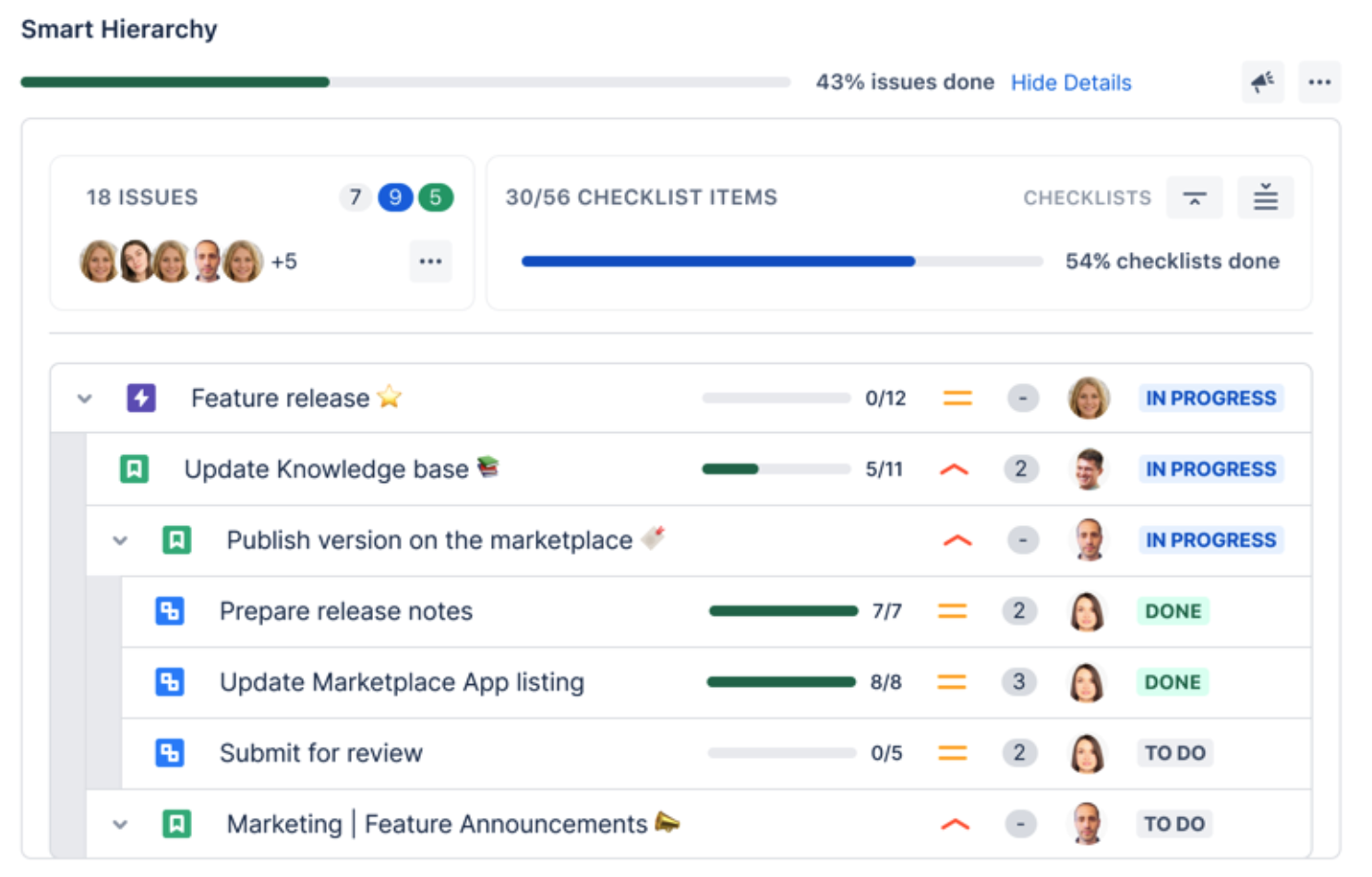
Smart Hierarchy by TitanApps solves this. It adds a panel directly inside the Jira work item that visualizes the complete issue hierarchy in a nested view. This includes standard levels like epic, story / task / bug, and sub-task, as well as any custom hierarchy levels your organization uses. From any single work item, you can see the entire tree above and below it, along with progress data at every level.
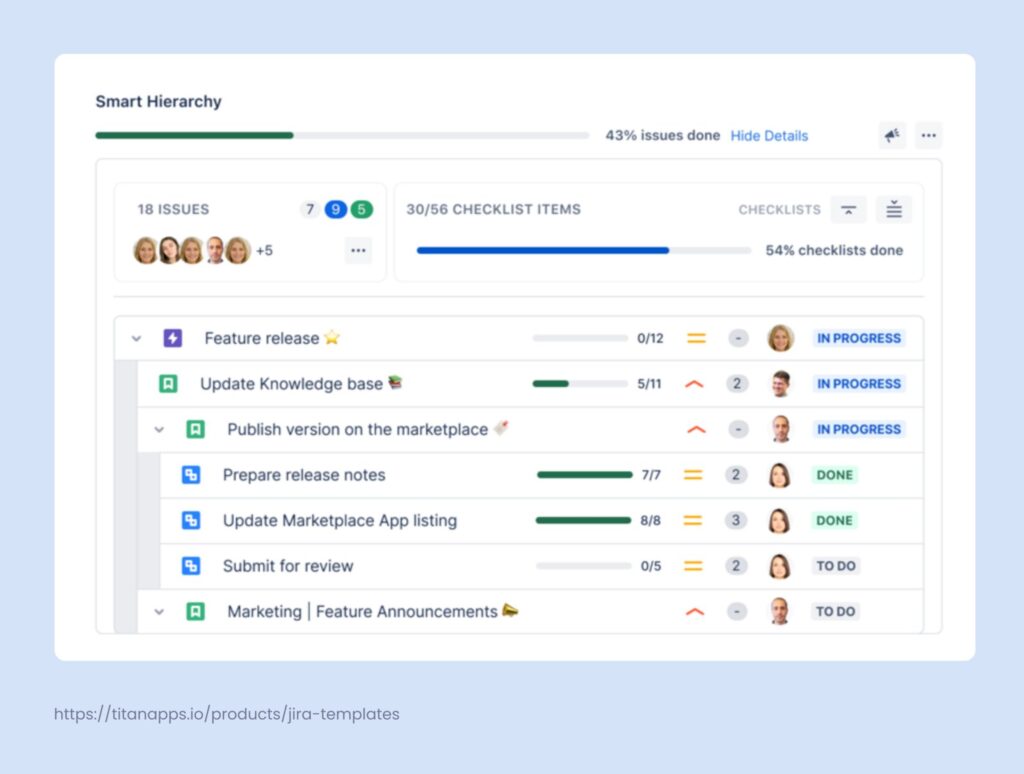
The top panel shows rollups of completion progress, story points for tasks in different statuses, and assignees. This means you don’t have to leave the current view to understand how a task fits into the bigger picture.
Here are some common situations where Smart Hierarchy is useful for different roles:
- A project manager checking an initiative can open any work item within it and instantly see the full tree with progress percentages, without switching to Plans or building a custom dashboard.
- A team lead reviewing a sprint task can see which epic and initiative it belongs to, and whether sibling tasks are on track.
- A developer navigating related work can quickly jump to parent or sibling work items to understand context and dependencies.
When to Use Smart Hierarchy for Tracking
Smart Hierarchy is a strong fit whenever you need structural context for your work. It streamlines navigation for teams working with multi-level hierarchies. It also helps project managers track initiative-level progress without leaving the work item view.
You can install Smart Hierarchy from the Atlassian Marketplace to see how it works for your team.
9. Granular Progress Tracking with Smart Checklist – for Step-by-Step Visibility
All of the approaches above, except for Smart Hierarchy, track work items as whole units. However, many tasks involve multiple steps that are not big enough to become separate sub-tasks, for example:
- implementation steps
- acceptance criteria
- definition of done criteria
- test cases listing testing steps
- deployment checklists
Without a way to track these steps, a work item stays “In Progress” until everything is done, resulting in no visibility into how far along it actually is.
Smart Checklist by TitanApps addresses this. It adds a feature-rich checklist panel to any Jira work item, turning a single task into a trackable series of steps. Each checklist item can have its own status, with custom options such as Open, In Progress, Blocked, and Done. A progress bar at the top shows completion percentage at a glance.
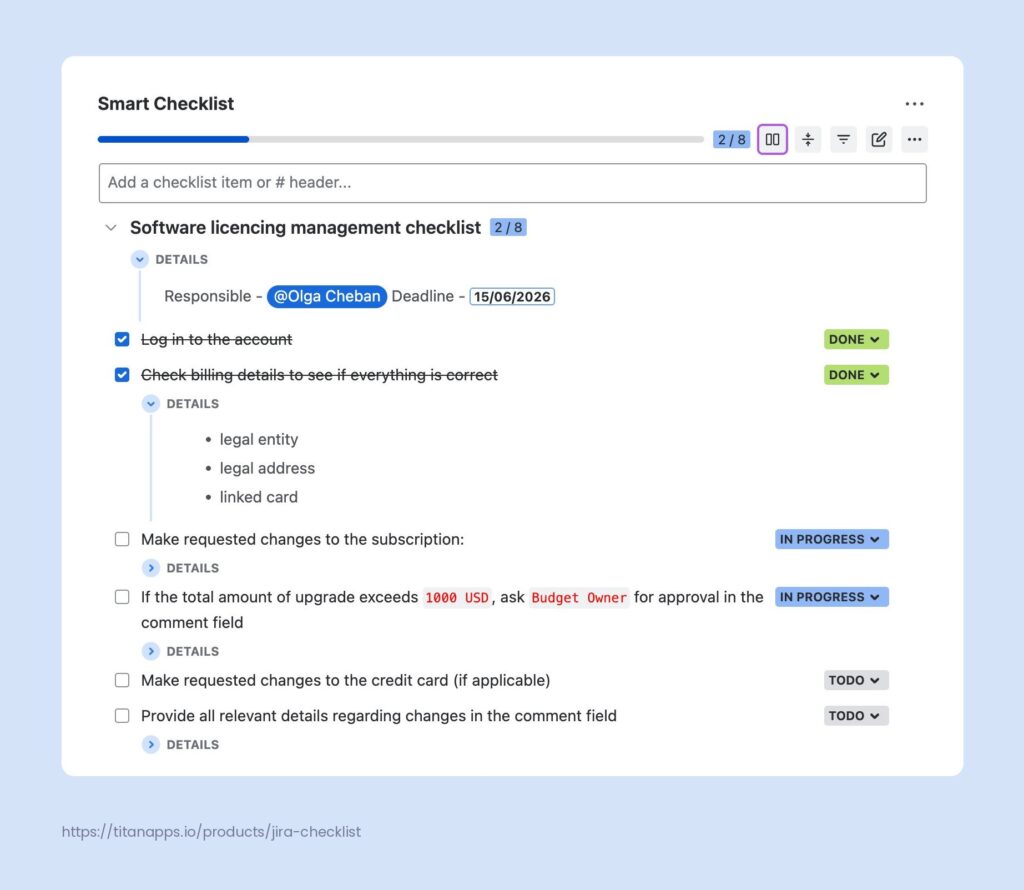
The app also includes a “Smart Checklist Progress” custom field. Once set up, you can add this field to board cards, filter results, and dashboard gadgets. This makes checklist completion visible across Jira, not just inside the work item.
A manager can see how far along each task is right from the board, without opening a single ticket.
Another key feature is reusable checklist templates. You can save a checklist as a template and have it automatically added to work items based on specific conditions. This is especially useful for recurring processes like regression testing, onboarding, or release preparation.
Here are a few scenarios where Smart Checklist is valuable for different roles:
- QA engineer tracking test progress: Test steps within a test case can be listed as checklist items within a designated work item. This makes it easy to track which steps are passed, failed, or are still pending – without creating a separate sub-task for each of them.
- Team lead enforcing the definition of done: A DoD checklist can be saved as a reusable template and applied automatically to tasks based on issue type or workflow transition. This ensures every task meets the team’s quality standards before it’s marked as Done.
- Release manager verifying readiness: A pre-deployment checklist helps confirm that all steps are complete, from regression testing to stakeholder approvals.
- Manager checking progress from the board: with the Smart Checklist Progress field on the board, completion progress is visible directly on cards without opening each work item.
Here are some Smart Checklist templates that can be useful to your team:
- Definition of Ready Checklist template
- Code Review Template
- Release Readiness Checklist
- Project Kick-off Checklist
- Product Discovery and Validation Checklist
- Regression Testing Checklist
When to Use Smart Checklist for Tracking
Smart Checklist is helpful when you need step-by-step visibility inside a single work item. You can install Smart Checklist from the Atlassian Marketplace to try it with your team.
How to Choose the Right Jira Issue Tracking Method
With nine approaches available, the natural question is: which one should you use? The answer depends on what you need to know and how quickly you need to know it. Here’s a quick reference:
- Quick glance at current work – Board
- Spreadsheet-style overview with inline editing – List view
- Time-based scheduling and deadlines – Timeline
- Precise, reusable queries – Saved Filters and JQL
- Release readiness and version tracking – Releases Hub (Fix Version)
- Visual reporting and cross-project metrics – Dashboards
- Portfolio-level cross-team tracking – Jira Plans (Advanced Roadmaps)
- Full issue hierarchy with progress rollups – Smart Hierarchy
- Granular step-by-step progress within a work item – Smart Checklist
Combining Jira Issue Tracking Approaches For Best Results
As you’ve seen throughout this article, each Jira issue tracking method addresses a specific problem. The board shows you what the team is currently working on. The list view helps you triage and plan. Dashboards provide stakeholders with the metrics they need. Solutions like Smart Hierarchy and Smart Checklist add depth that native Jira views do not cover on their own.
The best results come from combining several of these methods. A common setup might look like this: boards for daily standups, the list view or saved filters for sprint planning and triage, dashboards for weekly reporting, the Releases Hub for version tracking, Smart Hierarchy for structural context, and Smart Checklist for granular progress inside individual work items.
The right combination depends on your team’s size, methodology, and the type of work you do. Start with the approaches that align with your most frequent tracking needs and add more as your processes evolve. Most teams find that two or three methods cover their day-to-day work, with the rest serving more specialized situations.
For more on this topic, please see:
- Jira Issue Hierarchy Explained
- How to Plan a Product Release in Jira
- A Free Release Readiness Checklist Template
- Jira Setup Guide
FAQ on Jira Issue Tracking
Why is Jira issue tracking important for agile teams?
Agile development teams work in short cycles and rely on fast feedback. Jira issue tracking gives the team real-time visibility into sprint progress, blockers, and workload distribution. It supports daily standups, sprint reviews, and retrospectives with accurate, up-to-date data. Without a reliable issue tracking system, teams risk losing sight of commitments and delivering late.
What is the easiest way to track issue status in Jira?
The Board view provides the fastest visual overview. Each column represents a workflow status, so you can see where every work item stands at a glance.
For more details, use the List view, which lets you sort, filter, and group work items by any field.
Can I track issues across multiple Jira projects?
Yes. Saved JQL filters can query work items across any number of projects. Cross-project dashboards can combine data from multiple filters into a single reporting view. For portfolio-level tracking, Jira Plans on Premium and Enterprise provide a dedicated cross-project timeline with dependency mapping.
How do I track progress inside a single work item without creating sub-tasks?
Use Smart Checklist for Jira by TitanApps. It lets you add a detailed checklist with individual statuses and a progress bar directly inside the work item. You can also display checklist progress on boards and dashboards using the Smart Checklist Progress custom field.
How can I see the full hierarchy of a Jira work item?
Smart Hierarchy for Jira by TitanApps provides a panel that visualizes the complete issue tree, from initiative to sub-task and checklists, with progress rollups at every level.
Create a shared dashboard with the relevant gadgets, or share saved filters with the appropriate permissions. For release-specific updates, use the Releases tab.
How does bug tracking work in Jira?
Jira Software serves as a bug-tracking tool out of the box. You can create bug reports using the dedicated Bug issue type, assign priority and severity, and track them through your workflow.
Jira integration with source code tools such as Bitbucket and GitHub adds traceability, allowing developers to link commits directly to bug reports. Teams can also use automation to route and prioritize incoming bug reports. All the tracking approaches described in this article – boards, filters, dashboards, and others – apply to bugs the same way they apply to any other work item.
Can Jira be used beyond software development teams?
Yes. While Jira Software is one of the most popular project management tools for software development and DevOps teams, it’s also often used by professionals in other industries. Many non-technical teams use Jira to resolve issues, track feature requests, and manage their work. This includes marketing and legal professionals, healthcare providers, governmental organizations, and more. Additionally, Jira Service Management extends its functionality to IT service teams and other teams working with service requests.
The platform supports a wide range of plugins from the Atlassian Marketplace that help optimize Jira for different use cases. Teams also use Confluence as a knowledge base alongside Jira to document processes, decisions, and tutorials. All this makes Jira a versatile tool for teams across many industries.