





 Tools for Jira
 Tools for monday.com




Subtasks should appear on your Jira board. Often, they don’t. The settings that control subtask visibility are scattered across board filters, project types, and JQL queries – and a small misconfiguration hides them entirely.
The fix depends on your project type. Team-managed and company-managed projects handle subtask visibility differently. Scrum boards, Kanban boards, and backlogs each have their own behavior. The answer also changes depending on whether you want to show subtasks, hide them, or replace them with something lighter.
This guide covers all of these cases. You’ll learn why subtasks disappear, how to fix it for each board and project type in Jira, and when a checklist inside the parent issue works better than subtasks on the board.
Key Takeaways
- In team-managed Jira projects, subtasks are hidden from the board by default. Use Group by -> Subtasks to display them. Space admin permissions required.
- In company-managed projects, a custom JQL filter is usually the cause. Removing issuetype = Story (or similar) from the board filter fixes it in most cases.
- Kanban boards follow the same rules as Scrum boards. The fix depends on project type, not board type.
- Jira does not show subtasks in the team-managed backlog natively. Atlassian has confirmed no short-term plans to add this. The standard workaround is a separate board with a company-managed JQL filter.
- To hide subtasks from the board, add AND issuetype != Sub-task to the board filter query.
Understanding Subtasks in Jira
Subtasks in Jira are designed to help teams break work into smaller, actionable steps. They’re commonly used when multiple team members contribute to the same work item or when a task requires clear, step-by-step execution.
For example, a User Story like “Add user login functionality” might include subtasks for UI design, backend authentication, and QA. This breakdown makes it easier to divide responsibilities and track progress across team members.
Common Use Cases for Subtasks
- Agile development: Developers split a feature across the frontend, backend, and QA.
- Marketing: A campaign issue has design, copy, and approval subtasks.
- Operations: Procurement task includes vendor selection, purchase approval, and delivery tracking.
They work well when you need individual assignees per step, separate due dates, or task-specific comments and history. For more on how subtasks fit into the broader Jira hierarchy, see Jira Issue Hierarchy Explained.
Why Can’t I See Subtasks on My Jira Board?
The two most common reasons are project type and board filter settings.
In team-managed projects, Jira hides subtasks from the board by default. In company-managed projects, subtasks show by default, but a custom JQL filter often excludes them.
The third reason: your board filter query contains issuetype = Story or a similar constraint. Any filter that limits issue types will prevent subtasks from showing, regardless of project type.
Team-managed projects (formerly “next-gen”)
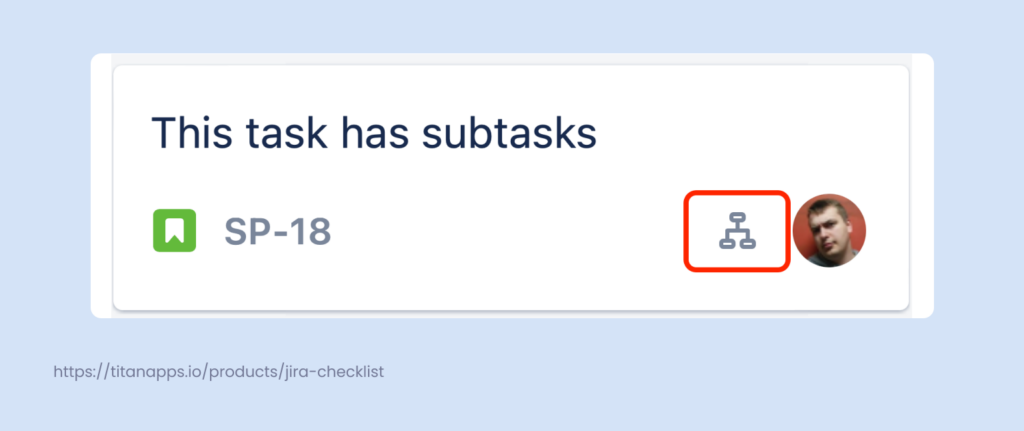
In team-managed projects, Jira hides subtasks from the board by default. You’ll only see a small subtask icon on the main issue card – not the full view of progress or breakdown – unless you manually change the view.
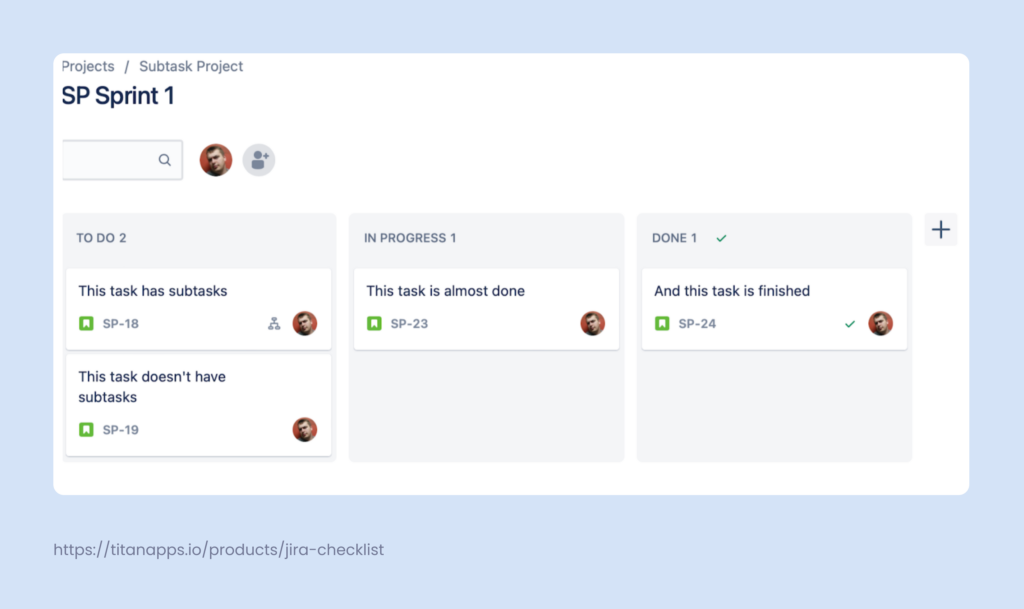
You’ll only see a small subtask icon on the main issue card, but not the full view of progress or breakdown, unless you manually change the view..
To display subtasks:
- Open your board and go to the top-right corner.
- Click the “Group by” dropdown.
- Select Subtasks..
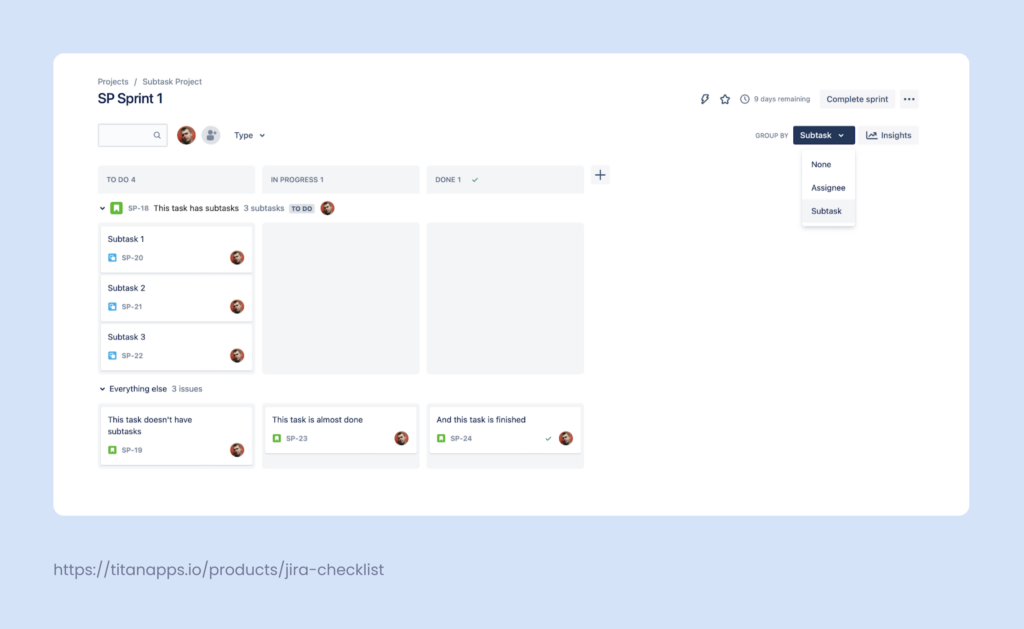
Once enabled, subtasks will appear grouped under their parent issues.
 Note
Note
The Group by Subtasks option is only available in Jira Software projects (Scrum and Kanban). It is not available in Jira Work Management (business) projects. If the option is missing, confirm you are using a Software project type. Space admin permissions are required to enable this grouping. See Atlassian docs: Manage subtasks in team-managed projects.
Keep in mind: Subtasks are grouped by status: To Do at the top, In Progress next, then Done.
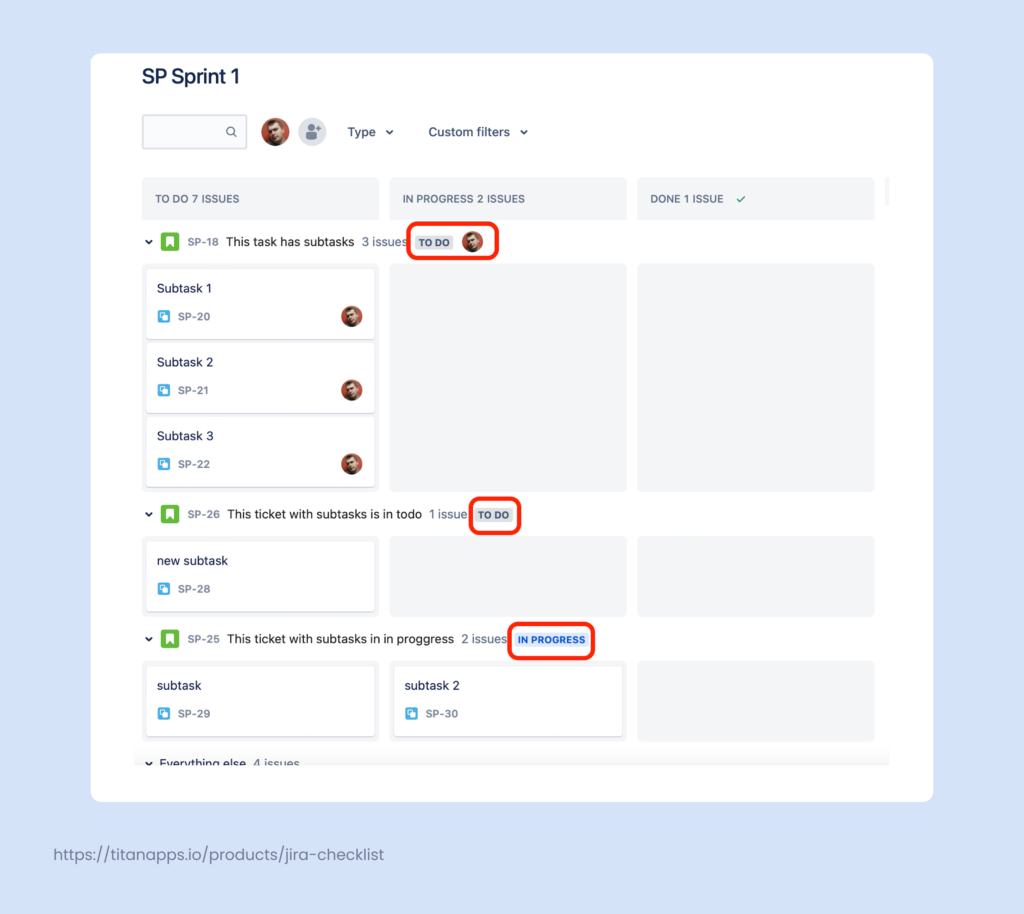
If your subtasks aren’t visible after grouping, check your issue type filters, as they may be hiding non-story items.
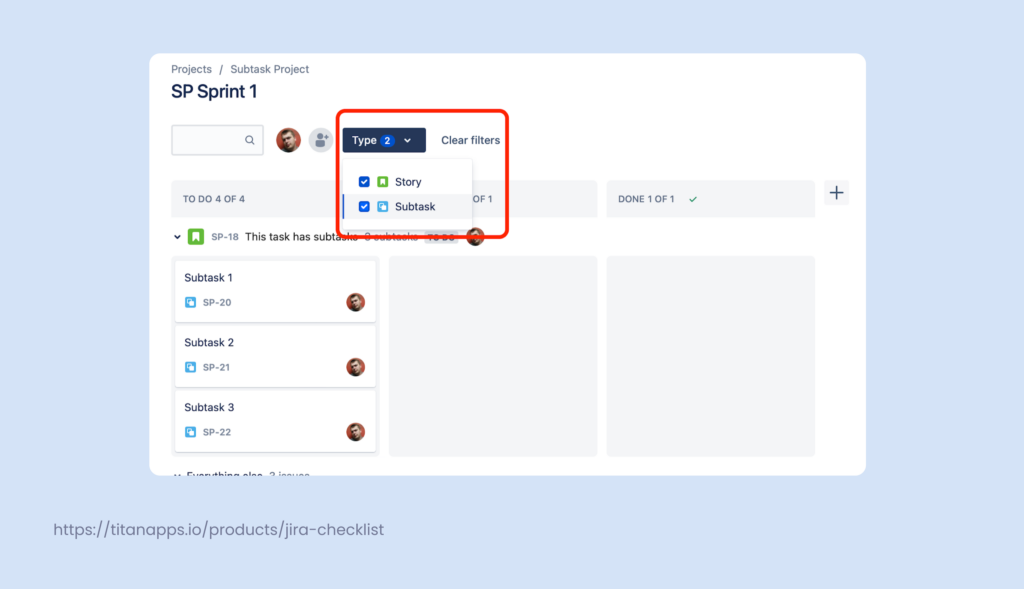
Also, inspect custom JQL filters. A filter like issuetype = Story will hide subtasks by default.
Example of a limiting JQL filter:
project = “Growth Project” AND issuetype = Story ORDER BY Rank ASC
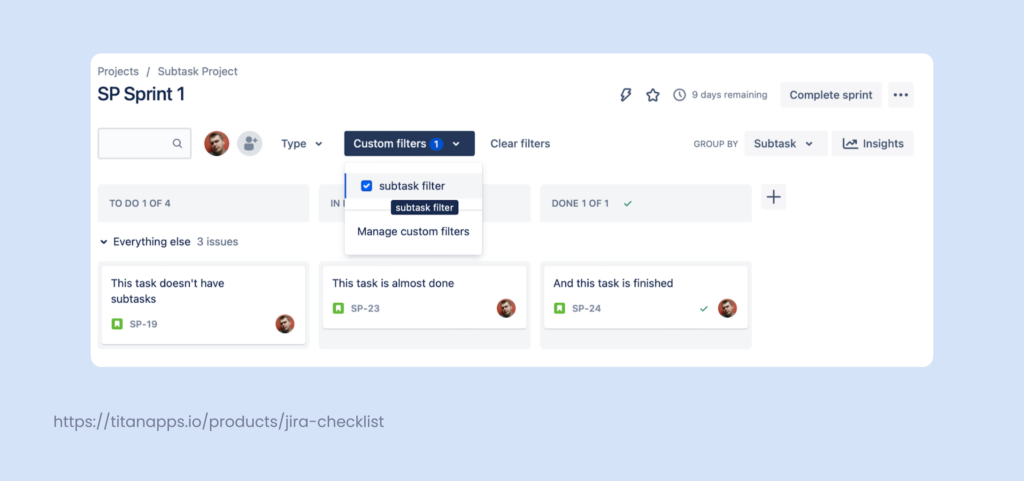
This filter will only display Stories without subtasks, tasks, or bugs.
Company-managed projects (formerly “classic”)
Subtasks should appear on boards in company-managed projects by default. If they’re missing:
- You likely have a custom board filter or swimlane setting that excludes them.
- Check your board filter query and swimlane settings (grouped by Stories, Assignees, or other issue fields).
As with team-managed projects, JQL filters are the usual culprit. Filters that exclude subtask types or only show certain issue types will prevent subtasks from rendering on the board. You can check Resolving missing Jira issues in boards where Atlassian Support covers the full troubleshooting checklist when subtasks or issues don’t appear on the board.
How to show subtasks on a Jira Kanban board
Kanban boards follow the same rules as Scrum boards for subtask visibility. The project type – not the board type – determines the fix.
Team-managed Kanban: Use Group by -> Subtasks in the top-right corner of the board. This setting works the same way on Kanban and Scrum boards in team-managed projects.
Company-managed Kanban: Subtasks appear by default. If they’re missing, check the board filter. By default, Kanban boards in company-managed projects display all issue types including subtasks – unless a filter explicitly excludes them.
One common Kanban-specific filter issue: if your board filter uses issuetype in standardIssueTypes(), subtasks are excluded because they are a sub-type, not a standard issue type. Change the filter to include issuetype in subtaskIssueTypes() or remove the type restriction entirely.
To understand the default state and what a filter change does please check Atlassian support guide on How to hide sub-tasks on Kanban/Backlog view .
For a full guide to setting up and managing a Kanban board in Jira, see Jira Kanban Board 101.
How to show subtasks in the Jira backlog
Company-managed backlog: Subtasks are visible in the backlog by default, grouped under their parent issues.
Team-managed backlog: This is a known Jira limitation. Atlassian has confirmed that team-managed projects do not show subtasks in the backlog natively, and there are no short-term plans to change this. Users need to open the parent issue to see its subtasks.
“Currently, subtasks don’t show in the backlog of Team-Managed Projects.” – Atlassian product team. See open feature request JSWCLOUD-26064 for status updates.
The standard workaround for team-managed projects: create a separate board from a saved filter. Set the JQL to pull issues from your team-managed project, including subtask issue types. This gives you a backlog-style view that includes subtasks. See Create a board based on filters in Atlassian’s documentation.
How to show subtasks on a Jira sprint board
Subtasks appear on the sprint board when the board filter includes them and the sprint scope is set correctly.
If subtasks are missing from an active sprint, check two things:
Were the subtasks added to the sprint? Adding a parent issue to a sprint does not automatically add its subtasks. Each subtask must be added to the sprint separately, or added all at once from the issue view.
Does the board filter include subtasks? In company-managed projects, go to Board settings -> General and confirm the filter query includes subtask issue types. A filter with issuetype = Story or issuetype in standardIssueTypes() will exclude them.
In team-managed projects, use Group by -> Subtasks to display subtasks under the parent issue on the sprint board.
How to hide subtasks from your Jira board
If subtasks create clutter on a busy Scrum or Kanban board, you can hide them with a JQL filter change.
Add this to your board filter query:
| AND issuetype != Sub-task |
A complete filter example:
| project = “My Project” AND issuetype != Sub-task ORDER BY Rank ASC |
This hides all subtasks from the board view while keeping them accessible inside each parent issue. Atlassian’s support documentation covers this approach for both Kanban and Scrum boards: see How to configure a board to hide sub-tasks.
This makes sense when your board is used for sprint-level planning and subtask detail belongs in the issue view, not on the board.
A Better Way: Replace Repetitive Subtasks with Smart Checklists
If you find yourself constantly creating the same subtasks over and over, or struggling with visibility and workflow clutter, there’s a better way to structure your work: Smart Checklist for Jira.
Instead of breaking work into dozens of subtasks, Smart Checklist lets you to manage structured, repeatable tasks directly within the parent issue. This plugin helps you manage structured task lists directly inside Jira work items. Instead of creating subtasks for each step, you can use checklists to define and track them in context.
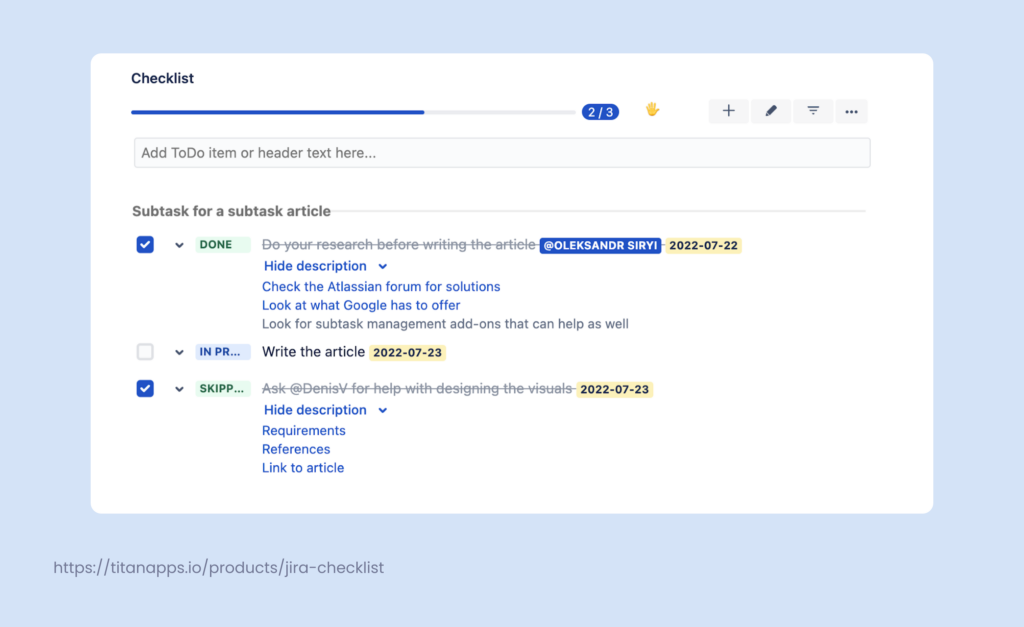
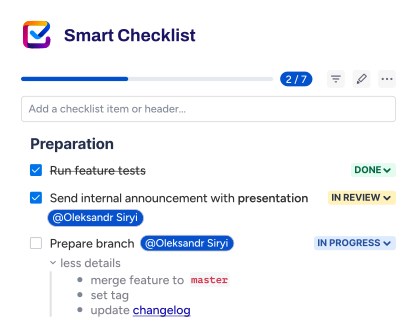
The checklist above illustrates the abilities of the workaround. As you can see, there’s room for sharing details or links; you can set custom statuses, tag people, and set deadlines. The progress is visible at a glance from the progress bar.
What Makes Checklists a Better Fit for Recurring Work?
Thousands of teams, from engineering and QA to HR and procurement, use Smart Checklist to streamline repeatable processes. Here’s why:
- Steps stay inside the issue where the work happens
- Progress is tracked visually on the issue and board
- Templates save time and drive consistency
- You can assign checklist items and set deadlines without creating separate issues
- Checklists can be automated based on issue type or workflow
Additionally, you can use tabs within a single issue to group checklist items by team, phase, or responsibility (such as Legal Review, Security Checks, or Definition of Done). Learn how to set up Multiple Checklists
Example Use Cases
- Agile development: Make checklists for Definition of Ready, Definition of Done, QA, and Deployment.
- Employee onboarding: Create checklist templates covering each step of the onboarding process.
- Product launches: Separate checklists for marketing, engineering, and support teams within the product release template.
- Compliance and security: Prepare specific checklists for security certifications like ISO & SOC2, organizing all the documentation and responsible teammates in one place
Where subtasks fall short
Subtasks are useful but not always the right choice. As projects scale, they can introduce more friction than value:
- Limited visibility: The board card shows only a counter – not assignees, statuses, or other fields. Full details require opening the parent issue.
- Cluttered boards: Dozens of subtasks can crowd your workflow, especially on shared team boards.
- Reporting gaps: Subtasks are not always included in Jira dashboards or progress reports.
- Setup overhead: Each new subtask is a full Jira issue with its own fields, assignees, reporter, comments, and history. For small, routine tasks, this is more administration than the task warrants.
- No reuse: There is no native way to apply a pre-built subtask structure across projects.
For fast-moving teams and repeatable work, Smart Checklist helps teams stay focused, reduce noise, and scale best practices across Jira without complicating the board.
For teams that do need to work with subtasks at scale: Multiple Subtasks in Jira: How to Create and Use.
When to Use Subtasks vs Checklists for Jira
Jira gives teams flexible tools for managing complexity. The key is knowing when to use subtasks and when to simplify with checklists.
Use subtasks when:
• Each step needs its own assignee or due date.
• Steps need to move through statuses independently on the board.
• You need separate issue keys for time tracking or reporting.
• Work items are large enough to warrant their own Jira history and comments.
Use a checklist when:
• Steps belong to the same issue and do not need to move through the board independently.
• The work is repetitive – the same steps appear across many issues or sprints.
• You want progress tracking without cluttering the board with extra cards.
• Steps are verification items, acceptance criteria, or a Definition of Done.
| Subtasks | Smart Checklist | |
|---|---|---|
| Board visibility | Separate cards on the board | Progress bar on parent card |
| Assignees | One per subtask issue | Per checklist item |
| Templates | No native template support | Yes - apply templates by issue type |
| Automation | Manual creation per issue | Auto-apply on issue type or transition |
| Board clutter | High (many cards per story) | Low (items inside parent issue) |
| Best for | Independent, assigned work items | Repeatable steps, process checks |
For a full comparison with examples, see Jira Subtask vs Jira Checklist.
Frequently asked questions
Why aren’t my subtasks showing on the Jira board?
The most common reasons are project type and a restrictive board filter. In team-managed projects, subtasks are hidden by default – use Group by -> Subtasks (space admin required) to show them. In company-managed projects, check the board filter for issuetype constraints and remove them. A filter like issuetype = Story hides everything below Story level, including subtasks.
How do I show subtasks on a Scrum board in Jira?
In a team-managed Scrum project, open the board, click Group by in the top-right corner, and select Subtasks. Subtasks will appear grouped under their parent issues. In a company-managed Scrum project, subtasks appear on the board by default. If they are missing, check the board filter query in Board settings -> General and remove any issuetype restrictions.
Can I show subtasks on a Kanban board in Jira?
Yes. The fix is the same as for Scrum boards and depends on project type, not board type. In team-managed projects, use Group by -> Subtasks. In company-managed projects, check the board filter. A filter using issuetype in standardIssueTypes() will exclude subtasks – change it to include issuetype in subtaskIssueTypes() or remove the type restriction.
Do subtasks show in the Scrum backlog?
In company-managed Scrum projects, subtasks appear grouped under parent issues in the backlog. In team-managed projects, the Scrum backlog does not show subtasks – this is a confirmed Jira limitation with no short-term fix from Atlassian. The standard workaround is creating a separate board from a saved filter that explicitly includes subtask issue types.
Can I hide subtasks from my Jira board?
Yes. Add AND issuetype != Sub-task to your board filter JQL query. This removes subtask cards from the board view while keeping them accessible inside each parent issue. The approach works the same way for both Kanban and Scrum boards in company-managed projects. Atlassian’s support documentation covers this step-by-step.
How do I see subtask progress on the board without opening each issue?
In team-managed projects, enabling Group by -> Subtasks shows each subtask as a card under the parent issue. In company-managed projects, subtasks appear as standalone cards once the board filter includes them. For a progress view that does not add cards to the board, Smart Checklist shows a completion percentage directly on the parent issue card – useful on busy Kanban or Scrum boards where card count matters.
Can I assign subtasks to specific team members?
Yes. Each subtask in Jira has its own assignee field. You can assign a different team member to each subtask under the same parent issue. The assignee is visible on the board card when subtasks are shown. If you want to assign steps without creating separate subtasks, Smart Checklist supports per-item assignees inside the parent issue, with email notifications on assignment.
Do subtasks appear on the Jira roadmap or timeline?
Subtasks do not appear on the Jira roadmap (timeline view) by default. The roadmap in Jira Software shows Epics and Stories – not subtasks. If you need to track subtask-level work on a timeline, the standard approach is to use story points on the parent Story and track subtask completion through the board or issue view. Alternatively, use Smart Checklist to track step-level progress inside the parent issue without needing subtasks on the timeline.
Are subtasks included in Jira dashboards and reports?
Not always. Some Jira gadgets and reports exclude subtasks by default – for example, the sprint burndown chart typically tracks Stories and Tasks, not subtasks. In project management reporting, this means subtask-level work can be invisible at the sprint level. If full subtask visibility in dashboards matters for your team, check each gadget’s filter settings. Alternatively, track completion at the parent issue level using a checklist, which rolls up progress into a single metric.
How do subtasks work with Jira automation?
Jira automation rules can target subtasks directly or trigger actions when subtasks change status. For example, you can set a rule to automatically transition the parent issue to “In Progress” when any of its subtasks moves out of “To Do”. You can also create subtasks automatically when a parent issue is created or transitions to a specific status. For repeatable subtask structures, Smart Checklist templates offer a lighter approach: the checklist auto-applies based on issue type or transition, without creating new Jira work items.
Should I use subtasks or story points for sprint planning?
Use both for different purposes. Story points on the parent issue estimate the overall effort – the subtask breakdown shows how that effort is divided across team members. In software development teams, a common pattern is to estimate the Story or Task in points, then create subtasks for individual contributors (frontend, backend, QA). The subtask count and assignees help with sprint capacity planning without changing the story point estimate on the parent.
Can I use Jira without subtasks?
Yes. Many project management teams use Jira without subtasks by keeping all work at the Story or Task level. If work needs to be broken down further, options include: linked issues (for work that crosses projects), checklists inside the issue (for step-level tracking without board clutter), or a lower hierarchy level in company-managed projects. Atlassian itself recommends considering whether subtasks are needed before adding them, since each subtask is a full Jira work item with its own overhead.