





 Tools for Jira
 Tools for monday.com




Once upon a time, your company was small, everyone knew what everyone else was doing, and Jira planning was not an issue. But things have changed. Several teams now work on several projects, and the big picture gets hazy, split between separate Jira spaces. How should one piece it together? At this point, managers look to Jira Plans as a solution. But is it a silver bullet or an unnecessary project management overhead in your case? We hope this article will help you decide.
TL;DR
- Jira Plans is a useful planning tool for companies with multiple projects, teams, and closely connected processes.
- It is not the best choice if the cross-team dependencies are few, your plans are constantly changing, you aren’t sure yet what you are building, or you need a specialized PI planning tool for a large enterprise.
- To take full advantage of Jira Plans, double down on data hygiene and keep in mind that they may be overwhelming for non-technical stakeholders.
What is Jira Plans?
Jira Plans, formerly known as Advanced Roadmaps, is a set of advanced planning features allowing users to combine work items from different boards, spaces, and filters into a single plan spanning multiple teams. It is available under Jira Cloud Premium and Enterprise licenses. While the Timeline view may be sufficient for one team and project, Plans level up Jira planning capabilities with the following functionality:
- Custom hierarchies. The standard Epic, Task/Bug/Story, and Subtask work types (issue types) may be insufficient to capture the full scope of a complex project. Plans support custom hierarchy levels above Epics. Read more about them in our article on Initiatives and Themes.
- Dependency mapping. Jira Plans reveals how different work items are interconnected, which of them block others, and which are blocked. Those dependencies can be displayed as badges or lines. You can see the whole web of connections on the Timelines or in the dedicated Dependencies tab.
- Capacity planning. Jira Plans streamlines resource allocation, measuring team capacity in hours and days (Kanban boards) or story points (Scrum boards) for a given timeframe. With the sprint planning feature, you can allocate work to each sprint and notice when sprints are overbooked.
- Release management. Releases are milestones in a plan that represent a release to customers, a program increment, or a chunk of the team’s work. You may be familiar with single-space releases, however, Plans also offer cross-space ones, aligning the dates of multiple spaces.
- Scenario planning. Plans offers a sandbox environment, where you can explore different paths to milestones or project completion. Change dates, resources, and other inputs to determine your best- and worst-case scenarios.
Learn more about Jira Plans in our dedicated article on Advanced Roadmaps in Jira.
Jira Plans: To Use or Not to Use? Brief Overview
Have a look at the table below and decide which description best fits your situation.
| When to use Jira Plans | When Jira Plans is not the best choice |
|---|---|
| Multiple teams with closely intertwined workflows | • The teams are loosely coupled • Your plans change frequently • The discovery stage is not yet finished • Strict Scaled Agile Framework (SAFe) adherence is required in a large enterprise |
Now let’s examine those cases in detail.
When do you need Jira Plans?
You need Jira Plans to manage, plan, and report on the progress of large, complex cross-team initiatives such as a major software product launch or version release, an integrated marketing campaign, a company-wide system rollout, or a market expansion. Let’s examine how and why that works.
You manage work across multiple interdependent projects and teams
If your company has several teams and their dependencies are beyond what people can track in their heads or settle in a conversation, Jira Plans may be the right tool to provide a single source of truth.
Let’s consider the sample plan as an example. It shows two Epics for different software development projects: Mobile Platform Integration and Cross-Platform Development Support. The Timeline view in a plan makes the link between the Data Encryption Implementation and the Automated Testing Suite clearly visible.
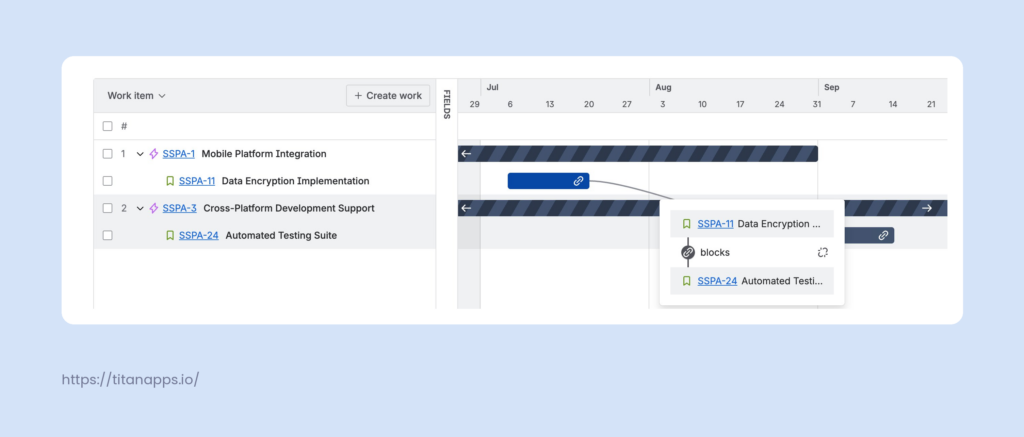
Or you can spot it in the Dependencies tab.
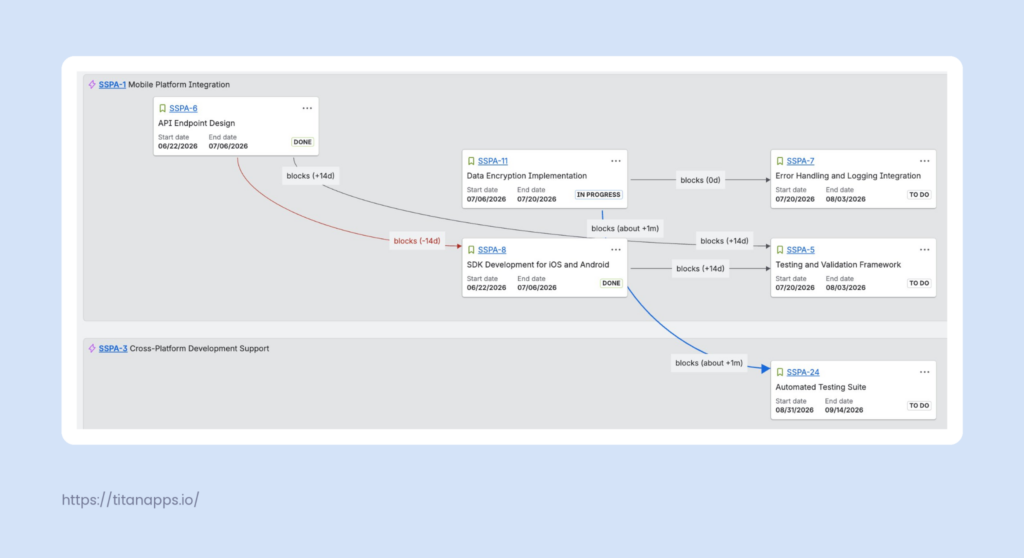
Surely, Jira offers plenty of options to see that connection: the linked work items’ detail view, making the links visible on cards on the board, JQL queries. However, to identify dependencies between projects, you need to know what to look for (work item keys). Otherwise, it’s like searching for a needle in a haystack.
Jira Plans can also warn you about the problems with your plan and help you solve them. For instance, you might have noticed on the screen above that work items SSP-5 and SSP-7 are connected by a red line. The problem is that they depend on one another, but are scheduled for the same sprint. You can reschedule the SSP-7, see how it aligns with other tasks and team capacity in the sandbox environment, and then save the changes.
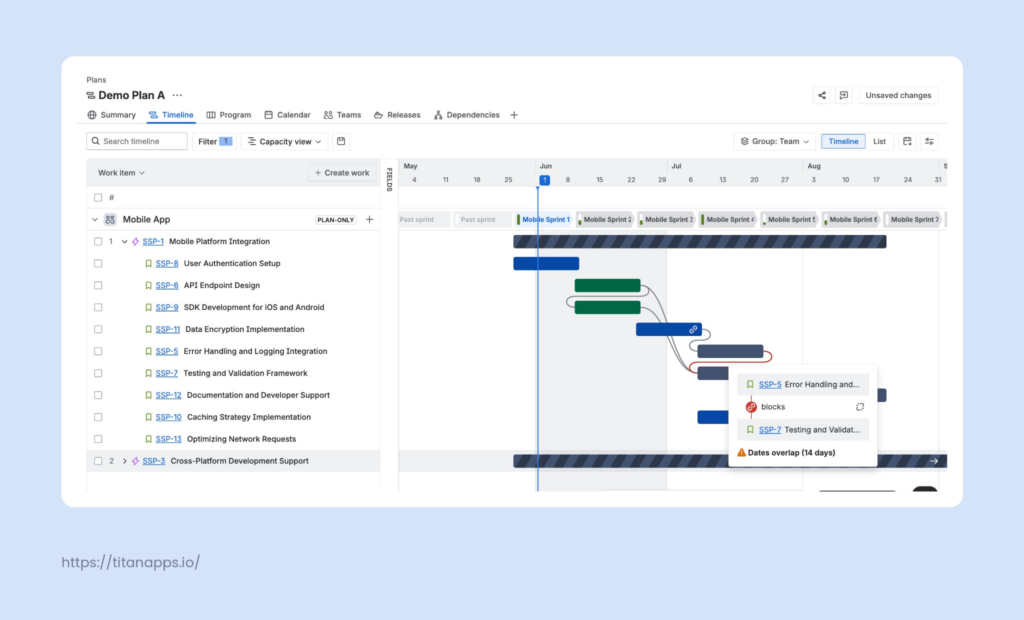
Imagine such a situation happening across teams. For instance, you have “Migrate orders data to the new database table” task on the backend board and “Update the orders dashboard UI to display the new fields” on the frontend board. If both are scheduled for the same sprint, that will cause problems — the dashboard can’t show fields that aren’t there yet.
The obvious solution would be to move one task to the next sprint. But here comes another problem — capacity. You can’t make changes unless you are sure the team responsible can handle the extra task in the given period. Jira Plans allow you to account for that. If you push a team too hard, you will get a warning:
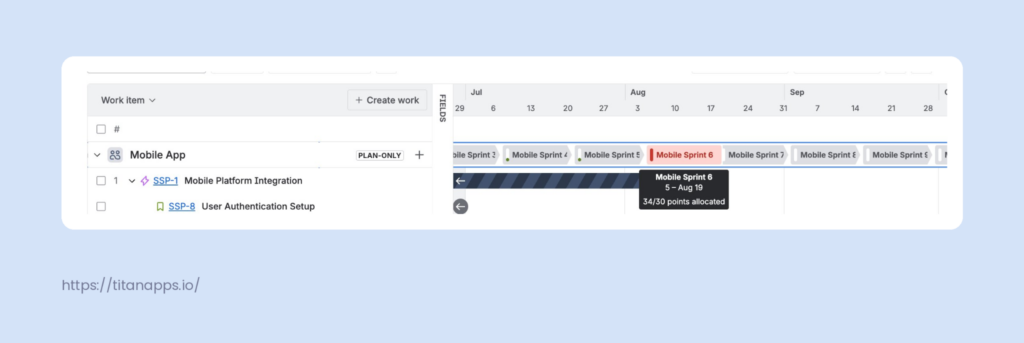
In this case, you can see that Sprint 6 is overloaded while the sprints before and after are underloaded, and make the necessary changes.
Leadership asks for high-level rollups – and spreadsheets won’t cut it
Calculating progress for an initiative spanning multiple Jira boards and spaces is a nuisance. You can try to find a workaround using labels or JQL queries, but it is likely to be cumbersome and error-prone. Manually extracting data to fill in the spreadsheet template on a regular basis is a painful experience.
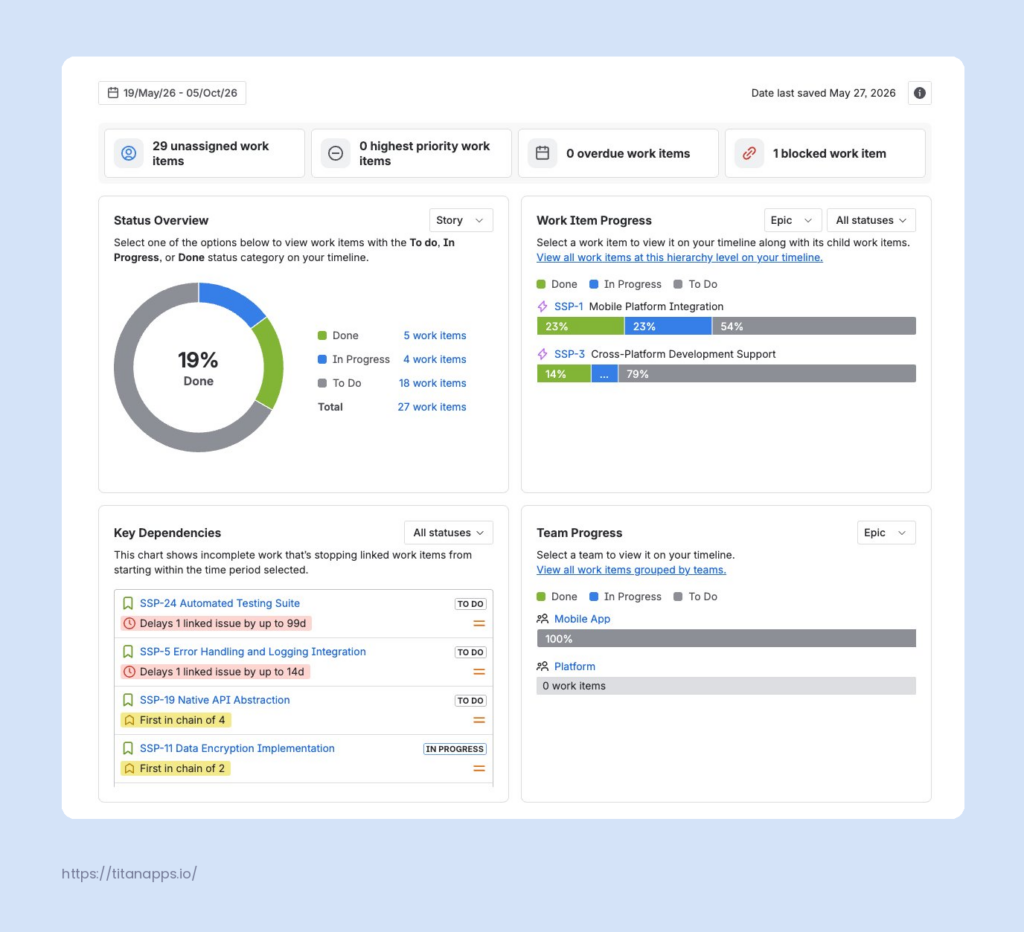
Plans make reporting so much easier. For example, the Summary view includes the Status Overview, Work Item Progress, and Team Progress widgets. The first one shows the rolled-up values for child work items, giving the viewer an idea of your project’s overall state. The Work item progress shows the progress of the high-level work items. Team Progress does the same, but for different teams. The figures update automatically — no retyping numbers into a spreadsheet.
When Jira Plans is not your best choice
Jira Plans can be a useful tool, but it is overkill for a small team or several teams with few dependencies, useless for constant-replanning workflows, and not the best option in Jira for strategic roadmapping or PI planning in enterprises.
Few teams, few dependencies
If a short call or a chat in Slack can settle all the planning issues, you probably don’t need Jira Plans. Note that it’s not the size of the company and the number of teams, but the density of connections between teams that matters for your decision. A company running several unrelated products, for instance, may consist of autonomous squads that own their products end-to-end. In this case, there is no cross-team picture to assemble.
The alternative: Timeline view, available in all Jira plans, is a straightforward way to plan work, track progress, and map dependencies within a single project or team.
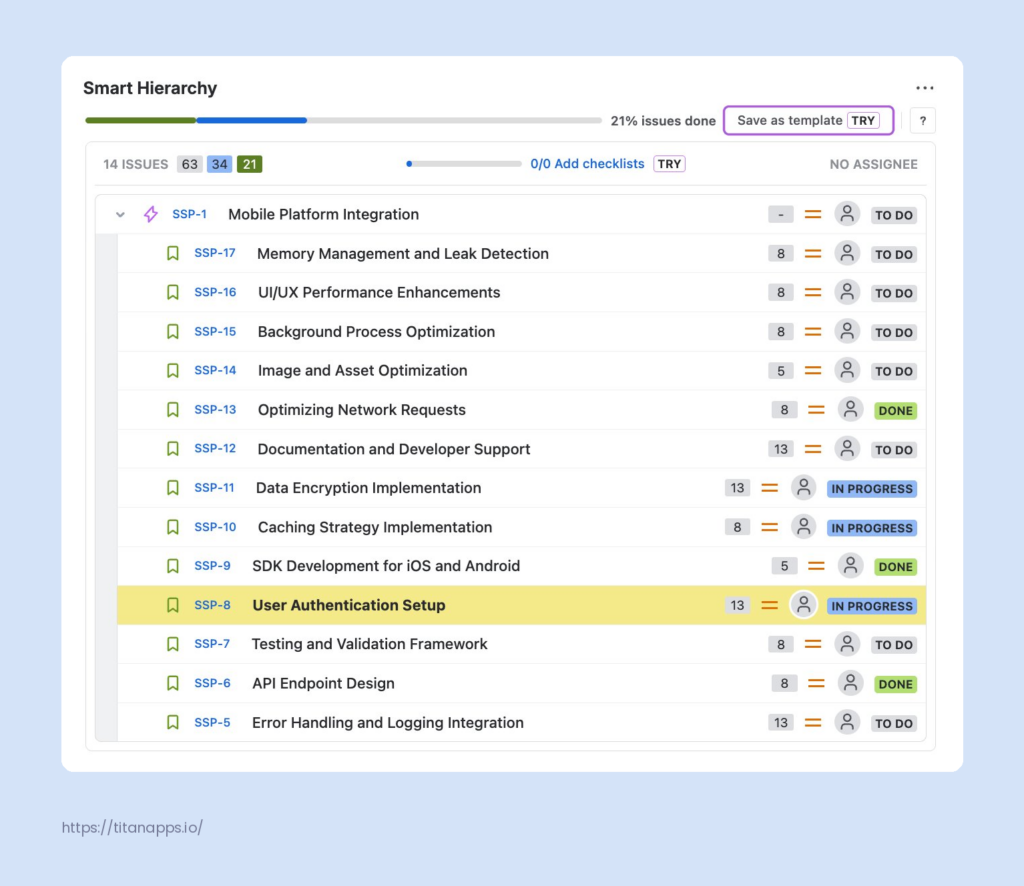
However, a project with multiple tasks and subtasks may still feel overwhelming in Jira. If you are looking for an easy way to see the entire work item hierarchy, including levels above an Epic, at a glance, try our Smart Hierarchy for Jira app. It will help you assess overall progress across complex bodies of work, displaying status, story points, and assignees.
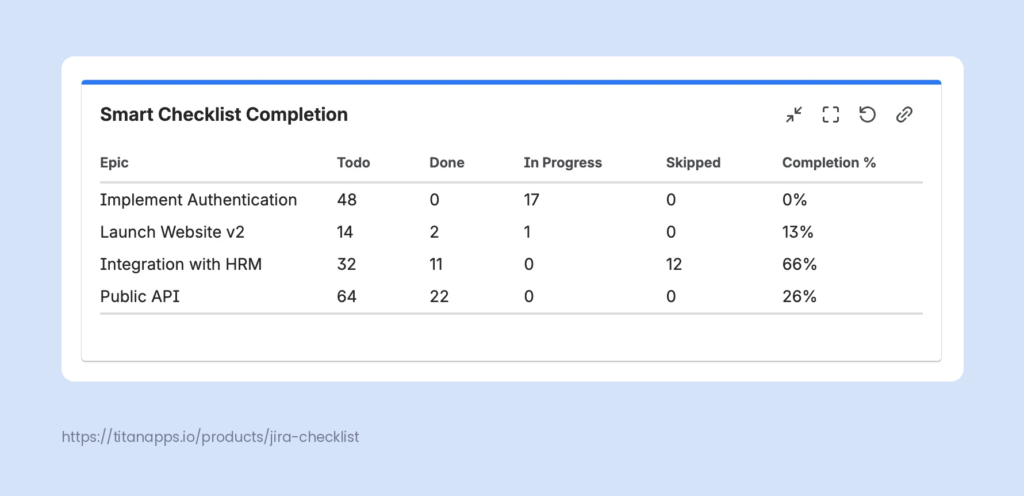
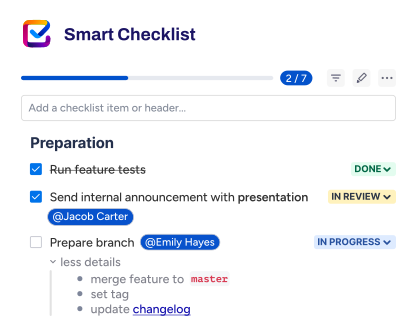
Note that Smart Checklist by TitanApps also offers an efficient way to declutter your Jira board by using checklists within each work item instead of subtasks (learn how it works in our Jira Subtask vs Jira Checklist article). Moreover, with the help of the Checklist Completion Dashboard, you can track checklist progress across multiple epics. You can add it to your dashboard as a gadget and define issue scope using JQL (Jira Query Language).
Highly volatile roadmaps
Jira Plans doesn’t fit well with a short planning horizon. If you work on an early-stage product or in a fast-pivoting startup, your roadmap is likely to shift quite often. Creating and constantly updating a plan, along with data management, won’t be worth it. As one practitioner put it:
“We’re agile, so we don’t spend time planning, and I don’t care too much about what the current plan is versus the old plan, I just care about right now.”
If this statement describes your working environment, Jira Plans is likely to be a burden rather than a helpful tool.
The alternative: you might not need a dedicated planning tool at all. The most straightforward way is to use Jira boards with backlogs. The way you order a backlog is your roadmap. For a forward view, a single-project Timeline is likely to be sufficient.
If, in your case, the roadmap shifts constantly because the team hasn’t decided yet what to build — check out the next section.
Delivery-focused work
Jira Plans is best suited to figuring out how to build something (delivery) rather than what to build (discovery). To set the dates, capacity, and dependencies, you need to understand what you are working on and who will do what. You can’t plan what you haven’t decided to do.
The alternative: Jira Product Discovery is tailored to high-level roadmapping and idea management. With this tool, you can list ideas and use different criteria or traits (goals, effort level, business impact, etc.) to describe, compare, and prioritize them.
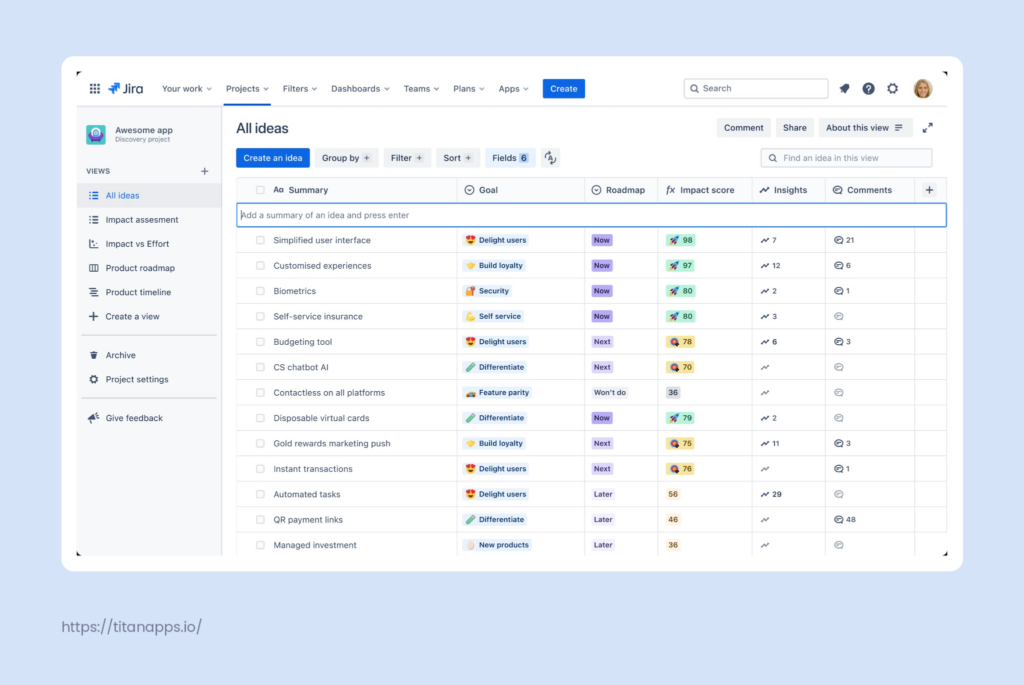
Once the ideas are prioritized, you can create a shareable product roadmap and a timeline.
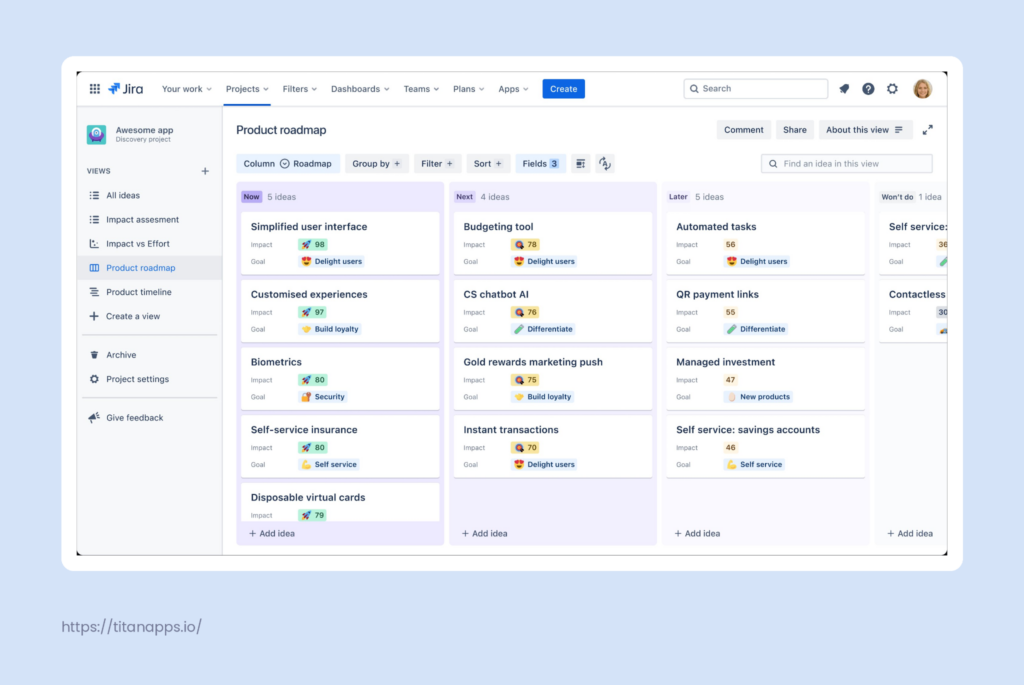
Also, you can connect JPD to Jira Software to create new work items and proceed with delivery once discovery is complete.
PI planning on an enterprise scale
While Jira Plans is a solid choice for cross-team planning, it wasn’t built with Scaled Agile Framework (SAFe) in mind. You certainly can customize it to fit the PI planning requirements: create new levels above Epics, set up the Program Board, configure teams and align sprint cadences, add custom fields for SAFe metrics, etc. Still, Jira Plans may not be a sufficient or prudent choice for enterprises running the full SAFe.
The alternative: if you require strict adherence to SAFe in a large organization and are willing to make additional investments, consider Jira Align, a dedicated platform built for this purpose. Read how to use it, as well as Jira and Confluence, in our article on PI Planning in Jira.
The caveats of using Jira Plans
If you decide that your work context warrants using Jira Plans, there are several things to consider:
- Garbage in = garbage out. Like any other work management tool, Jira Plans is only as good as the data it uses. You’ll need to make sure the teams update their work item statuses in real time, diligently estimate story points or time, and explicitly use “blocks” or “is blocked by” links when a dependency is identified. Without such hygiene, you might be the one to end up spending your weekend updating Jira.
- Plans can be overwhelming for non-tech stakeholders. Jira Plans make most sense to delivery people and are not designed to tell a story. Rows upon rows of work items in a web of dependencies, while impressive, are likely to cause stakeholders’ eyes to glaze over. You will need to consider how to provide them with the high-level strategic overview they really need.
- Double-counting estimates quirk. Imagine you estimate an Epic at 15 story points while planning. The Epic has two Stories, and the engineering team estimates each at 5 points. If you have the rollup on in your Plan, it will display the estimate of 10 points: 5 + 5 for both children, masking your input (15 points). However, the progress bar will calculate the total effort as 25 points (10 from the children + 15 from the parent). The inconsistency is recognized in Atlassian documentation. Therefore, while using Jira Plans, make sure to decide at which hierarchy level estimation happens.
How to get started with Jira Plans
If you have Jira Premium or Jira Enterprise, you will find Plans in your sidebar.
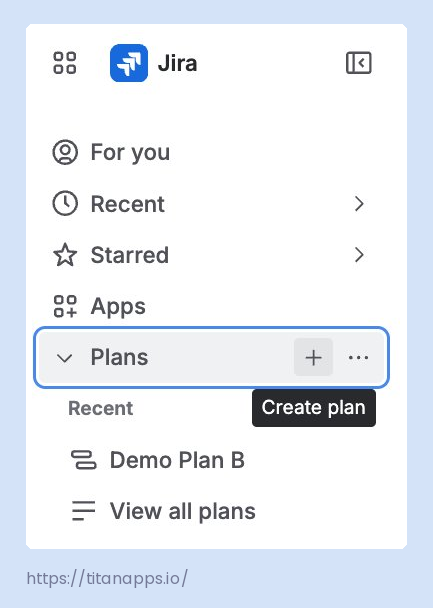
Click “+” and fill the form with the plan details: name, access, and work — boards, spaces, and filters you want to include in your plan. By default, all work items from these sources will appear in your plan. You can change sources later if the scope shifts. Once finished, click Create.
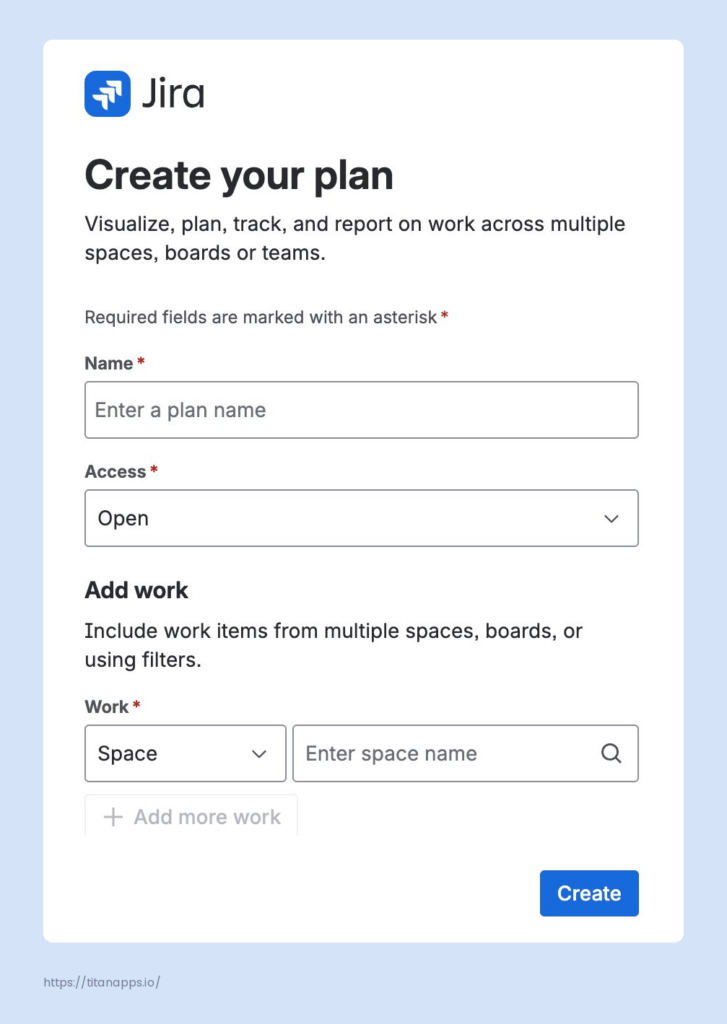
For more technical details, check out the Advanced planning guide in Jira, which includes video tutorials. Note that to make your start smoother, Atlassian offers a top-level planning template with a plan, space, and work item hierarchy pre-configured for large, cross-functional efforts. And if you need a roadmap on how to create a meaningful plan, read our article on project planning in Jira.
Conclusion
Jira Plans is a useful tool for coordinating large initiatives involving multiple teams and interconnected workflows. It provides a way to break down silos within Jira spaces and gain visibility into cross-team dependencies. However, Jira Plans needs established delivery processes to work. Hence, it will be of little use to small, autonomous teams, teams with constantly changing priorities, and those in a discovery stage of product development. Also, large enterprises with a specific focus on SAFe may require more specialized tools for their planning needs.
FAQ
What’s the difference between Jira Plans and Advanced Roadmaps?
Jira Plans and Advanced Roadmaps are the same feature. Prior to mid-2020, it was known as Portfolio for Jira, and in 2023, Atlassian rebranded Advanced Roadmaps as Jira Plans. Despite the name change, the functionality stayed the same: custom hierarchies, cross-team capacity planning, dependency mapping, and scenario planning.
Do you need Jira Premium to use Plans?
Yes. Jira Plans (Advanced Roadmaps) is available only on Jira Premium and Jira Enterprise. Teams on the Free and Standard tiers can use the single-project Timeline view for planning. However, they can’t see or manage capacities, timelines, and dependencies across different boards and spaces in a single place.
What’s the difference between Jira Plans and Jira Product Discovery?
Jira Plans coordinates delivery across teams, while Jira Product Discovery handles the stage before that. It helps to list ideas, score them by impact and effort, prioritize what to build, and create a roadmap. Use JPD to decide what to build, and Plans to coordinate how multiple teams will work on it.
Can you use Plans with team-managed spaces?
Yes, Jira Plans accepts team-managed projects as sources. However, there are three limitations: a field created in a team-managed project cannot be used across multiple projects, you cannot change the parent/child hierarchy across project boundaries, and rules that remove work items do not apply.
What is a Program board in Jira Plans?
The Program board in Jira Plans is a view that lets users plan multiple iterations at once and shows work, priorities, and dependencies across teams. It supports Program Increment (PI) planning rituals, part of the Scaled Agile Framework (SAFe) planning methodology. Note that the view has limitations. It shows Epics and Stories, but not levels above or below them, such as Initiatives or Subtasks. Also, it isn’t designed for real-time collaborative sessions like Big Room Planning.