





 Tools for Jira
 Tools for monday.com





A spreadsheet and several Slack threads may have been enough to manage your content production once. But as the team grows and projects pile up, it becomes a bottleneck. You need an efficient way to bring your content strategy to life: track work statuses for multiple marketing assets, organize information, assign tasks, and monitor stakeholder sign-offs.
There is no shortage of project management tools to satisfy those needs. However, if your organization is already working within the Atlassian ecosystem, Jira is likely to be your choice. This article describes how to create and configure content management process in Jira with minimal effort.
Key Takeaways
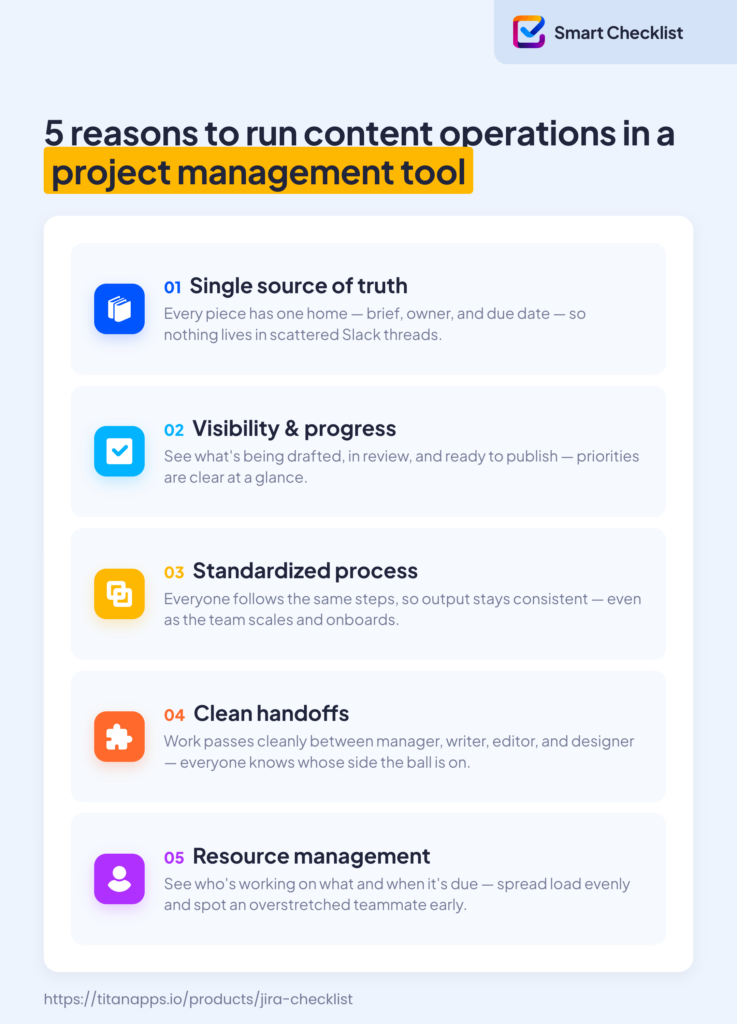
- A project management tool makes content production more consistent and efficient by standardizing the process, offering a single source of truth, and enhancing visibility, resource management, and team collaboration.
- Atlassian’s content management template offers a pre-configured Jira setup tailored to the content lifecycle – a good point to get started with the basics.
- Smart Checklist for Jira by TitanApps extends Jira’s capabilities to provide granular quality checks with little administrative overhead.
What is Content Management?
 Definition
Content management is the comprehensive process of planning, creating, storing, publishing, updating, and archiving digital content across its lifecycle. It covers text, visuals, video, and audio. Content professionals rely on editorial calendars, style guides, project management tools, and content management systems (CMS) to publish consistent, up-to-date content on schedule.
Why Do Content Teams Need a Project Management Tool?
A project management tool helps content teams keep the content creation process efficient, consistent, and transparent.
What is Content Management in Jira?
Content management in Jira is planning, tracking, and executing the content production lifecycle using Jira as a project management tool. It serves to house content tasks as work items, define their owners, and coordinate their progress through the pipeline on a Jira board. Customizable workflows with gated transitions help to ensure alignment with the content standards.
Content Management in Jira 101: Setting Up the Basics
Jira was initially designed for software developers, and it still features Scrum boards and sprints. However, this tool evolved beyond the engineering needs. In particular, Atlassian offers several workspace configuration sets, called templates, for marketing teams. Using the right template makes the initial setup easier by providing the groundwork – you have statuses, work item types, workflow, and other features tailored to your role.
One of them is the content management template designed to accommodate the content creation lifecycle. Here is how to use it.
Step 1: Install Content Management Template
The installation process is quite straightforward:
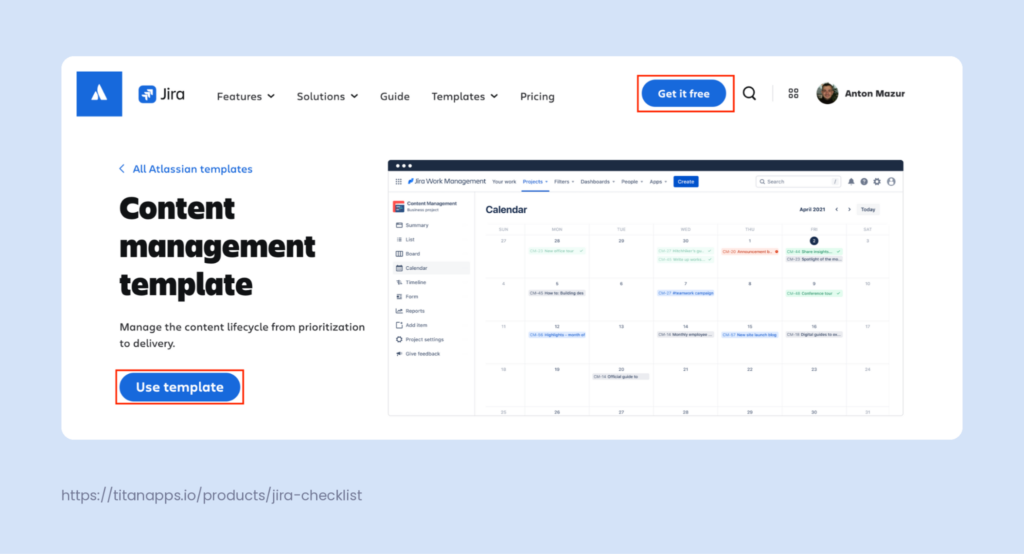
1. Go to the content management template page and click Use template or Get it free.
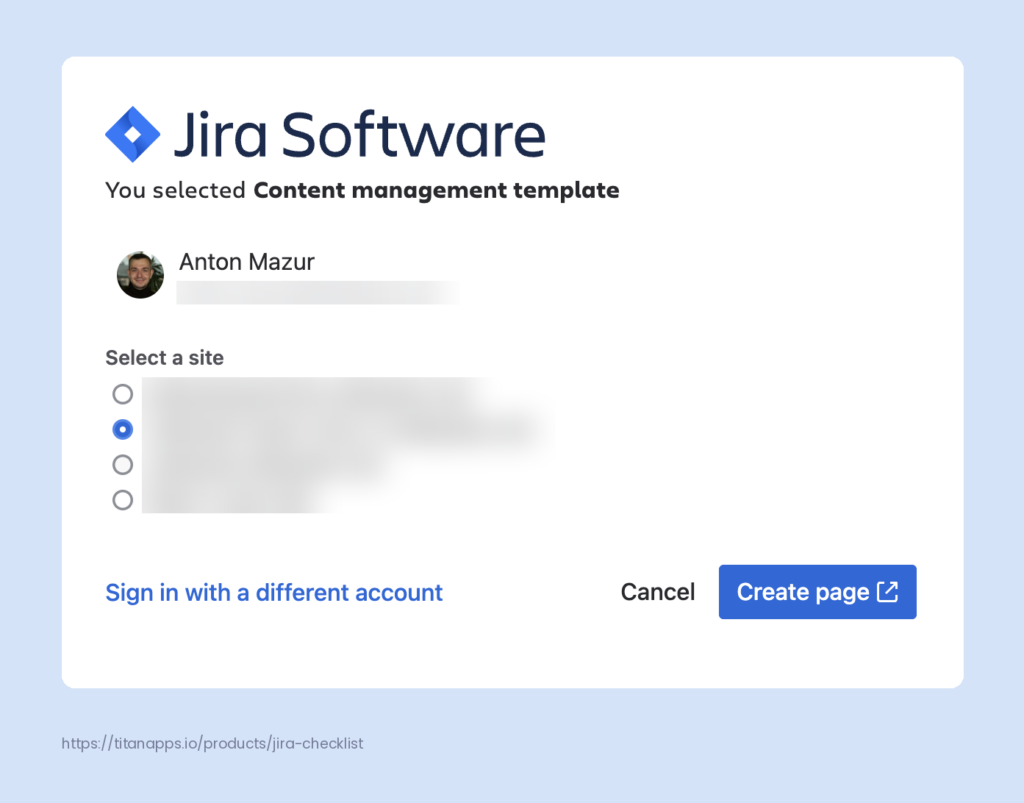
2. Select your site – a specific Atlassian environment (e.g., yourcompany.atlassian.net) that hosts Jira products, apps, and user accounts – and click “Create page”
3. Specify the name of your new Space and choose whether it is company-managed or team-managed. If you need granular setup and have a Jira admin to manage it in line with your organization guidelines, choose company-managed. If basic configuration is enough and you want to configure and maintain the space yourself, choose team-managed. You can find more details in our article on Jira Setup.
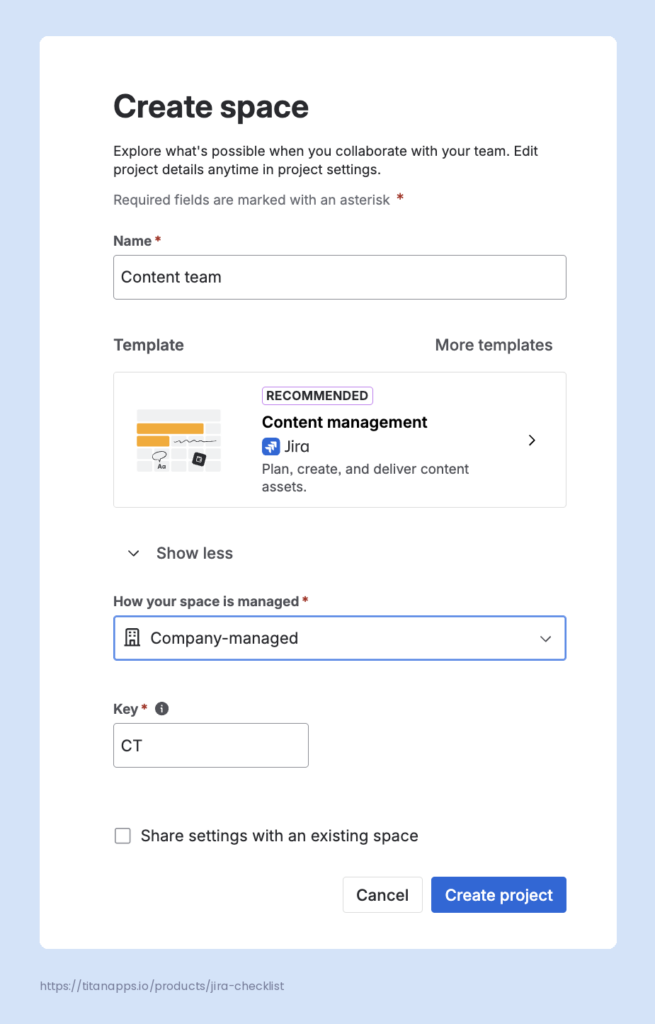
4. Click Create project and add your team members to this space.
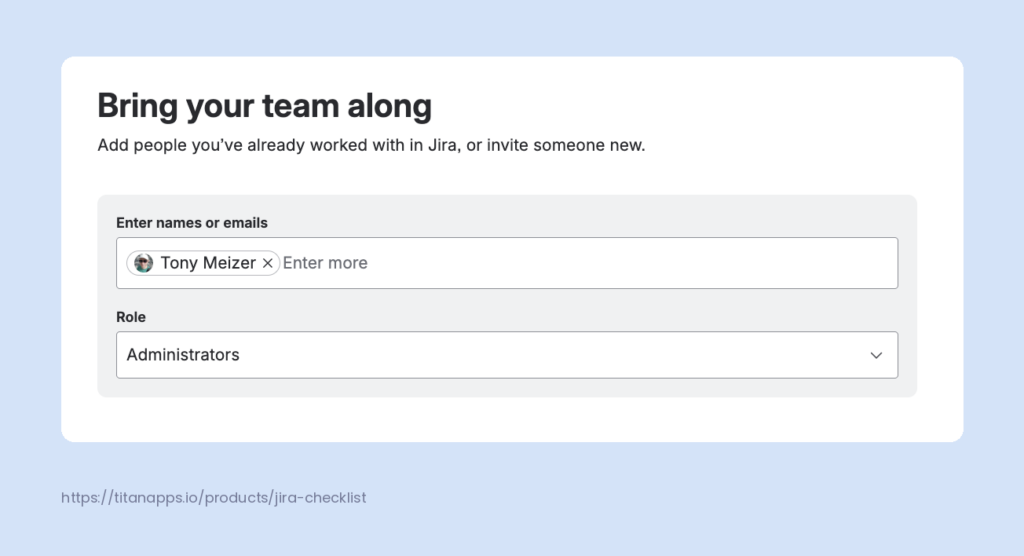
Now you are ready to start working with your content management template.
Step 2: Look Around and Customize
Examine what Atlassian’s content management template for Jira has to offer:
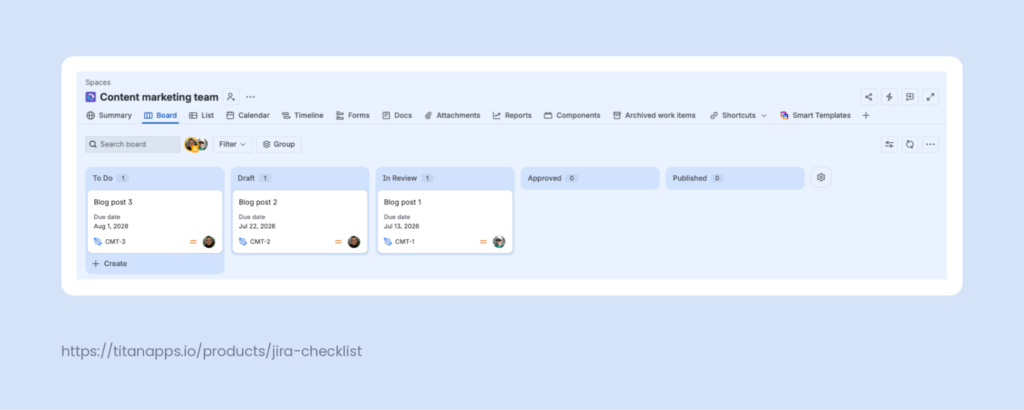
- To Do, Draft, In Review, Approved, and Published work statuses. If that list doesn’t quite fit, you can change it by updating your workflow. Learn how to do it in Create and manage workflow schemes.
- A single Asset work item type. Work items (previously known as issue types) are pieces of work in Jira. In the standard configuration, you’d get an Epic-Bug/Task/Story-Subtask hierarchy, which may be excessive for content tasks. Still, if you find one work item type too restrictive, add more in Space settings – Work items – Types – Actions – Edit work types.
- Fields specific to content creation like Content type and Publication date. If you need more, check out Jira’s custom fields.
- Content management workflow that forces the work item to follow a pre-defined path.
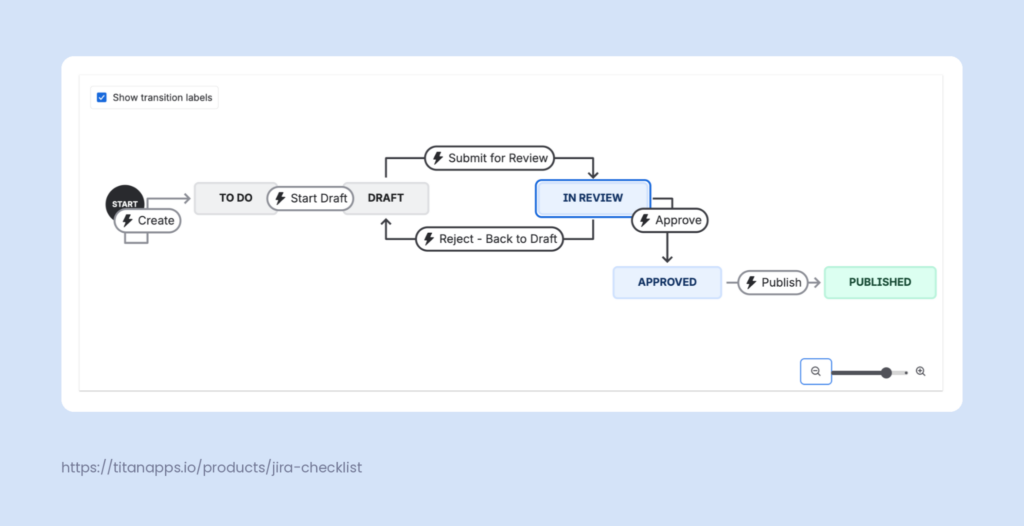
For instance, the task can’t go from Draft to Approved without passing In Review first.
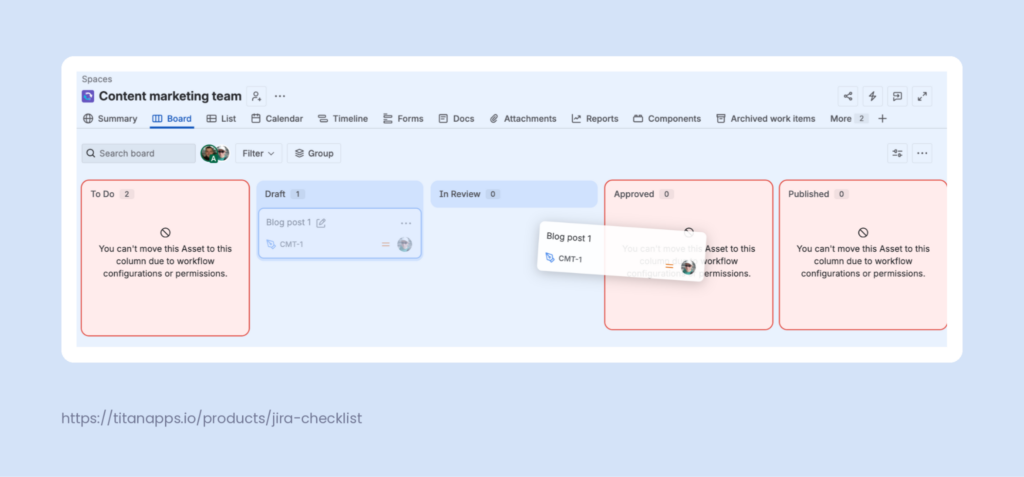
Learn more about Jira workflows and how to configure them in our article on How to Manage Workflow in Jira.
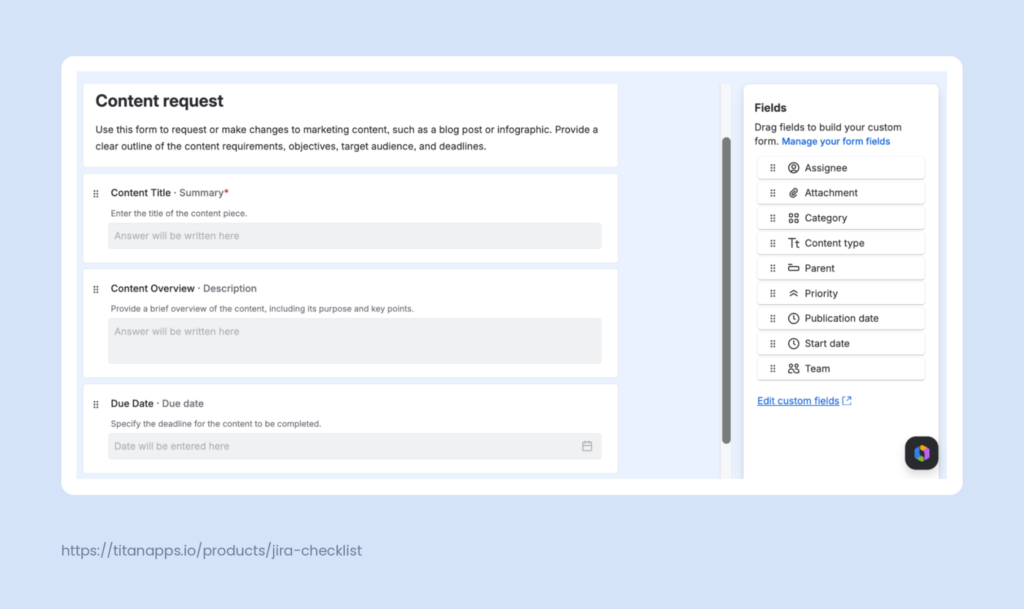
- Forms for recurring work requests, including Content request, Design request, Social media request. They allow you to formalize the creation of briefs for content tasks. Thus, all essential details are collected and stored directly in the project management tool where work happens.
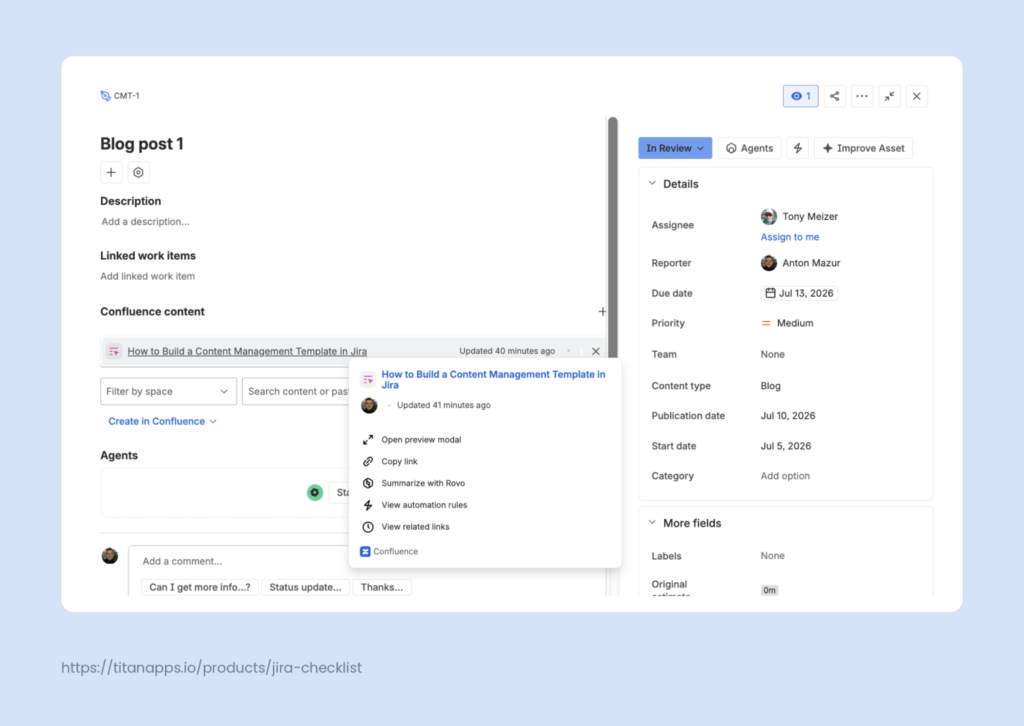
- Confluence integration. While Jira handles task execution and workflows, Atlassian’s Confluence may serve as the canvas for creative drafting, ideation, and context accumulation.
- Writers can draft on shared Confluence pages, while other team members can read, comment, and edit the copy.
- Confluence docs can accommodate background information on content strategy and standards such as Tone of Voice and design guidelines.
On the Docs tab, you can either connect your space to an existing Confluence space or create a new space. It allows you to link documents right to relevant work items.
- Various options to visualize your workflow:
- Kanban Board with your work grouped by status.
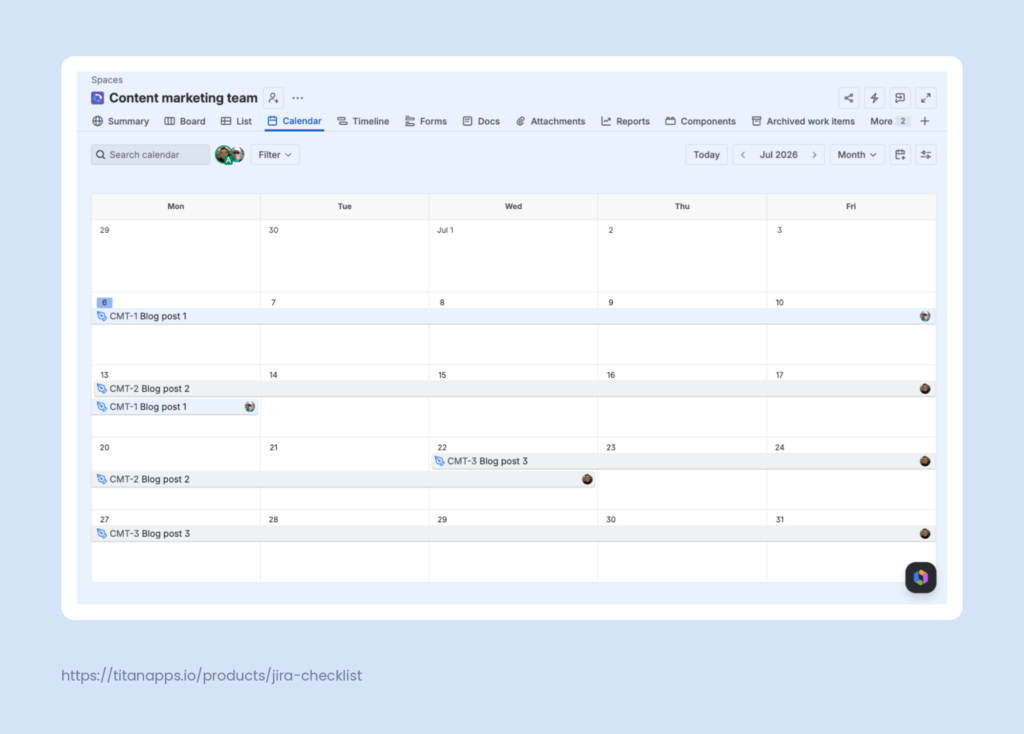
- Calendar to see how your work unfolds over time.
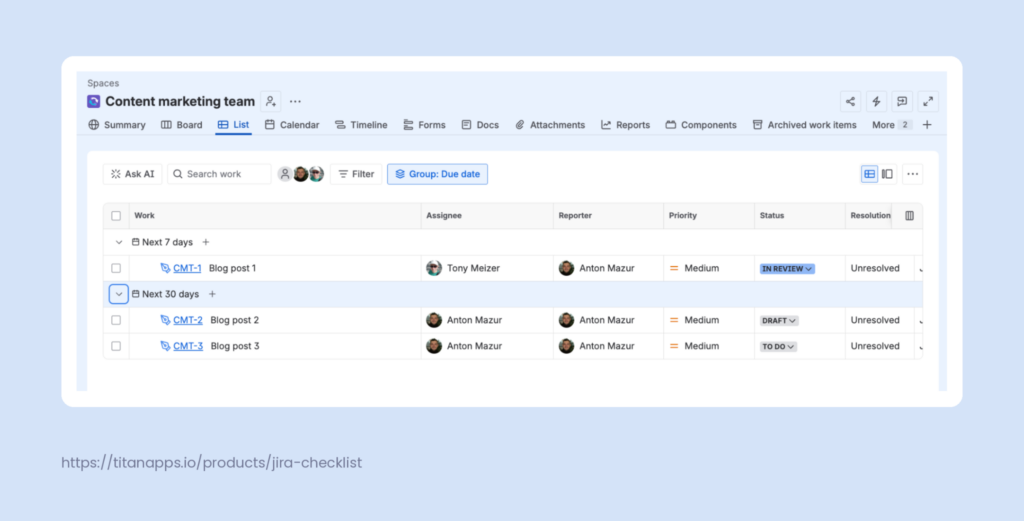
- List for concise work overview.
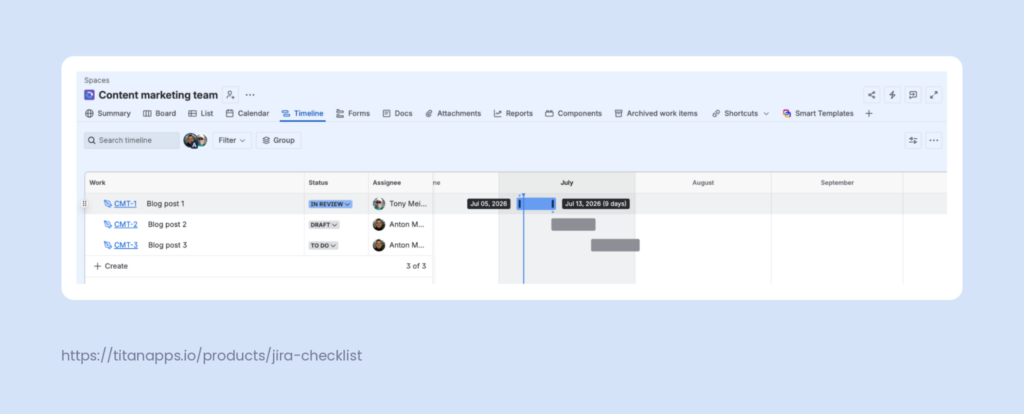
- Timeline for content planning: just drag the bars representing a work item’s start and due dates to change those values.
Check out this Jira tutorial for more information.
Advanced Jira Content Management: Quality Checklists
Atlassian’s pre-configured content management template covers the basics. However, you can further streamline your content management process in Jira by adding a quality-assurance layer and automating it. In this section, we will deal with the why’s and the how’s of this process.
Why Does the Content Management Template Need Quality Checks?
With native Jira, you can restrict transitions between statuses, but you can’t ensure that the specific stage has been completed properly. For example, a blog post task was moved from In Review to Approved. Were all the stakeholders consulted? Were all company-related facts and figures checked? And whose responsibility was it to conduct the check?
That may not be an issue in a small team where one manager owns the process and knows it inside and out. But as the content volume scales up and the team grows, the need for quality assurance and workflow consistency may become more urgent. Moreover, the quality assurance tasks need distinct owners to be effective.
How to Add QA Checks to Your Content Management Template in Jira
The most straightforward native solution is adding subtasks to account for all details. However, it clutters your space with multiple work items, making it hard to read and manage.
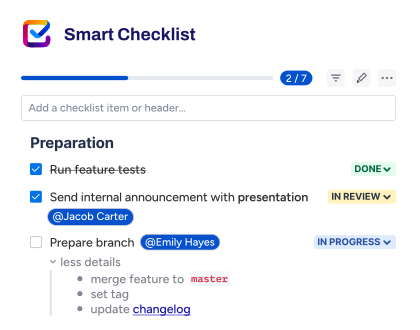
Another way is to add a checklist to the content work item. You can try Jira’s native action items, but they have some caveats. Atlassian Marketplace offers plenty of checklist apps, including Smart Checklist for Jira by TitanApps. Aside from just building a checklist inside a work item, it allows you to:
- Add due dates and assignees for each item
- Split long checklists into sections with tags
- Add details to checklist items
- Create reusable checklist templates
Getting Started with Smart Checklists
To start using the app, find Smart Checklists for Jira in the marketplace and install it. Our documentation will guide you through creating your checklist and saving it as a template. Thus, you won’t have to recreate it later for new content tasks.
Content Management QA: Checklist Templates
We created several examples that may serve as starting points for your quality checks. To use them:
- Copy and edit the markdown text to suit how your team works by adding, removing, or amending items.
- Specify task ownership by assigning items or checklist sections to specific users (@user_name)
- Add due dates to items when the workflow requires them.
- Fill in the X-XX placeholders.
The checklist examples:
1. Before the drafting starts
# Pre-drafting checklist @content_manager
- The topic aligns with the marketing strategy
- The target audience aligns with the company ICPs
- The draft due date is specified
- The content task due date and the publication date are specified
- Knowledge holder identified, or marked as not required
## The SEO brief ready @SEO
- Structure
- Keywords
- Interlinking
- Target volume
2. When the draft is handed over for review
# Draft review checklist
## Proofreading @editor
- Spelling
- Grammar
- Punctuation
## Fact check @editor
- Facts and figures linked to external sources
- All external information is from reliable sources (industry leaders, authoritative research institutions, etc.)
- All external links are no older than X years
- Information in the draft aligns with the information in the sources
## SEO alignment check @SEO
- Meta title: present, no longer than XX characters, includes the main keyword
- Meta description: present, no longer than XXX characters, includes the main keyword
- URL slug: present, in line with the main keyword
- Volume: in line with target volume in the SEO brief
- Keywords: all used, integrated naturally, distributed throughout the text
- Interlinking: in line with the SEO brief
- Structure: in line with the SEO brief
- Alt texts for visuals: present, contain keywords (skip if no visuals required)
## AEO optimization check @SEO
- TL;DR included
- Definitions included
- Questions in the heading are answered directly in the first sentence
### Clear structure:
- Headings & sub-headings
- Bullet lists included whenever relevant
- Tables included whenever relevant
## Visual guidelines alignment @designer (skip if no visuals required)
- The number & format of visual assets match the brief
- Visual assets design is in line with the brand guide
- Image resolution matches the company standard for this content type
## Brand alignment @content_manager
- The content’s Tone of Voice matches the brand’s guidelines on ToV
- The content is tailored to be relevant for the brand’s target audience
- The way company products and services are mentioned matches brand positioning
## Stakeholder sign-off
- Approved by the knowledge holder @expert
- Approved by the executive stakeholder @executive
- Approved by legal @legal
3. Before the content goes live
Note: the assignee is whoever is responsible for publishing the text (e.g., the writer or content manager).
# Publishing checklist
## SEO
- Meta title specified
- Meta description specified
- URL slug specified
## Monitoring
- The URLs have relevant UTM tags
## Visuals
- All visuals included
- Alt texts included
## Additional elements included and configured correctly
- CTA buttons
- Quotes
- Table of contents
- Tables
- Author’s block
## Preview check
- All elements render correctly
How to Integrate QA Checklists in Your Jira Content Management Template?
One way is to combine them into one checklist and fill out the relevant sections as the work item moves through the workflow (you can collapse the irrelevant sections).
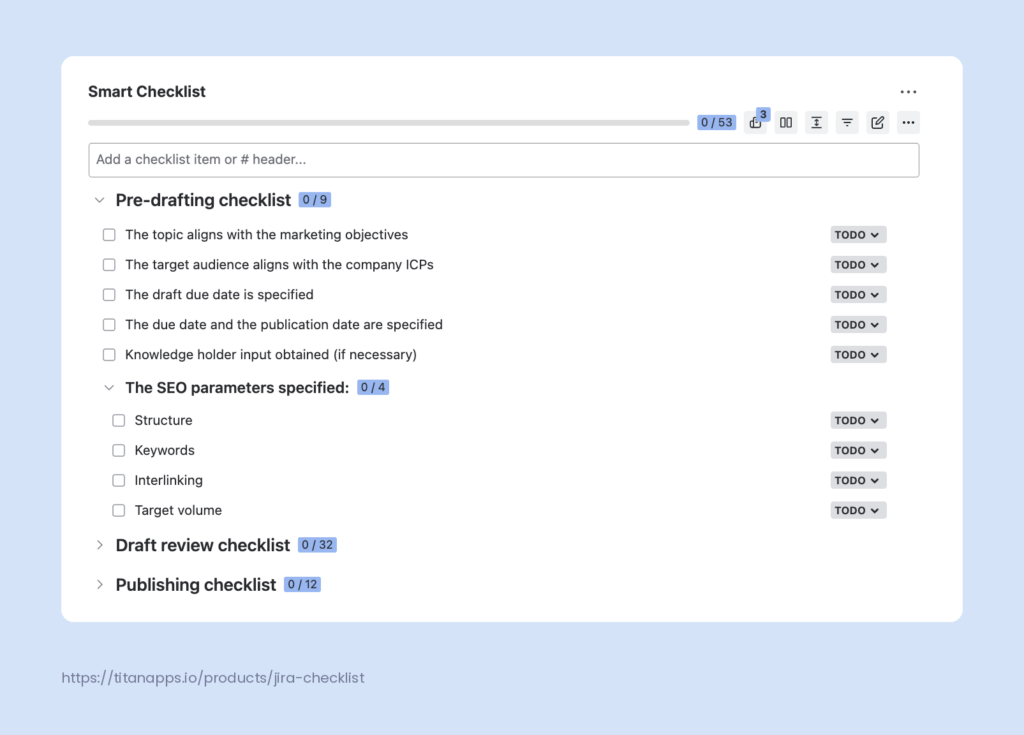
Or you can leverage workflow automation by creating rules that add a relevant checklist when a work item reaches a specific status.
The last option is more complex to configure, but it pays off by ensuring a consistent QA process without extra manual work. For example, you may configure a rule: a work item moved from Draft to In Review gets a Draft review checklist. See the Automation Action: Add Checklist Items section in the Smart Checklist documentation for a step-by-step guide.
Pro Tip: Use Checklists to Guide a Content Task Through the Pipeline
To enforce the rule that checklists must be completed before work items can change status, link the two. For example, you can prevent the work item from being moved from In Review to Approved unless all checklist items are ticked. A user who tries it will get an error message, and the work item won’t change status. Learn how to do that in our documentation (see All checklist items completed Validator).
To save time and reduce manual updates, you can also have the work item automatically change status when all checklist items are completed. Imagine the content piece moves from In Review to Approved when the last item on the Drafting checklist is checked. The setup is described in Transition an Issue on Checklist Completion.
Bonus: Useful Templates for Marketing Management in Jira
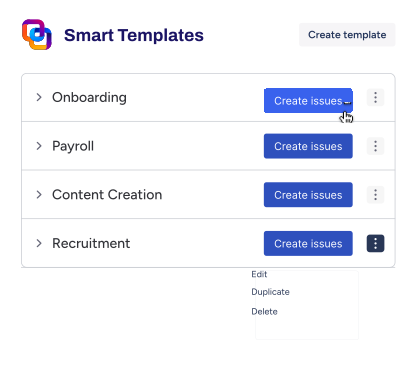
Check out our articles for practical tips on using Jira for marketing needs. In addition to Smart Checklist for Jira, they also feature Smart Templates by Titanapps. While Smart Checklist allows you to save a checklist within a work item as a template, Smart Templates is designed to save sets of work items to recreate for recurring tasks. The latter may come in handy for tasks that involve multiple users or even teams and are too complex to fit into a single checklist.
Look for checklist templates and work item templates tailored to the needs of marketing teams in these publications:
- GTM template
- Marketing feature release template
- Marketing campaign planning template
- Email campaign template
Get your content pipeline running in Jira
The most efficient way to set up content management in Jira is to use Atlassian’s pre-built configuration, which does most of the heavy lifting. You can tailor it to your needs using Jira’s rich customization capabilities. Moreover, Atlassian Marketplace apps can push them even further. In particular, Smart Checklist for Jira by TitanApps provides a way to add quality checks without adding administrative overhead. The first setup may take some time, but once you get your pipeline configured, it will help to keep your content production consistent and on track.
FAQ
Does Atlassian have a CMS?
Not in the traditional sense. Atlassian offers Confluence as enterprise content management (ECM) software. It handles internal content: documentation, knowledge bases, team wikis, and collaborative documents. Also, Confluence can accommodate customer knowledge bases. Still, it’s not designed as a publishing CMS for marketing sites or blogs. For that, teams typically pair Atlassian tools with a dedicated CMS, such as WordPress or Contentful.
How can I integrate Jira with a content management system?
Jira has no native integration with CMS platforms, so teams typically opt for an external route. The most straightforward option is no-code middleware. Tools like Zapier, Make, and n8n connect Jira to WordPress, Contentful, and other platforms. For instance, you can configure a rule ensuring that when a Jira work item moves to Ready for publication status, the CMS creates a draft post.
Should I use Jira or Confluence for content management?
Both are useful. Jira tracks the work of producing content: due dates, ownership, workflow status, approvals, and reporting across pieces and campaigns. However, it is not designed to store the content itself. Confluence can serve as a container for briefs, drafts, style guides, editorial calendars, and reference material. As both are parts of the Atlassian ecosystem, they integrate natively.