





 Tools for Jira
 Tools for monday.com





Not everyone knows it, but Jira was originally designed as a bug and issue tracker. Even its name comes from a nickname Atlassian developers once used for Bugzilla, the tool they relied on before Jira. Today, many teams use Jira as a general project management tool, but its bug tracking roots are still tangible. Most of what teams need for Jira bug management already ships with the product. What usually holds them back is configuration, as many teams use only a fraction of what Jira provides.
In this guide, we walk you throughJira’s native bug tracking features. They range from the Bug work type and workflows to JQL filters and dashboards. We also share how our team standardizes bug reports and which automation rules save time on routine steps. Finally, we look at how AI agents in Jira can review bug reports, triage new bugs, and even fix routine ones.
What is Jira Bug Management and What Does it Involve?
 Definition
Jira bug management is the process of reporting, triaging, fixing, and verifying software bugs in Jira. It covers the full bug life cycle, from the first bug report to the release of a verified fix. Each bug is logged as a Bug work item and moves through workflow statuses, such as To Do, In Progress, and Done.
Since bugs appear at every stage of the software development lifecycle, Jira bug management involves several connected steps:
- Bug reporting. Someone logs a software bug with steps to reproduce, screenshots, or console logs.
- Bug triage. The team checks for duplicates, sets the priority, and assigns an owner.
- Bug resolution. A developer works on a bug and applies a fix.
- Verification. QA teams run test cases to confirm the fix and catch regressions.
- Reporting. Team leads track trends, such as created vs. resolved bugs and fix times.
Jira bug tracking is a narrower term. It refers to recording bugs and following their status in Jira. Bug management is broader. It also includes the priorities, workflow rules, and team agreements that decide what happens to each bug.
TL;DR: Native Jira Bug Management Features at a Glance
- Jira has all the native capabilities a team needs for effective bug management.
- The Bug work type lets workflows, JQL queries, and automation rules treat bugs differently from the rest of your work.
- Most Jira reports and dashboard gadgets are general-purpose, but a saved JQL filter can narrow them down to bugs.
- Jira Automation can handle repetitive parts of bug management, such as setting due dates by priority or alerting the team about critical bugs.
- Rovo agents can take on much of the bug triage process, from checking report quality to flagging duplicates.
- AI coding agents in Jira can act as an AI bug fixer for low-complexity bugs. The fix arrives as a draft pull request, so your team reviews it before merging anything.
- A shared bug report template helps your team include the details developers and AI agents need to start working. Our QA team’s template in Smart Templates for Jira covers the environment, steps to reproduce, and expected and actual results.
- Jira Service Management can collect customer-reported bugs and track response times with SLAs. Its triage agent can factor in customer sentiment when setting urgency.
Now let’s explore this in more detail.
The Bug Work Type, Dedicated Fields, And Priority Levels
Jira software spaces provide you with a dedicated Bug work type. Since it’s separate from Story and Task, you can give it its own fields, screens, and workflow. This also makes bugs easy to filter and to rank against user stories in the backlog.
Some teams also create custom issue types for specific kinds of bugs, such as Security Vulnerability or Regression. For most teams, though, one Bug work type with well-chosen fields is enough.
The fields that matter most for Jira bug tracking include:
- Summary and Description. The summary names what’s broken and where. The description holds the reproduction steps, the actual result, and the expected result.
- Components and Labels. They group bugs by product area and help route each one to the right owner (For example, a “hotfix-staging” label).
- Affects versions and Fix versions. They show in which release the bug appeared and in which release the team plans to fix it.
- Attachments and linked work items. Screenshots, screen recordings, and logs help developers see the problem. Links connect the bug to the story or epic it came from.
Pro tip
If you need a field Jira doesn’t provide, you can add custom fields, such as Severity or Customer impact. Both company-managed and team-managed spaces support this. For a detailed overview of Jira fields related to bug management, please see our article Jira bug report.
Priority levels work out of the box. Jira comes with five default levels:
- Highest
- High
- Medium
- Low
- Lowest
Admins can rename them or set up a separate priority scheme. For example, your team might prefer a Must, Should, and Could scale.
Keep in mind that priority and severity are different things. Priority shows how soon the team should fix a bug, while severity describes how much damage the bug causes. Jira has no built-in severity field, so teams that track both add it as a custom field.
Bug Workflow Stages in Jira, From Triage to Verified
Jira supports custom workflows for each work type, so bugs don’t have to follow the stages designed for feature development. A typical bug workflow includes these statuses:
- Triage. A new bug waits for review. Someone confirms it can be reproduced, checks for duplicates, and sets the priority.
- To Do. The bug is confirmed, prioritized, and ready for a developer to pick up.
- In Progress. A developer is working on the fix.
- In Review. The fix is complete and goes through code review.
- In QA. A QA engineer verifies the fix in the environment where the bug appeared.
- Done or Verified. The fix is confirmed and ready for release, or already released.
Every bug workflow also needs a way back. If a fix fails verification, the bug returns to To Do or In Progress, or moves to a separate Reopened status.
Practical example
At TitanApps, we keep the flow lean: To Do, In Progress, In Review, In QA, Ready for Release, and Released or Done. Our QA team sends reopened bugs back to To Do or In Progress, depending on the developer’s availability.
Transitions define which moves between statuses are allowed. On a Kanban board or Scrum board, each status maps to a column. This way, the whole team can see where every bug is.
To quickly start with the key native features pre-configured, you can use Jira’s Bug tracking template. This is a project/space template with work types and workflows adjusted specifically for bug resolution (as opposed to workflows optimized for feature development). If you already have a Jira space, you can also configure the features you need on your own.
One more tip: configure your bug workflow to fill in the Resolution field on the transition to Done. This field records a status indicating why a bug was closed, for example, Done, Duplicate, or Cannot reproduce. Many Jira reports and filters rely on it, so bugs without a resolution can count as unresolved even when their status is Done. You can set a default resolution automatically or show a screen where the person closing the bug picks one. Just remember to clear the field if a bug is reopened or automate this action.
Reports And Dashboards For Jira Bug Tracking
Jira doesn’t have reports designed only for bugs. However, most reports and dashboard gadgets can run on a saved filter or let you select a Jira board as the data source. This means you can limit them to bugs with a simple query, such as issuetype = Bug. Alternatively, if you have a dedicated Jira board for bugs, you can set it as a data source for reports that do not support custom filters.
To find these reports, select Reports in your space navigation, and then More reports. Several of them work well for bug tracking:
- Created vs. Resolved Report. It compares how many bugs (or other work items) your team created and resolved over a selected period. If the created line keeps growing faster, your bug backlog does too.
- Resolution Time Report. It shows how long your team takes on average to resolve bugs.
- Average Age Report. It shows how long unresolved bugs have stayed open.
- Pie Chart Report and Single Level Group By Report. They break down bugs by priority, component, assignee, or any other field.
Most of these reports are also available as dashboard gadgets. You can combine them on a shared dashboard for QA teams and engineering leads, along with the Filter Results gadget that lists bugs matching a saved filter. All of them run on filters, and every filter is built on a JQL query.
How to Use JQL and Saved Filters for Jira Bug Management
JQL, or Jira Query Language, lets you search for work items by any combination of fields. For example, you can combine the work type, status, priority, and release. Here’s an example of a query that returns all bugs in a space that aren’t closed yet:
![[1] - [Jira JQL Filter for Finding Open Bugs]](https://titanapps.io/blog/wp-content/uploads/2026/10/1-Jira-JQL-Filter-for-Finding-Open-Bugs-1024x674.png)
One especially useful keyword is text. It searches across all text fields, including the summary, description, and comments. For example, type = Bug AND text ~ “export” finds every bug that mentions export anywhere in its text fields.
You can copy these three queries and adjust them to your space:
- All open bugs in a space: project = ABC AND issuetype = Bug AND resolution is EMPTY
- Bugs unresolved in an upcoming release: issuetype = Bug AND resolution = Unresolved AND fixVersion in unreleasedVersions()
- High-priority bugs untouched for a week: issuetype = Bug AND priority in (Highest, High) AND updated < -7d
Once a query returns what you need, save it as a filter. Saved filters let you reopen frequent searches in one click and share them with your team. You can also use them as a data source for your dashboards and reports.
Pro Tips: 3 Ways to Improve Jira Bug Management in Your Team
Native features cover the basics, but many teams run into the same problems. Bug reports vary in quality, verification steps get skipped, and important checks depend on someone’s memory.
When such gaps let bugs reach users, teams have to squeeze urgent fixes into their release plans. The 2025 DORA report on AI-assisted software development shows how common this is. It measured rework rate: the share of deployments in the last six months that were unplanned fixes for user-facing bugs. 26.1% of respondents reported a rework rate of 8%-16%, and another 24.7% reported 16%-32%. For 22.7% of respondents, it was even more significant, above 32%.
The three practices below help you tackle this issue.
1. Standardize Jira Bug Reports With A Reusable Template
When every reporter writes bugs in their own format, developers have to ask for missing details. A shared Jira bug report template prevents this, because every new bug starts with the same structure.
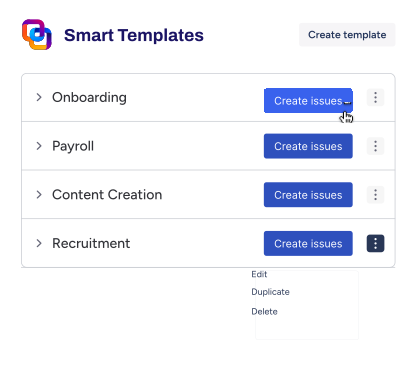
In our team, we create bug reports from a template in Smart Templates for Jira. This solution lets you save a Jira work item or a whole hierarchy of work items as a reusable template. For bug reports, Smart Templates allow you to:
- Prefill the Bug work item with a fixed description structure and fields
- Add variables for details that change and mark them as required, so the template can’t be applied until the reporter fills them in
- Share one bug format across spaces with Global Templates
With the template, the reporter fills in the blanks instead of recalling the format. This keeps bug reports consistent even when they come from different sources.
Pro tip
A structured report helps not only your developers. AI agents, such as the Jira Triage Agent or a coding agent, read the same work item. The more complete the steps to reproduce and environment details are, the better their suggestions and fixes will be.
A bug description should be so detailed and well-structured that a developer doesn’t need to ping QA for clarification. And yet, not so bloated that the main points get lost. A fixed template helps with both. Everyone knows which sections to fill in, and nobody adds extra noise.

Our template follows this principle. It has just a few sections, and each one includes a short hint on what to write there. As a result, the report stays complete without growing too long.
Here’s the bug report template we used in Jira. It consists of a standard work item description and a bug resolution checklist:
![[2] - [Bug Report Template in Jira with Required Description Sections]](https://titanapps.io/blog/wp-content/uploads/2026/10/2-Bug-Report-Template-in-Jira-with-Required-Description-Sections-702x1024.png)
![[3] - [Bug Resolution Checklist Template in Smart Checklist for Jira]](https://titanapps.io/blog/wp-content/uploads/2026/10/3-Bug-Resolution-Checklist-Template-in-Smart-Checklist-for-Jira-1024x726.png)
You can find more tips on each field and examples of good bug reports in our Jira bug report guide.
As you can see from the example above, in our team, Smart Templates and Smart Checklist work together in our bug management process. Here are the benefits of this approach:
- Save time on every bug. Everyone relies on the outlined structure
- Keep bug reports consistent. Every bug follows the same structure wherever the report comes from
- Prevent skipped checks. Verification and regression steps are listed for each bug
- Prepare bugs for AI agents. Complete reproduction steps and environment details give triage and coding agents the context they need
- See progress at a glance. Checklist progress can be displayed on the Jira board and dedicated Jira dashboards gadgets
- Scale the process with less effort. New team members and new spaces will follow the same Jira bug management process from the start
Overall, this makes your workflows better organized and more efficient.
2. Put the Fix And Verification Steps Inside The Work Item
A bug passes through several people before it’s closed. The QA engineer reports it, a developer fixes it, and QA verifies the result. Each of them has their own checks. It’s easy to skip one when the list lives in someone’s head or in a separate document.
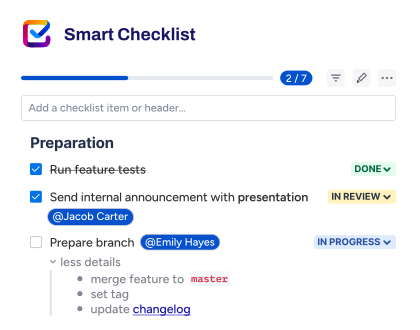
Our team keeps these checks in a checklist right inside the bug. For this, we use Smart Checklist for Jira. It adds feature-rich checklists to Jira work items and lets you save them as reusable templates.
Our bug checklist template has three tabs, one for each stage of the bug’s journey. As a result, everyone works from a separate tab with only the steps relevant to the current stage.
![[4] - [QA Engineer Checklist for Creating Bug Reports in Jira]](https://titanapps.io/blog/wp-content/uploads/2026/10/4-QA-Engineer-Checklist-for-Creating-Bug-Reports-in-Jira-1024x710.png)
![[5] - [Development Team Checklist for Reviewing Bug Reports]](https://titanapps.io/blog/wp-content/uploads/2026/10/5-Development-Team-Checklist-for-Reviewing-Bug-Reports-1024x707.png)
![[6] - [Bug Fix Validation Checklist Before Closing a Bug]](https://titanapps.io/blog/wp-content/uploads/2026/10/6-Bug-Fix-Validation-Checklist-Before-Closing-a-Bug-1024x717.png)
Each checklist item can have its own assignee, due date, and priority. For example, you can assign the regression checks to a QA engineer and set a deadline before the release date. Checklist progress also appears on the board card, so the team can see how far each bug has moved without opening it.
Sometimes, a developer touches related modules while fixing a bug. In that case, they can add a short QA checklist with the help of Smart Checklist.
You can find more examples in our article on QA checklists in software development.
3. Make the Key Steps Mandatory
A checklist helps people remember what to do, but some checks are too important to leave optional. For example, a bug shouldn’t reach Done before QA confirms the fix with the original steps to reproduce.
In Smart Checklist, you can mark such steps as mandatory items. Then, a Jira admin can add a validator to the transition to Done in the Jira workflow. If any mandatory item is still open, Jira will block the transition and show an error.
You can also require a whole section to be complete, such as all items under the Bug Fix Validation header or tab.
If you prefer to set up similar checks without a checklist, you can set up a validator in the Jira workflow editor and restrict transition to the next status if the specified conditions are not met.
How to Use Automation for Jira Bug Management: Flow Examples
A large part of bug management consists of small routine actions that follow the same logic every time. Automation lets you hand this routine work over to Jira.
Common automation rules/flows for Jira bug management include:
- Add a watcher automatically when a bug is created
- Assign new bugs to the right person based on the component
- Add labels automatically based on the bug’s content
- Set a due date based on the bug’s priority
- Move bugs to Done automatically when their fix version is released
- Send an alert when someone reports a Highest-priority bug
- Send a reminder when a high-priority bug stays untouched for several days
- Add a verification checklist to every new bug
Add a Watcher Automatically on Bug Creation
Some people need to follow every new bug, even if they don’t fix it themselves. For example, a QA lead may want to see each report as soon as it appears. This rule adds them as watchers to every new Bug work item, so they receive notifications about all further updates.
![[7] - [Add a Watcher Automatically on Bug Creation in Jira]](https://titanapps.io/blog/wp-content/uploads/2026/10/7-Add-a-Watcher-Automatically-on-Bug-Creation-in-Jira-1024x793.png)
Set a Due Date Based On a Bug Priority Level
Priority levels are easier to act on when they come with deadlines. This rule uses a lookup table to match each priority with a due date. For example, a Highest-priority bug gets a due date one week after creation, while a Low-priority bug gets two months.
![[8] - [Set a Due Date Based on Bug Priority with Jira Automation]](https://titanapps.io/blog/wp-content/uploads/2026/10/8-Set-a-Due-Date-Based-on-Bug-Priority-with-Jira-Automation-1024x777.png)
Add Bug Verification Checklist To All Bugs Automatically
When bugs come from QA engineers, developers, and support, not every reporter remembers to add a checklist by hand. Smart Checklist has native automation rules that do this for you, so you don’t need to build a separate rule in Jira Automation.
In the template settings, you can assign your bug checklist template to the Bug work type. After that, the checklist will be added to every new bug automatically.
![[9] - [Automatically Add a Bug Verification Checklist to Bug Work Items]](https://titanapps.io/blog/wp-content/uploads/2026/10/9-Automatically-Add-a-Bug-Verification-Checklist-to-Bug-Work-Items-1024x661.png)
Advanced conditions let you go further and import a template based on field values or workflow transitions. For example, you can add the Bug Fix Validation items only when a bug moves to In QA. For more complex scenarios, you can also integrate Smart Checklist with Jira Automation. Just avoid using both methods for the same work type, as the checklist may then be imported twice.
Since these rules run outside Jira Automation, they also don’t use up your plan’s automation limits. You can learn more in our guide on saving Jira automation steps.
Automated Jira Bug Management With AI Agents in Jira
Note
Atlassian’s State of AI in Service Management 2025 report asked how important different AI capabilities are for development teams. Predictive bug detection and triage got a “very important” rating from 62% of respondents.
AI agents are the newest layer of Jira bug management. They don’t replace the setup described above. In fact, they rely on it: an agent can only triage a bug well if the report is structured and the fields and workflow are in place.
Agents that can help with bugs range from out-of-the-box Rovo agents to custom agents and third-party coding agents. Depending on the agent, it can review bug reports, suggest priority and assignee, or find duplicates. Coding agents can even fix a bug and open a pull request.
How to Set Up Automation With Jira’s Bug Report Assistant
A vague bug report slows down the entire bug triage process. By the time a developer picks it up, the reporter may have moved on, and the missing details are harder to recover. The Bug Report Assistant is an out-of-the-box Rovo agent that can check reports right after they are created.
You can add this agent to a Jira automation rule/flow as one of its actions/steps.
Here’s what this rule/flow looks like:
![[10] - [Bug Report Assistant Automation Flow in Jira]](https://titanapps.io/blog/wp-content/uploads/2026/10/10-Bug-Report-Assistant-Automation-Flow-in-Jira-1024x754.png)
When someone creates a Bug work item, the agent can analyze its description and post a comment for the reporter. The comment explains whether the report is clear enough to start working on it. It also points out what to improve, such as missing reproduction steps or environment details.
Note
You should have Rovo enabled on your Jira instance to have access to Jira’s AI features. If this functionality is not available, please contact your Jira administrator.
To learn more about using and configuring AI agents, please refer to our article AI-native SDLC in Jira.
How to Use The Jira Triage Agent for Bug Management
Once a bug report is complete, someone still needs to triage it. This means checking for duplicates, setting the priority, and deciding who should fix the bug.
The Jira Triage Agent can take on this AI bug triage work. It compares a new work item with similar work in your space and suggests field updates, such as the priority, labels, and assignee. It also flags duplicates and related work items to link. This agent is not dedicated to Jira bug management specifically, but this is one of its most common use cases. Beyond handling bugs, the agent can also suggest improvements to other work item types.
Pro tip
You can run the triage agent on a single work item from its Agents section. Alternatively, you can add it to a board column, for example, a Triage column. In this case, the agent will start working on every work item that moves into this column. By default, its suggestions don’t change anything until a person reviews and accepts them.
In this example, the Jira triage agent reviewed the new Bug work item and suggested several changes. It recommends a parent work item, an assignee for this bug, and a priority level. In addition, the agent also flagged a duplicate work item describing the same bug, so it suggests linking these work items with the Duplicate/Duplicated By link.
![[11] - [Jira Triage Agent Suggestions for Bug Priority Assignee and Duplicates]](https://titanapps.io/blog/wp-content/uploads/2026/10/11-Jira-Triage-Agent-Suggestions-for-Bug-Priority-Assignee-and-Duplicates-1024x634.png)
When a person reviews these changes, they can accept all suggestions at once or one by one. If a suggestion is not entirely relevant, you can refine it in chat and tell the agent what you need.
Once you accept the changes, the agent applies them automatically. In this case, it linked the work item to its duplicate and edited the Assignee, Priority, and Parent fields:
![[12] - [Jira Triage Agent Updates Bug Assignee Priority and Parent]](https://titanapps.io/blog/wp-content/uploads/2026/10/12-Jira-Triage-Agent-Updates-Bug-Assignee-Priority-and-Parent-1024x679.png)
How to Build a Custom AI Bug Triage Assistant in Jira
Out-of-the-box agents follow general instructions. If your bug triage process has its own rules, you can build a custom agent in Rovo Studio. Rovo Studio is Atlassian’s workspace for creating Rovo agents, automation flows, and no-code apps using natural language. For example, you can build an agent that classifies bug severity based on your own scale. Another option is a flow that routes security bugs to a dedicated team.
For this article, I created a custom Bug Triage Assistant in Rovo Studio. Rovo built it from my brief prompt, which listed the key steps the assistant should perform. Unlike the Jira Triage Agent, it follows our own triage rules and does not require approval to implement changes.
It classifies severity based on impact, affected users, and data loss risk. Then, it routes each bug to the team that owns the affected product area. Finally, it picks a team member based on workload and expertise and updates the priority and assignee fields automatically.
Here’s how to build an AI bug triage assistant in Jira:
- Open Rovo Studio. Please note that you may require corresponding permissions in Jira to build with Rovo Studio and create agents. If you cannot access this functionality, please contact your Jira instance administrator. Additionally, your Jira instance should have Rovo enabled.
![[13] - [Open Rovo Studio from the Jira App Switcher]](https://titanapps.io/blog/wp-content/uploads/2026/10/13-Open-Rovo-Studio-from-the-Jira-App-Switcher-755x1024.png)
- Navigate to the For you tab. Describe the AI automation or AI assistant you want to build in the chat window. You can use natural language
- List the key capabilities or steps it should include. Rovo will ask follow-up questions and show you the solution it is going to build for review before it creates it
- You can iterate on the drafted solution in the chat. Once you approve the suggested setup, Rovo will build your bug triage assistant automatically
- Test and publish your solution to start using it
Here’s what the result looks like:
![[14] - [Custom Bug Triage Assistant Built in Rovo Studio]](https://titanapps.io/blog/wp-content/uploads/2026/10/14-Custom-Bug-Triage-Assistant-Built-in-Rovo-Studio-1024x767.png)
If you want to build a Jira automation/flow with this assistant, it’s best to first build the assistant itself and test it. Then, proceed to creating new automation flows/rules including this assistant as one of the steps.
Before you rely on the assistant for every incoming bug, review its decisions for a while. If it picks the wrong team or severity, refine its instructions in Rovo Studio and test it again.
How to Fix Routine Bugs Reported in Jira With an AI Agent
Some bugs need little investigation, for example, a broken link or a typo in a button label. You can delegate such fixes to an AI coding agent that works directly in Jira. Atlassian offers its own Jira Coding Agent, and third-party options include Claude AI agent in Jira, Cursor, GitHub Copilot, etc.
Once you have configured your AI agent in Jira, you can assign the bug to the agent the same way you would assign it to a developer.
![[15] - [Assign a Jira Bug to an AI Coding Agent]](https://titanapps.io/blog/wp-content/uploads/2026/10/15-Assign-a-Jira-Bug-to-an-AI-Coding-Agent-1024x708.png)
The agent can read the bug report, prepare a fix, and open a draft pull request. Your team then reviews the changes and decides whether to merge them. The clearer the steps to reproduce, the better the chances that the AI bug fixer gets it right on the first try.
For detailed setup steps, please refer to the official documentation on Using third-party agents in Jira automation.
Handling Bugs in Jira Service Management
Not every bug comes from your QA team. Customers and colleagues from other departments can report problems too. In many companies, these reports arrive through Jira Service Management (JSM). The core bug tracking process stays the same: a bug needs a clear report, triage, a fix, and verification.
For bug handling, JSM adds several capabilities that regular Jira spaces don’t have:
- Multiple intake channels. Customers can report bugs through a help center portal, by email, or through an embeddable widget in your app. All reports land in one queue.
- Request types and forms. Each request type can have its own plain-language form. For example, a bug report form can ask “What did you expect to happen?” instead of showing an Expected result field.
- Request Router (formerly known as Service Triage Agent). This out-of-the-box Rovo agent analyzes each incoming request, including its content and customer sentiment. It then determines the request type, urgency, and priority, and can suggest escalation based on SLAs. You can add it to a JSM automation rule or flow, so triage starts as soon as a request arrives.
Note
In its playbook on reshaping customer support with AI, Atlassian describes how its own support team uses AI triage. The team works in the Customer Service Management app, where AI classifies and routes 93% of incoming tickets with 95% accuracy.
- SLAs. Service level agreements set time goals for the first response and resolution, ensuring critical bugs do not remain in the queue too long.
- Problem management. When many customers report the same bug, support agents can link the related incidents to one problem and track the root cause in a single place. This feature comes with IT service management spaces by default.
- Knowledge base. Articles about known issues and workarounds appear in the portal. This way, customers can find an answer before submitting a duplicate report. If Jira AI features are enabled on your instance, your knowledge base can be powered by a Rovo agent gathering context from Confluence and other relevant sources.
- Customer visibility. Customers can follow the status of their request in the portal even without Jira access. In addition, Smart Checklist for Jira can show checklist progress on the customer portal in read-only mode, allowing reporters to see the fix advancing step by step.
Jira bug management FAQs
What is bug tracking?
Bug tracking is the process of recording software bugs and following each one from report to resolution. A bug tracking system stores the details of every bug, such as reproduction steps, priority, and assignee. It also shows each bug’s current status, so the team knows what’s fixed and what’s still open.
What is the difference between bug tracking and bug management in Jira?
Bug tracking focuses on recording bugs and monitoring their status. Bug management is broader. It also covers how your team triages bugs, sets priorities, verifies fixes, and improves the process over time. Templates, validators, and automation rules are typical tools for this.
Does Jira have a built-in severity field?
No. Jira has a built-in Priority field with five default levels, but no Severity field. If your team tracks severity separately, a Jira admin can add it as a custom field. Usually, it’s a select list with values such as Critical, Major, and Minor.
What are the default statuses in a Jira bug workflow?
It depends on the template you used to create the space. Many Jira software spaces start with three statuses: To Do, In Progress, and Done. Teams usually extend this workflow with statuses such as Triage, In Review, In QA, and Reopened.
Should bugs be kept in the same backlog as user stories?
It depends on how your team works. A shared backlog helps product owners prioritize bugs against new features in one place. A separate bug tracking project or board suits teams that receive many bugs from different sources, such as customer reports. In both cases, a dedicated workflow for the Bug work type keeps statuses meaningful.
How do you find bugs that were closed without a resolution?
Use a JQL query that returns bugs in a done status with an empty Resolution field: issuetype = Bug AND statusCategory = Done AND resolution is EMPTY. To prevent this in the future, set the resolution automatically on the transition to Done with a workflow rule. Alternatively, you can add the Resolution field to the transition screen.
How do I report on bugs created versus resolved over time?
Use the Created vs. Resolved report, or add the Created vs Resolved gadget to a Jira dashboard. Point either one to a saved filter for bugs, such as project = ABC AND issuetype = Bug. The chart shows how many bugs your team created and resolved over the selected period. If the created line stays above the resolved line, your bug backlog is growing.
How to use AI for bug tracking and bug management in Jira?
Rovo agents can handle AI bug triage, and coding agents can work as an AI bug fixer for routine bugs. You can find how each option works in the section on AI agents in Jira above in this article.
Is Jira a bug tracking software tool?
Yes. Jira launched in 2002 as issue tracking software for developers, and bug tracking is still one of its core use cases. It includes a Bug work type, custom workflows, JQL search, and dashboards out of the box. With Rovo agents and coding agents, it can also serve as an AI bug-tracking tool.