





 Tools for Jira
 Tools for monday.com





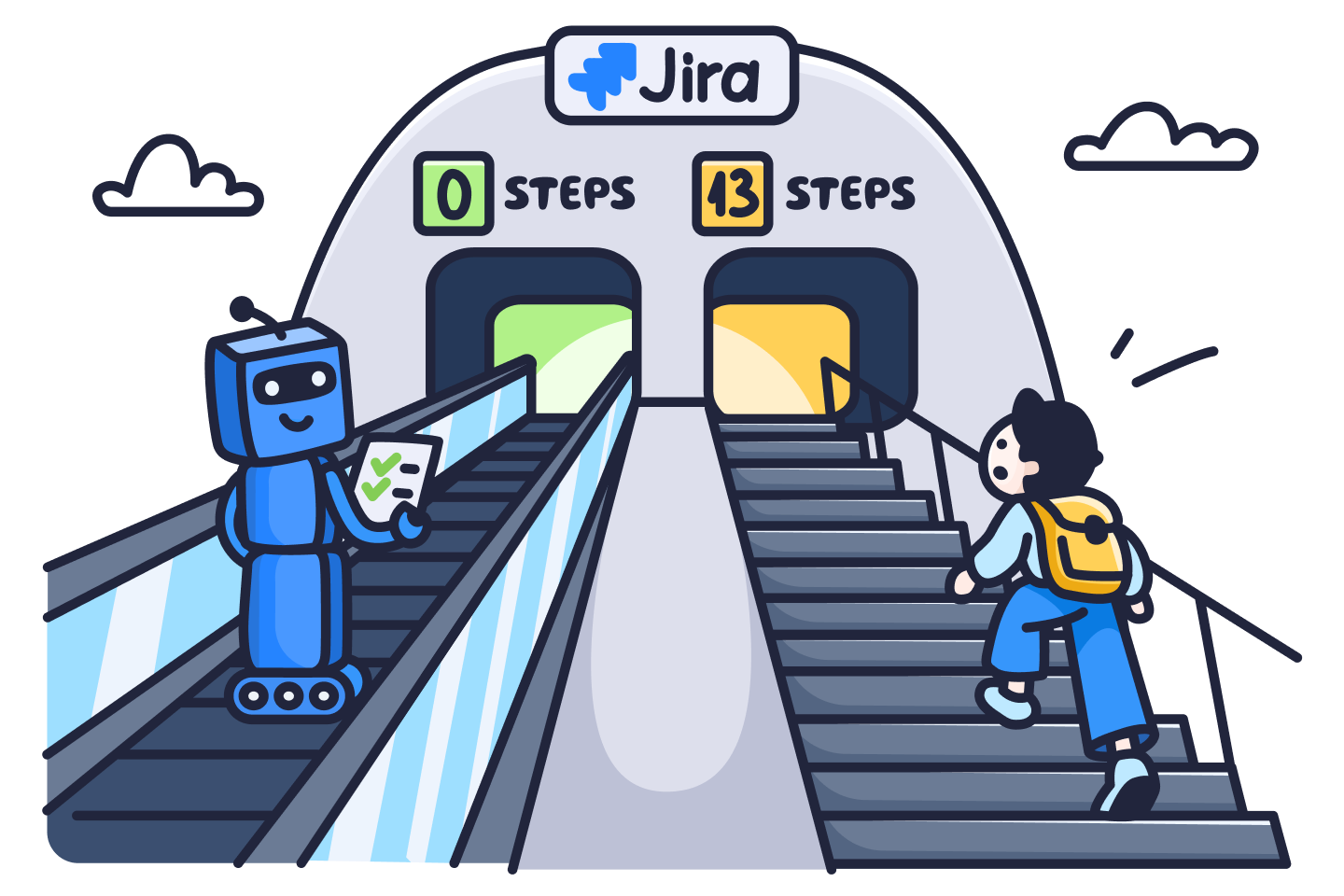
Most development teams already use AI coding tools every day. However, handing a task from Jira to an agent still requires manual work: Someone has to copy the context from the work item, prepare a branch, and turn the description into a prompt. The Claude AI agent in Jira eliminates this step. You can assign a work item to Claude the same way you assign it to a teammate.
In this guide, we explain what the agent can do, how to set it up, and how to automate it. We also share practical use cases, hands-on tips, and key facts about security and pricing.
TL;DR: A Quick Overview
- Claude Agent for Jira lets you hand a ticket to Claude instead of a teammate. The agent reads the task and does the coding for you.
- Every session ends with a draft pull request in GitHub. Your engineers still review the code and decide what gets merged.
- The work happens on Anthropic’s side, in a sandboxed session outside Atlassian and outside your own machines.
- You can start a session by hand, or let Jira do it for you through workflow transitions and automation flows.
- Small, repeatable coding jobs are the best fit: routine bugs, stale feature flags, and low-severity vulnerabilities.
- Setup is a one-time admin job. You install the app, add an Anthropic API key, and provide a GitHub token for a service account.
- Your Jira site needs Rovo enabled, but Atlassian charges nothing extra for the agent itself.
- Anthropic bills each session to your API account for both tokens and runtime. Jira has no spending caps, so watch the Claude Console.
What is Claude AI Agent for Jira and What Can It Do?
 Definition
Claude Agent for Jira is an AI agent powered by Claude models that works directly in Jira work items and automation rules/flows. You can assign a task to the agent the same way you assign it to a teammate, or make it a step in an automation flow. The agent can then write the code in an isolated cloud sandbox and open a draft pull request in your GitHub repository.
Under the hood, the Claude agent you use in Jira runs on Claude Managed Agents, Anthropic’s hosted service for AI agents. Each agent session takes place in an isolated cloud environment. You can configure the agent’s model and system prompt in your Anthropic Console.
The main benefit is that it allows you to delegate coding work without leaving Jira. The agent pulls context from the work item, and its progress stays visible there. This way, your team can see which tasks the agent is working on and review its code before anything is merged. Claude Agent for Jira became available in June 2026 and is currently in beta.
Key Capabilities of the Claude AI Agent in Jira Work Items and Automation Flows
At its core, Claude Agent for Jira is a coding agent that can take a task from a work item and complete it autonomously. Its capabilities range from writing and running code to pulling context from across your Atlassian apps:
- Executing coding tasks in a cloud sandbox. The agent can write and edit code, run shell commands, and execute scripts in its own isolated environment. This means it can also install dependencies, run tests, or reproduce a failure before proposing a fix. For example, for a bug in a date export, the agent can reproduce the error, fix the formatting logic, and run the related tests to confirm the fix.
- Working with your GitHub repositories. The agent can clone the repositories linked to a work item, analyze the codebase, and push its changes to a separate branch. It then opens a draft pull request for your team to review. One work item can reference several repositories.
- Using context from the Teamwork Graph. Atlassian’s Teamwork Graph connects data across Jira, Confluence, and other linked apps. Through it, the agent can draw on more than just the summary and description of a work item. For example, if you link a Confluence page with a technical spec or your coding standards, the agent can take it into account.
- Running as part of Jira workflows and automation. Apart from manual assignment, the agent can start automatically when a work item moves to a specific status or board column. It can also run as a step in a Jira automation rule/flow. For example, a rule can send every new low-severity vulnerability to the agent.
- Collaborating through the work item and pull request. When a task is unclear, the Claude agent can ask for your input in the agent session. After you review its pull request, you can leave comments and invoke the agent again to revise the changes. You can also chat with the agent in a dedicated chat window.
Together, these capabilities let the Claude agent handle repeatable tasks of low to medium complexity, even at a large scale. Typical examples include feature flag cleanups, vulnerability fixes, accessibility issues, and small bugs.
Claude AI Agent in Jira vs Claude with Jira MCP vs Native Jira Coding Agent
In addition to the Claude AI agent in Jira, you can also use Claude with Jira MCP (Atlassian Rovo MCP server). Another option is to work with other AI agents in Jira. These include Atlassian’s native Jira Coding Agent and agents from third-party providers, such as Cursor and GitHub Copilot.
Let’s take a look at the key differences between the Claude AI agent in Jira, using Claude with Jira MCP, and Jira Coding Agent:
| Claude AI agent in Jira | Claude with Jira MCP | Jira Coding Agent | |
|---|---|---|---|
| What it is | An AI coding agent powered by Claude that works directly in Jira | An MCP connection that gives Claude access to your Jira data and allows it to perform actions in Jira | Atlassian's own AI coding agent built into Jira |
| How to use it | Assign work items to it, mention it in comments, or trigger it with workflow transitions and Jira automation rules | Ask Claude to work with Jira by sending your instructions in the Claude app, Claude Code, or another Claude client. This can also be a scheduled task that runs automatically | Assign work items to it, mention it in comments, or trigger it with workflow transitions and Jira automation rules |
| Main tasks | Coding: writing and running code, opening draft pull requests | Managing work items, even in bulk (creating, editing, etc.), and using their data in other tasks, including coding in Claude Code | Coding: generating code from work items, opening draft pull requests |
| Limitations | Doesn't support zero data retention and isn't available on HIPAA and FedRAMP sites. Doesn't work on your task if a repository link is missing. Doesn't support granular permission management for Jira users | Works outside Jira, so you can't assign work items to it or trigger it with Jira workflows. Atlassian limits the number of requests per hour for each site | Doesn't connect to third-party data sources through MCP. Doesn't meet HIPAA, BYOK, or data residency requirements yet. Doesn't work on your task if a repository link is missing. |
| Model choice | You choose the Claude model and effort level in the agent setup in Claude Console | You choose the Claude model in your Claude client | You choose from Claude, GPT, and Gemini models |
| Where it runs | Anthropic's cloud sandbox | Wherever you use Claude, on your computer or in the cloud | Atlassian's cloud |
| Supported code repositories | GitHub | Any repository Claude Code can access | Bitbucket Cloud and GitHub |
| Users | Primarily technical users | Both business users and users with a technical background | Primarily technical users |
| Cost | Claude API usage, billed by Anthropic | Your Claude plan or API usage, while the Jira MCP server itself is free | Included with Standard and Premium plans; uses Rovo credits |
To learn more about these options, please see our Jira MCP server guide and the article How to Organize AI-Native SDLC for Your Team, where we cover Jira Coding Agent.
How to Set Up Claude Agent for Jira
The setup connects three accounts: your Jira Cloud site, your Claude API account, and GitHub. Before you start, make sure you have:
- A Jira Cloud site on a Standard, Premium, or Enterprise plan with Rovo enabled.
- Jira admin rights to install apps from the Atlassian Marketplace, or an admin who can do it for you.
- An active Claude API account with credits in the Claude Console.
- A GitHub service account with a personal access token and a GitHub repository for the agent to work in.
Once you have everything you need, follow these steps to set up a Claude AI agent for Jira:
- Go to the Claude Agent for Jira app on the Atlassian Marketplace.
- Click Get it now, choose your site, and wait for the installation process to finish.
- Then, you will be prompted to provide your Claude API key and GitHub personal access token.
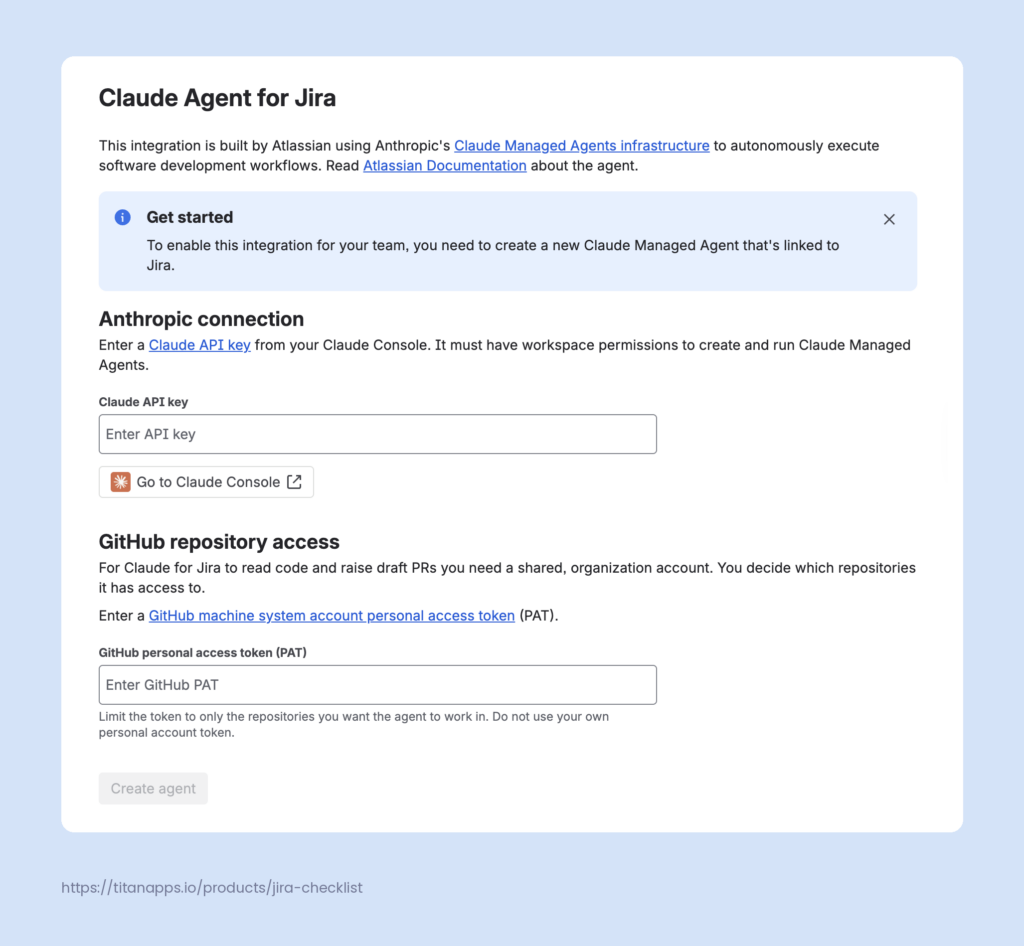
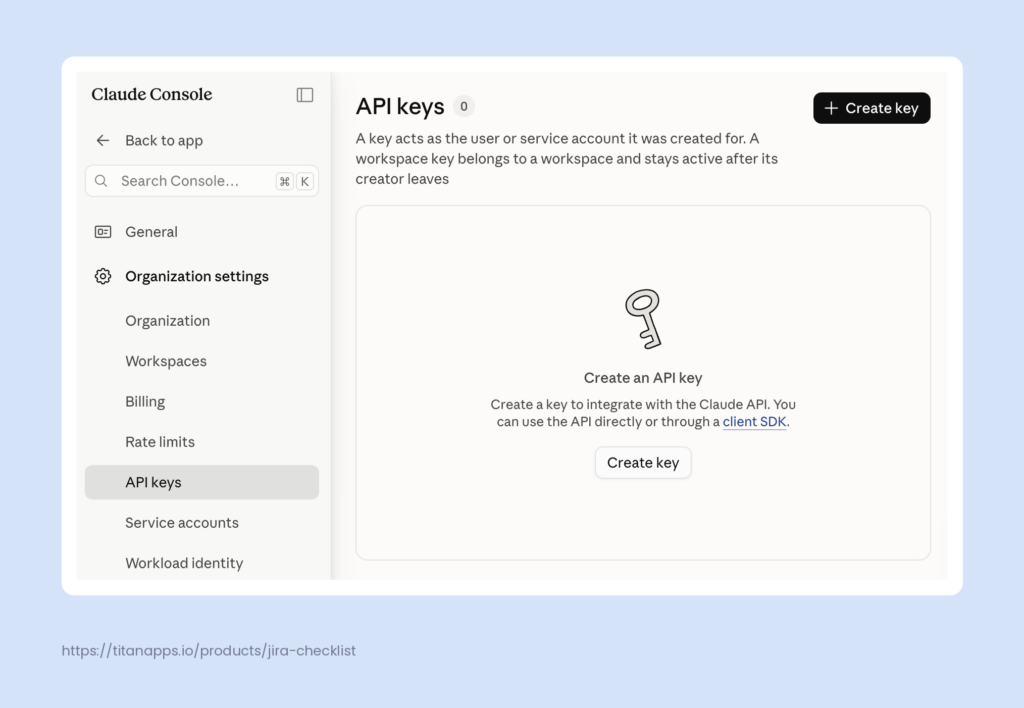
- In the Claude Managed Agents API Key field, paste your API key. If you don’t have an available API key yet, you will need to create it in the Claude Console. Make sure to copy the key once it appears, as it will not be shown again.
- In the GitHub Personal Access Token field, paste and verify your access token. It’s best to sign in to GitHub with a machine user account, which is a regular GitHub account created only for automation. To create a token, open the dedicated GitHub account, go to Settings ? Developer settings ? Personal access tokens. The token must allow the agent to read repositories, push new branches, and open pull requests.
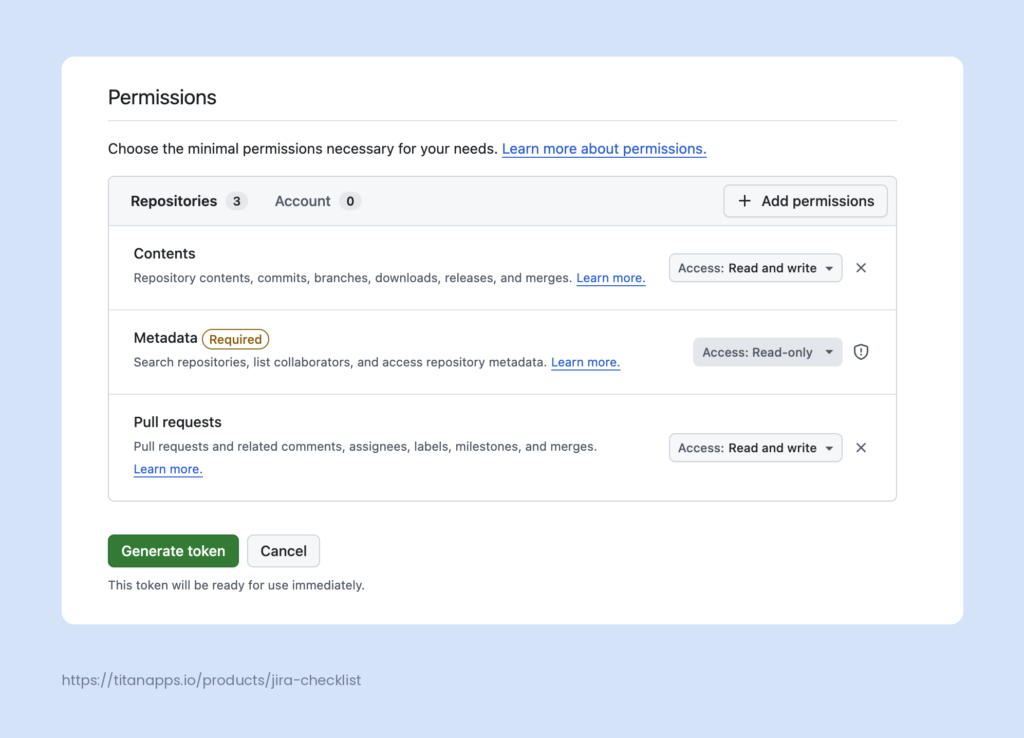
- Once both keys are verified, you can create a Claude agent in Jira. Press the “Create Agent” button to complete the process.
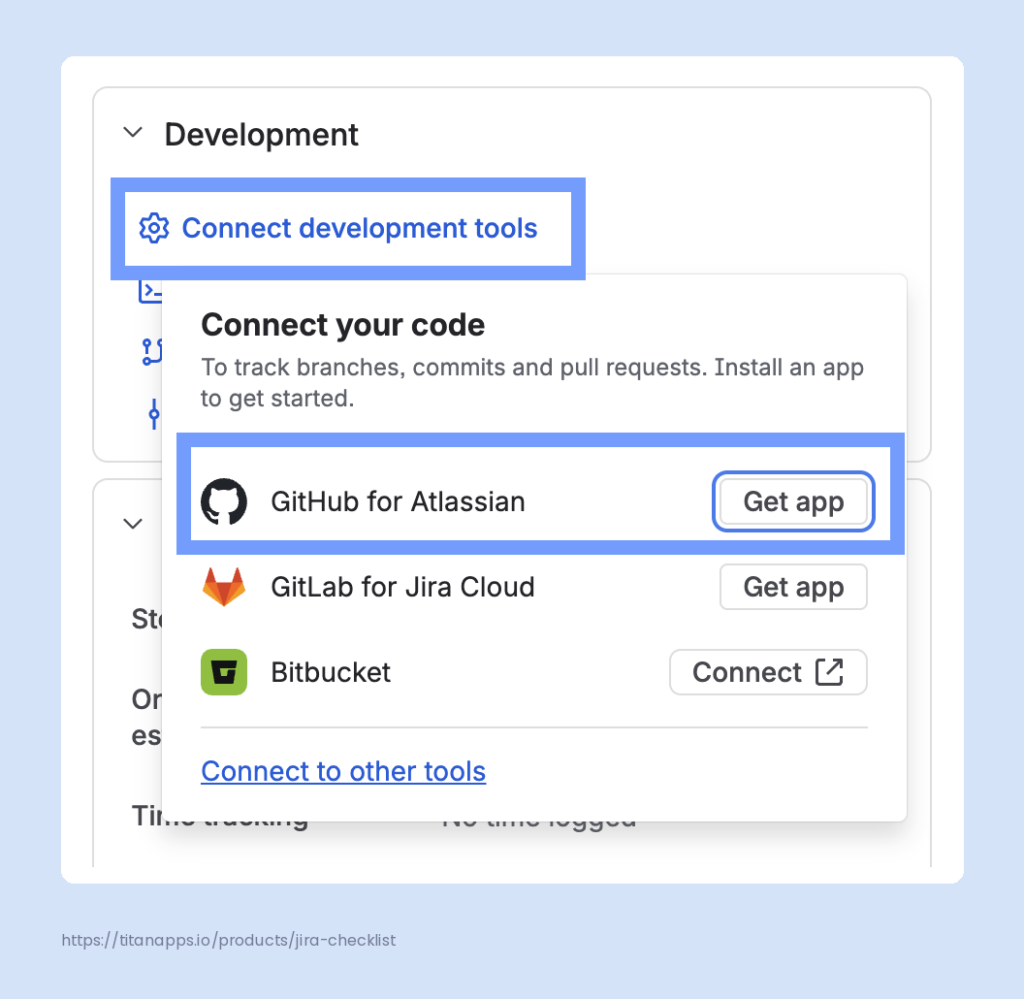
- Connect a GitHub repository to Jira. This step is necessary in addition to providing the GitHub personal access token. To do this, get the official GitHub for Jira app from the Atlassian Marketplace, then connect your repository from the Development section in the right panel of your work item.
To get the most out of your Claude AI agent, you can also set up Teamwork Graph CLI and Rovo MCP (optional). This lets your agent perform a broader range of actions and access context from a variety of connected apps, from emails and calendar records to Slack conversations, etc.
How to Edit Your Claude AI Agent in Jira After Setup
The initial configuration gives you a working agent, but you might need to customize it later. This can be done in the Claude Console. There, you can switch between Claude models, set the preferred effort level, and adjust other settings.
By default, the agent’s system prompt sets it up as a coding agent for bug fixes, failing tests, and feature implementation. You can edit this prompt as well if you want to adjust your agent for other tasks.
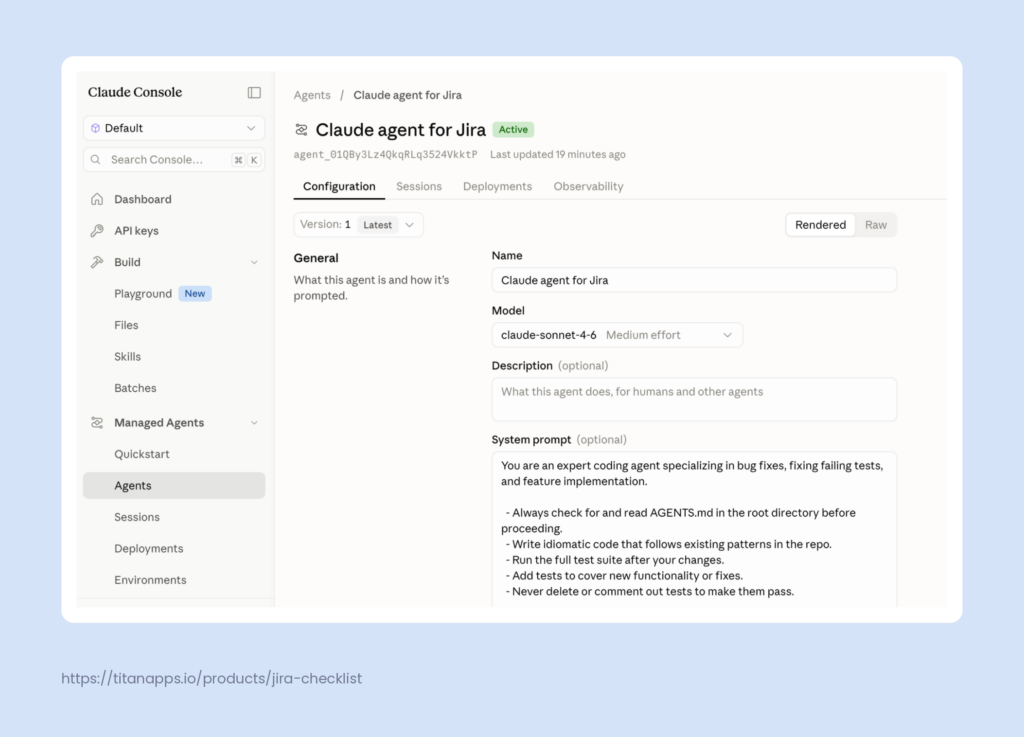
Once it’s ready, update the agent version in the Jira configuration. To do it, go to admin.atlassian.com -> Apps -> expand Sites, pick your site, and select Connected apps. Find Claude Agent for Jira and select Configure from its actions menu (not View app details). There, you can choose the version you need under Agent version at the bottom of the page.
How to Assign Work to the Claude Agent in Jira
Note
The instructions below also apply to other AI agents in Jira, such as Jira Coding Agent, Bug Triage Agent, Rovo Agent, and others.
Once the setup is complete, your team can hand off work to the agent in several ways:
- Use the assignee picker – assign a work item via the dropdown menu for assignee selection, as you do with any teammates.
- Trigger manually from the Agents menu in your work item. Alternatively, you can click the “Start Work” button in the Agents section below the work item description and select “Claude Agent for Jira.”
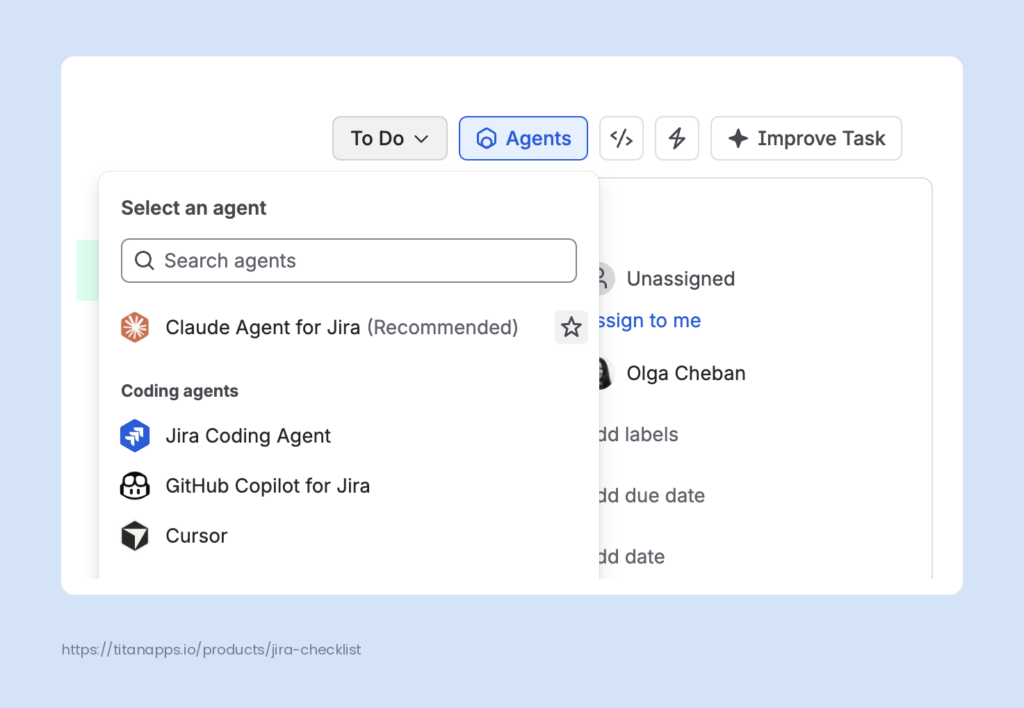
- Mention the agent in comments on your work item. This is useful when you need it to focus on some part of the task, not the whole ticket. Then, in the comment, you can specify what exactly you want it to work on for this work item.
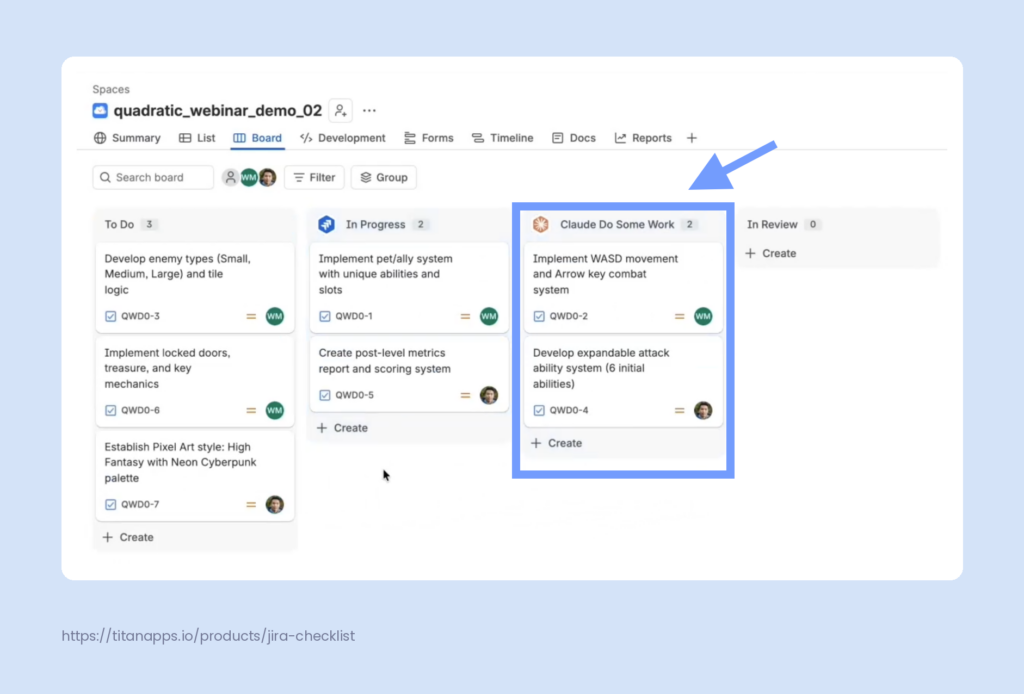
- Start the agent automatically on a workflow transition. For this, you need a dedicated workflow status and/or board column for the agent. For example, you can add a Claude Do Some Work status as one of your In Progress statuses. To dispatch the Claude AI agent to a column, select the Assign Agent icon in the upper-right corner of that column and choose Claude. Once done, the agent’s logo will appear in the column header. Then, Claude will pick up every work item you drag into this column. Alternatively, a space admin can attach the agent to the selected transition in the workflow editor. This option also lets you add a custom prompt with instructions for this step. Here’s what the result looks like on the Jira board:
- Trigger the agent with automation rules/flows. You can add a Claude AI agent in Jira as one of the steps (Actions) in a Jira automation rule/flow. Then, the automation will trigger the agent when the conditions for this are met. To configure such automation, create a new automation flow/rule and add the Claude AI agent as an Action. We will cover this in more detail further in the article.
How to Track Agent Sessions
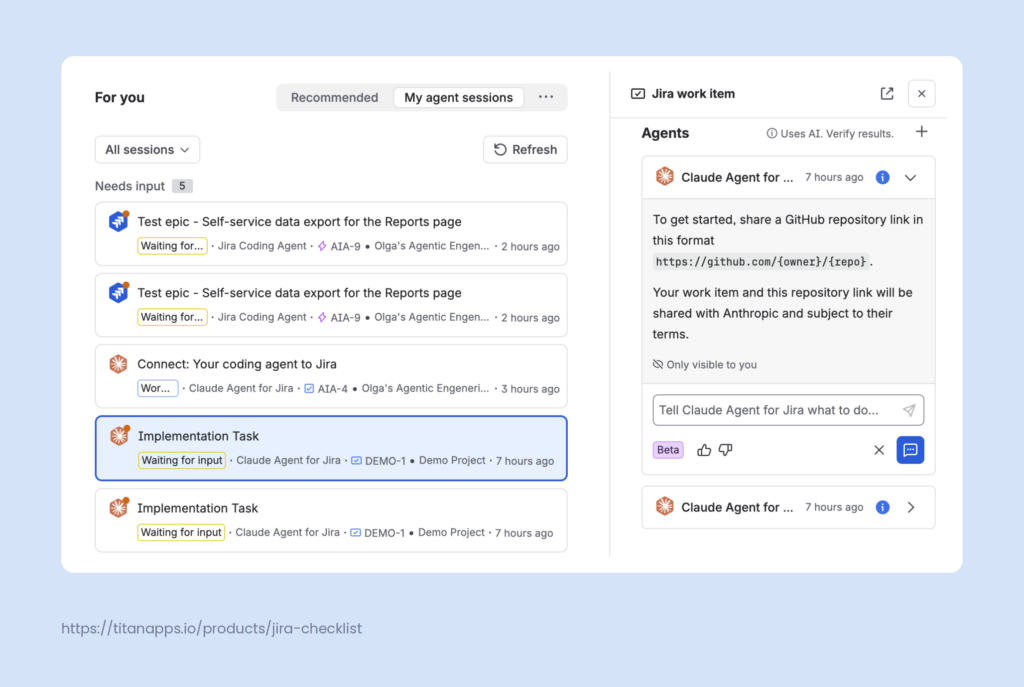
When agents work on multiple tasks at once, it helps to see their progress in one place. In Jira, you can find it on the For you page, in the My agent sessions tab. Sessions there are grouped by status, with the ones that need your input shown first.
You can also work with agents right on this page. When you select a session, a side panel with its details will open on the right. For example, if the Claude agent is waiting for a repository link to start a task, you can provide the link in this panel without opening the work item.
How to give feedback to the Claude AI Agent in your Work items
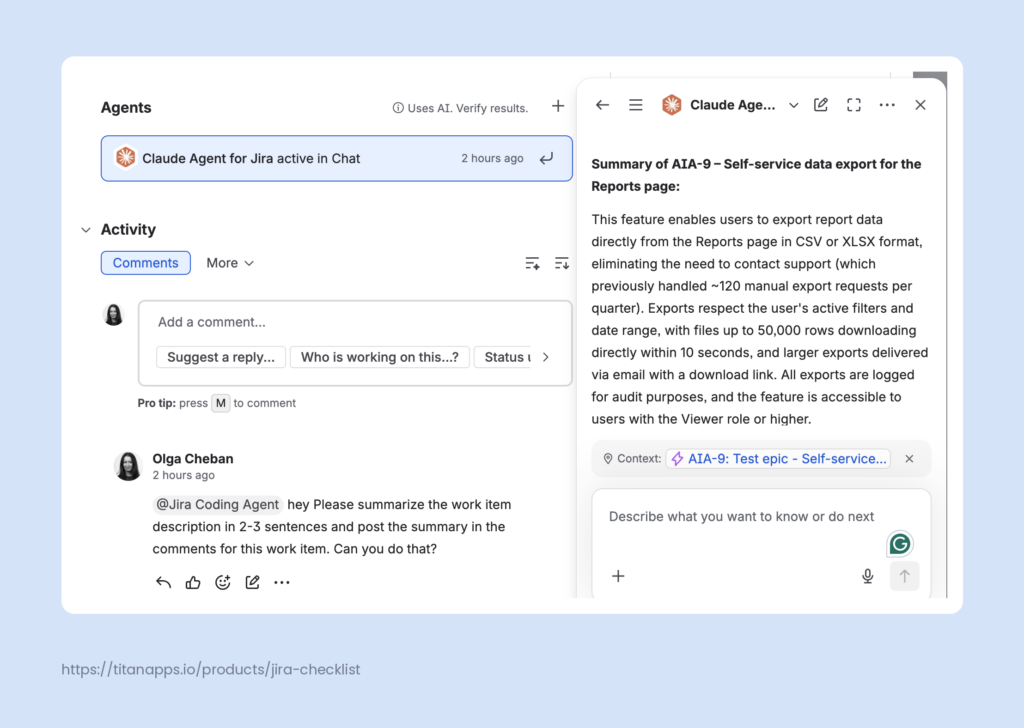
After you review the agent’s first draft pull request, you may want it to change something. To do this, mention the agent in a comment on the work item and describe what to fix. This starts a new session, where the agent uses your comment as extra instructions on top of the work item details.
If the agent is still working on the task, you can also talk to it directly. Select the Open in Chat icon on the work item to open a chat with the agent. There, you can clarify details or adjust the task while the agent works.
How to Prepare Work Items For the Claude AI Agent
The Claude agent works on its own, and the work item is its main source of context. A couple of sentences may be enough for a quick question in a chat, but not for building a new feature.
To get useful results, prepare your work items this way:
- Fill out the summary and description in detail. Describe what needs to be done, why it matters, and what the result should look like.
- Ask Rovo Chat to draft the description based on a brief input – this will save you time. Rovo Chat can also create the work item in Jira automatically.
- Add a link to the repository – this is mandatory. Without it, the agent can’t start working on the task, so it will pause and wait for your input.
- Check the description for gaps. If important details are missing, the agent may build something irrelevant. Every session uses API tokens billed to your account, so incomplete input also costs money without getting you the result you want
In the Smart Checklist team, we use the Definition of Ready checklist. It helps us confirm that the description is complete and the task is ready for development. The checklist covers the conditions each work item must meet before anyone starts coding, such as a clear scope and known dependencies. For tasks we hand to the Claude agent, it also confirms that the agent gets everything it needs

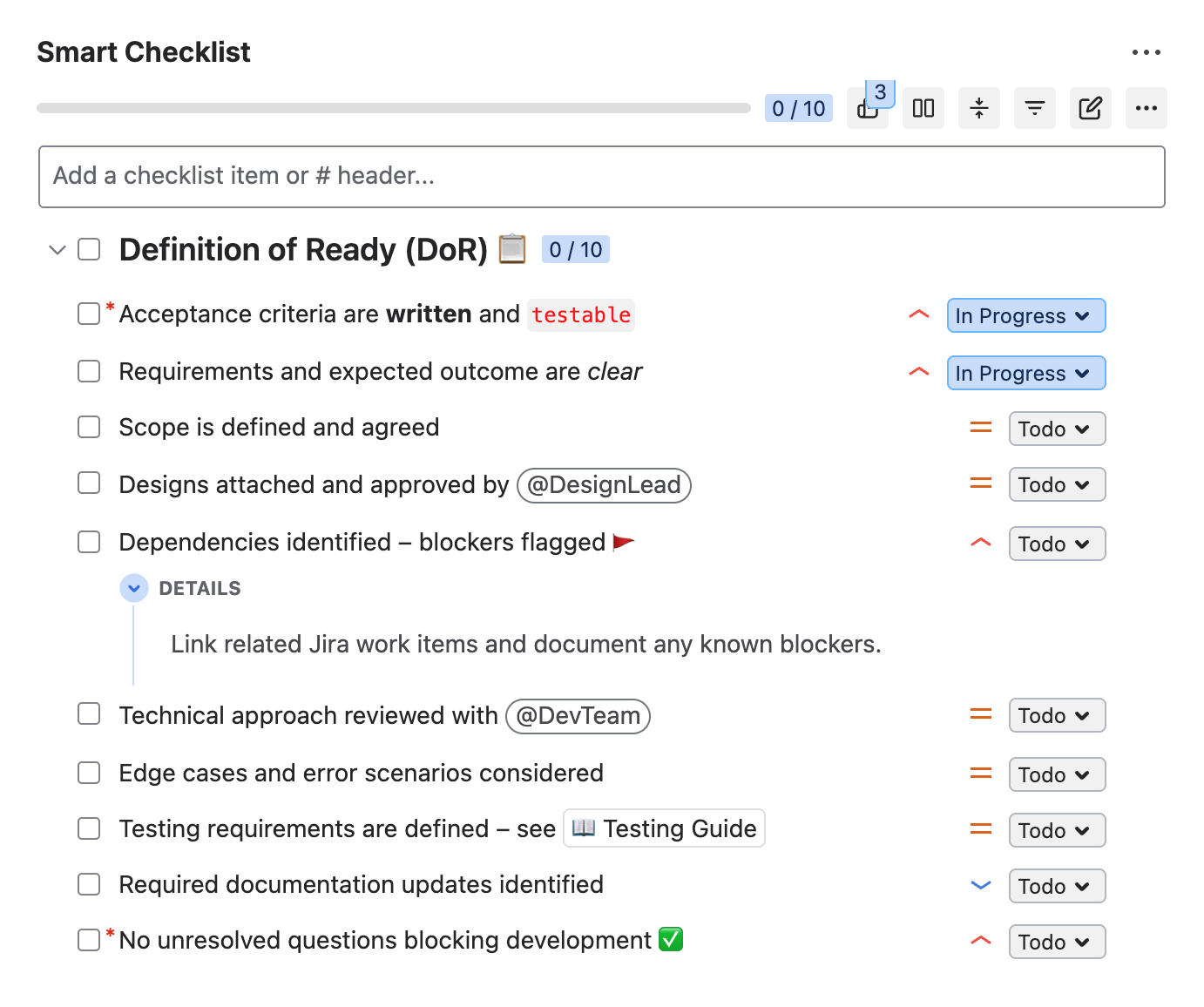
# Definition of Ready (DoR) ?
~! [priority=”High”] Acceptance criteria are *written* and `testable`
~ [priority=”High”] Requirements and expected outcome are clear
- [priority=”Medium”] Scope is defined and agreed
- [priority=”Medium”] Designs attached and approved by @DesignLead
- [priority=”High”] Dependencies identified – blockers flagged :triangular_flag_on_post:
> Link related Jira work items and document any known blockers.
- [priority=”Medium”] Technical approach reviewed with @DevTeam
- [priority=”Medium”] Edge cases and error scenarios considered
- [priority=”Medium”] Testing requirements are defined – see [? Testing Guide](https://example.com/testing-guide)
- [priority=”Low”] Required documentation updates identified
-! [priority=”High”] No unresolved questions blocking development
With this checklist, the agent gets complete context from the start, so its first draft PR is more likely to match what you need. As a result, your team can spend fewer review rounds and API tokens on each task.
You can copy this checklist template above and use it in your Jira work item with the help of Smart Checklist for Jira – a solution that allows you to add feature-rich checklists in Jira and save them as reusable templates.
How to Use the Claude Agent in Jira Automation Rules
Assigning work by hand is enough for occasional tasks. For recurring tasks, such as security fixes or failing tests, you can let Jira assign work automatically.
Jira automation rules/flows follow trigger-condition-action logic. When an event happens in Jira, the rule checks your conditions, and then it runs the actions. Claude is available as one of these actions, alongside other coding agents such as GitHub Copilot and Cursor. In each rule, you can pass a custom prompt that tells the agent exactly what to do.
Here are a few examples of such AI automations:
- When a work item with the “ai-ready” label is created, the rule sends it to the Claude agent.
- When a security scanner creates a vulnerability work item with low severity, the rule invokes the agent. Higher-severity findings go to your security lead.
To create such a rule/flow, you need space admin permissions for rules in one space, or Jira admin permissions for site-wide rules. Then, follow these steps:
- Test the agent manually. Assign it one work item to make sure it works on your site.
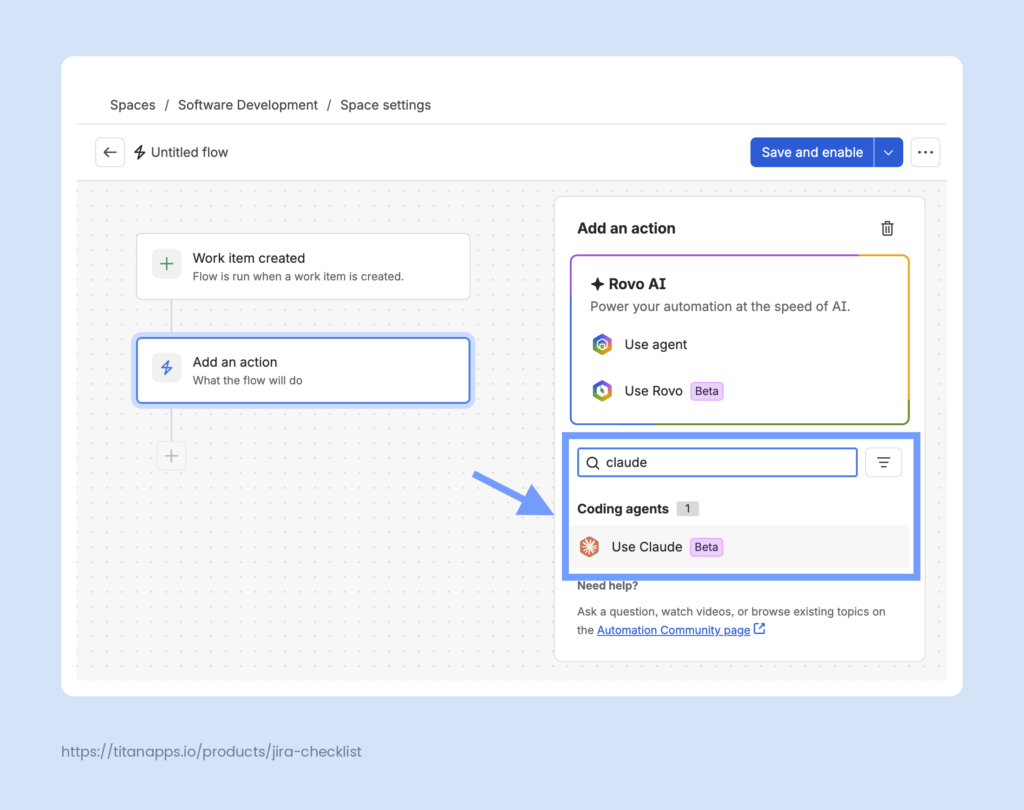
- Create a new rule/flow and choose a trigger. In the current beta, coding agent actions work only with the Work item created trigger and field-based triggers.
- Add Claude as an action. Include a link to the repository along with your instructions for the agent.
For more details, please see the official Atlassian documentation for using AI agents in automation.
5 Practical Use Cases for the Claude AI Agent in Jira
The Claude agent works best on tasks with a clear scope and a known result. Atlassian recommends using it for small to medium coding tasks, especially recurring low-difficulty “coding chores”. Here are some use cases where the agent can take on the most routine work.
1. Fixing Flaky Tests Before They Block Builds
Flaky tests pass and fail without any code changes. They interrupt builds, reduce trust in CI, and pull engineers away from product work. Atlassian’s Jira engineering team used to spend about two hours on each flaky test, and they encountered roughly one per day. After moving this work to AI agents in Jira, they save about one engineering week per month. This has cut the time spent on flaky tests by up to 80%.
Here’s how this works:
- The flow starts when a work item for a flaky test is created.
- First, an agent checks whether the failure is real.
- If it’s a false positive, the agent stops and summarizes its findings in a comment.
- If the failure is reproducible, the agent applies a known fix pattern, comments for the team, and opens a draft PR.
You can build a similar flow with the Claude agent and read more about the original setup in Atlassian’s case study How We Cut up to 80% of Engineering “Chores” Using AI Agents in Jira.
2. Cleaning Up Stale Feature Flags Automatically
Feature flags help teams roll out changes gradually, but old flags leave dead code behind. Removing them is repetitive work that follows the same pattern every time.
You can hand this work to the agent on a schedule. For example, a daily cron job can create a work item for each stale flag, with the flag name, the repository URL, and the value the flag should keep.
An automation rule can then pick up every new work item with the feature-flag-cleanup label and pass it to the Claude AI agent with your cleanup instructions. In these instructions, authorize the agent to complete all steps without additional confirmation, so it doesn’t pause and wait for your input. To close the loop, the rule can post a message in Slack once the agent is done.
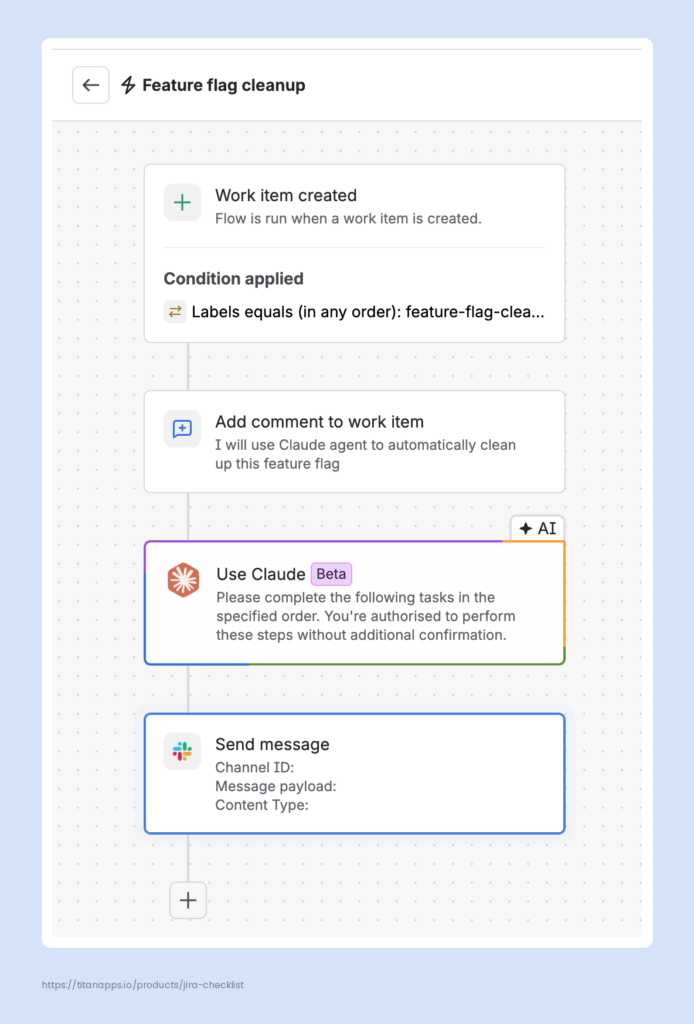
The agent will use everything included in the work item description, added comments, and the instructions in the automation rule/flow.
Atlassian’s Jira team runs a similar flow, but with an engineer in the loop. There, a developer reviews the work item and changes its status, which triggers a workflow that passes a custom system prompt to the agent. According to Atlassian’s case study, this system produced more than 500 merged pull requests in 70 days.
3. Fixing Routine Bugs Reported in Jira
Small bugs, such as a broken date format in an export or a wrong validation message, often take longer to reproduce than to fix. When a bug report includes steps to reproduce, the expected result, and relevant logs, the agent has enough context. It can investigate the code, apply a fix, and open a draft PR. To route such bugs automatically, you can set up an automation rule that sends only complete bug reports to the agent.
In this case, much depends on the quality of the bug report itself. If it arrives without reproduction steps or logs, the agent has nothing to work with. You can use a bug report template to keep these details in place. This can be done with Smart Templates for Jira, a solution that lets you create work item templates with pre-filled fields, including the description. Then you can easily apply this template with one click of a button. Here’s what such a template can look like:
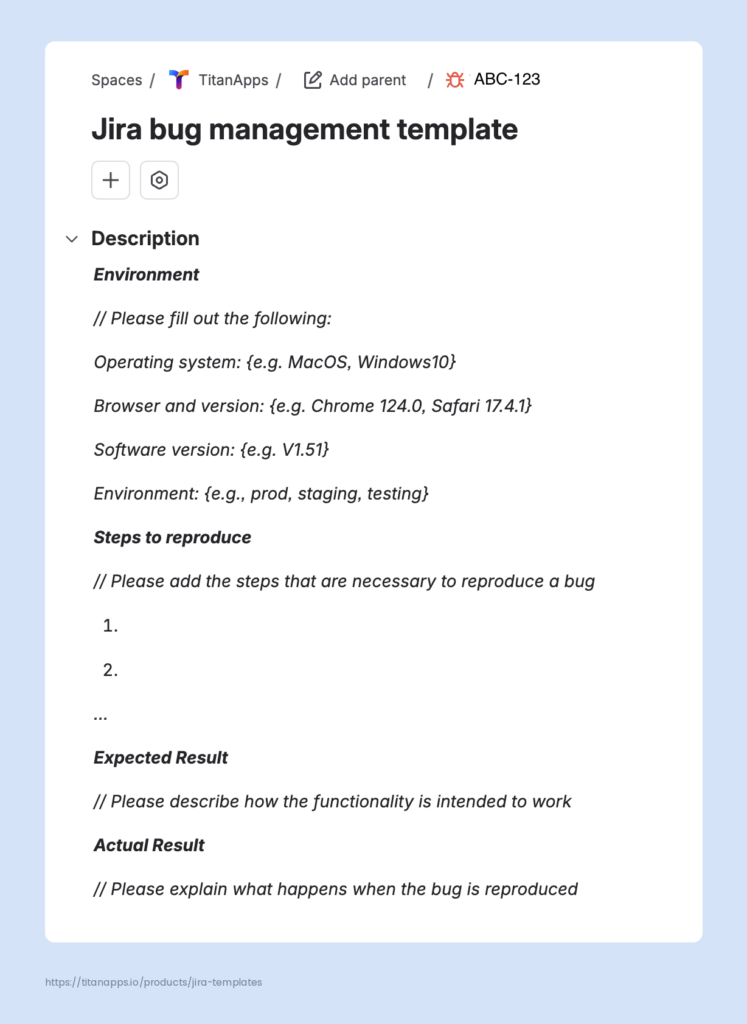
This template has a description structure with the sections the agent needs, such as reproduction steps, expected and actual results, environment, etc. You can also mark the key details as required variables, so nobody can apply the template while these fields are empty. This way, more bug reports arrive ready for the agent, and fewer come back for refinement.
The same approach works on the other end of the process. When the agent opens its draft PR, your team still verifies the fix, and a bug resolution checklist keeps this step consistent. With Smart Checklist for Jira, you can link such a checklist to your bug template, so every bug work item arrives with both the report structure and the verification steps.
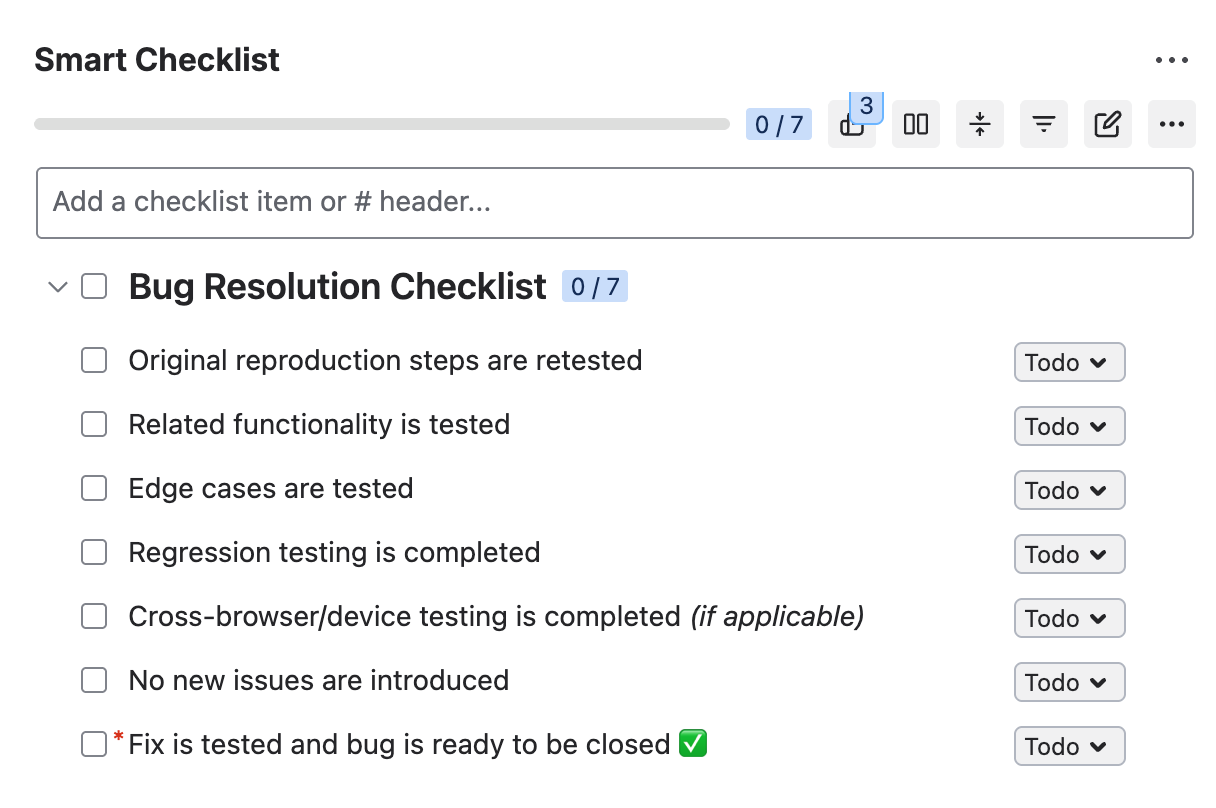
# Bug Resolution Checklist
- Original reproduction steps are retested
- Related functionality is tested
- Edge cases are tested
- Regression testing is completed
- Cross-browser/device testing is completed *(if applicable)*
- No new issues are introduced
-! Fix is tested and bug is ready to be closed ?
4. Patching Low-Severity Vulnerabilities Automatically
Security teams face a growing flow of vulnerabilities. In its 2026 Mid-Year Vulnerability Forecast, the Forum of Incident Response and Security Teams (FIRST) expects about 66,000 published CVEs by year-end. Disclosures are already running 46.3% above the projections from four months earlier, so the growth is even faster than expected.
We’re witnessing a major shift in the vulnerability landscape, not because software is suddenly less secure, but because our collective ability to find flaws has been structurally transformed. The challenge for defenders is no longer the discovery of vulnerabilities; it’s the capacity to verify, coordinate, and prioritize them at a scale the industry has never seen before.
Much of this work lands on developers. According to Atlassian’s vulnerability resolution guide, its software composition analysis surfaced over 1,000 findings every month. Each one took 30-60 minutes of developer time and a median of 11.9 days to resolve.
Many of these fixes are routine, such as upgrading a library to a patched version. Atlassian now uses Jira Coding Agent to handle these tasks, allowing it to resolve 52% of its merged security vulnerabilities automatically. A similar setup with the Claude AI agent can give your team comparable results.
If your pipeline creates a Jira work item for each security finding, an automation rule can listen for these work items. When a new low-severity vulnerability appears, the rule can trigger the agent to investigate and fix it. Higher-severity findings can go to an engineer for review.
5. Running a Multi-Agent Workflow on a Jira Board
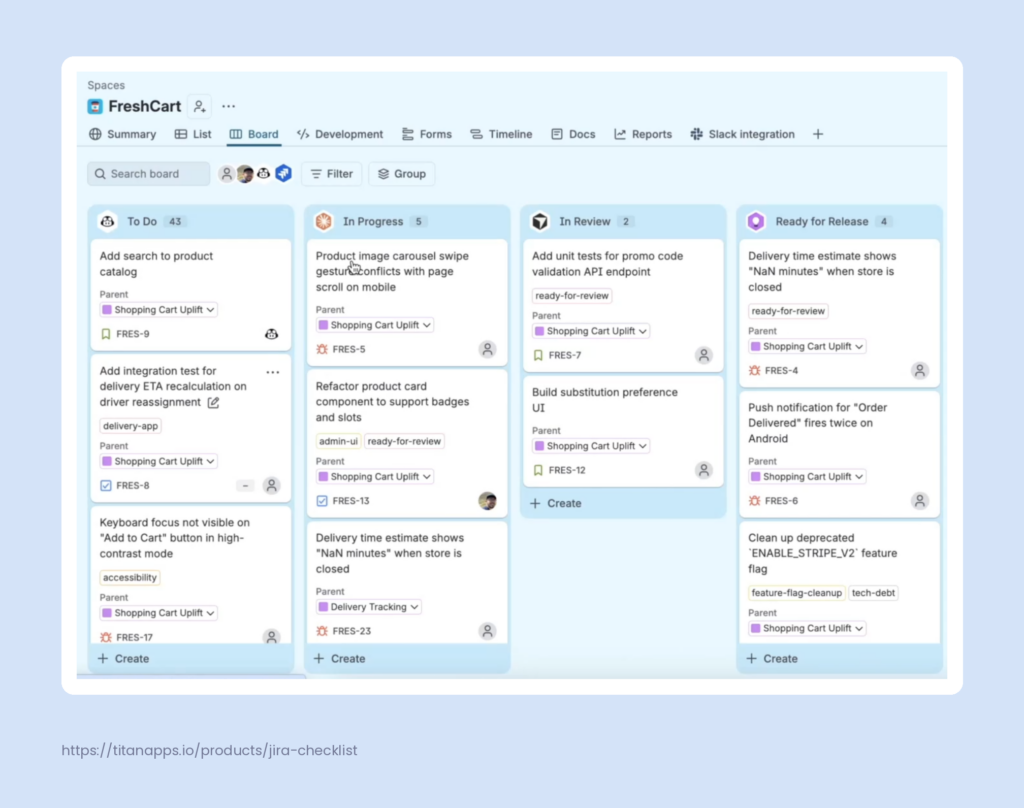
Some teams go further and give different stages of their workflow to different agents. For example, a Rovo agent can check new stories for missing details in the Refinement column. Once a story moves to In Progress, the Claude agent can implement it and open a draft PR. After an engineer merges the changes, another agent can draft test cases for QA engineers in the Testing column.
Using different agents can help you optimize costs. It also allows you to set up workflows where agents based on one LLM check work produced by another LLM.
Here’s what it can look like on the board:
Best Practices for Working with the Claude AI Agent in Jira
A few habits make the Claude agent’s results more predictable and keep your team in control of what ships:
- Start with a test repository and a GitHub token limited to it, then expand access once you trust the results.
- Write acceptance criteria that describe the expected behavior, and link the relevant files or code references.
- Add an AGENTS.md or CLAUDE.md file to your repository root, and link your Confluence coding standards page from work items.
- Use automation conditions and JQL queries to keep non-AI-ready work items away from the agent.
- Track token usage and costs per session in the Anthropic Console, especially after you add new automation rules. Start testing with a cheaper model.
- Protect sensitive information. Keep credentials, client names, and personal data out of work item descriptions, since the agent sends them to Anthropic as they are.
- Use checklists to prepare work items for the agent and to verify the code it produces. For example, a Definition of Ready checklist, a Bug Report checklist, a Code Review checklist, a Bug Resolution checklist, and the Definition of Done checklist.
To illustrate the last point, here is a Code Review checklist template created with our solution, Smart Checklist for Jira. It walks the reviewer through the agent’s draft PR step by step, from requirements coverage and code quality to security, tests, and documentation. This keeps reviews consistent and prevents important items from being skipped under time pressure.
You can copy this template and use it in Jira once you have installed Smart Checklist.
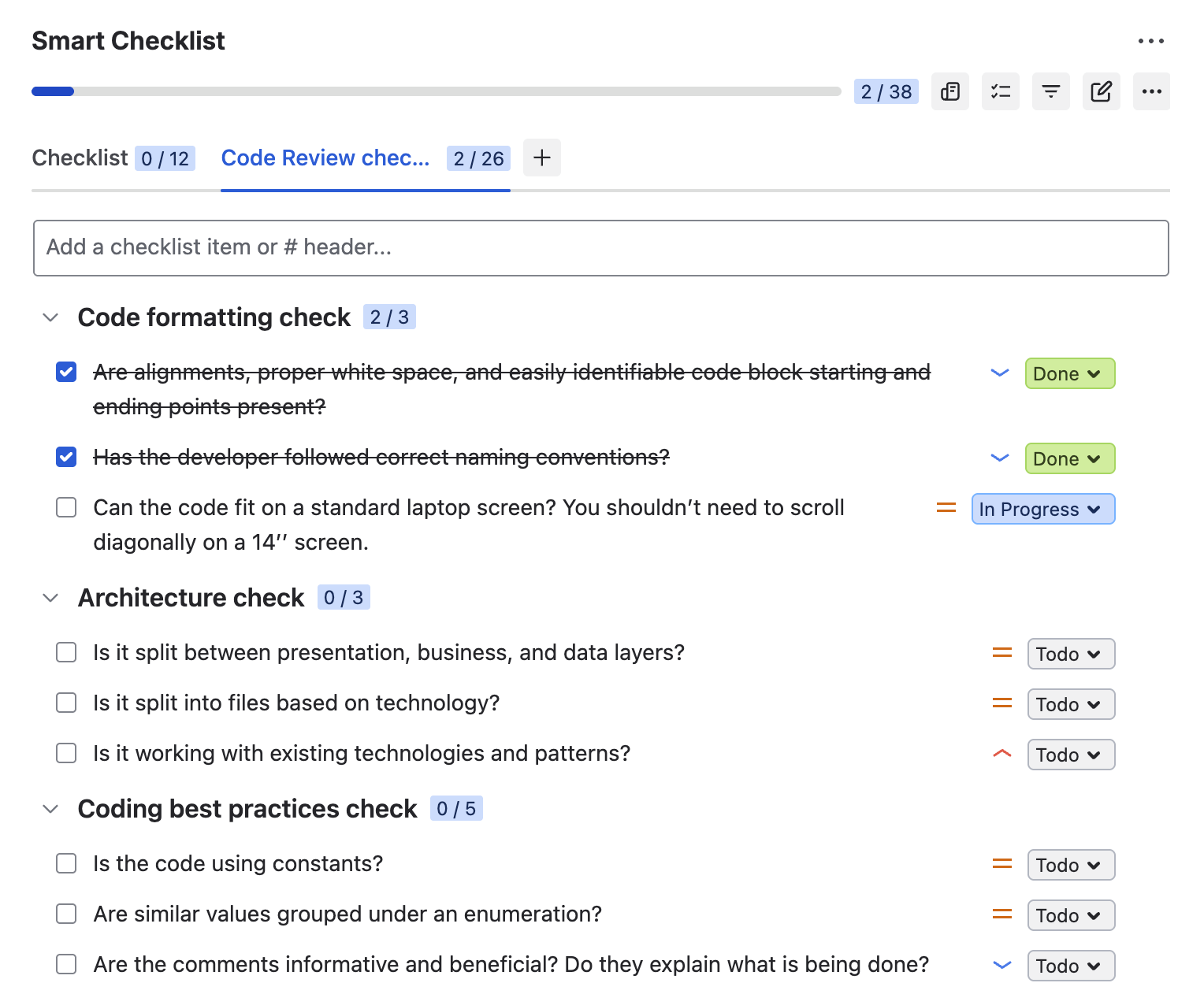
# Code formatting check
- Are alignments, proper white space, and easily identifiable code block starting and ending points present?
- Has the developer followed correct naming conventions?
- Can the code fit on a standard laptop screen? You shouldn’t need to scroll diagonally on a 14’’ screen.
## Architecture check
- Is it split between presentation, business, and data layers?
- Is it split into files based on technology?
- Is it working with existing technologies and patterns?
## Coding best practices check
- Is the code using constants?
- Are similar values grouped under an enumeration?
- Are the comments informative and beneficial? Do they explain what is being done?
- Is there an excess of if/else blocks?
- Is the code relying on framework features wherever possible rather than relying on custom solutions?
## Maintainability check
- Is the code easily readable by a human being?
- Is the code easily tested?
- Can it be refactored into a separate function?
- Are there flow of control, parameter, and data exception details necessary for debugging?
- Are configurable files kept in place? There must not be a need to make changes if the data changes frequently.
## Reusability check
- Are the same principles not repeated more than once?
- Are reusable services and functions used when applicable?
## Security check
- Validation against SQL injections
- Validation against XSS
- Is sensitive data encrypted?
## Scalability check
- Is the code scalable?
## Useability check
- Is the solution usable from the user’s POV?
## Performance check
- Is the correct data type used?
- Lazy loading, asynchronous and parallel processing
- Caching and session/application data
Security and Permissions in Claude Agent for Jira
The agent runs outside Atlassian, and your whole site shares one setup. These two facts shape everything else. Here are the key points to know before you roll it out:
- Your work item data and code leave Atlassian. At the start of each session, Jira sends the work item summary, description, and repository context to Anthropic, where the agent runs. It clones your repository there as well, so a copy of your code stays outside your environment while the agent works.
- Zero data retention isn’t supported. Anthropic stores the session state, including the event history, tool-call traces, and files. For the same reason, the agent isn’t available on HIPAA and FedRAMP instances.
- Setup requires admin rights. Only a Jira admin can install and configure the agent. Adding it to workflow transitions or automation rules requires space admin rights.
- The whole site shares one set of credentials. Atlassian’s Forge storage stores your Claude API key and GitHub token encrypted. Every session runs through them, no matter who starts it.
- The GitHub token decides what the agent can change. This is your main access control, so create the token for a dedicated service account with access to selected repositories.
- There are no space-level permission settings. You can’t allow the Claude agent in one space and block it in another. If you need to stop its use, an admin can remove the credentials or uninstall the app for the whole instance.
- There are no granular permissions for the agent itself. Anyone who can edit a work item can assign it to the agent or drag it into its column. Jira permissions don’t apply to the repositories either, so a developer with access to one space can still trigger changes in any repository the token covers.
For more details on data flows, please see Atlassian’s documentation.
Claude AI Agent for Jira Pricing and Availability
Atlassian doesn’t charge extra for Claude Agent for Jira. To use it, you need a Jira Cloud site on a Standard, Premium, or Enterprise plan with Rovo enabled.
The agent’s work is billed by Anthropic as regular Claude API usage, through the API key you connect.
Claude Managed Agents, the Anthropic service that runs your Jira agent, charges standard token rates for the selected model. On top of that, it adds a runtime fee, which is currently $0.08 per hour of active session time. Billing is pooled at the organization level, and you can check token usage for each session in the Claude Console.
Keep in mind that Jira has no budget caps or per-team quotas for the agent, so the Claude Console is the only place to watch your spending.
FAQ About the Claude AI Agent in Jira
Do I Need to Be a Jira Admin to Set Up a Claude AI Agent?
Yes, for the initial setup. Setting up the agent requires permission to install Marketplace apps on your Jira Cloud site. After that, anyone on your team can assign work items to the agent or mention it in comments, with no special permissions needed. However, adding the agent to workflows or creating automation rules requires space admin or Jira admin permissions.
Does Claude AI Agent in Jira Use Tokens from My Claude Code Account?
It depends on how you use Claude Code. The agent in Jira always bills to the Claude API account you connected in the Jira configuration, so a Pro or Max subscription doesn’t cover it. If your team runs Claude Code on API credits from the same organization, both draw on the same balance.
Is Claude Agent for Jira the Same as Claude Code?
No, it’s not the same product, but the capabilities are similar. Both are agentic tools built on Claude models, and they suit roughly the same tasks. The Claude AI agent in Jira works in your repository, runs commands, iterates until the task is done, and opens a pull request, just as Claude Code does.
The differences are in the setup rather than the capabilities. Claude Agent for Jira runs on Anthropic’s managed infrastructure and takes its tasks from Jira work items, while Claude Code runs locally or in a cloud session and needs the Atlassian MCP Server to reach Jira. Billing differs too: the Claude agent in Jira always bills to your Claude API account, while Claude Code can run on API credits or a Pro or Max subscription.
Can I Connect My Personal Claude Account to Use the Claude AI Agent in Jira?
For team use, an organization account is the better choice. You also need Jira admin rights to connect Claude, so you can’t set this up on your own if you’re not an admin. Even if you are, the API key applies to the whole Jira instance, and every session across all projects/spaces is billed to the account behind it. That makes a personal account a poor fit for anything beyond a quick test on a test instance.
What Code Repositories Does Claude Agent for Jira Work With?
GitHub. Currently, Claude Agent for Jira works only with GitHub repositories, and one work item can reference several of them. For other platforms, Jira Coding Agent supports Bitbucket Cloud and GitHub Cloud, while Cursor in Jira works with GitHub, GitLab, Azure DevOps, and Bitbucket.
Where Does the Claude AI Agent in Jira Actually Run?
In Anthropic’s cloud. Each Claude AI agent session runs in an isolated sandbox on the Claude Managed Agents infrastructure. There, the agent clones your repository and works on a separate branch. Atlassian doesn’t host or operate this infrastructure, and your local machine isn’t involved.
How Do I Connect Jira to Claude?
There are two main ways, depending on what you need to do:
- Atlassian MCP Server (sometimes also called the Jira MCP Server). It lets Claude read your Jira data and act on it, for example, search work items, create them in bulk, update fields, and move them through statuses. In Claude Code, you can also pull the context of a work item and work on the coding task described in it. To connect it, add the Atlassian MCP Server in the Claude app or in Claude Code, then authorize access with your Atlassian account.
- Claude Agent for Jira. It lets you hand coding tasks to Claude inside Jira and get a draft pull request back. To connect it, install the app from the Atlassian Marketplace and add your Claude API key and GitHub token in its configuration.
Is Claude Agent for Jira Free?
Not entirely. Atlassian doesn’t charge extra for it, but Anthropic bills the agent’s work as regular Claude API usage. This covers tokens and session runtime, billed to the API account you connect. Your Jira site also needs a paid plan with Rovo enabled.
Can the Claude AI Agent Merge Its Own Pull Requests?
No. The Claude AI agent opens draft pull requests, and merging stays with your team. As an extra safeguard, you can set up branch protection rules in GitHub that require a human review before any merge.
How Do I Select a Claude Model for a Claude AI Agent?
For the Claude AI agent in Jira, you can switch between models from the agent settings in the Claude Console.
Why Doesn’t Claude Appear in the Jira Assignee Field?
In most cases, the reason is that the agent isn’t configured correctly, or Rovo isn’t active on your site. Open the app’s configuration screen in Jira and check that both the Claude API key and the GitHub token show as verified.
What Are Jira Agents?
Jira agents are AI assistants that work inside Jira, either on their own or alongside your team. They include Atlassian’s own Rovo agents and Jira Coding Agent, plus third-party agents such as Claude, Cursor, and GitHub Copilot.