





 Tools for Jira
 Tools for monday.com





Rovo is making a splash in the Atlassian community, and its monthly active users have surpassed 5 million. An AI assistant available right in the ecosystem where one works attracts the attention of Atlassian users. In April 2026 alone, they performed 14 million Rovo-assisted actions. If you are interested in how to put Rovo to good use in your workflow, particularly in Confluence, read on.
TL;DR
- Rovo is Atlassian’s built-in AI assistant. In Confluence, it handles search across connected apps, page and change summaries, content drafting, whiteboard help, translation, and custom agents.
- Rovo can turn a Confluence page like a PRD into Jira work items in one prompt. Acceptance criteria usually land as description text, which nothing enforces at execution time. Pair Rovo with a checklist tool like Smart Checklist for Jira to make those criteria mandatory before a work item can close.
- Rovo is included with paid Atlassian plans. Usage is metered in Rovo credits per user per month.
- Rovo agents are AI teammates built for a specific task. Use out-of-the-box agents or create your own in Rovo Studio with skills, knowledge sources, and conversation starters.
- Rovo MCP Server connects Confluence and Jira to external AI clients like Claude or ChatGPT, so you can query and update Atlassian data from the AI you already use.
- How to get the most out of Rovo: clean up stale pages, review broad “anyone can view” permissions before scaling usage, scope each agent to a focused knowledge source, split complex agents into sub-agents, and match the reasoning mode to the task.
What is Confluence?
Confluence is Atlassian’s team workspace for creating, organizing, and sharing knowledge: project plans, meeting notes, product specs, processes, etc. Work is organized into spaces, and each space contains pages that can nest under one another. Confluence also provides live docs, whiteboards, databases, and slides. It integrates tightly with Jira and the Atlassian ecosystem, as well as with third-party solutions such as Slack, Figma, and Google Drive.
What is Rovo?
Rovo is Atlassian’s AI that helps teams find information, learn from it, and act on it. It works across your Atlassian apps and connected third-party tools, such as Google Drive, Slack, and SharePoint. Rovo’s cornerstone is the Teamwork Graph, Atlassian’s map of how your teams, tools, work, goals, and decisions connect. In August 2026, Atlassian reported over 200 billion objects and connections across its customer graphs.
Rovo’s key components are:
- Rovo Search looks across your connected tools at once. It combines results from Atlassian apps like Jira and Confluence with third-party apps like Google Drive and Slack.
- Rovo Chat answers questions, drafts ideas, and works through problems using your company’s data.
- Rovo agents are AI teammates with specialized skills. With your permission, they can review content, organize pages, clean up backlogs, or create and edit work items.
- Rovo Studio is where you build agents, automations, and custom apps.
Atlassian also offers Rovo Dev, an AI agent for software engineers, which runs on its own credits and its own plans.
Why Use Rovo in Confluence?
- Less context-switching when you search. Rovo Search gives you a single search bar across Confluence, Jira, and connected tools. That means less bouncing between tabs to find things.
- Faster from idea to draft. Inside Confluence, Rovo can draft, summarize, and reformat content grounded in your team’s existing work. Thus, you have a starting point beyond a blank page.
- Answers and summaries in context. Chat, page summaries, and comment summaries help you get up to speed fast. Summarize changes goes further and reports what moved since your last visit.
How to Get Rovo Running in Confluence?
Check Your Plan
Rovo comes with paid Atlassian plans: Standard, Premium, and Enterprise. If you have one of those plans, look for the Ask Rovo button in the top navigation. By default, most Atlassian apps, including Confluence, have access to Rovo features.
Connect External Apps
Rovo works with information across the Atlassian ecosystem, but it can go beyond, connecting to Google Drive, Slack, GitHub, Dropbox, Gmail, etc. Many connectors are set up at the organization level. This is done via admin.atlassian.com / Apps / Connectors / Add connector. As a user, you then link your own account to those apps so Rovo can show results you have access to.
The first time you use Rovo Search, look at the filter options. Connect external apps, like Google Drive or Slack, and their content starts showing up in your search, chat, and agent results.
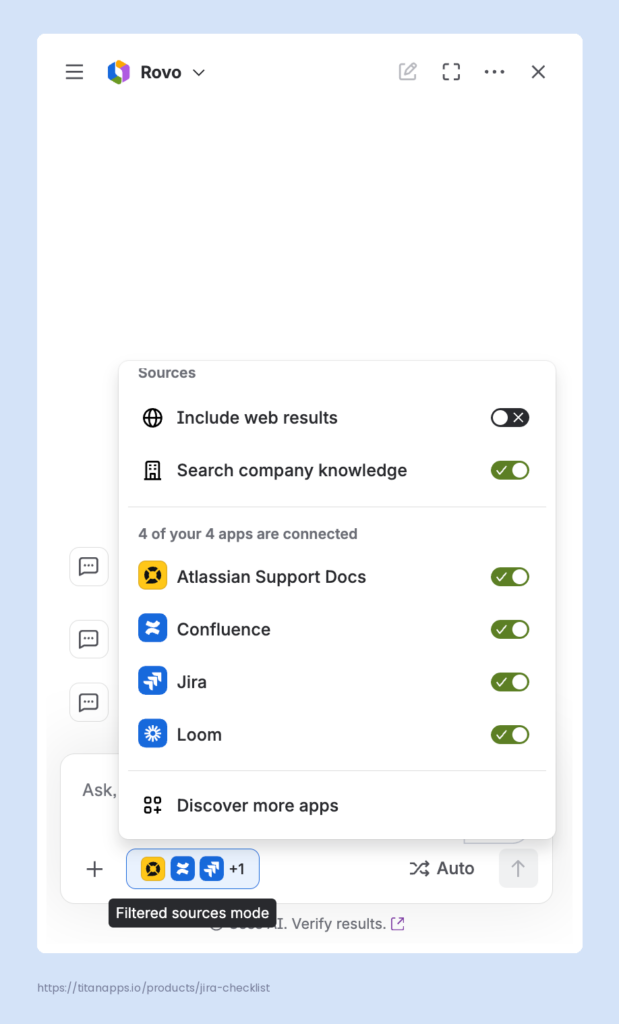
 Note
Note
Look for the full list of available connectors in Manage your Teamwork Graph connectors. Also, there is an option to let Rovo search the public web.
Install the Browser Extension (Optional)
Rovo also has a browser extension for Chrome and Edge. It allows you to use Rovo on any public web page. This step is optional, but useful if you want Rovo outside of Atlassian apps.
Getting Started with Rovo in Confluence
You can reach Rovo from a few places in Confluence:
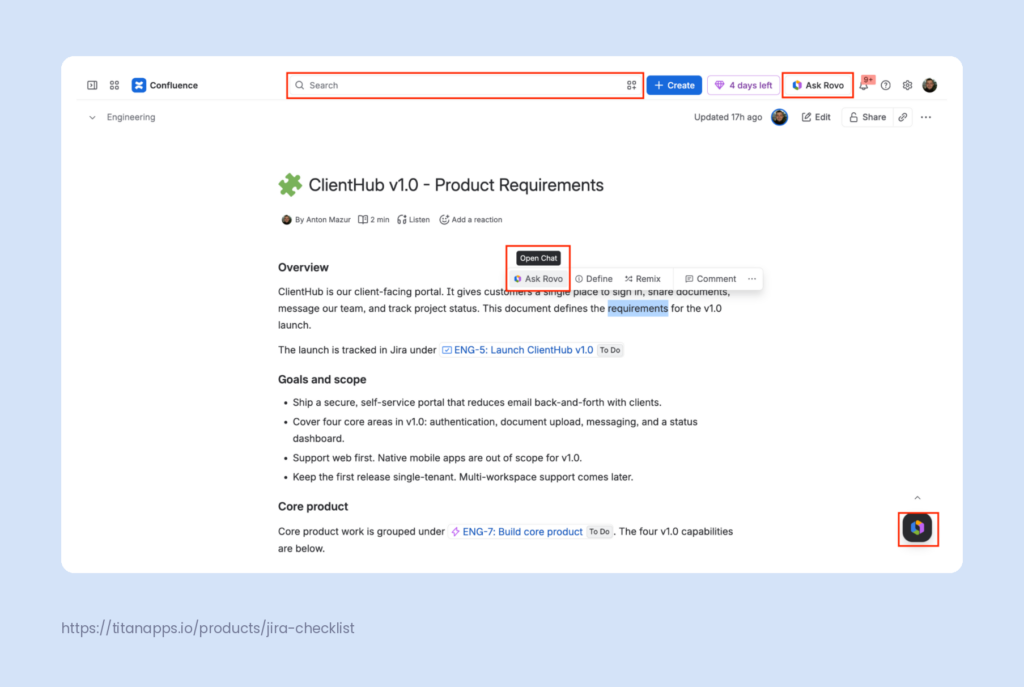
- The Ask Rovo button at the top right of the screen opens the Rovo chat sidebar. From there, you can:
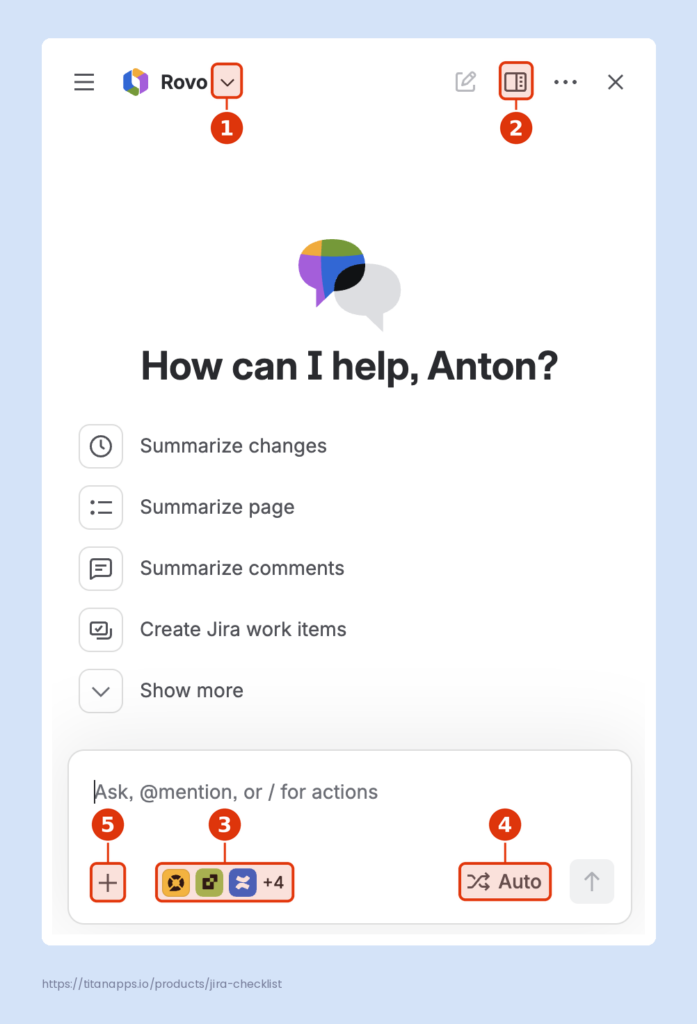
- Search for Rovo agents or start creating one
- Switch to Floating, Sidebar, or Full screen mode
- Configure available sources and apps.
- Configure Rovo reasoning (see more details in the Best practices section)
- View all skills, upload file, add a link, mention someone, more formatting
- The Ask Rovo AI button at the bottom right opens a smaller floating Rovo Chat window.
- The search bar at the top lets you search across your Atlassian Cloud and connected SaaS apps you have access to. You can filter the results by app, space, update time, type, contributor, and other parameters.
Note
Press a forward slash (/) to activate the search drawer outside the editor.
Rovo in Confluence: Use Cases
Find and Search
- Find a specific document or documents that fit specific criteria. Prompt examples: “Find the onboarding guide,” “Show me docs updated in the last week.“
- Get a quick definition. Prompt examples: “What is [project name]?”, “What does [acronym or company term] mean?“
- Look up a company policy. Prompt example for Rovo Chat: “What’s our current PTO policy?”
- Track down the knowledge holder. Prompt example: “I want to contact the person who is the subject matter expert on [topic]. Who is the best person to talk to?”
Create
- Create work items from a product requirements document. Open the PRD and ask Rovo to do that. Prompt example: “In [name or URL of the Jira space], create a story for each functional requirement and include acceptance criteria in the description.” It will prepare the work items and, after your confirmation, create them.
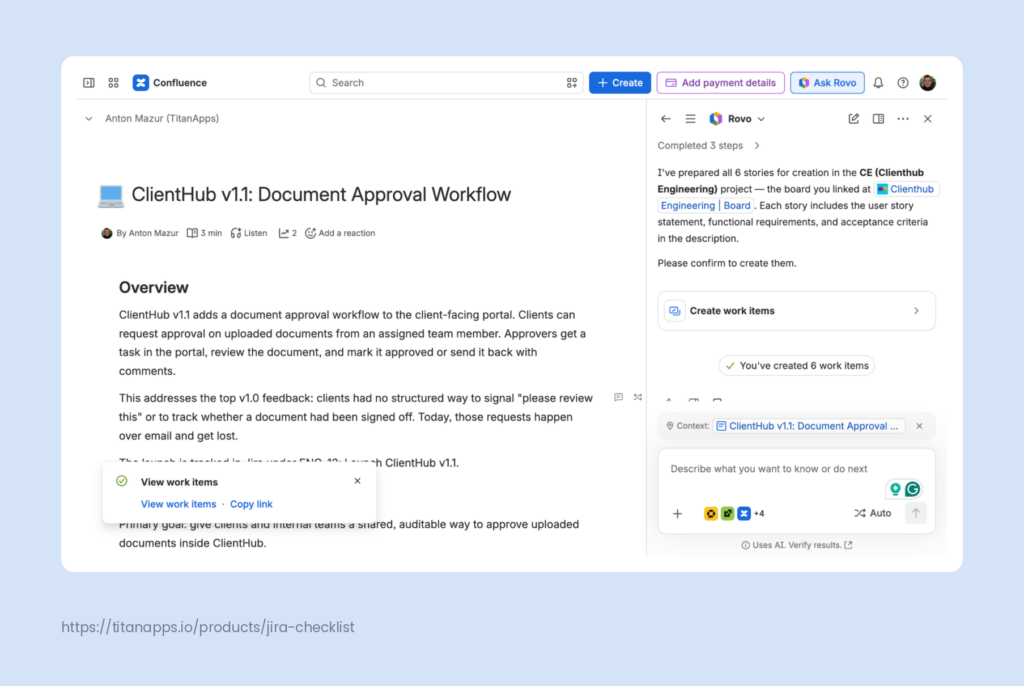
Note that while Rovo can put acceptance criteria in the work item description and add a link to the PRD in Confluence, it’s challenging to verify afterward that each requirement was met. You can split complex requirements into subtasks, but this approach will make your Jira board harder to manage.
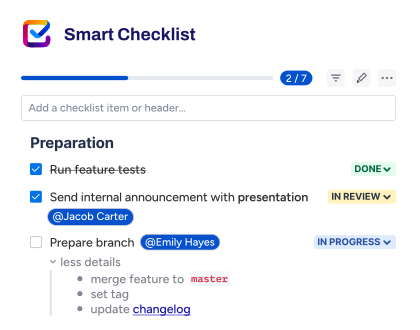
Smart Checklist for Jira by TitanApps offers an optimal middle ground. With this app, you can break down a complex requirement into a checklist within a work item. Each checklist item can have its own status, priority, assignee, and due date. Moreover, you can make some or all of them mandatory – a work item won’t be able to move further until they are marked as done.
If you are looking for guidance on how to ensure that what you build meets the user and business needs, check out our article on Requirements Management in Jira.
- Create a title for the new page. When you paste content into a new page, Rovo offers a generated title. You can also select Suggest title at any point.
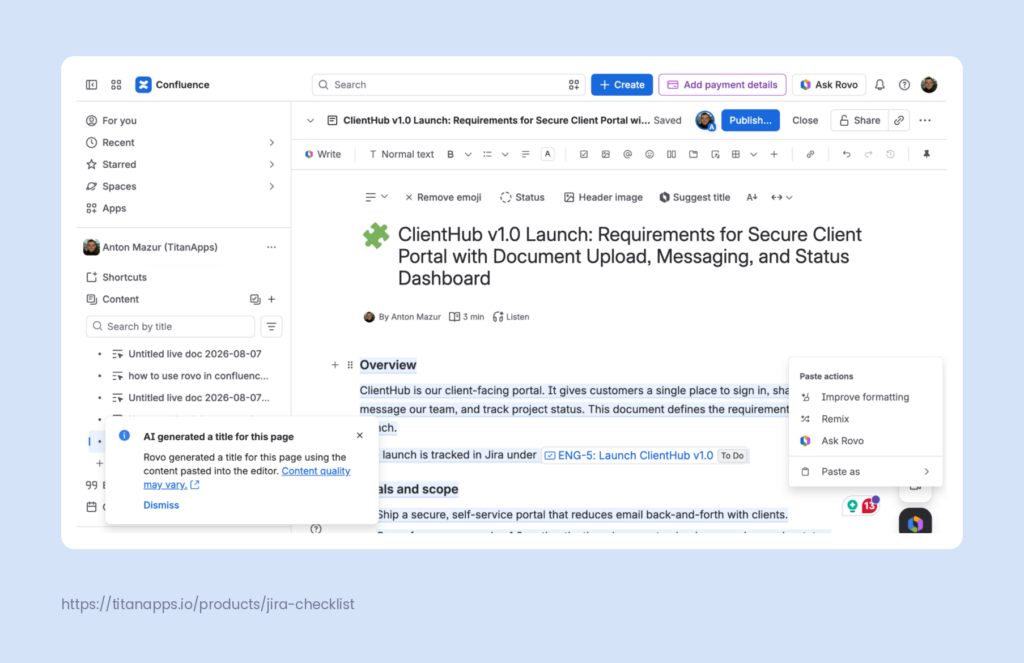
- Create how-to guides and knowledge base articles. Prompt example: “Create a how-to article based on [link to the document with the details].” The page Rovo created is visible only to you. Review it, make changes, and, when you are finished, click Add to Confluence.
- Create a presentation outline. Prompt example: “Create a presentation outline based on [page URL].”
- Generate a FAQ. Prompt examples: “Generate a FAQ about [product, process, or policy] using our existing docs on it”, “Map the questions people ask about [topic] from start to finish, and draft an FAQ that answers each one”
Update
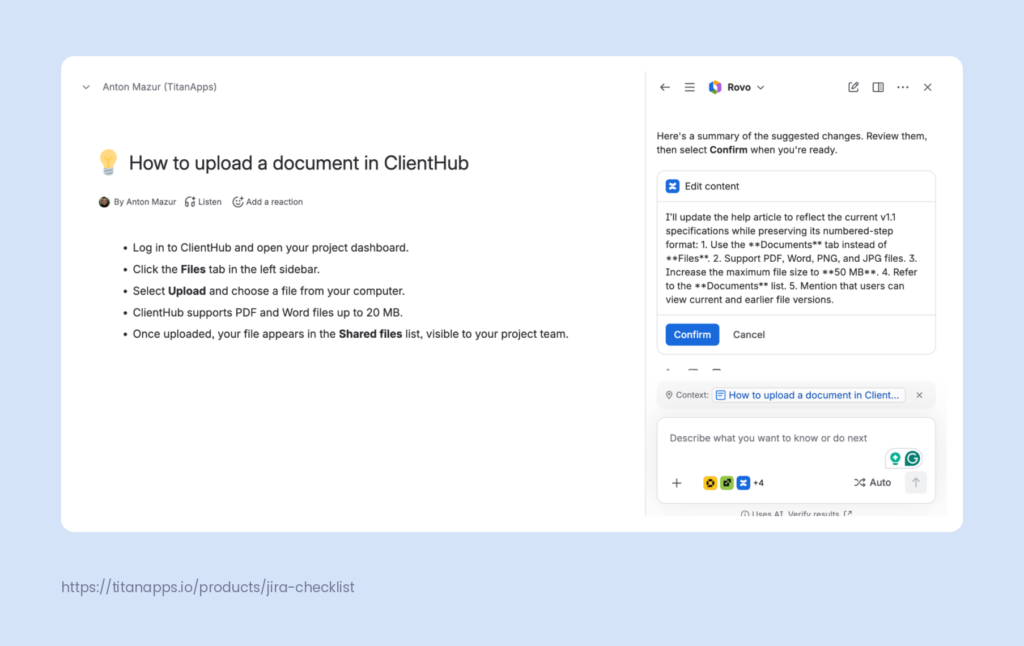
- Update a customer-facing page. Prompt example: “Update this help article to match the current specs at [link to the document with the update information] while keeping the existing numbered-step formatting.” Rovo will suggest changes, but you have to click Confirm to make them live.
Summarize
- Summarize a page. Open a page, select Summarize page in Rovo Chat, and get a short gist of what it is about.
- Summarize the changes on the page since your last visit. Just prompt Rovo to summarize changes while on the page.
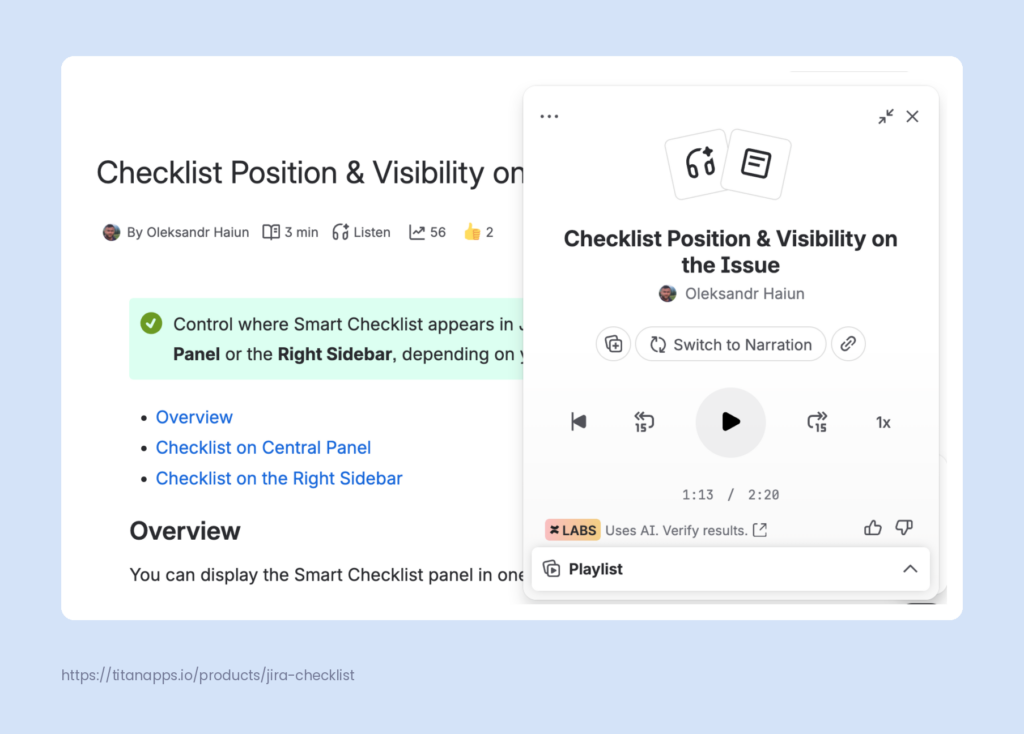
- Summarize Confluence page as audio – The Audio briefings feature turns Confluence pages into short, podcast-like summaries. To use it, click the Headphones icon at the top of the page.
Automate
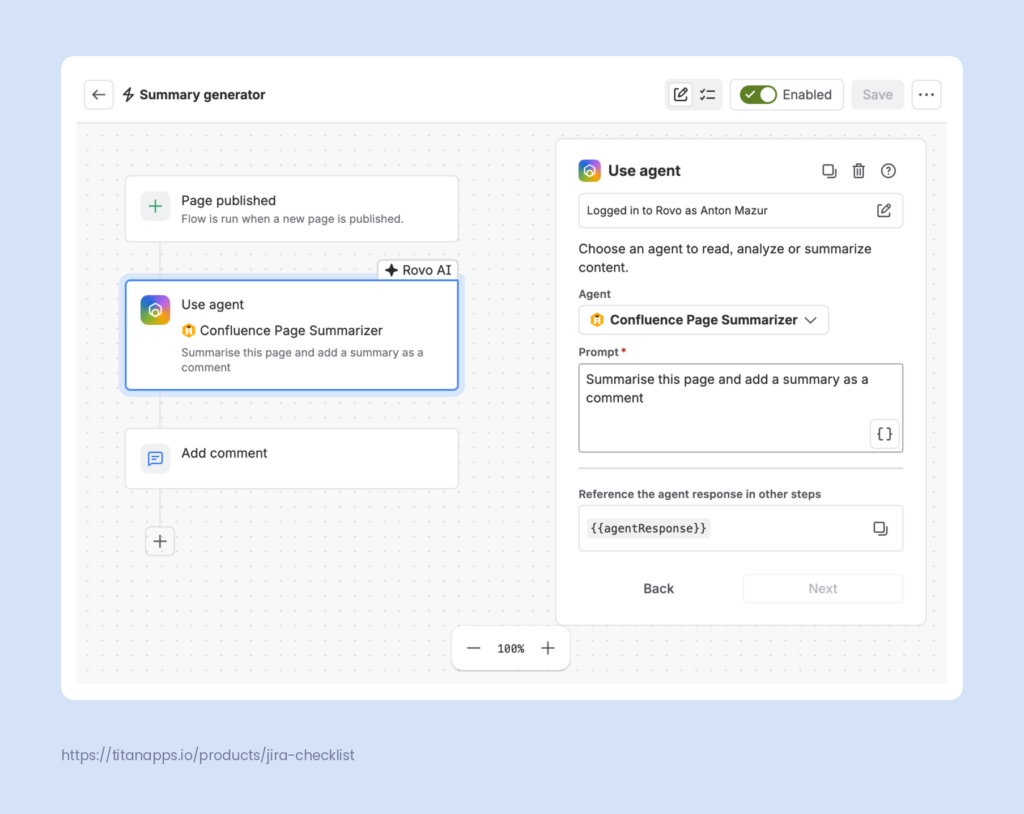
- Use an agent inside an automation flow. Go to your space settings / Automation / Create from scratch. Add a Trigger, then proceed to Action / Use agent. Choose the agent you need from the list. To reference its response in subsequent actions, use {{agentResponse}}.
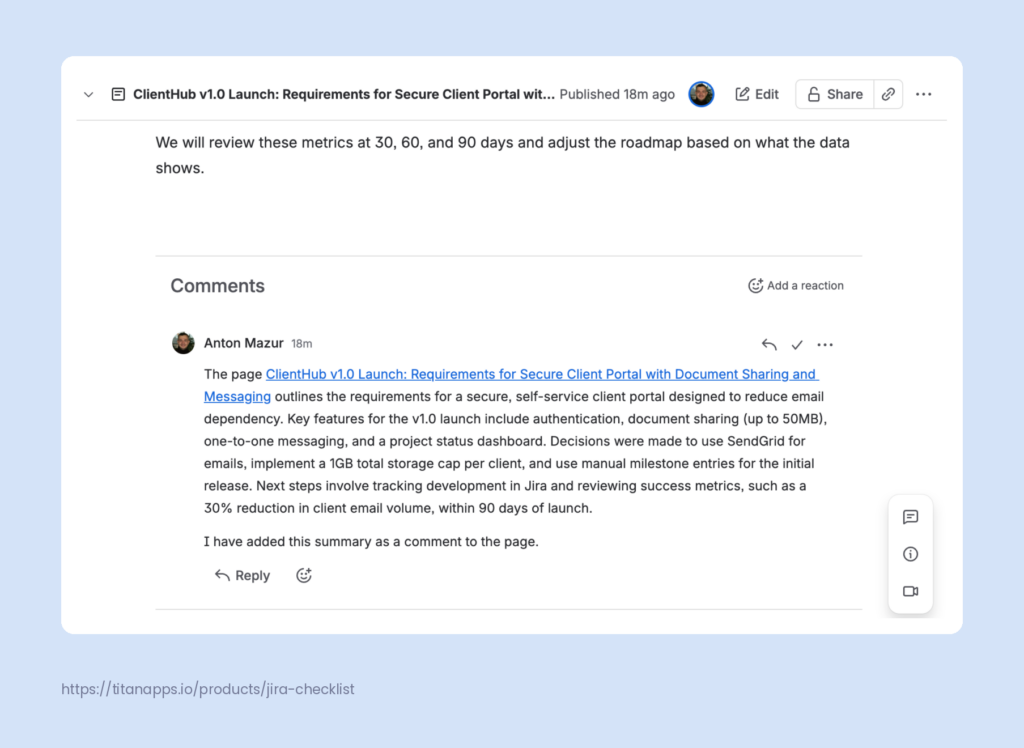
The example below shows an automation flow triggered when a new Confluence page is published. It leverages the custom-built Confluence Page Summarizer (learn how to build an agent in the next section). The agent produces a summary, and the last step in the flow publishes it as a comment.
The flow:
The result the flow produces:
Translate
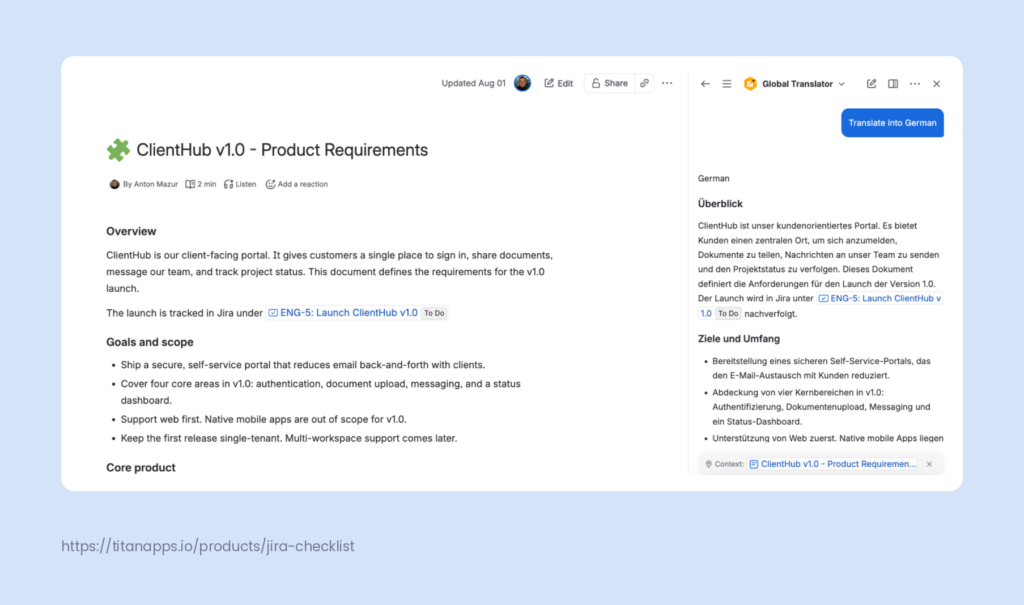
- Translate pages into multiple languages – use the Global Translator agent. It returns the translation in the Rovo panel, which you can then copy into a new page. See the next section for more on agents.
Work with Whiteboards
- Brainstorm – generate cards from a prompt. Open a blank whiteboard, open Rovo, and prompt Rovo to fill it in.
- Cluster sticky notes to make your whiteboard easier to grasp. Open the whiteboard with multiple notes and prompt Rovo to group the ideas.
- Consolidate the whiteboard into a structured Confluence page (“Create a Confluence page from this whiteboard”).
Using a Rovo Agent in Confluence 101
What is a Rovo Agent?
A Rovo agent is an Artificial Intelligence assistant in Atlassian Rovo, built for a specific task, such as reviewing a page or drafting release notes. It is designed to reduce repetitive work by organizing, creating, or editing Jira work items or Confluence pages.
Think of it as a virtual teammate, available 24/7, that can take on one of your typical tasks. You describe the sequence of actions once, and it follows those instructions each time you ask.
How to Access a Rovo Agent in Confluence?
You can use an agent:
- In Rovo Chat,
- in automation flows,
- while editing via the shortcut /Rovo or /ai in Confluence and Jira.
Which Rovo Agents Are Available in Confluence?
You can use one of around 20 out-of-the-box Atlassian agents or create your own. For Confluence users, the most useful ones would likely be:
- Brand Voice Crafter – generates texts in the company’s voice and tone and reviews texts against company brand and voice guidelines.
- Global Translator – translates page text into other languages.
- Decision Director – reviews a decision document written in the DACI framework, then suggests improvements and connects to relevant projects and resources.
- OKR Generator – writes OKRs from scratch or reviews drafts, finds similar OKRs across the organization, and helps share additional resources for writing good OKRs.
- Meeting Insights Reporter – retrieves Loom videos and any associated notes and summarizes them.
- Job Listing Assistant – helps to create a job posting, review an existing one, or search for similar postings.
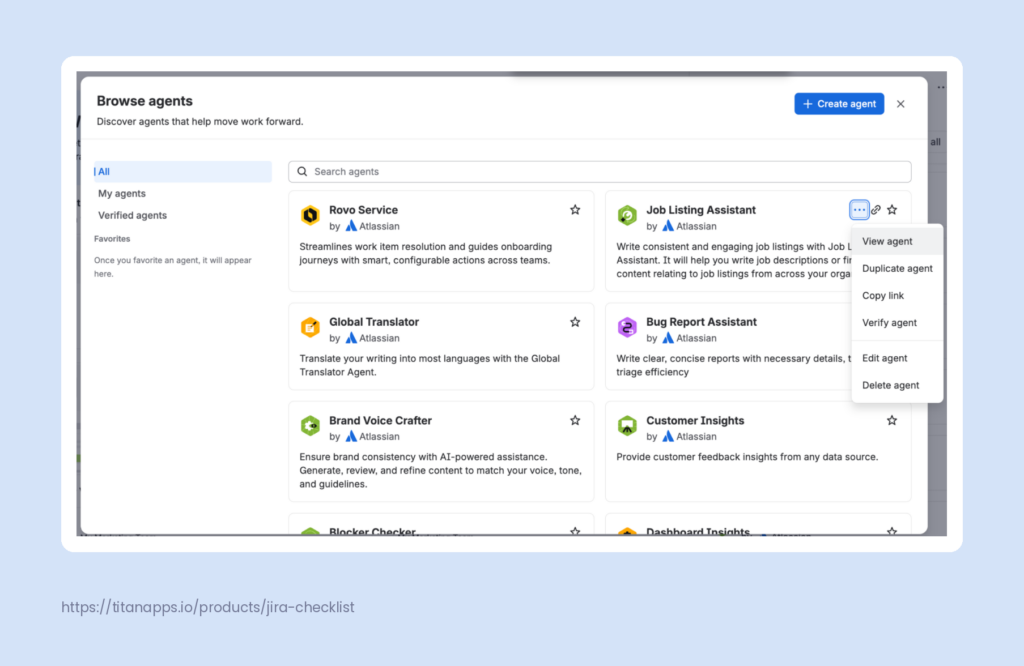
See the full list of available prebuilt agents via Rovo Chat / Switch to another agent / Browse agents / Browse all. For more information on how the particular agent works, find it in the list, click three dots on its card, and select “View agent”.
How to Create and Manage a Rovo Agent?
Go to Rovo Chat / Create agent or to app switcher / Studio / Create an agent. Then either describe what you want in plain language, or skip to manual setup.
If you start with the plain language editor, use it to convert your description to a set of instructions, then select Review agent.
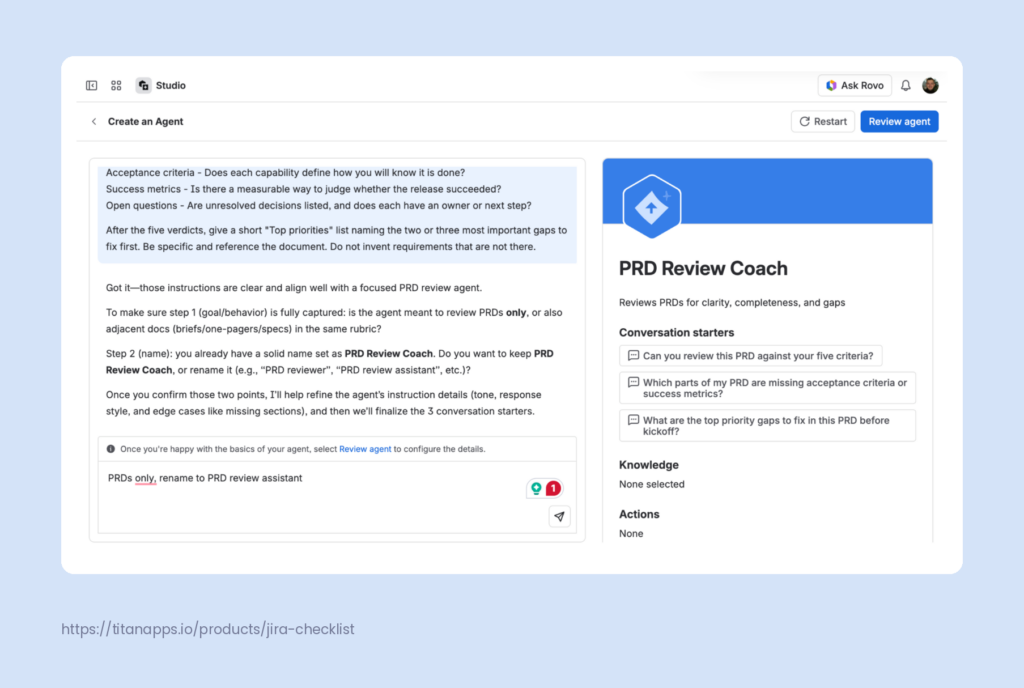
After that, fill out the fields to make your agent more advanced:
- Skills (Get page, Create label/folder/live doc, etc. – click Add skills button to see the full list)
- Knowledge (All organizational knowledge / Custom / No organizational knowledge)
- Conversation starters
- Whether the agent is allowed to search public websites.
You can also add subagents to handle specific scenarios.
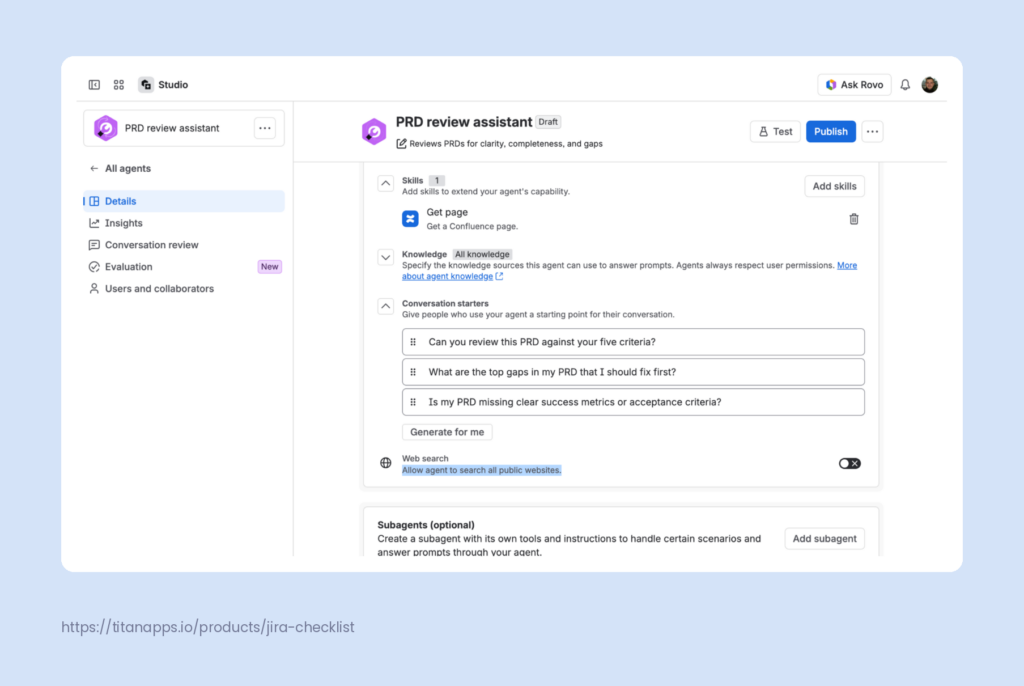
After you are finished, click Publish. Your agent is now ready to use.
If you skip to manual setup, you will have to follow the instructions without AI’s help. Atlassian’s guide to writing instructions for your Rovo agent will come in handy at this point.
For instructions on editing or deleting an agent, see “Create and edit Rovo agents”.
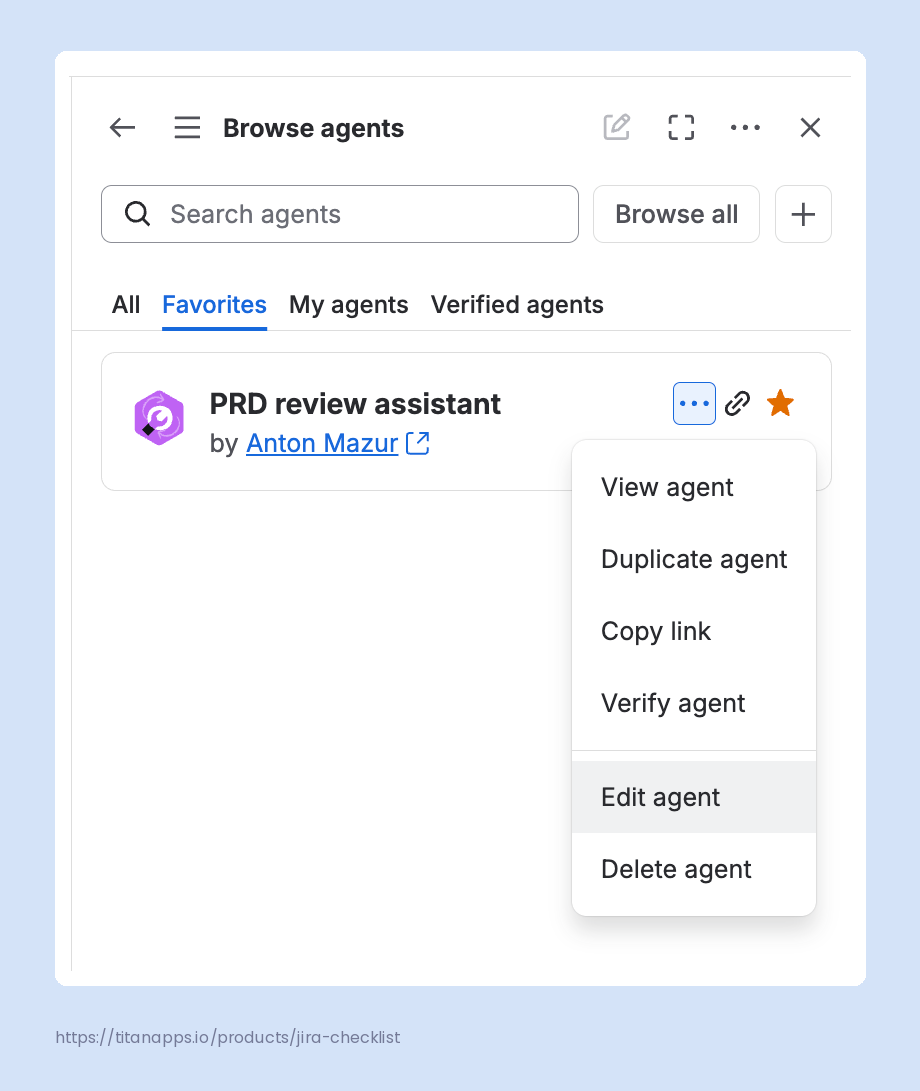 Note
Note
You will find your new agent in the My agents section. Also, it’s added to Favorites by default.
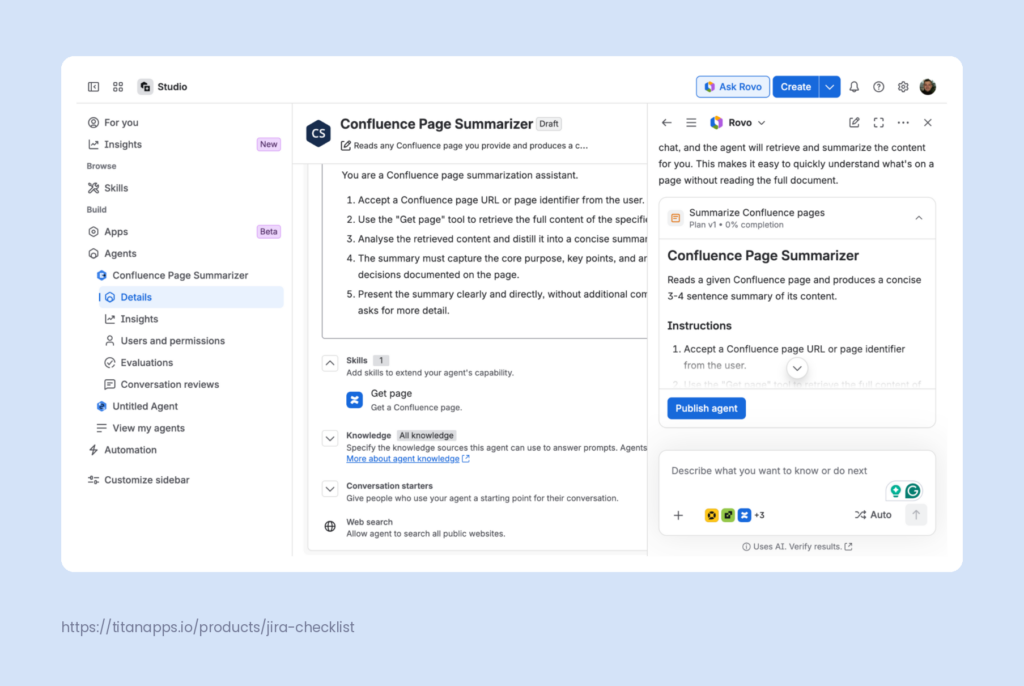
Depending on your setup, you may face a different, more straightforward, and AI-focused UI. However, the flow is essentially the same:
- You describe your idea to Rovo, it writes instructions and prompts you to click Build Agent.
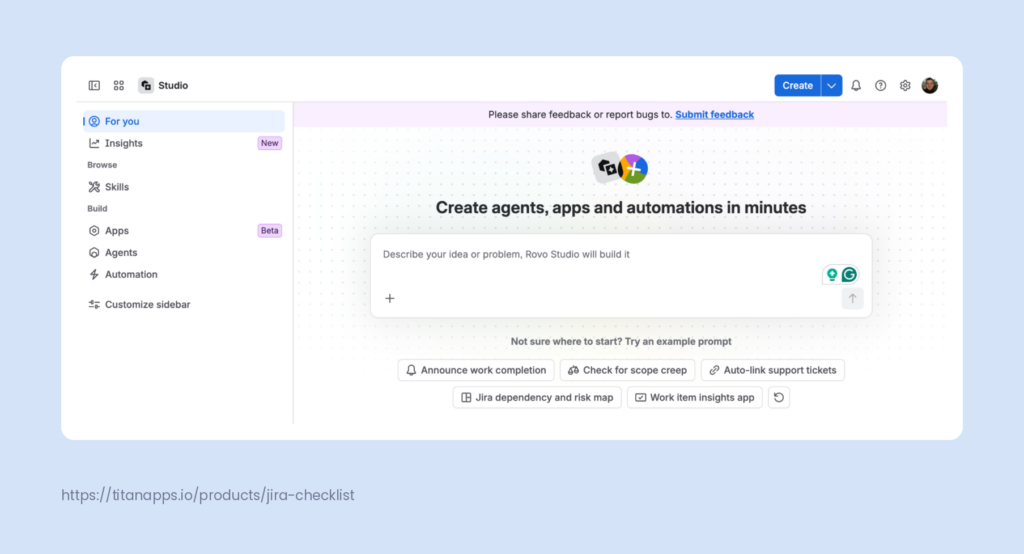
- You check the instructions and other parameters, make any necessary changes, and publish the agent.
Rovo MCP: How to Integrate Confluence with the AI of Choice?
What is Atlassian Rovo MCP Server?
Atlassian Rovo MCP Server is a cloud-based Model Context Protocol (MCP) server that connects Jira, Confluence, and other Atlassian apps to external AI tools and IDEs, including ChatGPT, Claude, VS Code, and Cursor. With the help of Rovo MCP, your AI client will be able to query, create, and update Atlassian data.
Think of Rovo MCP as putting another AI “driver” in your Atlassian car. Rovo still powers all the gears on the Atlassian side, but another “brain” is behind the wheel, and you tell it where to go. With the right permissions, you can work with Confluence through Rovo MCP and do everything described above, like creating and changing pages.
Rovo MCP Server is often referred to as Jira MCP. To learn more about its capabilities and use cases, read our article What Is Jira MCP?.
Who Needs Rovo MCP?
Rovo MCP is for Atlassian users who prefer an AI assistant outside Atlassian. If you already spend much of your day in Claude or ChatGPT and want it to extend to your Atlassian work too, setting up an MCP is worth the effort. It will save you the time wasted on copy-pasting text or downloading/uploading files to transfer data between your AI assistant and Atlassian.
How to Set Up Rovo MCP?
The setup happens in your AI client, not in Confluence. Basically, it has two steps:
- You connect your client to the Atlassian Rovo MCP Server.
- You sign in to Atlassian when the client prompts you.
The exact steps differ by client. Some can set themselves up: you paste a short prompt, and the client installs, connects, and starts the sign-in for you. For detailed instructions, see Atlassian’s official guide Getting started with the Atlassian Rovo MCP Server. In our Practical Guide to Jira MCP Server, you can find the list of AI clients and tools one can connect to the Jira MCP Server, as well as example prompts and workflows.
Best Practices for Using Rovo in Confluence
- Clean up stale content. Rovo does not know which page is current. If an outdated draft is the closest match to a question, Rovo will answer from it with full confidence. Archive obsolete pages and keep the ones people rely on verified and up to date.
- Check permissions. Rovo doesn’t show users content they already cannot access. However, it makes weakly-secured resources far easier to find. A forgotten “anyone can view” page is now one natural-language query away.
- Scope agents to specific knowledge. If an agent draws on all organizational knowledge, it may rely on uncurated data and drift. Give each agent a focused knowledge source – say, a parent page and its children – so its answers stay accurate and spot-on.
- Delegate complexity to sub-agents. An agent works best with one clear purpose. When a task has distinct scenarios that would overload a single set of instructions, split them into sub-agents. Think of them as assistants the main agent hands work to. Each runs in its own context and returns a clean result.
- Match the reasoning mode to the task. A Quick Answer is sufficient for more everyday tasks. Think Deeper uses multi-step reasoning. Deep Research converts your prompts into a research plan, goes through it, and provides a report. But the extra depth has its cost. A Quick Answer request consumes 10 Rovo credits, a Deep Research request – 100, and a Think Deeper request – 50-100+ credits. Read more on that in the Rovo usage allowance.
Conclusion: How to Get Started with Rovo In Confluence?
Rovo brings diverse AI capabilities into Confluence: search, page summarizing and creation, agents, whiteboard help, and external AI access through MCP. At first glance, it may seem overwhelming, but you don’t need to employ all of that at once.
Check if your Confluence data and access controls are up to date, and keep them that way. Start small, with search, title suggestions, and page summaries. Then experiment with Rovo Create and see if Rovo makes drafting documents and pages easier for you. Shortlist repetitive, routine Confluence tasks and try using agents to deal with them. If agents prove their worth, go further and combine them with automation flows. Build your confidence step by step and leverage Atlassian AI to become more productive.
Atlassian Rovo FAQ
Is Atlassian Rovo free?
Not in the long run. Rovo is included with paid Jira, Confluence, Service Collection (including JSM, Jira Service Management), and Teamwork Collection Cloud plans. Usage is metered in Rovo credits, which are provided as a monthly, per-user allowance (see Rovo usage allowance for more details). Also, Atlassian offers a standalone subscription called Rovo Standard, which is free as of August 2026, while in its beta phase. However, it will eventually transition into a separate paid monthly subscription.
What is the difference between Atlassian AI (Atlassian Intelligence) and Rovo?
Those are essentially two names for the same functionality, allowing you to leverage Artificial Intelligence inside the Atlassian ecosystem. Rovo is the most recent one. Note, however, that not all features under the name “Rovo” require AI to work. A few, like basic Search, stay available even without it.
How does Atlassian Rovo handle data security?
Rovo follows Atlassian’s Responsible Technology Principles, including security commitments, and holds SOC 2 and ISO 27001 certifications. It processes data in accordance with Atlassian’s Privacy Policy, Data Processing Addendum, and GDPR commitments. Rovo uses a mix of OpenAI LLMs, open-source models, and third-party hosted models from Anthropic and Google. None of them are allowed to use your inputs or outputs to train their models. Rovo also respects user permissions, supports data residency so you can pin data to a specific region, and records activity in the audit log.