





 Tools for Jira
 Tools for monday.com





Jira automation for checklists and templates helps teams standardize recurring work without creating extra admin. If your team runs repeated delivery steps in Jira, such as development handoffs, QA checks, onboarding tasks, approval flows, or service workflows, automation can add the right checklist or issue structure at the right moment.
This article explains how to automate jira processes with Smart Checklist and Smart Templates. It also shows where Jira Automation fits, when checklists work better than subtasks, and how to keep recurring work consistent across projects. For teams already using Jira, this is often the fastest way to reduce setup effort and make execution more repeatable.
The core problem in jira automation — recurring work vs sub-task clutter
Most teams automate checklists in Jira for one reason: recurring work keeps coming back, and sub-tasks turn that recurring work into noise.
Sub-tasks work fine when you need separate owners, separate estimates, or separate workflow states. But when you just need a reliable list of steps (and proof they were followed), sub-tasks create friction:
- You end up with 10–30 extra Jira subtask per parent work item.
- You spend time linking, updating, and moving sub-tasks across workflows.
- Progress becomes harder to read because the real work is spread across multiple work items.
A Jira checklist solves a different problem. It keeps the process inside one Jira issue and turns steps into actionable checklist items that can be tracked and assigned without creating more issues.
This is why teams replace sub-tasks with checklists for workflows like:
- Definition of Done and QA testing (development checklist, regression checklist)
- Onboarding and internal approvals (IT access, compliance steps, policy sign-off)
- Service processes in Jira Service Management (repeatable request handling)
- Any structured process where the goal is consistency and clear execution, not more Jira issue types
Once you treat the checklist as the operational layer, automation becomes simple: you don’t automate “creating more work items.” You automate when the workflow can move forward with the right checklist template.
Smart Checklist built-in automation (no Automation for Jira needed)
Smart Checklist can automate checklist templates directly inside Jira, without building Jira automation rules in the rule builder. This is the fastest setup when teams want the right checklist items to appear at the right workflow stage, based on simple conditions like issue type, priority, component, or labels.
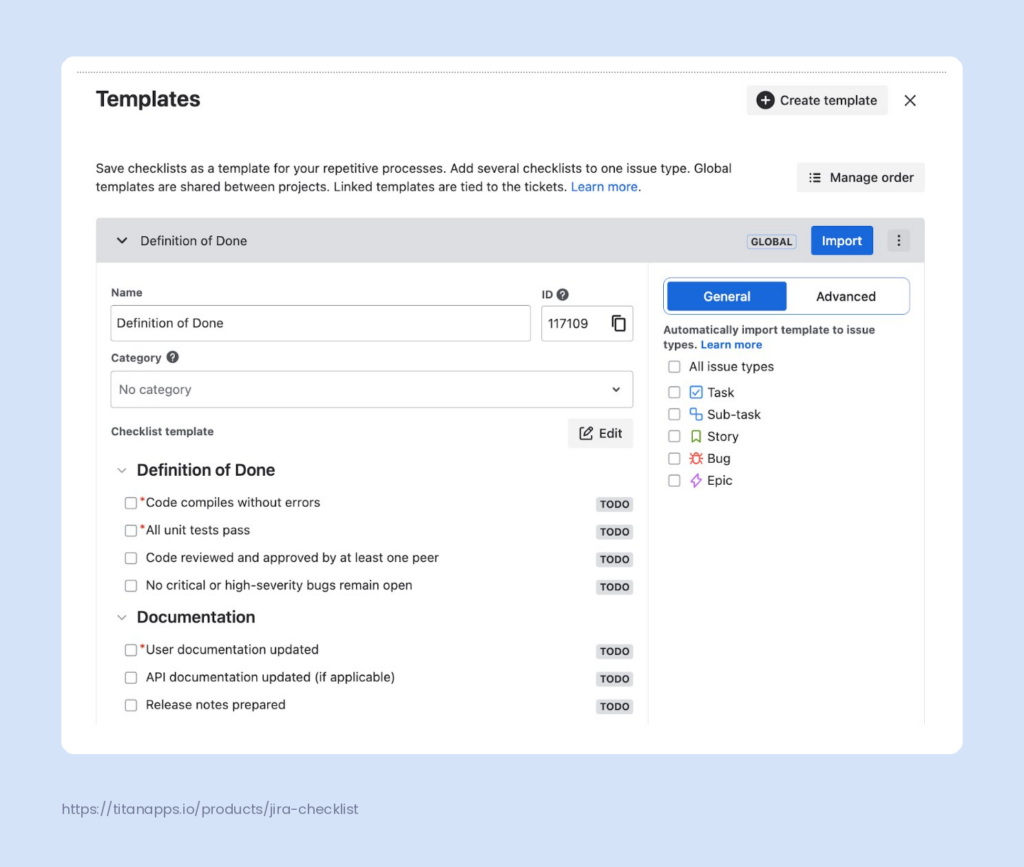
General conditions (what existed before)
General conditions cover the most common use case: import a checklist template when a Jira issue is created.
Teams usually apply this to one or more issue types (for example, Story, Bug, Task) so every new work item starts with a consistent Definition of Done or acceptance criteria checklist template.
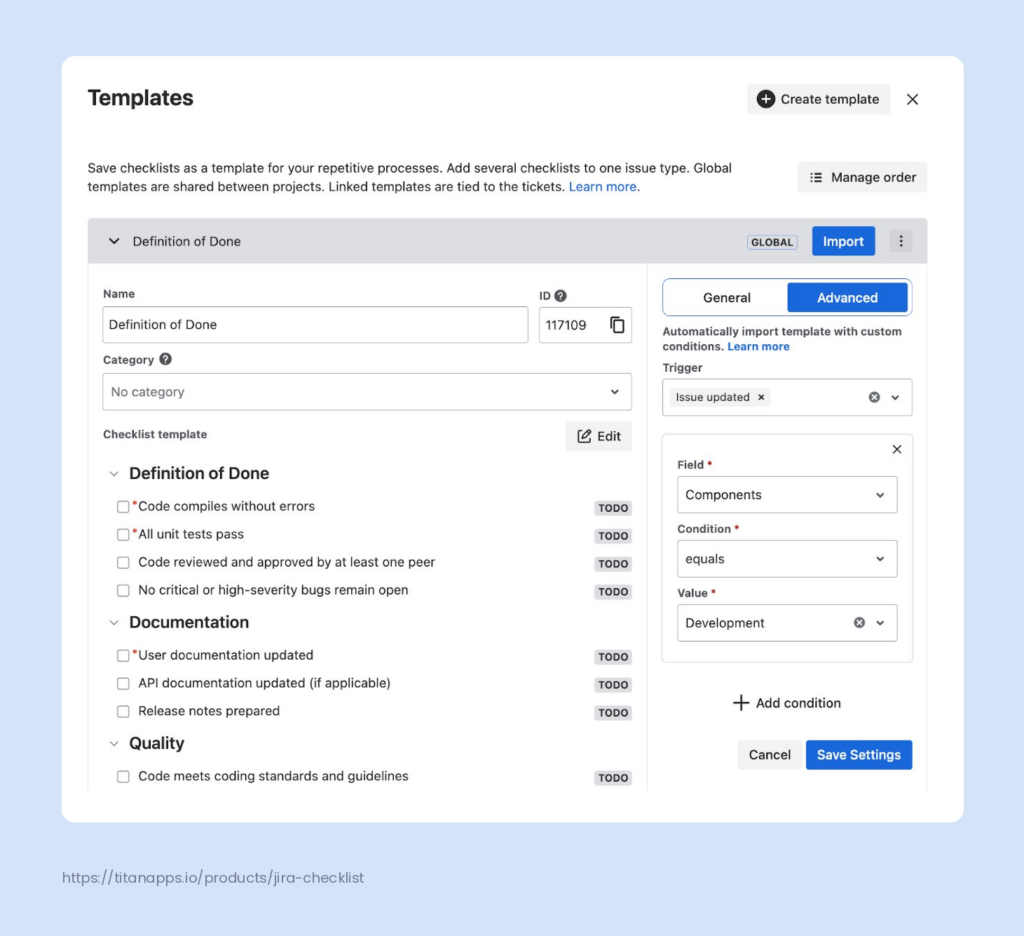
Advanced conditions (new capability)
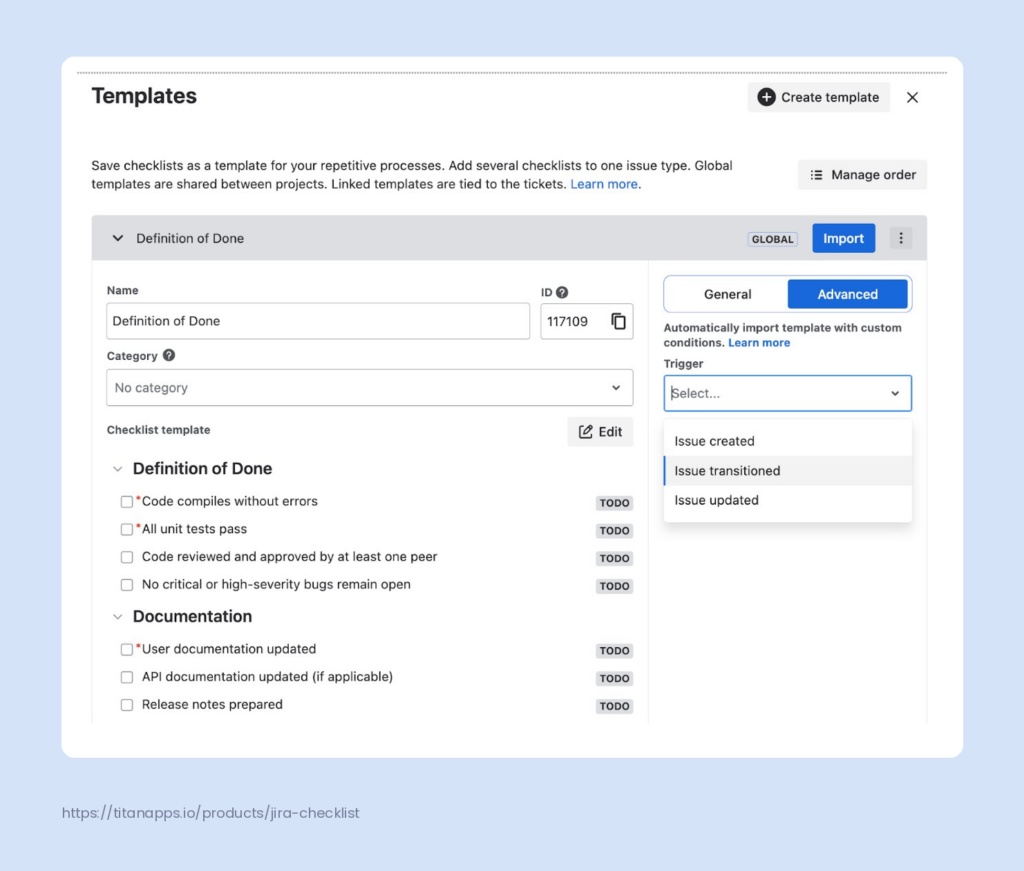
Advanced conditions add two things teams asked for:
1) More triggers
You can auto-import a checklist template when a Jira issue is:
- created
- transitioned
- updated
This matches how many Jira automation rules are built in practice: “when something changes in the workflow, add the next steps.”
2) Field-based filters (real automation logic, without rules)
Advanced conditions also let you filter by issue fields, so the template is added only when it’s relevant.
Examples that map well to real workflows:
Issue transitioned to status “In Testing” and Label = Regression
This can auto-import a regression checklist template at the QA stage.
When field value label = testing. This adds a Testing checklist when the issue is marked with the Testing label, without requiring a status change first. It’s useful when teams want to trigger extra checklist steps based on a field value alone, so the right validation steps appear as soon as the issue is identified as testing-related.
Why this option works well in Jira projects with many teams
A large Jira Cloud instance usually has different workflows per team (dev, QA, Marketing, HR). Built-in Smart Checklist automation keeps checklist templates close to the work:
- Team members don’t need admin permissions to manage automation rules.
- Project admins can keep automation scoped to a Jira project and its workflows.
- Checklists show up when the workflow reaches the right stage, so progress is visible inside the Jira issue without creating sub-tasks.
Smart Checklist and Automation for Jira: “Import Checklist Template”
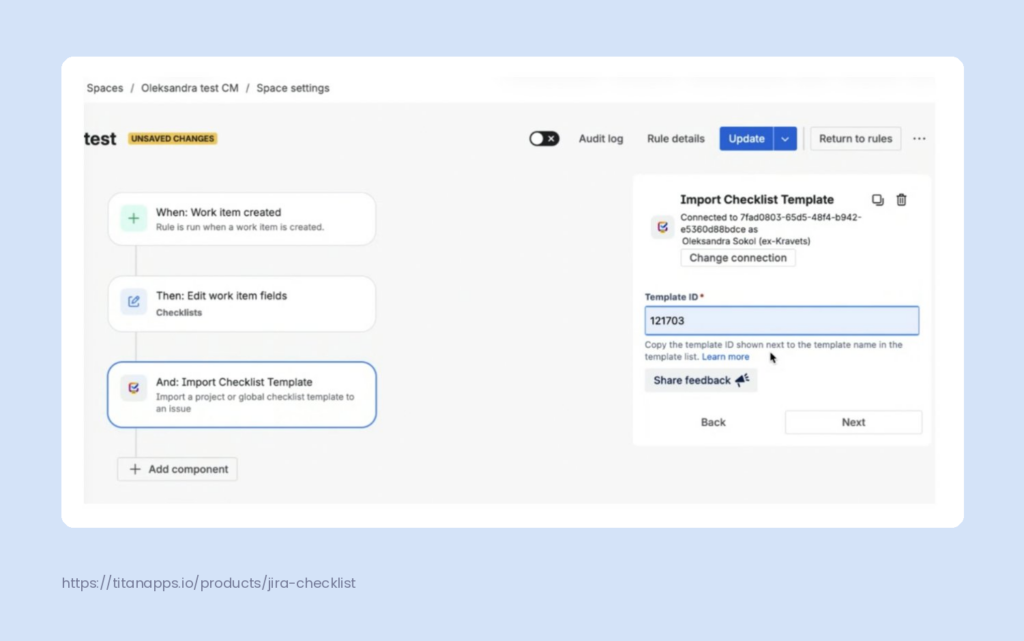
With the move to Forge, Smart Checklist can now add its own native Automation for Jira actions. The first one we released is “Import Checklist Template.”
Now the rule builder includes a clean, purpose-built action:
- Action: Import Checklist Template
- Input: paste the Template ID
To find Template ID you have to open Smart Checklist templates, select the template you want, and copy the Template ID from the template header. You use this ID when configuring the Import Checklist Template automation action.
That’s it. You get the same outcome: checklist templates added automatically to Jira issues, but with a setup that’s easier to maintain and easier to troubleshoot when rule runs fail.
When to use this approach
Use Automation for Jira + Import Checklist Template when you need:
- More triggers and conditions than simple “issue created” scenarios (for example, more complex workflow events or cross-project events).
- More control over automaton triggers and how notifications behave.
- Consistency across projects, when one automation template should apply to multiple Jira projects (we’ll cover scope in the next section).
Example: When a Jira issue is transitioned to In Testing, automatically import a Regression Testing checklist template, notify the QA assignee, and keep the workflow moving without manual checklist creation.
Scope matters: project automation, global automation & workflow validators in Jira Cloud
When you automate checklists in Jira Cloud, scope determines where the rule runs. This is the difference between “a rule for one Jira project” and “a global rule across the whole Jira instance.”
Project automation (most common)
Project-level Jira automation rules are created from a specific Jira project’s Project settings. These rules run only inside that project, which is usually what teams want because:
- each team can have their own processes and checklists
- components/labels mean different things across projects
- permissions are simpler (often handled by a project admin)
This is a good fit when you want checklist templates to follow a team workflow, like importing a QA checklist when an issue transitions to In Progress or In Testing.
Global automation rules are created at the system level and can apply broadly. In Rule details, you can set the rule scope to:
- Global (all projects)
- Multiple projects (select specific Jira projects)
- Project type (Software / Jira Service Management / Business / Discovery)
This is useful when you want one standard automation rule to work across departments, for example a shared “high priority” checklist template or a consistent notification pattern for stakeholders.
Workflow validators: enforce checklist completion before an issue moves forward
Besides Jira automation rules, Smart Checklist also supports workflow validators. This is a different use case.
Automation helps you add checklists, import templates, send notifications, or update fields.
Workflow validators help you enforce process rules inside the Jira workflow.
A common example is issue transition control. If a team uses mandatory checklist items as part of their process, they may want to stop a Jira issue from moving to the next status until those required steps are completed.
This works well for cases like:
- moving an issue from In Progress to Done
- moving a task from In Testing to Ready for Release
- any workflow step where incomplete required items should block progress
This is especially useful for development, QA, IT, and operational workflows where teams need a clear quality gate before work can continue.
So, alongside automation for recurring processes, Smart Checklist also integrates with Jira workflows to help teams enforce required checklist completion at the right stage.
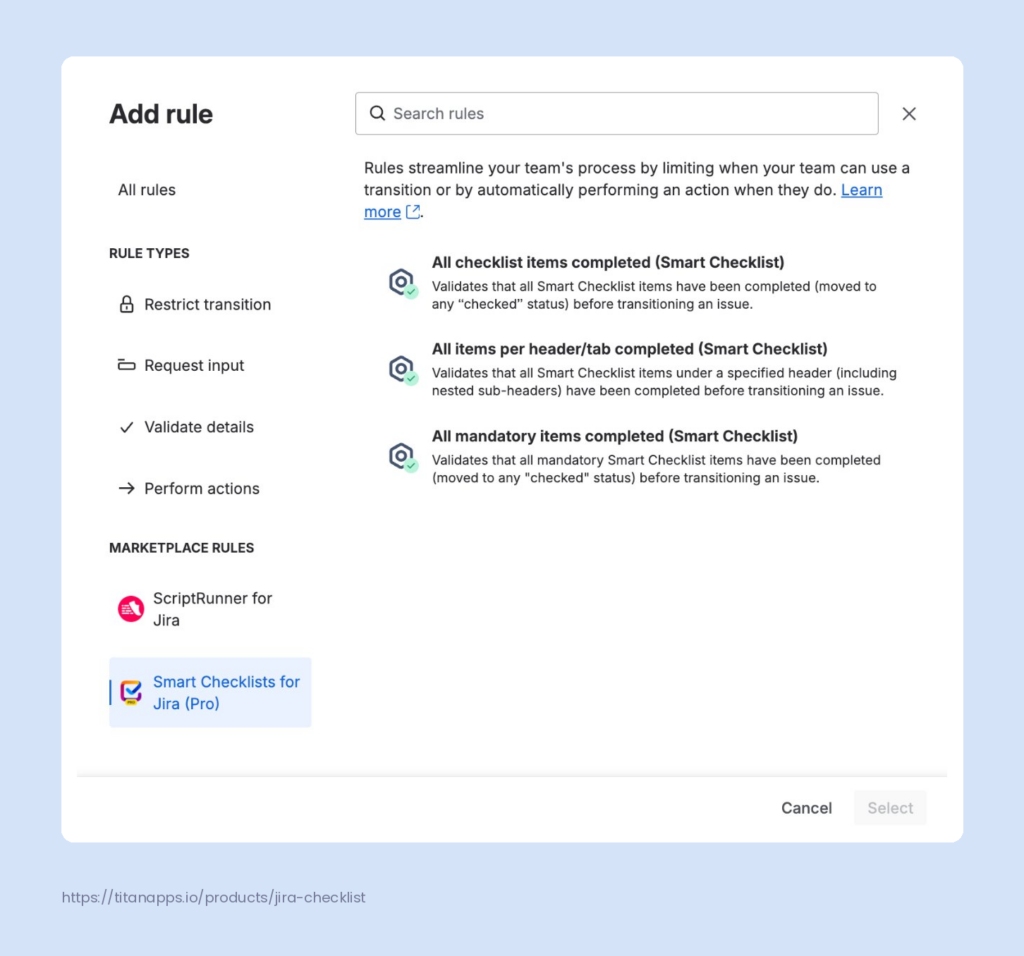
Smart Checklist validators you can add to a workflow transition
Smart Checklist provides two validator options in the workflow rule list:
- All checklist items completed (Smart Checklist)
Blocks the transition until every checklist item is in a checked status. - All mandatory items completed (Smart Checklist)
Blocks the transition until all items marked as mandatory are completed.
This makes “Done” consistent across Jira projects and reduces manual policing by a product owner or QA lead.
Custom message for teams (and localization)
When you add the validator, you can also set a custom message shown to the user if they try to transition the issue too early. Teams use this to:
- explain what’s missing (“Complete QA checklist before closing.”)
- match internal terminology (“Ready for release requires all mandatory checks.”)
- support localization if your Jira users don’t work in English
What Jira automation lets you do with checklist templates (4 practical patterns)
Teams don’t automate checklists because it’s “nice to have”. They do it because they want Jira work items to stay clean, predictable, and easy to validate across workflows.
Here are four patterns that cover most real-life use cases.
The right checklist appears at the right time
Instead of adding the same checklist on issue creation, you can attach different checklist templates as the Jira issue moves through the workflow.
Example:
- When a work item is In Progress, import a Development checklist.
- When it reaches In Review, import a Review checklist.
- When it reaches In Testing, import a Regression / QA checklist.
This removes sub-task clutter and keeps each stage actionable without creating extra Jira issues.
Add extra checklist steps only when they’re needed
Some teams want to keep their checklists simple by default and add extra steps only under certain conditions.
A good example is a business travel process. The standard travel checklist might include booking transport, confirming dates, and arranging accommodation. But if the employee needs a visa, the checklist should expand to include visa-related steps as well, such as collecting documents, submitting the application, and tracking approval dates.
The same logic works in development. A QA team may use a simple regression checklist for most work items. But if a change affects permissions, they may need extra checks for roles, access levels, and user visibility. Instead of turning every checklist into a long master list, teams can keep the default workflow light and add those extra items only when the work actually requires them.
This keeps one issue, one checklist, and one clear workflow, while still covering more complex cases properly.
“Done” becomes enforceable, not negotiable
Automation can add checklists, but teams still need a way to stop premature closure.
That’s where the checklist becomes a quality gate:
- If mandatory checklist items aren’t completed, the issue can’t move to Done.
- This is how teams make Definition of Done, acceptance criteria, or compliance steps non-skippable.
This reduces rework and avoids “looks done in Jira, but not actually done” situations.
Sync checklist completion with the Jira issue status
For mature teams, checklists don’t just sit next to the workflow — they drive it.
Two common patterns:
- When all checklist items are completed, automatically transition the Jira issue to Done.
- When an issue is transitioned to Done, automatically mark checklist items as completed or skipped (useful when closure happens from another system or process).
This improves consistency across teams and reduces manual status updates.
Issue template automation: create a full set of Jira tickets when a new project is created
Checklists are great when you want to keep work inside one Jira issue. But some workflows are bigger than one work item. Agencies, consultancies, and internal service teams often need a repeatable project kick-off: the moment a new Jira project appears, the team wants a ready backlog with the same core tickets every time.
A common example from the session: a marketing agency creates a new client project in Jira. Instead of manually creating the same “Kick-off / Access / Research / Assets / Launch / Reporting” tasks, they trigger an automation that generates the full ticket set from an Issue Template. The result is immediate structure in the backlog, consistent workflows across projects, and less setup work for team members.
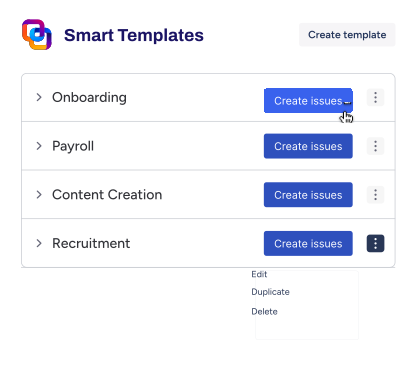
Smart Templates supports this pattern with two key ideas:
- Global templates: you create a “Project Kick-off” template once and share it across Jira projects (so it can be reused when a new project is created).
Automation hook: Smart Templates generates a dedicated hook that you can plug into Automation for Jira. Then Jira automation can run “Project created / Space created” and call the template to create issues in the newly created project, using smart values to pass the project identifier.
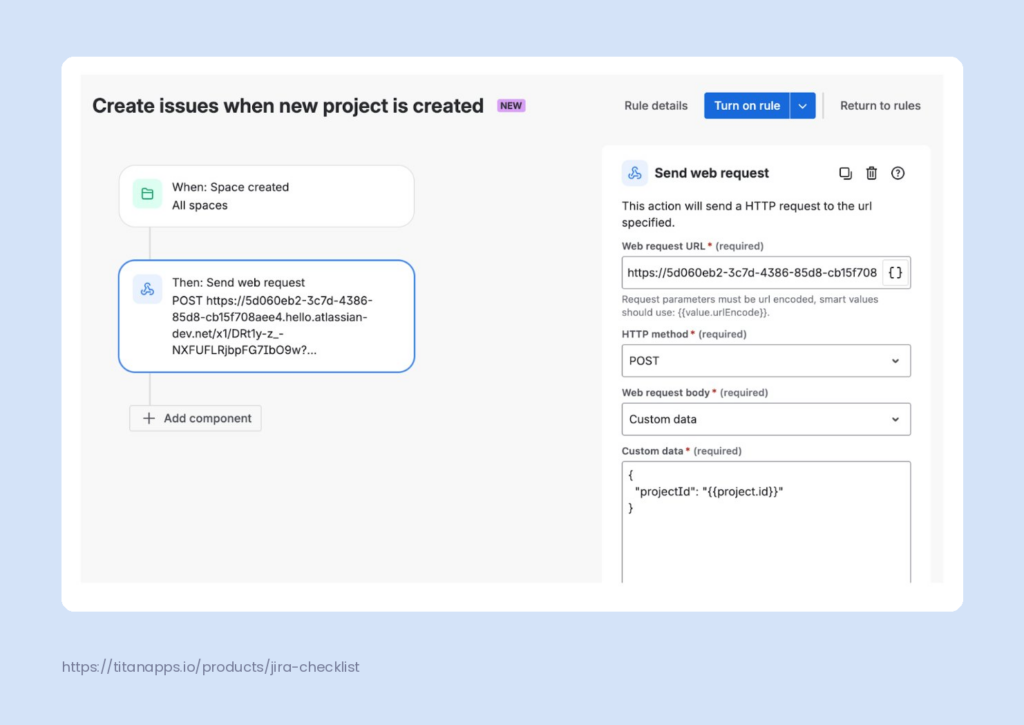
This is a powerful “no busywork” pattern for recurring delivery. You standardize the project setup, keep responsibilities clear from day one, and streamline the handoff between stakeholders, assignees, and the delivery team.
Conclusion
Jira automation works best when it supports how teams actually execute work. If your process lives inside Jira issues, checklists are often the cleanest alternative to sub-tasks — especially for repetitive tasks, Definition of Done, QA steps, onboarding, and service workflows.
Smart Checklist helps you automate checklists at three levels: automatically import checklist templates when issues are created or moved through workflows, use Automation for Jira with a Import Checklist Template action for more advanced automation rules, and enforce “done means done” with workflow gates when mandatory items must be completed.
If your recurring work is bigger than one issue, Smart Templates adds another layer: generate a full set of Jira tickets from an issue template when a new project is created. That keeps delivery consistent across Jira projects without manual setup.
FAQ: Jira automation for checklists and templates
Can I automatically add a checklist template in Jira?
Yes. You can auto-import a checklist template on issue created, issue transitioned, or issue updated with additional conditions for field values using Smart Checklist’s built-in automation (Advanced conditions). You can also do it with Automation for Jira using the Import Checklist Template automation action.
What’s the difference between Smart Checklist built-in automation and Automation for Jira?
Smart Checklist built-in automation is a simpler, no-code way to add checklist templates based on triggers and field value conditions inside a Jira project. Automation for Jira is broader: it supports more triggers, cross-project scope, more automation actions, and deeper workflows with notifications and routing.
Can I add different checklists at different workflow stages (In Progress vs Testing)?
Yes. A common workflow pattern is:
- transition to In Progress – add a Development checklist template
- transition to In Review – add a Review checklist template
- transition to In Testing – add a Regression / QA checklist template
This keeps checklist items relevant to the stage and helps teams streamline work.
Can Jira automation trigger a checklist based on a field value?
Yes. You can apply checklists based on field value conditions such as:
- Priority = High
- Component = Development
- Label = Onboarding
- Issue type = Bug / Story / Task
This works well when you want customizable checklists without creating extra Jira issues.
Can I prevent closing a Jira issue until checklist items are completed?
Yes. Smart Checklist supports workflow validators that can block an issue transition until the checklist meets the required condition.
Today, teams can validate that:
- all checklist items are completed, or
- all mandatory checklist items are completed
This is useful for workflows where “Done” should mean more than “someone moved the issue forward.” Common examples include Definition of Done, acceptance criteria, release readiness, and compliance-related checks.
We’re also releasing an additional option soon: the ability to validate only a specific checklist. For example, a team will be able to require completion of just the Definition of Done checklist, without blocking the transition because of other checklist items on the issue. This gives teams more control when one Jira issue includes multiple checklists for different purposes.
Can I automatically close an issue when all checklist items are done?
Yes, in many setups you can sync checklist completion and issue status:
- when all checklist items are completed ? transition the Jira issue to Done
- or when an issue is transitioned to Done ? mark checklist items as done or skipped
This reduces manual updates and keeps reporting accurate.
Is this available in Jira Cloud? What about Data Center?
Smart Checklist supports Jira Cloud, but automation behavior depends on the deployment model, app version, and which Jira automation features are available in that environment. In Jira Cloud, teams can combine Smart Checklist with Automation for Jira and Forge-based capabilities more easily. In Jira Data Center, similar process patterns may still be possible, but implementation details can differ. If your team works across both Cloud and Data Center, confirm validator support, automation actions, and app-specific behavior before standardizing one checklist automation model for every project.
Where do I find the checklist template ID?
In Smart Checklist, open the template library, select the template you want to automate, and copy the Template ID from the template header or template details view. You need that ID when you configure the Import Checklist Template action in Jira automation. This is the most reliable way to make sure the correct checklist is added when an issue is created, updated, or moved through a workflow. Before publishing the article, it would be worth adding a screenshot here because this is a navigation question, not a conceptual one.
Can I use this with Jira Service Management (JSM)?
Yes. Many teams automate checklist templates for Jira Service Management request workflows, especially when request types require consistent steps (triage, approvals, handoffs, onboarding). You can also connect issue templates and automation hooks to JSM events, such as creating work in another Jira project after a request is approved.
Can Jira automation notify people in Slack or Microsoft Teams when a checklist is added?
Yes. If you use Automation for Jira, you can combine checklist import actions with notifications to Slack or Microsoft Teams, auto-assign rules, and updates to related issues. This keeps team members aligned without chasing updates.
Can I query issues with specific checklist automation results using JQL?
Yes you can use custom fields to search across checklists using JQL. You can check our custom fields guide for details. The usual approach is to expose checklist data through Smart Checklist custom fields, then use JQL to search for issues based on checklist status, completion progress, or other mapped values. This is useful when teams want reporting on checklist-driven workflows, such as onboarding, QA, or release readiness. If JQL visibility matters in your process, define the custom fields first and confirm which checklist data points your Jira instance makes searchable.
How do I debug when an automation rule doesn’t work?
Start with:
- checking rule runs in Jira automation to confirm the trigger fired
- verifying scope (project vs global) and permissions for the rule actor
- confirming the field value condition (component/label/priority) matches your Jira issue
- confirming the correct template ID was used
This typically resolves most automation failures without deeper troubleshooting.