





 Tools for Jira
 Tools for monday.com




Realistic sprint commitments depend on knowing what your team can actually accomplish. Get the forecast wrong, and you end the iteration with missed milestones, unplanned overtime, and quiet rework. Get it right, and the team delivers what they said they would.
This guide explains how capacity planning in Jira works, how to keep sprint scope realistic, and how to adjust your plan once the sprint is running.
TL;DR: How to Plan Team Capacity in Jira
- Pull baseline velocity from the Velocity report, using the average of three or more completed sprints.
- Document team availability in a capacity plan, including PTO, working days, meetings, and support rotations.
- Estimate every backlog item in story points or working hours before committing to the sprint.
- Check the planned sprint scope against the team’s available capacity, with a buffer for unplanned work.
- Check for overloaded teammates with the Workload by Assignee popup.
- Break work into trackable steps with Smart Checklist, with tagged assignees and due dates on each step.
- Roll up story-point totals across the work item hierarchy with Smart Hierarchy.
- Course-correct mid-sprint using the burndown chart, checklist progress dashboard, and assignee views.
What Is Capacity Planning in Jira?
 Definition
Capacity planning in Jira is the process of determining how much work a team can realistically complete in a set period. For Scrum teams, this usually means a sprint. For release teams, it can mean several sprints. For scaled agile groups, it can cover a program increment, roadmap window, or quarterly plan.
The goal of the planning process is not to fill every working hour. An effective capacity plan protects focus time, leaves room for unplanned work, and helps the team commit to a realistic goal. This makes capacity planning in Jira different from simple task assignment or resource utilization tracking.
A good plan answers practical questions:
- How much work can the team complete?
- Who has limited bandwidth?
- Which work items are too large?
- Which milestones may be at risk?
It also shows whether the current resource allocation fits the delivery goal.
The main value of capacity planning in Jira is that estimates, priorities, resource availability, and progress checks are kept close to the actual work.
According to Atlassian’s The State of Teams 2025 report, “When teams plan and track work together, they are 5.3x more likely to produce high-quality work, 2.4x more likely to focus their team on the work that matters most, and 4.1x more likely to meet deadlines”.
Does Jira Have Built-in Capacity Planning Functionality?
Yes. Every Jira subscription plan ships with native capacity planning features, but the depth changes as you move up the tiers. Free and Standard give you what you need for single-team sprint forecasting. Premium adds Plans (Advanced Roadmaps) for cross-project, team-level capacity. For portfolio-level planning and program increment management, larger organizations can add Jira Align – a separate Atlassian product that requires an additional license.
Capacity Planning Features in Different Jira Plans: Comparison Table
| Jira plan | What you can use for capacity planning | What it helps you plan |
|---|---|---|
| Free and Standard | - Backlog and sprint planning - Scrum and Kanban boards - Story point estimate field - Original estimate field - Assignee field - Sprint report - Velocity report - Burndown chart - Control chart for Kanban teams | Basic team-level planning. You can estimate work, compare planned sprint scope with historical velocity, check progress during the sprint, and review completed vs. planned work. This is usually enough for one team planning one sprint at a time. |
| Premium | - Everything available in Free and Standard - Plans for cross-team planning - Team capacity in story points or hours - Capacity view across future sprints - Team assignments in Plans - Dependency tracking - Scenario planning - Custom hierarchy levels - Cross-project roadmaps | Multi-team capacity planning in Jira. You can check whether several teams have enough capacity for planned work, review future sprint load, compare scenarios, and connect capacity planning with roadmap and release planning. |
| Enterprise | - Everything available in Premium - Advanced planning for large Jira environments - Cross-project and cross-team planning at scale - Capacity planning across many teams and initiatives - Optional connection with Jira Align for enterprise portfolio planning | Portfolio-level planning across programs, departments, or business units. This is relevant when leaders need to connect team capacity with program increments, strategic initiatives, investment priorities, and broader delivery plans. |
In addition to the Jira plans listed above, larger organizations can also use Jira Align for enterprise agile planning. Jira Align is a separate Atlassian product that connects team-level work with program and portfolio planning.
For capacity planning, it helps teams build a capacity plan for a program increment, calculate available capacity in member weeks or points, and compare it with forecasted work. This is useful when capacity planning in Jira needs to go beyond sprint planning and support PI planning, portfolio priorities, and delivery planning across multiple teams.
Capacity Planning in Jira Without Premium: A Step-by-Step Guide
You don’t necessarily need a Premium subscription to run capacity planning in Jira. This can be done easily, even on the Free and Standard tiers. The steps below work best for Scrum teams, but business and Kanban teams can adapt them as well.
1. Calculate Your Team’s Baseline Velocity
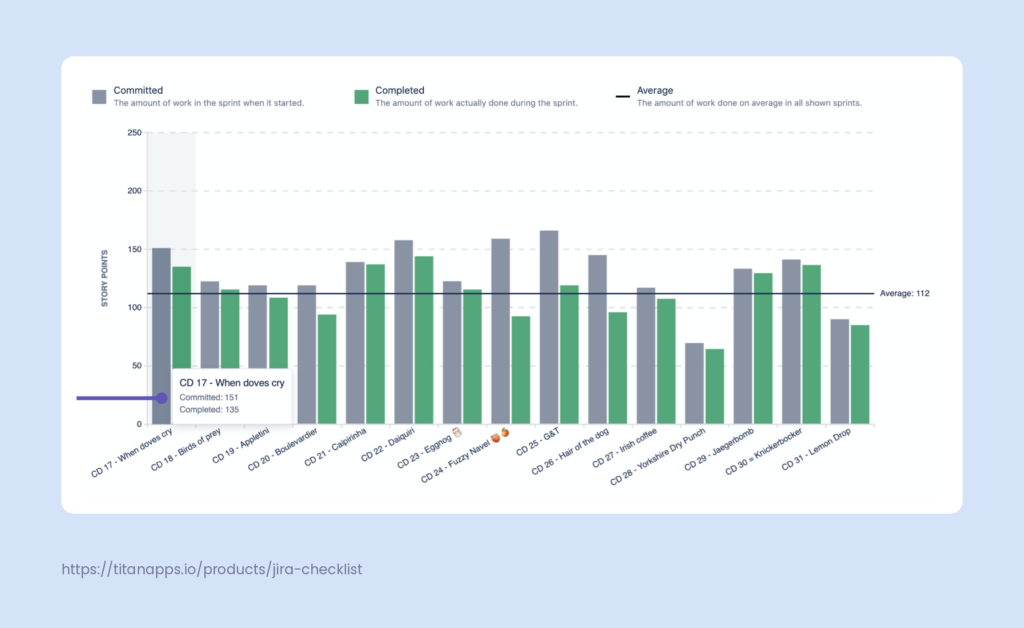
To plan for the future, start with past delivery data. Velocity shows how much work the team completed in previous sprints. Atlassian’s velocity chart documentation explains that teams can use this report to predict the amount of work they can handle in future sprints:
- Open your Scrum board, open Reports, and find the Velocity report.
- Analyze at least three completed sprints. Five to seven is better if you have enough history. Remove clear outliers if they do not reflect normal delivery.
Note
Here’s a simple formula: baseline velocity = average completed story points from recent representative sprints. For example, if the team completed 32, 36, 30, 34, and 33 story points, the baseline is 33 points.
However, this number is a planning signal, not a target to hit at any cost. If the baseline drops, check for unclear scope, low resource availability, poor resource allocation, or too much unplanned work.
2. Record Team Availability in a Confluence Capacity Plan
Velocity reflects what the team has delivered previously, while team availability indicates how much focus the team has now. It helps you understand whether the next sprint is normal or limited by PTO, holidays, meetings, or support duties. For realistic capacity planning in Jira, this information is essential.
Atlassian offers a Capacity planning template in Confluence that teams can use. It functions as a simple planning document and includes two tables that cover:
- Individual time allocation. Each team member adds their planned tasks, the hours needed for each task, and the percentage of their weekly time this work will take. This helps the team see how much time is already reserved before new sprint work is added.
- Team capacity for the project. This summarizes how much time each person can dedicate to a specific project. It includes the team member’s name, role, percentage of weekly time dedicated to the project, weekly project hours, and a role-based capacity summary.
Here’s an example of the latter:
| Name | Role | % of weekly time dedicated to the project | Weekly hours on the project | Sum by role |
|---|---|---|---|---|
| Alex Rivera | Product Manager | 50% | 20 | Product: 20 hrs |
| Samira Patel | Backend Developer | 60% | 24 | Engineering: 24 hrs |
| Morgan Chen | UX Designer | 40% | 16 | Design: 16 hrs |
| Taylor Brooks | QA Engineer | 35% | 14 | QA: 14 hrs |
| Riley Morgan | Project Manager | 25% | 10 | Delivery: 10 hrs |
| Total | All roles | — | 84 | Total capacity: 84 hrs/week |
You can use this Confluence template as your sprint planning page. Update it before sprint planning, then bring the numbers into your discussion with the team. You can also create your own capacity table in Google Sheets, Excel, or another planning document.
Once this is done, use the availability plan together with your velocity data. If the team’s average velocity is 35 story points, but the next sprint has only 80% of normal availability, the planned scope should be reduced before the sprint starts. This keeps capacity planning in Jira grounded in the team’s current situation, not only historical delivery.
3. Estimate Work in Story Points or Working Hours
Once availability is clear, estimate the work items that may be added to the sprint. Most software teams use story points because they describe relative effort, risk, and complexity. Some business teams use working hours because their tasks are more repeatable or tied to due dates.
During the sprint planning meeting, review each work item with the team and prepare estimations. Add the result directly to dedicated Jira fields in your work items. Scrum teams often use the Story points or Story point estimate field. Time-based teams can use the Original estimate and Remaining estimate fields, or add a custom field if needed.
| Story Point | Time to deliver work |
|---|---|
| 1 | Minutes to 1-2 hours |
| 2 | Half a day |
| 3 | 1-2 days |
| 5 | Half a week |
| 8 | Around 1 week |
| 13 | More than 1 week |
| 21 | Full Sprint |
For more details on this, please see our articles Everything You Need To Know About Story Points In Jira and How to View the Previous Sprints in Jira.
4. Check Sprint Capacity in the Backlog Before Committing
Jira’s backlog view displays a running total of points as you drag work into the upcoming sprint. The indicator at the top of the sprint container updates in real time.
To use it, open the Backlog view and drag candidate work items into the new sprint. Watch the total update as you go. Stop when the number approaches your baseline velocity, minus a buffer for unplanned work.
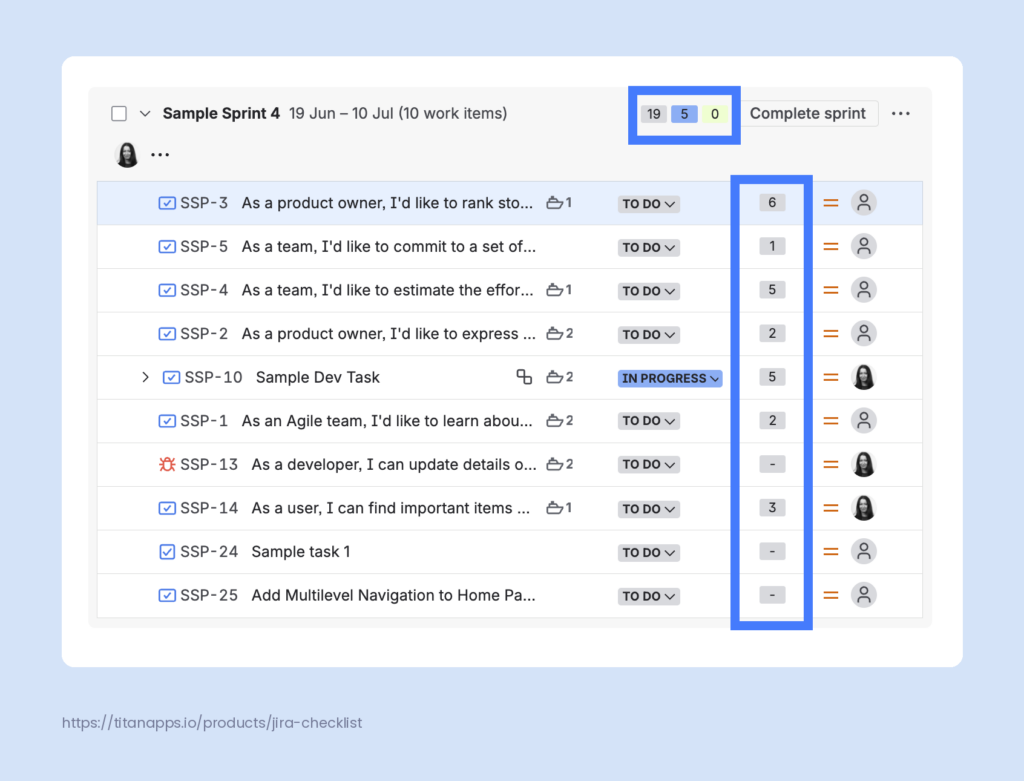
A 15-20% buffer is sensible for most teams. Support requests, urgent bug fixes, and meeting overruns all eat into available bandwidth. A buffer keeps them from forcing scope cuts mid-sprint.
5. Check for Overcommitment With the Workload by Assignee Pop-up
The Workload by Assignee pop-up shows how points are distributed across your team for the active sprint. It’s the fastest native capacity planner that Jira ships with for spotting when one teammate is carrying too much.
To open it, go to the Backlog view and click the avatars in the Sprint header. The pop-up shows each teammate and their total for the iteration.
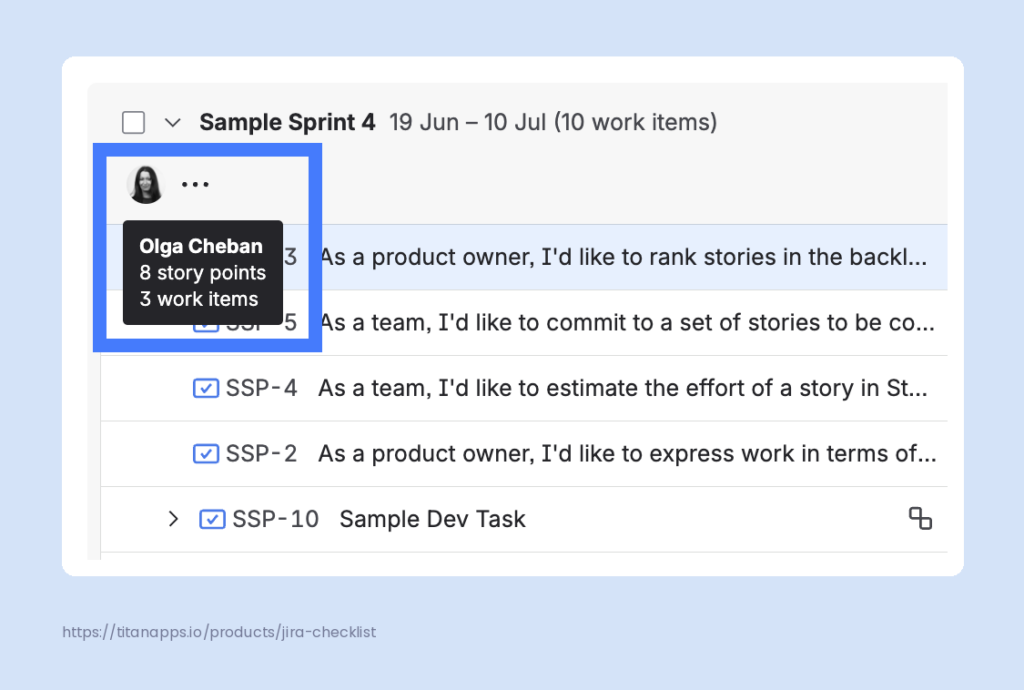
Important note: The pop-up count decreases as items move to Done. So a person who finished most of their assigned work early in the sprint can look free, even when their remaining items are tightly packed against the deadline. Pair the pop-up with a quick scan of the board to get an accurate picture of the remaining capacity.
You can also use Jira filters, dashboards, or swimlanes to review assigned work by person.
6. Add Checklists for Granular Planning and Recurring Tasks
To further simplify sprint planning, you can use Smart Checklist for Jira. This solution allows teams to break down complex tasks into actionable checklists within Jira work items.
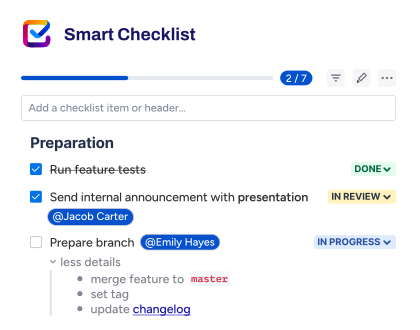
Each checklist item can have its own custom status, assignee, due date, detail section, and more. This makes Smart Checklist useful for three key planning scenarios:
- Complex multi-step tasks. Break a large work item into a clear sequence of steps. The team can see exactly where the work stands without opening separate sub-tasks or chasing teammates for updates.
- Cross-team coordination. Tag owners from different teams on specific checklist items. Dev, QA, Marketing, and release management can share one work item and still know who is responsible for what and when each step is due.
- Quality criteria lists. Capture standards like the Definition of Done or Definition of Ready as a reusable checklist. This ensures consistent work quality and minimizes rework, helping you meet the planned deadlines.
You can save any checklist as a template and automatically apply it to new work items using Smart Checklist’s native functionality. This makes recurring sprint work predictable and reduces planning effort over time.
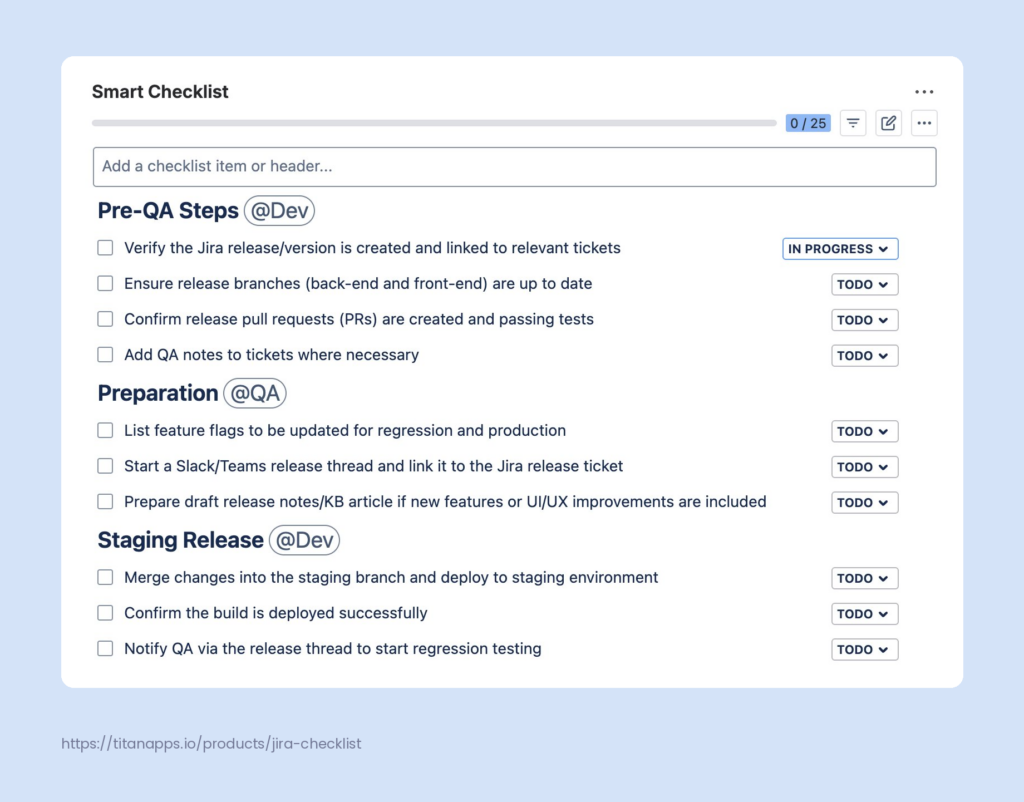
Here’s an example – a release readiness template that documents every step required to ship a version. With ownership tagged at the step level, the team knows from day one who is doing what and when. Additionally, you can assign individual checklist items to team members. This is especially useful when Dev, QA, and release management need to coordinate closely.
Another common example is the Definition of Done checklist template. It defines the quality criteria every work item should meet before it ships. Ensuring high quality from the start helps you plan with confidence.
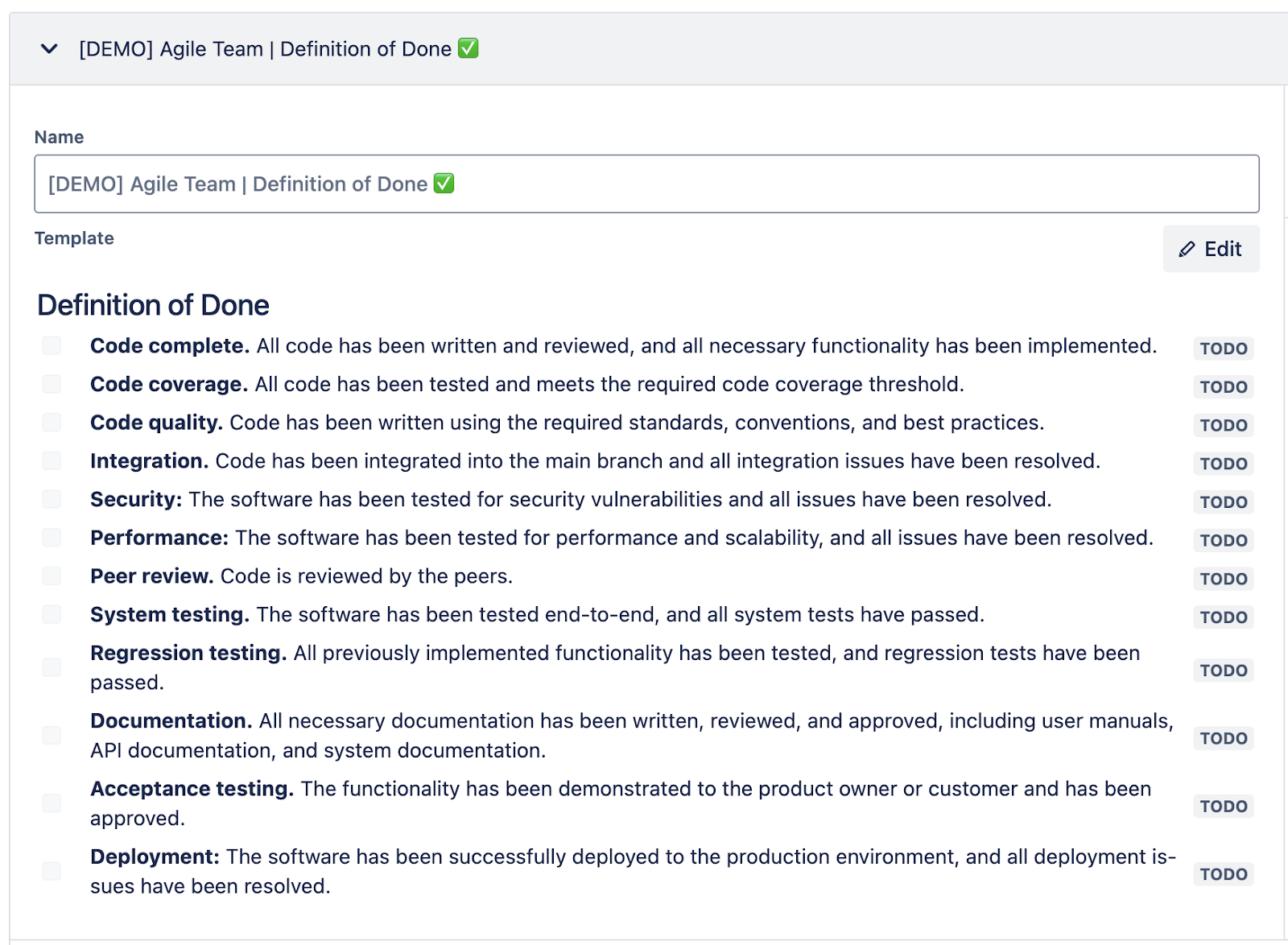
## Definition of Done
- **Code complete.** All code has been written and reviewed, and all necessary functionality has been implemented.
- **Code coverage.** All code has been tested and meets the required code coverage threshold.
- **Code quality.** Code has been written using the required standards, conventions, and best practices.
- **Integration.** Code has been integrated into the main branch, and all integration issues have been resolved.
- **Security:** The software has been tested for security vulnerabilities, and all issues have been resolved.
- **Performance:** The software has been tested for performance and scalability, and all issues have been resolved.
- **Peer review.** The code is reviewed by the peers.
- **System testing.** The software has been tested end-to-end, and all system tests have passed.
- **Regression testing.** All previously implemented functionality has been tested, and regression tests have been passed.
- **Documentation.** All necessary documentation has been written, reviewed, and approved, including user manuals, API documentation, and system documentation.
- **Acceptance testing.** The functionality has been demonstrated to the product owner or customer and has been approved.
- **Deployment:** The software has been successfully deployed to the production environment, and all deployment issues have been resolved.
Key Smart Checklist features that will help you with planning in Jira:
- Tag colleagues, add assignees, and set due dates for individual checklist items
- Save checklists as templates for recurring work
- Apply templates automatically with Smart Checklist’s native functionality
- Mark the most important steps as mandatory. Then, you can use the workflow validator to block status transitions until mandatory items are completed
- Track progress with a built-in progress bar and a dedicated Checklist Completion Gadget, which can be added to your Jira dashboard
7. Roll Up Capacity Across Jira Tasks With Smart Hierarchy
Sprint planning typically starts at the work-item level. However, for releases, quarters, and cross-team initiatives, you need a higher-level view. A single sprint backlog doesn’t show how committed work stacks up across epics, releases, or projects.
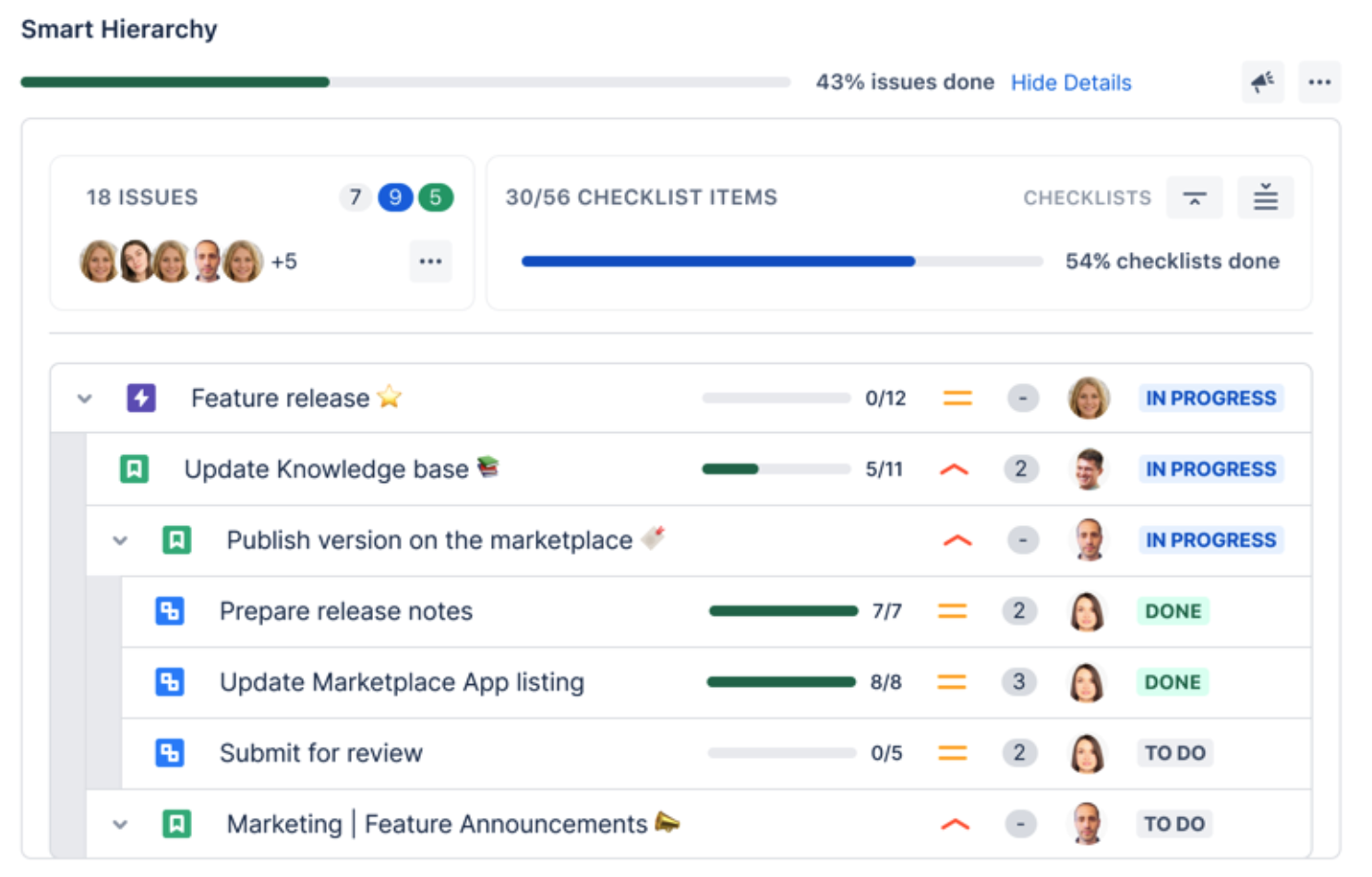
Smart Hierarchy for Jira by TitanApps provides teams with that structured view. It shows parent-child relationships across work items and hierarchies in a single view. It also provides information on progress, assignees, priority, and checklist completion. For capacity planning, the most useful feature is story point roll-ups in the upper status bar.
With this, a team lead can open an epic (or another high-level work item) and immediately see:
- How many story points are committed under this work item
- How many are still remaining versus completed
- Whether one initiative is consuming a disproportionate share of the team’s capacity
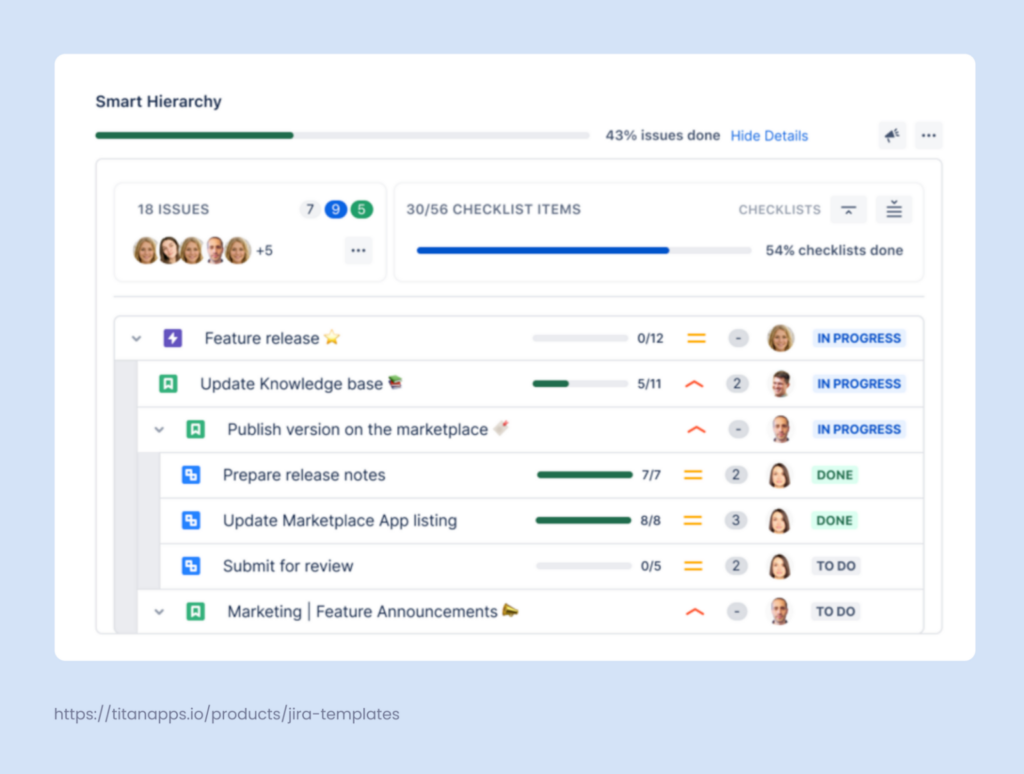
This makes resource allocation easier across sprints and release cycles. Instead of reading individual work items, a project manager can scan the hierarchy, check which branches carry the largest estimates, and decide where to focus the team next.
Capacity Planning for Kanban and Business Teams
The Velocity report is Scrum-only. If your team uses Kanban or works outside engineering, you need a different approach.
For Kanban teams, capacity is governed by work-in-progress limits and cycle time, not story-point velocity:
- Set a WIP limit on each board column to cap how much work is active at once
- Use the Cumulative Flow Diagram to see stages where work accumulates
- Track cycle time (how long it takes for a card to go from ToDo to Done) as your delivery rhythm
For business teams in HR, marketing, JSM, finance, or operations, capacity is usually a function of work-item count and due-date distribution. Here’s how you can handle it:
- Count active work items per assignee
- Use board swimlanes by assignee to see workload at a glance
- Group work by due date to identify weeks where multiple deadlines stack up
In both cases, step-level visibility matters more than estimation accuracy. Business work is rarely sized in points, but it absolutely benefits from structured checklists with tagged owners and due dates. The same Smart Checklist setup that helps engineering also works for an HR onboarding flow or a marketing campaign launch.
Tracking Progress and Adjusting Capacity Mid-Sprint
Capacity planning is not always finished when the sprint starts. New bugs appear, priorities change, and some chunks of work turn out to be larger than expected. Use these checks to keep the plan realistic while delivery is already in progress:
- Read the sprint burndown for early warning: The sprint burndown shows completed and remaining work. If the remaining work line stays flat or the scope grows, you’ll need to review blockers, testing delays, or work items that are too large.
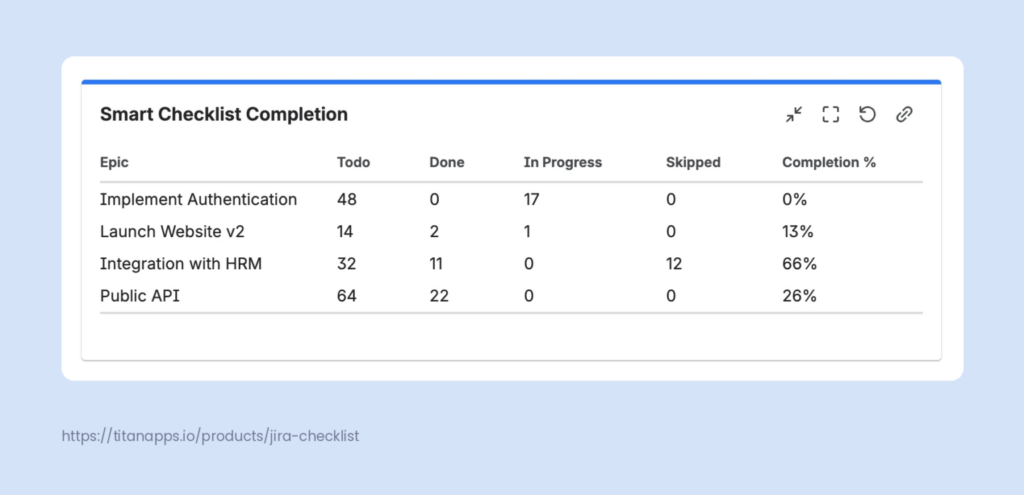
- Surface blockers through checklist progress: This can show issues long before the main work item’s status changes. The Smart Checklist Completion Gadget helps managers review checklist progress across epics or projects and spot where the team is slowing down. As we mentioned earlier, this gadget can be added to your Jira dashboard.
- Redistribute work when someone gets stuck: If one person is blocked, review the step that’s stuck and decide whether another teammate can help. This may mean pairing, moving a review, or splitting part of the work.
- Descope without missing the sprint goal: Sometimes the team can keep the sprint goal by moving a secondary feature to the next sprint. Keep work tied to the main goal, release milestone, or customer commitment.
- Handle unexpected time off mid-sprint: Update the availability table, compare new remaining capacity with remaining scope, and shift work if the gap is too large.
Capacity Planning in Jira Premium – When Do You Really Need it?
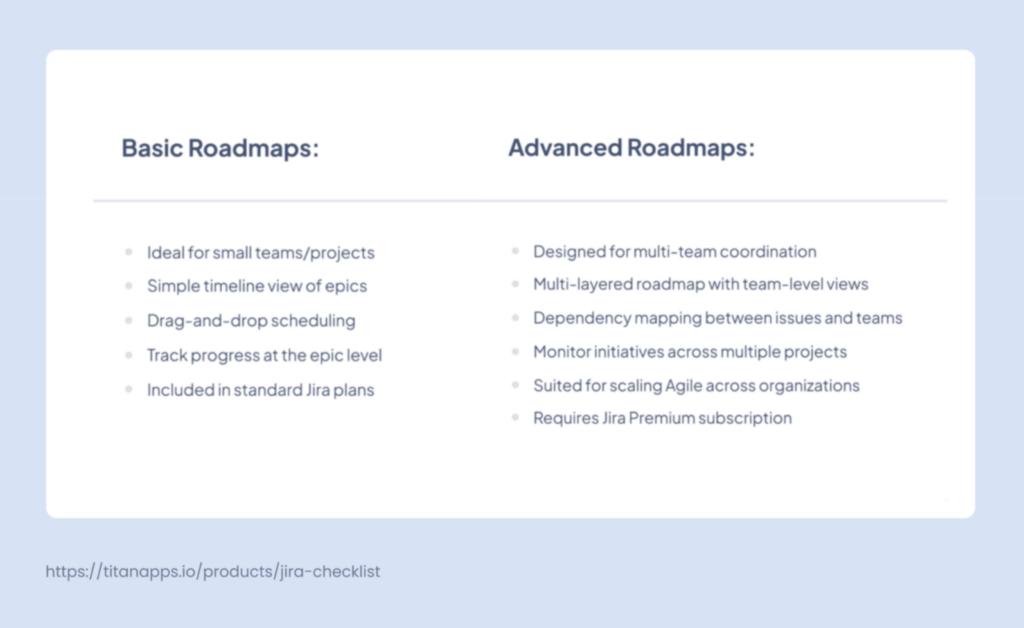
In terms of capacity planning, a premium subscription gives you Jira Plans (also known as Advanced Roadmaps). This functionality moves planning from a single project to an organization-wide view.
For capacity planning, three features matter most:
- Cross-project planning and roadmaps. Jira Plans lets you consolidate work from multiple Jira projects into a single roadmap. This is essential when team capacity is split across several projects, and you need to see the full picture in one place.
- Additional hierarchy levels above epics. Plans support custom hierarchy levels, such as Jira Themes and Initiatives, OKRs, or Strategic Priorities. These higher-level containers let you connect team capacity with strategic goals and track how committed work contributes to broader outcomes.
- Dependency management. Dependencies in Plans can be visualized as lines or badges. There is also a dedicated Dependencies view that shows all dependencies between work items across projects as cards connected with lines. This visibility supports resource allocation and capacity planning across teams.
The comparison below summarizes the key differences between basic roadmaps available on lower tiers and Jira Plans in Premium and Enterprise (Advanced roadmaps).
Use Premium when you need to:
- Plan work across several teams or projects
- Forecast release dates from team capacity and velocity
- Compare scenarios before committing to a roadmap
- Track dependencies outside one board
- Review capacity across future sprints
- Connect teamwork to higher-level initiatives
For step-by-step instructions on creating a plan and adding data sources, see our guide on project planning in Jira.
Best Practices for Capacity Planning in Jira
- Reserve 15-20% of capacity for unplanned work
- Base velocity on at least three completed sprints, not one
- Subtract working hours lost to meetings, PTO, and support rotations before committing
- Track quarterly milestones and budgets in Confluence alongside Jira sprints
- Re-estimate mid-sprint when scope shifts; do not wait for a retrospective
- Tie the capacity plan to actual assigned work, not just totals
Capacity Planning in Jira: Frequently Asked Questions
How do you do Jira capacity planning?
Start by reviewing recent velocity, then record team availability for the upcoming sprint. Estimate planned work items, compare the total scope with available capacity, and remove lower-priority work if the plan is too large. During the sprint, use burndown, dashboards, and checklist progress to adjust the plan.
What is capacity planning in agile?
Capacity planning in agile means deciding how much work a team can take on without overloading people or risking the sprint goal. It considers past delivery, current availability, planned interruptions, and work complexity. Agile capacity planning should stay flexible because scope and availability can change during delivery.
What are the three types of capacity planning?
The three common types are workforce capacity planning, tool or system capacity planning, and production capacity planning. In Jira, most teams focus on workforce capacity planning. They check whether the people available for the sprint can complete the planned work within the timebox.
What is the difference between capacity and velocity in Jira?
Capacity is the amount of work a team can take on in a specific sprint or iteration. Velocity is the average amount of work the team completed in past sprints. Velocity helps forecast future capacity, while availability adjusts that forecast for the next planning cycle.
Can I see individual capacity in Jira?
Jira can show assigned work by person through filters, dashboards, and board views. Premium Plans focus more on team capacity than on detailed individual capacity. For a more granular view, combine Jira filters, Confluence availability tables, and checklist ownership inside work items.
Does Jira offer a capacity report or built-in time tracking for sprint planning?
Jira does not have a single dedicated capacity report. Instead, several reports together cover capacity planning needs: the Velocity report, the Sprint report, and the Burndown chart. For the users on a Premium plan, capacity is displayed on several views, such as the Timeline or Calendar view. For time tracking, Jira offers the Original estimate, Remaining estimate, and Time spent fields on each work item. Teams that need more detailed reporting can extend Jira with apps from the Atlassian Marketplace. These additions can provide custom capacity reports, time-tracking dashboards, and broader resource-planning views across teams and projects.
Capacity Planning in Jira Comes Down to Execution, Not the Tier
Jira capacity planning isn’t really about which tier you are on. It’s about using the planning features you already have, knowing where they fall short, and filling the gaps with lightweight additions. Velocity, story-point estimation, the sprint backlog, and the Workload by Assignee popup will take a single team a long way, even on a Free or Standard subscription. At the same time, Jira Plans can add cross-project planning value if you are on the Premium plan.
It’s worth remembering that native Jira tools work at the work item level, not at the step level. So if a teammate falls behind on day three, you often don’t notice until day five, when their work item is still not marked as Done, or a blocker is flagged in a stand-up.
Smart Checklist helps you see this earlier. Tagged owners, assignees, due dates for individual steps, and a dashboard widget – all this shows where progress is slowing down before it affects the sprint goal. On top of that, Smart Hierarchy adds a portfolio-level view that helps leads see how much work the team is actually carrying across epics and projects.