






 Tools for Jira
 Tools for monday.com




The audit log is a built-in feature in Jira that tracks configuration changes across your site. It records who made changes, what those changes were, and when they occurred – providing Jira admins with a means to trace problems back to their source. Whether you need it for troubleshooting, security, or compliance, it is one of the most useful tools in Jira administration.
In this guide, we will cover what Jira audit logs track, how to search and export the data, and what limitations to watch out for.
Context: The Key Types of Logs in Jira
Before we dive into audit logs specifically, it helps to understand the different types of logs that are available. They serve very different purposes, and it is common for users to confuse them.
| Log type | What it tracks | Who can access it |
|---|---|---|
| Audit log | Site-wide configuration changes: permissions, workflows, custom fields, project settings, and user management actions. | Jira admins only (Settings > System > Audit Log). |
| Issue change history | Field-level changes on individual tickets: status transitions, assignee changes, due date edits, comments. | Any user with access to the issue (History tab). |
| Automation audit log | Automation rule executions: when a rule fired, what it did, whether it succeeded or failed. | Project admins and Jira admins (per-rule, per-project, or global view). |
| Marketplace app logs | App-specific activity. Each Atlassian Marketplace app may have its own audit log for tracking actions within that app. | Varies by app. |
This article focuses on the first type – Jira audit logs. The automation audit log also gets its own section later in this guide, as it is closely related and often appears in the same context.
What Are Jira Audit Logs?
 Definition
A Jira audit log is a record of administrative and configuration changes made on your Jira site. Every time someone edits a permission scheme, modifies a workflow, creates a custom field, or deletes a project, the audit log captures the event. It records the date and time, the user who made the change, the type of event, and what was affected.
The key point to understand is that Jira audit logs do not track everyday user activity. They do not record when someone updates an issue status, logs time, or runs an automation rule. For these purposes, Jira offers other log types, which we discussed in the previous section.
Audit logs are dedicated to tracking changes to how Jira itself is configured – the settings and structures that impact all users and projects on the site.
Site-Level Audit Log vs. Organization-Level Audit Log
Jira Cloud features two distinct audit logs:
- Site-level audit log is built into your Jira administration console. It tracks configuration changes within your specific Jira site: workflows, permissions, screens, custom fields, notification schemes, sprint actions, and project-level changes.
- Organization-level audit log lives in the Atlassian Administration console (admin.atlassian.com). It covers broader actions across all Atlassian apps used in your organization, including Jira. For example, it records user account management events, group changes, authentication policies, API token activity, SSO configuration, and third-party app actions. The level of detail you receive here depends on your subscription plan.
What Events Do Jira Audit Logs Track? A Quick Summary Table
The audit log captures a wide range of configuration events. Rather than listing every single one, we have prepared a grouped overview of what each log covers.
1. Site-level audit log events
| Category | Examples of tracked events |
|---|---|
| Permissions | Permission scheme created, edited, removed, and assigned to a project. Global permissions added or removed from a group. |
| Workflows | Workflow created, copied, removed, and renamed. Workflow draft published. Status created or updated. Workflow scheme changes. |
| Custom fields | Custom field created, updated, trashed, restored, deleted. Field configuration changes (show/hide, required/optional). |
| Screens | Screen created, edited, and deleted. Fields added to or removed from screens. Screen scheme and issue type screen scheme changes. |
| Projects | Project created, updated, and removed. |
| Sprints | Sprint created, started, updated, closed, and deleted. |
| Issue types | Issue type created, updated, and deleted. Issue type scheme changes. |
| Notifications | Notification scheme created, edited, and removed. Notifications added to or removed from a scheme. |
| Work item deletion | Deletion tracked by work item key. |
| Plans | Plan created, deleted, updated. Scheduling, work source, and exclusion rule changes. |
2. Organization-level audit log events
The org-level log in the Atlassian Administration console covers a different set of activities. These focus on organization-wide security and user management rather than Jira-specific configuration.
| Category | Examples of tracked events |
|---|---|
| User management | User accounts created, deactivated, and deleted. Users added to or removed from groups. |
| Authentication | Authentication policy changes, SSO configuration, and password policy updates. |
| API tokens | API token creation, revocation, and usage tracking. |
| Third-party apps | App installations, API requests made by apps, and app lifecycle events. |
| Data security | Data security policy changes. Encryption settings (Cloud Enterprise only). |
The degree of detail in the org-level audit log depends on your Atlassian Cloud plan and Guard subscription.
Note
Atlassian Guard is a separate security product that operates on top of your Cloud subscription. Guard Standard provides core organization-level admin controls, while Guard Premium adds threat detection, data classification, and extended audit logging.
Here is what Jira users can expect:
- Jira Standard or higher: org-level audit log with organization admin activity.
- Jira Premium or Cloud Enterprise: adds Jira app admin entries to the org-level audit log, such as permission and configuration change tracking at the app level.
- Atlassian Guard Premium: full user-level audit log entries across Jira, Jira Service Management, Confluence, Bitbucket, Loom, and other Atlassian apps.
Keep in mind that upgrading to a higher plan does not retroactively capture events. Logging starts from the moment the subscription is active.
Key Use Cases: Why Admins Need Jira Audit Logs
In day-to-day work, audit logs are not something most Jira admins check every morning. However, when something goes wrong, or someone asks, “Who changed this?” – they become essential. Here are the most common scenarios where the audit log saves the day.
- Troubleshooting unexpected configuration changes. Let’s say a workflow suddenly has a new status that nobody remembers adding, or a custom field disappears from a screen. These kinds of mysteries are easy to solve with the audit log. Filter by the relevant event category, find the change, and see exactly who made it and when.
- Investigating deleted Jira issues (work items). When someone deletes a work item in Jira, it is gone for good. There is no recycle bin for individual issues (unlike projects, which can be moved to trash). The audit log is the only place where you can confirm that a deletion occurred, see who performed it, and check the exact date and time. Search for “work item deleted” or enter the issue key directly.
- Security and access monitoring. Jira audit logs track when users are added to or removed from projects, groups, or project roles. They also record changes to permission schemes and global permissions. If you need to investigate whether someone was granted access they should not have, the audit log provides you a clear trail.
- Compliance and governance. For organizations that need to demonstrate compliance with internal policies or external regulations, audit logs provide evidence of who changed what and when. Regular exports help build a historical record that goes beyond the built-in retention limits.
- JSM integration troubleshooting. If you use Jira Service Management, the operations audit log is especially useful for diagnosing integration problems. You can verify whether an incoming request from a monitoring tool was received, how it was processed, and the delivery of notifications.
Where to Find Audit Logs in Jira Cloud
As mentioned above, there are two types of audit logs in Jira Cloud, and each is accessible from a different location. Here is how to find them.
Site-Level Jira Audit Log
To access the site-level audit log, navigate to Settings > System > Audit Log in your Jira Cloud administration console. You need the Administer Jira global permission to access it.
The log displays a table of events, including the date, author, event category, change summary, and changed object. You can click “Show more” on any entry to see additional details.
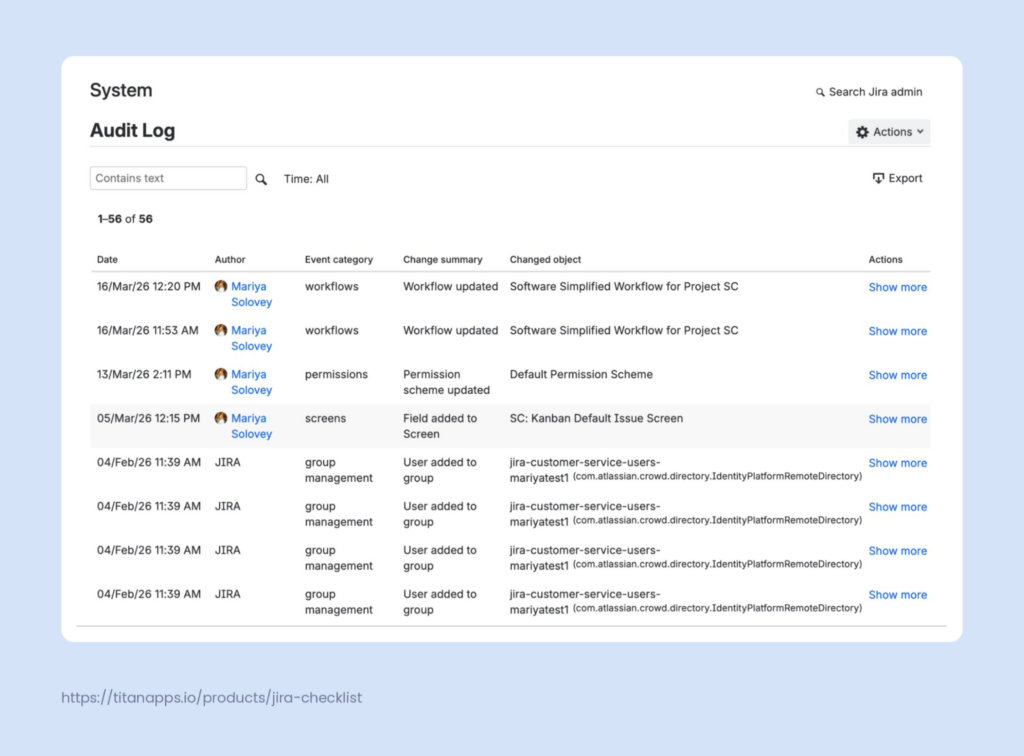
Notice that the Author column displays a real username for some events and “JIRA” for others. This is a known issue – events triggered through user management pages sometimes do not display the actual admin who made the change. We cover this in more detail in the Limitations section.
The audit log is not available if all of your Jira Cloud apps are on the Free plan. You need at least one paid subscription to access it.
Organization-Level Audit Log
This type of audit log lives in a different place: Atlassian Administration > Insights > Audit log. You can access it at admin.atlassian.com.
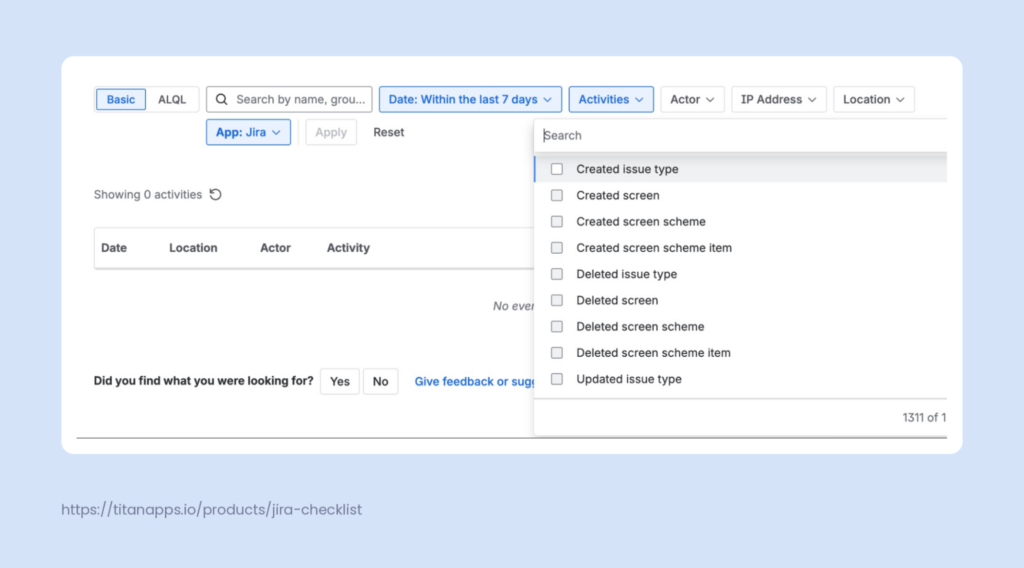
The org-level log has a richer set of filters. You can search by date range, activity type, actor, IP address, location, and app. It also supports the ALQL advanced query language.
Please note that the organization-level audit log requires either an Atlassian Guard subscription (Standard or Premium) or at least one Cloud Enterprise plan. Without these subscriptions, the org-level log will not store or display any events. Logging begins as soon as the subscription is active.
Org-level Jira audit logs can be accessed by organization admins and site admins, although site admins may have limited search functionality.
How to Search and Query Jira Audit Logs in Two Ways
Performing Basic Search
Both the site-level and org-level Jira audit logs support basic text search. In the site-level log, use the “Contains text” field to search for specific event names, usernames, or project keys. In the org-level log, you can search by usernames, email addresses, and activity names.
One limitation to keep in mind is that you cannot sort the audit log in the UI. The entries are displayed in reverse chronological order, and there is no option to change that. If you need to sort or rearrange the data, export it to CSV first.
Querying Audit Logs with ALQL
In late 2025, Atlassian launched the Audit Log Query Language (ALQL) for the organization-level audit log. It functions similarly to JQL, but gives you much more control over your queries.
ALQL supports fields, such as actor, activity, and created (which is mandatory – every query requires a date range). You can use operators like = (equals), != (not equals), ~ (contains), IN, and comparison operators for dates. Keywords include AND, OR, NOT, and ORDER BY.
Here are a couple of practical examples:
1) Find all audit log export events by a specific user after a certain date:
actor = “Fran Perez” AND activity = “export_audit_log” AND created > “2025-12-07”
2) Find all events on a specific date except those from a particular city:
created = “2025-12-07” AND NOT city = “Melbourne” AND actor = “Fran Perez”
ALQL is available to all organization and site admins. You can switch between basic and ALQL modes using the toggle next to the search bar. By default, ALQL uses a 7-day date range. You can extend this up to 180 days, which is the maximum retention period for the org-level audit log.
How Long Does Jira Keep Audit Log Data?
The short answer is up to 180 days. However, the exact details depend on the log type and your audit log settings.
Site-level audit log: The retention period is configurable. Go to Actions in the upper-right corner of the audit log page, select Audit Log Settings, and choose how long to keep events: 1, 3, or 6 months.
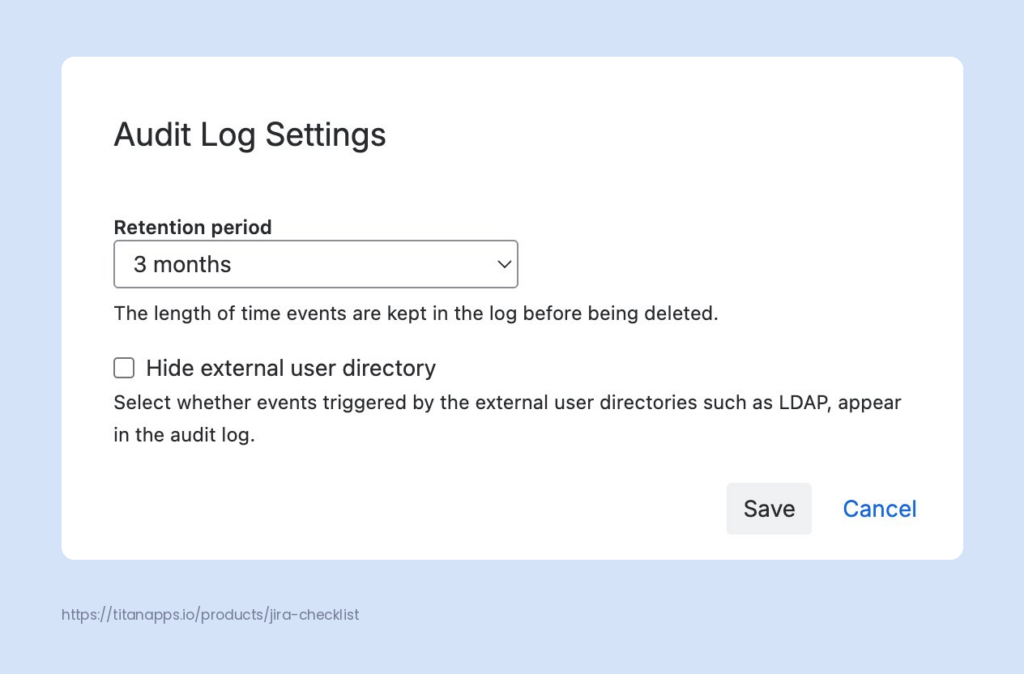
You can also toggle the “Hide external user directory” option. This controls whether events triggered by external user directories, such as LDAP, appear in the log.
Organization-level audit log: Activities are stored for up to 180 days. This is a hard cap and cannot be changed. Once an event passes the 180-day mark, it is deleted and cannot be recovered. If you need to retain records for longer, be sure to export your logs regularly.
Additionally, there is an in-app data setting at the org level that determines whether Jira work item identification is stored in the audit log. You can choose to hide this data if you have sensitivity requirements. Keep in mind that data residency does not apply to audit logs.
How to Export Jira Audit Log Data
CSV Export
Both types of Jira audit logs offer CSV export, but they work slightly differently.
For the site-level audit log, click the Export button in the upper-right corner. You can export up to 100,000 events as a CSV file. If your log has more than that, only the most recent events are included. One thing to watch out for: the export includes all events regardless of any filters you have applied in the UI.
For the organization-level audit log, the export process sends a CSV file to your email. It includes up to 10,000 activities from the past 180 days. The download link in the email expires after one day. Unlike the site-level export, if you apply filters before exporting, only the filtered results will be included.
REST API and Webhooks
For more advanced use cases, Jira offers API access to audit data. The site-level REST API endpoint is /rest/api/3/auditing/record. It returns up to 1,000 records per call (the default limit) and requires the Administer Jira global permission. The API supports offset-based pagination via offset and limit query parameters.
The organization-level Events API supports cursor-based pagination, making it easier to retrieve large volumes of data. Atlassian also offers a newer /events-stream endpoint optimized for polling. Both endpoints require an API key with Bearer token authentication.
At the organization level, you can also set up webhooks to send audit log events to external tools in near real-time with support for up to 3 webhooks per organization.
Webhooks are not currently available for the site-level audit log.
What Are the Limitations of Jira Audit Logs You Should Know About?
We have touched on some of these points throughout the article, but here is a consolidated list of the key limitations worth keeping in mind:
- Not available on Free plans. The site-level audit log requires a paid Jira Cloud plan. The org-level audit log requires a separate Atlassian Guard subscription or an Enterprise plan.
- The Author field known issue where it shows “JIRA” instead of the actual username for changes made through user management pages. Events such as user creation or group assignment will not display the actual admin who performed the action.
- No sorting in the UI. You cannot sort the audit log table in the Jira admin console. To sort, filter, or rearrange data, export to CSV, and work with it in a spreadsheet application.
- Export cap of 100,000 events. If your site-level log has more than 100,000 events, the CSV export only includes the most recent ones. The org-level export is capped at 10,000.
- No webhooks at the site level. Only the org-level audit log supports webhooks for real-time event forwarding. The site-level log does not have this option.
- REST API record limits. The site-level API returns a maximum of 1,000 records per call. It supports offset-based pagination, but not cursor-based pagination. For very large datasets, combining pagination with date range filters can improve performance.
Audit Logs in Jira Service Management
Jira Service Management has its own dedicated audit log for operations. It is separate from the main Jira audit log and focuses on a different set of activities.
To access JSM audit logs, go to Settings > Products > Operations > Audit logs in Jira Service Management.
JSM audit logs track two categories of events:
- System Actions capture information about automated and system-originated activities: incoming alert data, notification deliveries, and integration processing.
- User Actions capture changes made by people: configuration updates at the product or integration level, project settings, and changes to Assets, such as global schemas and status types.
Specific areas covered include alerting activities (alert creation, acknowledgment, escalation), on-call schedule changes, integration configuration, notification rule updates, and incident management actions.
JSM operations audit logs are stored for 180 days. You can search by keywords, date range, log category, and log level. Export is available in CSV format and sent to your email. For programmatic access, the JSM Ops REST API provides a dedicated audit logs endpoint.
JSM also logs changes to status pages at the organization level. These cover status page creation, publishing, URL and appearance updates, component changes, incident communications, and subscriber management actions.
Organization admins, Jira admins, and team admins can view JSM audit logs. Team admins can access their team’s integration logs.
Automation Audit Logs in Jira: What You Need to Know
The automation audit log is separate from the system audit log. It tracks automation rule executions, not configuration changes.
For each rule execution, the automation audit log records the date and time the rule was triggered, the rule name, execution status (success or failure), duration, and the operations the rule performed. This makes it the go-to tool for debugging automation rules that are not working as expected.
You can access the automation audit log at three levels:
- At the individual rule level, open any automation rule and switch to the Audit log tab.
- At the project level, go to Project settings > Project automation.
- At the global level, go to Administration > System > Automation rules.
The typical troubleshooting workflow involves finding the rule in the audit log, checking whether it triggered at the expected time, reviewing the execution status, and inspecting the operations it performed. If a rule failed, the log will show you where in the execution chain it broke.
One important detail: automation audit log entries are only stored for 90 days. After that, they are removed. This retention period is shorter than both the site-level audit log and the JSM operations log.
Best Practices for Managing Jira Audit Logs
- Export regularly. If your organization requires records beyond the 180-day maximum limit, establish a recurring export schedule.
- Review the retention settings. Check your site-level audit log settings and make sure the retention period matches your compliance needs. The default may not be long enough for your organization.
- Do periodic permission reviews. Check for unexpected changes to permission schemes and global permissions. This is especially important after onboarding new admins or making organizational changes.
- Learn ALQL basics. If you use the org-level audit log regularly, learning a few ALQL queries can save a lot of time. Build reusable queries for your most common investigation scenarios.
How to Run a Structured Audit in Jira
Jira audit logs give you the raw data: who changed what and when. But when it comes to actually running an audit – whether it is an internal security review or preparation for an external certification – you also need a structured process. Someone has to define what to check, work through each area systematically, and document the results.
For a comprehensive audit, the challenge is to cover each step without missing anything and to keep this process consistent across audit cycles. To organize this efficiently, you can use checklists inside Jira work items.
Create Audit Checklists and Save Them as Templates
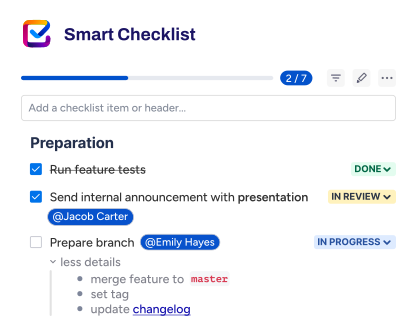
Smart Checklist for Jira lets you add structured checklists directly to any Jira work item. You can define the steps for your audit, group them by section, and work through them inside the work item itself. No need for separate spreadsheets or documents – everything stays in one place.
Smart Checklist also keeps a change history for each checklist, so every edit is automatically recorded. This creates an audit trail you can reference later without any extra effort.
Key features that help with audit work:
- Grouped sections with headers to organize checklist items by audit area
- Custom statuses for individual checklist items beyond simple done/not done (e.g., compliant, non-compliant, not applicable)
- User mentions to tag the person responsible for a specific check
- Due dates on individual checklist items for time-sensitive steps
- Expandable item details for adding notes, evidence references, or context to each step
- Change history that records every edit to the checklist over time
- Mandatory checklist items to prioritize the most essential steps
- Links to Jira work items or external URLs directly from checklist items
- Progress tracking is visible on the work item tab and on the agile board
Once you build a checklist that covers your audit process, you can save it as a reusable template. The next time you run the same review, apply the template instead of rewriting the necessary steps from scratch. Templates can be scoped to a specific project or made global – accessible across your entire Jira instance.
For a practical starting point, see our Internal security audit template in Jira. It covers all major clauses and Annex A controls. This includes access control and change management reviews (where you would use the audit log), risk assessment, incident management, and vendor evaluations.
You can customize this checklist template to match your organization’s scope and requirements:
## Audit Planning & Scope (Clause 9.2)
- Define audit objectives, scope, and criteria.
- Identify processes, controls, and departments to audit.
- Develop an audit plan and schedule.
- Assign auditor roles (ensure independence from audited areas).
## Review ISMS Documentation (Clauses 4–10)
- Verify the ISMS scope statement is documented and current.
- Review ISMS policies, procedures, and supporting documents.
- Confirm document control and version history are maintained.
## Context of the Organization (Clause 4)
- Validate that internal and external issues are identified and reviewed.
- Check documentation of interested parties and their requirements.
- Confirm ISMS boundaries and interfaces are defined.
## Leadership & Information Security Policy (Clause 5)
- Confirm leadership approval of the information security policy.
- Validate roles, responsibilities, and authorities are documented.
- Check evidence of top management involvement and communication.
## Risk Assessment & Risk Treatment (Clause 6)
- Ensure formal risk assessment methodology is documented and applied.
- Review the latest risk assessment results and scoring.
- Validate the risk treatment plan and acceptance decisions.
- Confirm alignment between risks, controls, and Statement of Applicability (SoA).
## Statement of Applicability (SoA)
- Check completeness and accuracy of the SoA.
- Ensure justification is provided for inclusion/exclusion of each control.
- Verify SoA aligns with risk treatment decisions and implemented controls.
## Operational Controls Review (Clause 8 + Annex A)
### Access Control
- User provisioning/deprovisioning process.
- MFA, password policy, privileged access procedures.
### Asset Management
- Asset inventory completeness.
- Ownership assignment.
- Classification and handling procedures.
### Logging & Monitoring
- Log collection processes.
- Monitoring and alert handling.
- Evidence of log reviews.
### Change Management
- Change approval, testing, and deployment records.
- Emergency changes tracking.
### Supplier/Vendor Management
- Vendor risk assessments.
- Contracts with security clauses.
- Monitoring critical suppliers.
### Incident Management
- Incident reporting procedures.
- Evidence of incident handling and lessons learned.
- Annual incident response testing.
### Business Continuity & Disaster Recovery
- Documented BC/DR plans.
- Test results and improvements.
### Cryptographic Controls
- Key management procedures.
- Encryption policies and implementation evidence.
### Physical Security
- Access badges, logs, visitor management.
- Protection of equipment and storage facilities.
## Performance Evaluation (Clause 9)
### Monitoring, Measurement & Analysis
- Evidence of ISMS metrics and KPIs.
- Review dashboards or performance summaries.
### Internal Audit Program
- Confirm last internal audit results are documented and acted on.
- Review corrective actions and their status.
### Management Review
- Verify annual management review meeting minutes.
- Check decisions, action items, and follow-ups.
## Nonconformities & Corrective Actions (Clause 10)
- Check documented nonconformities from previous audits.
- Verify corrective actions are implemented and effective.
- Ensure continual improvement activities are tracked.
## Audit Reporting & Follow-Up
- Document audit findings and classifications (NCs, OFIs, conformities).
- Communicate results to management.
- Create action plan with owners and deadlines.
- Track completion and verify effectiveness.
To use this template, install Smart Checklist from the Atlassian Marketplace. Once installed, open any Jira work item and paste your checklist into the Smart Checklist area below the issue description field. You can also import a saved template from the Smart Checklist menu.
Enforce Critical Steps With Mandatory Items
Some audit steps cannot be skipped under any circumstances. Smart Checklist lets you mark them as Mandatory Checklist Items through the item’s context menu. This can also be done by using the -! prefix in the full-screen markdown editor. Mandatory items are visually flagged with a red asterisk.
To take this further, you can set up a workflow validator that blocks work item transition to Done until all mandatory items are completed. This ensures that critical audit steps are never skipped, even by mistake.
Add Extra Control With Linked Templates
Regular checklist templates give you consistency across new work items. For teams in highly regulated industries or organizations preparing for external certification, Linked Templates offer an additional level of control.
A Linked Template is a special type of Smart Checklist template with two built-in safeguards:
- Checklist content is locked. Users working on the work item can update item statuses (done, skipped, flagged), but cannot add, remove, or rename steps. The audit process stays exactly as defined.
- Admins can push updates to all work items at once. When the process owner edits the original template, changes automatically sync to every work item where it is used – both existing and future ones.
Like regular templates, Linked Templates can be made global, making them available across all projects in your Jira instance.
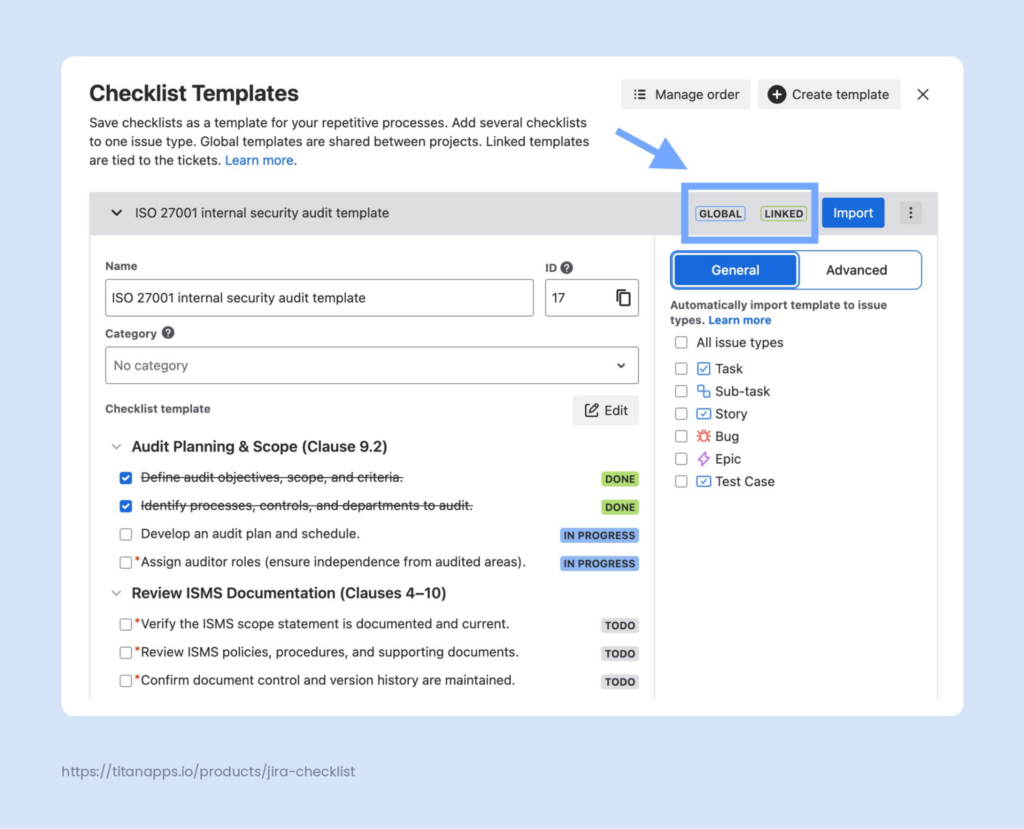
This matters most when the same audit runs repeatedly. With the locked content and centralized updates, an external auditor can open any work item from any cycle and verify that the same steps were followed.
For a deeper walkthrough, see our guide on Auditing processes in Jira with Linked Templates.
Jira Audit Logs FAQ
Do Jira audit logs track issue updates?
No. Jira audit logs only track admin-level configuration changes like workflow edits, permission changes, and project settings. To see changes to individual issues (status transitions, assignee changes, field edits), check the History tab on the issue itself.
Are Jira audit logs available on the Free plan?
No. The site-level audit log is unavailable on the Free plan. You need at least a Standard subscription. The org-level audit log in Atlassian Administration requires an Atlassian Guard subscription or a Cloud Enterprise plan.
How long are Jira audit logs retained?
Up to 180 days, depending on the log type. The site-level audit log retention is configurable: 1, 3, or 6 months. The org-level audit log in Atlassian Administration stores activities for up to 180 days, and this limit cannot be changed. JSM operations audit logs are also retained for 180 days. Automation audit logs have the shortest retention period at 90 days.
Can I send Jira audit log data to a SIEM tool?
Yes, but only from the organization-level audit log. You can set up webhooks to forward events to tools like Splunk, Datadog, or any endpoint that accepts JSON payloads. You can also pull data programmatically using the REST API. The site-level audit log does not support webhooks, but you can access it via the REST API.
Who can access Jira audit logs?
For the site-level audit log, you need the Administer Jira global permission. For the org-level audit log in Atlassian Administration, you need to be an organization admin or a site admin. Note that site admins may have limited search functionality compared to organization admins. For JSM operations, audit logs are accessible to organization admins, Jira admins, and team admins.
What is the difference between the site-level and org-level Jira audit logs?
The site-level audit log tracks configuration changes within your Jira site: workflows, permissions, custom fields, screens, and projects. The org-level audit log in Atlassian Administration tracks broader organizational actions: user account management, authentication policies, API tokens, third-party app activity, and security settings. They reside in different admin consoles and cover different event types.
Do the Jira audit logs capture who deleted an issue?
Yes. When an issue is deleted, the audit log records the deletion event, including who performed it and when. Search for “Work item deleted” / “Deleted Jira issue” or the issue key. Keep in mind that deleted issues cannot be recovered unless you have a backup from before the deletion.
Audit Log vs. Automation Audit Log: What Is the Difference?
The system audit log tracks configuration changes – permission edits, workflow modifications. The automation audit log tracks rule executions – when a rule fired, what it did, and whether it succeeded. They serve different purposes and do not overlap. The rule’s run history only appears in the automation audit log.