





 Tools for Jira
 Tools for monday.com




Offline events – conferences, trade shows, community meetups – tend to break down the same way. Multiple workstreams run in parallel, stakeholders join the planning process at different stages, and dependencies between logistics, speakers, marketing, and sponsorships stay buried in email threads until something falls through the cracks.
The problem is not a lack of effort. It is scattered ownership and disconnected event details. One person tracks the guest list in Google Sheets. Another manages the event budget over email. A third runs speaker outreach from a personal to-do list no one else can see. Two weeks before the event, there is no single view of what is done, what is at risk, and who owns what.
A reusable event planning template in Jira changes that. Instead of rebuilding the workflow from scratch for every next event, the team starts from a proven structure – with separate work items for each workstream and a checklist inside each one.
Smart Templates for Jira creates the reusable event structure. Smart Checklist for Jira adds step-by-step execution inside each work item. Together, they help event planners manage both project plan and day-of coordination in one Jira workspace.
This article walks you through a complete event planning template for offline events. You will see what the template includes, how to structure it in Jira, how to automate recurring setup, and how to track progress across team members and stakeholders in real time.
Key Takeaways
- A reusable event planning template in Jira replaces scattered spreadsheets and to-do lists with one repeatable workflow for every offline event.
- Smart Templates creates the event structure with separate work items per workstream. Smart Checklist adds execution steps inside each one.
- A single checklist works for a simple event. Larger conferences and trade shows need a structured template with parallel workstreams.
- Automating template creation, owner assignment, and milestone reminders reduces manual setup and keeps the event timeline on track.
- Post-event retrospectives feed directly back into the template, so every next event starts from a better baseline.
What does offline event planning typically include?
Offline event planning covers everything from early scoping to post-event reporting. Most in-person events – regardless of size or format – share the same core workstreams. The difference between a smooth event and a chaotic one is whether those workstreams are documented, assigned, and tracked in one place.
Here is what a typical offline event project includes:
| Workstream | What it covers |
|---|---|
| Event scope and goals | Purpose, success criteria, target audience, format, and size |
| Budget and approvals | Budget table, pricing model, payment milestones, approval flow |
| Venue and on-site operations | Venue selection, contract, room layout, AV, catering, Wi-Fi |
| Speakers and agenda | Speaker outreach, schedule, slide collection, rehearsals |
| Event marketing | Messaging, registration page, social media plan, promotion timeline |
| Sponsorships and partners | Packages, outreach, tracking, sponsor deliverables |
| Guest list and attendee experience | RSVP rules, check-in method, attendee comms, accessibility |
| Event-day execution | On-site setup, signage, check-in, timekeeping, live coordination |
| Post-event follow-up | Thank-you emails, feedback collection, social media recap |
| Retrospective and reporting | Attendance vs goals, budget actuals, process improvements, asset archiving |
This is why a single flat checklist is often not enough. Each workstream has its own owners, dependencies, and milestones. When everything lives in one long list, it becomes hard to see which area is on track and which one is blocked.
A structured event planning template solves this by giving each workstream its own work item – with its own checklist, assignee, and due date.
When do teams need an event planning template?
An event planning template becomes necessary when the team runs events more than once or when the event involves multiple owners working in parallel. If the planning process already lives in someone’s head or in a one-off spreadsheet, the workflow breaks as soon as that person is unavailable or the event scales up.
Here are the most common use cases:
Conferences and summits. Multiple tracks, speaker coordination, sponsor deliverables, and attendee logistics all run at the same time. A template keeps each workstream visible and assignable.
Trade shows. Booth setup, staffing, marketing materials, lead capture, and post-show follow-up repeat for every show. A reusable template means the team does not start from zero each time.
Community meetups. Smaller in scope but often recurring. A lightweight template helps the event planner maintain a consistent process even when the event is a simple event with a short planning cycle.
Partner and customer events. These often involve external stakeholders with their own deliverables and deadlines. A shared structure in Jira keeps both internal and external dependencies visible.
Recurring events across locations. When the same event format runs in multiple cities, a template gives every local team the same baseline. Each team can adjust event details for their location without reinventing the workflow.
In all these cases, the template is not just about saving time. It is about reducing knowledge loss between events, making teamwork across functions easier, and keeping the process improvable after every event.
What is an event planning template in Jira?
An event planning template in Jira is a reusable issue structure designed for offline event management. It can include a parent event work item, child work items for major workstreams, and a checklist inside each work item for execution steps.
This format works well for offline events because the planning process is not linear. Logistics, speakers, marketing, sponsorships, attendee communication, and post-event follow-up all move in parallel. A flat task list cannot represent that complexity without losing visibility into who owns what.
Smart Templates for Jira lets teams build this structure once – with pre-filled fields, variables like {{Event Name}} and {{Event Date}}, and a full issue hierarchy – then reuse it for every conference, meetup, or trade show. Smart Checklist adds the execution layer: each child work item gets its own checklist with actionable steps, assignees, and due dates.

Smart Checklist helps you organize your work with clear ToDo’s. Create checklists, save them as templates, and apply them to recurring tasks with automation. Now Runs on Atlassian!

Smart Templates allows you to create Jira issue templates with variables & pre-filled fields, use built-in scheduler & automation to standardize team workflows. Now Runs on Atlassian!
Should I use a checklist template or an event planning template?
The answer depends on the size and complexity of the event.
A single checklist template is a flat list of steps inside one Jira work item. It works best for:
- Small meetups or simple events with one owner
- Lightweight planning where coordination is minimal
- Events with limited dependencies between workstreams
This is the fastest option. One issue, one checklist, one person responsible. Smart Checklist handles this well on its own.
An event planning template with separate checklists is a hierarchy of work items, each containing its own checklist. It works best for:
- Larger offline events with several owners and parallel workstreams
- Conferences and trade shows with multiple dependencies
- Recurring events where consistent project management matters across teams
This is where Smart Templates and Smart Checklist work together. Smart Templates creates the reusable structure. Smart Checklist organizes execution inside each template item. The result is more scalable than either subtasks everywhere or one oversized checklist.
For most teams running in-person events with more than one workstream, the structured template is the better starting point. You can always simplify later. Starting with a single checklist and scaling up mid-event is harder.
What should a reusable event planning template for offline events include?
A reusable event planning template is not one long checklist. It is a structured hierarchy of work items, where each major workstream gets its own Jira issue and its own Smart Checklist for execution steps.
This structure keeps the event project manageable. Instead of scrolling through 100+ steps in a single issue, team members focus on their own workstream. Stakeholders see progress across the full event without opening every issue individually.
Here is a suggested template structure for an offline event such as a conference, trade show, or large meetup.
Parent work item
Offline Event Planning: {{Event Name}}
This is the top-level issue that represents the event. It holds the event scope, event timeline, key milestones, and links to all child work items. Use Smart Templates variables like {{Event Name}}, {{Event Date}}, and {{City}} to make one template applicable for all the workflows.
Child work items (one per workstream)
Each child work item covers a distinct area of the event planning process. Every item gets its own Smart Checklist with actionable steps.
| Work item | What the checklist inside it covers |
|---|---|
| Event scope and plan | Purpose, success criteria, audience profile, format, date, owners, event schedule |
| Budget and pricing | Budget table, pricing model, payment milestones, approval flow |
| Venue and on-site operations | Venue tracking, contract, room layout, AV, catering, Wi-Fi |
| On-site supplies | Packing list, badges, lanyards, printed materials, equipment |
| Speakers and presenters | Speaker schedule, outreach, bios, slide collection, rehearsals |
| Event marketing | Messaging, registration page, social media plan, promotion timeline |
| Email sequence and follow-up batch | Attendee emails, reminders, logistics updates, post-event follow-up |
| Sponsorships and partners | Packages, outreach workflow, sponsor tracking, deliverables |
| Guest list, check-in, and attendee experience | RSVP rules, check-in method, attendee comms, accessibility |
| Event-day coordination | On-site setup, signage, AV check, timekeeping, live blocker handling |
| Post-event follow-up | Thank-you notes, attendee follow-up, social media recap, feedback survey |
| Measuring impact and retrospective | Attendance rate, goals vs outcomes, budget report, retro session, template update |
This gives the team 12 focused work items instead of one massive issue. Each item can have its own assignee, due date, and priority. The event planner or project manager sees the full picture from the parent issue. Team members see only the workstream they own.
The next section shows the exact checklist content for each of these work items in Markdown format, ready to use with Smart Checklist.
What does each event planning checklist look like in practice?
Below are the checklist templates for each work item in the event planning template. Each checklist is written in Smart Checklist Markdown syntax, ready to paste into the corresponding Jira issue. The checklists include assignees, due dates, and item details where relevant.
In a full Smart Templates setup, these checklists live inside the child work items from the previous section. When the team applies the template, every work item gets created with its checklist already in place.
Event scope and plan
- Confirm event’s purpose and success criteria (what “event success” means)
- Define target audience and attendee profile
- Confirm event format (conference / meetup / trade show) and size
- Set event date, time, and city
- Confirm stakeholders and decision owners
- Define event timeline with milestones and dependencies
- Assign event planner / owner and key team members
Budget and pricing
- Create event budget table
- Confirm pricing model (free event / ticket sales / sponsor-funded)
- Set budget milestones (deposit dates, payment deadlines)
- Confirm purchasing permissions and approval flow
Venue and on-site operations
- Create a tracking table with a list of venues
> make sure to include exact location, contact person, availability and size
- Confirm venue contract and payment schedule
- Confirm room layout (stage, seating, sponsor area, check-in)
- Confirm on-site staffing plan (check-in, floor support, speaker liaison)
- Confirm AV requirements (mics, screen, adapters, recording if needed)
- Confirm Wi-Fi requirements and access details
- Confirm catering plan (dietary needs + buffer)
On-site supplies
- Prepare on-site supplies list by 2026-06-29 @OpsLead
> Include badges, lanyards, markers, tape, chargers, extension cords, adapters, scissors, and printed backup materials
> Link the packing checklist: [Supplies list](https://your-company-link)
Speakers and presenters
- Create a schedule and assign speakers to time slots
- Send speaker kit (deadlines, format, tech requirements)
- Collect speaker bios, headshots, social links
- Confirm final talk titles and descriptions
- Collect slide decks by deadline
- Schedule rehearsal / tech check
- Get a written confirmation for photo/video recording and sharing
Event marketing
- Define event messaging and key value points
- Create marketing plan (channels + owners + timeline)
- Create event registration page and RSVP workflow
- Set up ticket sales (if paid) or RSVP confirmation (if free)
- Draft social media plan (schedule + assets + copy)
Email sequence and follow-up batch
- Draft attendee and stakeholder email sequence by 2026-06-18 @EmailOwner
> Include announcement, reminders, last-minute logistics, thank-you email, and follow-up with slides and links
> Link working doc: [Email sequence](https://your-company-link)
- Confirm send dates and owners
> Reminder email on 2026-06-24
> Final logistics email on 2026-06-29
> Follow-up email on 2026-07-03
- Prepare sponsor/partner promotion kit (copy + links + visuals)
Sponsorships and partners
- Define sponsorship packages and pricing and payment deadlines
- Build sponsor list and outreach workflow
- Create a sponsor tracking table
> include status stages (contacted -> negotiating -> final decision)
- Collect sponsor assets (logo, blurb, links)
- Create a list of requirements for sponsor’s deliverables
> booth, slides, shoutouts, signage and add them to the table
- Prepare sponsor/partner promotion kit (copy + links + visuals)
Guest list, check-in, and attendee experience
- Define guest list rules (RSVP, plus-ones, VIPs)
- Confirm check-in method (QR / list / badges)
- Prepare attendee comms (agenda, venue details, access, timing)
- Set up real-time support channel for event day (Slack / phone / email)
- Confirm accessibility needs and special requests handling
Event-day coordination
- Arrive on-site and confirm venue access
- Run AV setup and sound check
- Place signage and validate wayfinding
- Set up check-in area and materials
- Brief team members on roles and workflow for blockers
- Confirm presenter arrival times and green room plan
- Open check-in and manage walk-ins / last-minute changes
- Keep event schedule on track (timekeeper assigned)
- Capture notes, photos, quotes for post-event content
Post-event follow-up
- Send thank-you notes to presenters
- Send thank-you notes to sponsors/partners
- Send attendee follow-up (slides, links, next event CTA)
- Publish social media recap (highlights + photos)
- Collect post-event feedback (survey + notes)
Measuring impact and retrospective
- Calculate the attendance rate, compare it to previous events
- Gather the outcomes, compare them with planned goals
- Actualise budgeting table, create a final report for finance team
- Schedule a retro session with stakeholders and responsible key team members
- Create action items for process improvements
- Archive assets
> list of speakers and attendees, presentation slides, marketing materials, survey results, list of vendors and venues
- Validate if this checklist reflects the actual process, update if any change occurred
These checklists are starting points. After each event, the team should update the checklist content based on the retrospective. Over time, the checklists become a documented, battle-tested playbook for the team’s specific event workflow.
Why use an event planning template instead of building from scratch?
Every offline event shares roughly 80% of the same workflow. Venue logistics, speaker coordination, marketing, attendee communication, and post-event follow-up repeat regardless of the event format. Rebuilding that structure from scratch each time wastes effort and introduces risk. The same planning rhythm usually covers post-event touchpoints like sponsor recognition, and custom calendars fit cleanly into that slot since they reuse the same attendee and sponsor data the team already collected on site.
Here is what a reusable event planning template gives the team:
Repeatable workflow. The template captures the full event planning process once. Every next event starts from the same proven baseline instead of a blank Jira board or a copied spreadsheet that drifts over time.
Cleaner ownership. Each workstream gets its own work item and assignee. There is no confusion about who handles venue logistics vs who handles speaker outreach. This reduces the manual chasing that slows down event management.
Easier coordination across workstreams. When all event work items live in one Jira project, dependencies between marketing, logistics, and sponsorships become visible. Team members can see how their deadlines connect to milestones in other workstreams.
Less manual setup. Instead of creating 10-15 work items by hand for every event, the team applies one template and gets the full structure with pre-filled fields, checklists, and variables. Smart Templates handles this in a few clicks.
Faster onboarding. New team members do not need a walkthrough from the event planner. The template documents the process, the responsibilities, and the execution steps. They can follow the checklist and know exactly what to do.
More consistent execution. When every event follows the same structure, fewer steps get skipped. This matters most for high-stakes deliverables like contracts, sponsor commitments, and attendee communication.
Easier process improvement. After the event retrospective, the team updates the template with what they learned. The improvement carries forward to every future event automatically.
Teams that manage events in Excel or Google Sheets often hit a ceiling when the event grows or the team changes. A Jira-based template keeps the workflow structured, trackable, and improvable – without the version control problems that come with spreadsheets.
How do I build this event planning template in Jira?
Building the event planning template takes two tools working together. Smart Templates creates the reusable issue hierarchy. Smart Checklist adds execution steps inside each work item. Here is how to set it up step by step.
Step 1: Create the parent event work item
Open your Jira project and create a new issue that represents the event. Use a clear naming convention – for example, “Offline Event Planning: Atlassian Community Meetup – Lisbon.” This parent issue holds the event scope, key milestones, and links to all workstream items below it.
Tip: If your team runs events regularly, consider creating a custom issue type called “Event” so you can target it with automation rules and default templates later.
Step 2: Add child work items for each workstream
From inside the Smart Templates editor, add child issues under the parent. Each child represents one event workstream: venue operations, speakers, event marketing, sponsorships, guest list, event-day coordination, and so on. The suggested structure from the previous section gives you 12 child items covering the full event planning process.
Set the issue type for each child based on how your team works. Most teams use Tasks or Stories. The key is that each workstream gets its own assignee, due date, and priority.
Step 3: Add a Smart Checklist to each work item
Open each child issue in the template and switch to the Smart Checklist tab in the right panel. Paste the corresponding Markdown checklist from the examples above. Each workstream gets its own focused checklist with actionable steps, assignees, and due dates.
This is where Smart Checklist and Smart Templates connect. Smart Templates defines the structure – which work items exist and how they relate to each other. Smart Checklist defines the execution – what steps need to happen inside each work item. Together, they give the team both a project plan and a day-to-day operational workflow in one place.
Step 4: Add variables to the template
Smart Templates support variables that you fill in when the template is applied. Add variables for values that change between events:
- {{Event Name}} – in the parent issue summary and child issue summaries
- {{Event Date}} – to anchor milestone deadlines
- {{City}} – for location-specific event details
You can also mark variables as required, so the team cannot create the event structure without filling in the essential information first.
Step 5: Save the full structure as a Smart Template
Once the hierarchy, checklists, and variables are in place, save the entire structure as a reusable template. Go to the Smart Templates editor and save. The template now includes the parent issue, all child work items, every checklist, and all variables.
The next time the team plans an offline event, they apply this template, fill in the variables, and the full event project is ready – with every workstream, checklist, and assignee already in place. No manual setup. No forgotten steps.
Why this approach works better than subtasks or a single checklist
A common question is why not just use Jira subtasks instead of Smart Templates and Smart Checklist. The short answer: subtasks clutter the board and backlog when an event has 80-100 action items. A checklist keeps execution steps inside the work item, which means the board stays clean and the context stays in one place. For a detailed comparison, see Jira subtasks vs checklists (with examples).
On the other end, a single checklist with 100+ items becomes hard to navigate and impossible to split across owners. The template approach gives each workstream its own space while keeping everything connected through the parent issue.
This is more scalable than either extreme. Smart Templates handles the structure. Smart Checklist handles the details. The team gets all-in-one visibility without all-in-one clutter.
How do I save and reuse the event planning template?
The value of an event planning template grows with every event. Once the structure is saved, the team can apply it to any new conference, meetup, or trade show without rebuilding the workflow from scratch.
Saving the template
Smart Templates offers two paths for saving:
From the template editor. After building the full event hierarchy with checklists and variables, save it directly from the Smart Templates editor. This is the recommended path when you build the template from scratch.
From an existing event issue. If the team already ran an event in Jira and the issue structure is solid, open Smart Templates from the issue view, review the hierarchy, and save the whole structure as a template. This works well when the team wants to turn a successful event into a repeatable baseline.
Using variables for event-specific details
Variables make the template flexible enough to reuse across different events without manual editing. When someone applies the template, Smart Templates prompts them to fill in the variable values before creating the issues.
Common variables for an event planner template:
- {{Event Name}} – appears in the parent issue summary and relevant child items
- {{Event Date}} – anchors all milestone and deadline calculations
- {{City}} – adjusts location-specific work items like venue operations and on-site logistics
- {{Event Owner}} – pre-assigns the lead event planner across key work items
Choosing between a regular template and a Linked Template
Smart Checklist offers two template modes for the checklists inside each work item. The right choice depends on how much control the team needs.
A regular template works as a snapshot. Once applied, the checklist is independent. Each event team can adapt steps without affecting other events. This is the right choice when teams need flexibility to adjust the workflow per event.
A Linked Template keeps a live connection between the source template and every issue where it is applied. When the template is updated, every linked instance reflects the change. This option works best when the checklist must stay consistent across events – for example, a compliance-driven event-day coordination workflow that should not vary.
Limitation to note: The same Linked Template can only be imported once per issue.
Sharing templates across projects
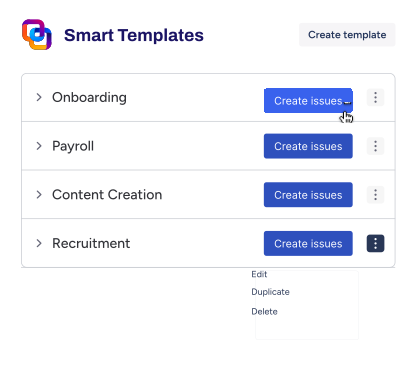
If the team runs events across multiple Jira projects, Smart Templates supports Global Templates. A Global Template can be shared with specific projects, all projects, or project categories. This means a central event operations team can maintain one master event planning template and make it available to regional teams without duplicating it.
Important: Only the Issues and Variables tabs are shared across projects. Template History, Scheduler, and Automation settings remain project-specific.
How do I automate the event planning workflow?
An event planning template stays useful when it runs on a cadence. Automation turns the template into a workflow that sets itself up and sends the right signals as the event timeline moves forward. The goal is to reduce manual setup and keep team members focused on execution, not project administration. For more automation patterns, check how to automate Jira processes with Smart Checklists and Smart Templates.
Auto-create the event structure
The most common automation pattern is straightforward: when a new work item of type “Event” is created, Jira Automation applies the Smart Template automatically. The full hierarchy – parent issue, child work items, checklists, and variables – gets created without manual setup.
This works well for teams that run recurring events like monthly meetups or quarterly trade shows. The event planner creates one issue, and the rest of the structure appears.
Auto-assign owners and set due dates
Automation rules can assign the right team members to each workstream based on role or project configuration. Combine this with Smart Variables to set due dates relative to the event date. For example, “venue contract confirmed” can be set to {{Event Date}} minus 30 days, and “signage sent to print” to {{Event Date}} minus 14 days.
This keeps milestones anchored to the actual event schedule instead of requiring manual date entry across every work item.
Auto-apply checklists to the right work items
Smart Checklist supports built-in automation from the template list view. A checklist template can be assigned automatically when a specific condition is met – for example, when an issue gets the label “event.” This helps teams reduce manual setup and ensures the right checklist is added as soon as the event workflow starts.
You can also reference checklist templates by ID in Jira Automation rules. This is useful when different event types need different checklists – a conference might need a full speaker coordination checklist, while a meetup only needs a lightweight agenda checklist.
Send milestone reminders
Automation rules can notify owners when a milestone is at risk. For example, if the speakers-and-presenters work item is not completed 14 days before the event, the rule notifies the workstream owner and tags relevant stakeholders. This helps the team catch blockers before they become last-minute emergencies.
Handle schedule changes and cancellations
When the event status changes to “At risk” or “Cancelled,” an automation rule can create a short cancellation workflow issue with its own dedicated checklist: attendee communication, venue update, sponsor notification, budget adjustments, and rescheduling decisions. This keeps action items controlled under pressure instead of scattered across chat messages.
Trigger from Jira Service Management requests
Teams that manage event requests through Jira Service Management can streamline the intake process. When an event request is submitted through a JSM portal, the automation adds the event planning checklist template to the issue automatically. The planning workflow starts immediately without waiting for someone to set it up manually.
Keep automation focused
A practical rule: automate the predictable triggers and leave the judgment calls to people. Template creation, owner assignment, deadline calculation, and milestone reminders are good automation candidates. Adjusting scope, reprioritizing workstreams, and handling unexpected blockers still need a human event manager.
Too many automation rules make the workflow harder to trust and harder to debug. Start with 3-4 rules that cover the highest-impact steps and add more only when the team sees a clear need.
How do I track event progress in Jira?
Offline event planning breaks down when progress is invisible. The team has many moving parts, but no clear signal for what is on track and what is blocked. The goal is real-time visibility without turning the event project into administrative overhead.
Track progress by workstream, not by one master checklist
With the structured template approach, each workstream has its own work item and its own Smart Checklist. This means the event planner can see at a glance which area is moving – venue, speakers, sponsorships, attendee comms – and which one is stalled.
Smart Checklist progress is visible on the Jira board. Each card shows checklist completion without requiring anyone to open the issue. Stakeholders get a real-time view of event preparation status from the board alone.
What to track and how to make it visible
Not everything needs a dashboard. Focus on the signals that matter from an event planner and stakeholder perspective:
Milestones. These are the hard checkpoints: venue confirmed, presenters confirmed, registration open, signage sent to print, event-day staffing finalized, post-event follow-up sent. When a milestone is at risk, it should be visible immediately.
Flow risks. Blockers, overdue action items, and dependencies that delay multiple workstreams. If the venue contract is stuck, it affects on-site supplies, catering, and signage. The template structure makes these connections visible because each workstream is a separate trackable item.
Numbers. Registration count vs target, ticket sales if it is a paid event, and event budget actuals vs plan. These do not live in the checklist but can be tracked in custom fields on the parent event issue.
Make checklist progress queryable with JQL
Smart Checklist supports JQL search through the “Checklists” and “Smart Checklist Progress” custom fields. This is what enables stable filters and Jira dashboards for event management.
Example queries for an event project:
- Show event issues where the checklist is not fully complete before event day: filter by Smart Checklist Progress that does not contain “Done” and a due date within the next 7 days.
- Show open checklist items assigned to a specific team member: use the assignee property to find items assigned to the person responsible for check-in or signage.
- Show post-event follow-up not completed 48 hours after the event: combine checklist progress with a date filter on the follow-up work item.
Limitation to note: JQL searches match at the issue level, not the individual checklist item level. Combining criteria like dates, statuses, and assignees can match across different items within the same issue.
Keep the setup simple
The simplest approach is to treat the parent event issue as the operational hub and use checklist progress across the child work items as the execution signal. Stakeholders check the parent issue or the board. Team members work inside their own workstream issue and update their checklist as they go.
This keeps the workflow lightweight for the team. No one needs to maintain a separate spreadsheet or send manual status updates. The progress data lives where the work happens.
How do I improve the event planning template after each event?
Post-event follow-up is where event work either becomes reusable knowledge or disappears into chat history. The goal is not just closing the ticket. It is turning what happened on-site into a better workflow for the next event.
Cover both internal and external follow-up
Post-event work has two sides. External follow-up covers attendee communication, sponsor reports, and community engagement – the deliverables that keep relationships warm after the event. Internal follow-up covers the team retro, process improvements, and knowledge sharing – the work that makes the next event easier to run.
Both sides should be documented in the template. The checklist examples in this article include dedicated sections for post-event follow-up and measuring impact. When these steps live in the template, they do not get skipped under post-event fatigue.
Run a retrospective and feed it back into the template
The most important part of post-event follow-up is the retro session. Gather the event planner, workstream owners, and key stakeholders. Review what worked, what did not, and what needs to change.
Then update the template based on what the team learned. Add steps that were missing. Remove steps that turned out to be unnecessary. Adjust the event timeline or milestone sequence if the original plan did not match reality. This is how the template improves with every event instead of staying frozen as a first draft.
Reduce knowledge loss across events
Documenting the event process in a reusable template brings long-term benefits beyond the immediate workflow:
Process tracking and visibility. The template becomes a living record of how the team runs events. New team members can read it and understand the full process without a walkthrough.
Smoother onboarding. When a new event planner or team member joins, they follow the checklist instead of relying on tribal knowledge from someone who may not be available.
Lower bus factor. Knowledge lives in the template and checklists, not in one person’s head. If the lead event manager is unavailable, the team still has a documented playbook to follow.
Update Linked Templates for centralized improvement
If the team uses Linked Templates for the event checklists, updating the source template once is enough. The change propagates to all future events that use the same linked checklist. This is how process improvement scales across a team without requiring manual updates to every event.
For teams using regular templates, save the updated version as a new template or overwrite the existing one after the retro. Either way, the improvement carries forward.
Final thoughts
Offline events have hard deadlines, parallel workstreams, and limited room for error on event day. A to-do list or a spreadsheet can handle a simple event, but anything involving multiple owners and dependencies needs more structure.
A reusable event planning template in Jira gives the team that structure. Each workstream gets its own work item. Each work item gets its own checklist. The event planner sees the full picture from the parent issue. Team members focus on their own scope without losing context.
Smart Templates and Smart Checklist work better together than either one alone. Smart Templates creates the repeatable structure. Smart Checklist turns that structure into actionable execution steps. After every event, the retro feeds back into the template, and the next event starts from a stronger baseline.
Start with the template structure and checklists in this article. Adapt them to your team’s workflow. Run one event, run the retro, update the template. That cycle is what turns a good event into a repeatable, successful event.
FAQ: Event planning template in Jira
What is an event planning template in Jira?
An event planning template in Jira is a reusable issue structure that covers the full event planning process: pre-event preparation, event-day execution, and post-event follow-up. It typically includes a parent work item for the event and child work items for each workstream – venue, speakers, marketing, sponsorships, guest list, and more. Each work item can contain its own Smart Checklist with execution steps. Teams reuse the same template for every next event, so the workflow stays consistent and improvable over time.
When should I use a template instead of one checklist?
A single checklist template works well for a simple event with one owner and limited coordination – a small meetup or an internal team gathering. Once the event involves multiple workstreams, parallel dependencies, and several team members, a structured template with separate checklists per workstream is easier to manage. The template gives each owner their own space while keeping everything connected through the parent issue.
How should I structure an offline event in Jira?
Start with a parent work item that represents the event. Add child work items for each major workstream: event scope, budget, venue, speakers, event marketing, sponsorships, guest list, event-day coordination, post-event follow-up, and retrospective. Add a Smart Checklist inside each child item with the specific execution steps. Save the full hierarchy as a Smart Template so you can reuse it for future events. Use variables like {{Event Name}} and {{Event Date}} to make the template adaptable without manual editing.
Should each event workstream have its own checklist?
Yes, for any event larger than a simple meetup. Separate checklists per workstream keep ownership clear and prevent one oversized checklist from becoming unmanageable. Each workstream owner updates their own checklist. The event planner tracks progress across all workstreams from the parent issue or the Jira board. This approach scales better than either a single flat list or dozens of subtasks cluttering the backlog.
How do Smart Templates and Smart Checklist work together?
Smart Templates creates the reusable Jira issue hierarchy – the parent event item and all child work items with pre-filled fields and variables. Smart Checklist adds step-by-step execution inside each work item. Together, they cover both the project management layer and the operational detail layer. The template defines what needs to happen and who owns it. The checklists define exactly how each piece gets done.
How do I automate recurring event setup?
Use Jira Automation to apply the Smart Template automatically when a new event issue is created. Automation rules can also assign owners, calculate due dates relative to the event date, and send milestone reminders when deadlines approach. Smart Checklist supports built-in automation that applies a checklist template when a condition is met – such as a specific label being added to an issue. Start with 3-4 automation rules for the highest-impact steps and expand only when the team sees a clear need.
How do I track progress across multiple event work items?
Smart Checklist progress is visible on the Jira board, so stakeholders can see completion status without opening each issue. For more detailed tracking, use JQL filters on the “Checklists” and “Smart Checklist Progress” custom fields to build Jira dashboard views. Example: filter for event work items where the checklist is not complete and the due date is within the next 7 days. This gives the team real-time visibility into which workstreams are on track and which ones need attention.
How do I improve the template after each event?
Run a retrospective with the event planner, workstream owners, and key stakeholders. Review what worked, what was missing, and what steps turned out to be unnecessary. Then update the checklist content and template structure based on the findings. If you use Linked Templates, updating the source template once applies the improvement to all future events automatically. This cycle turns every event into a better baseline for the next one. You can also check our guide on event management in Jira for the full picture of offline and online event workflows.