





 Tools for Jira
 Tools for monday.com





Most companies don’t realize they have a license management problem until something goes wrong. Maybe it’s an unexpected audit. Maybe it’s discovering you’ve been paying for 50 seats of a tool that only 12 people actually use. Or maybe it’s finding out you’ve been covering the cost of an ex-employee’s Grammarly account for 2 years – just because no one tracked it after they left.
Poor licensing management can quietly drain your budget and create compliance headaches. But with a clear, well-documented process, you can keep everything under control.
This guide will walk you through setting up a licensing management system that actually works. We’ll also share practical checklist templates to help you manage both new software requests and existing subscriptions.
In Simple Terms: What is Software Licensing Management?
 Definition
Software Licensing Management (SLM) is the process of tracking and controlling software licenses in a company. It covers how licenses are bought, assigned, used, and renewed. SLM helps teams avoid paying for unused licenses, remove access on time, and stay ready for renewals and audits.
Think of it as the complete lifecycle of a software subscription in your organization. It starts when someone requests a new tool or asks for access to an app you already have. Most often, these are various SaaS tools, such as Adobe or Microsoft apps, but this can also be on-premises software. The next stages are: reviewing the request, purchasing a new licence, and providing access. The process continues with monitoring who’s actually using the tool, and, eventually, renewing or canceling the subscription.
Along the way, you’re also managing other related tasks. For example, you need to revoke access when people leave the company or add more seats when teams grow.
The goal isn’t to create bureaucracy; it’s to answer basic questions that can cost you money:
- Who has access to what?
- Are we paying for seats we don’t need?
- When do our subscriptions renew?
- Can we demonstrate our compliance if someone asks?
When you can answer these questions quickly and confidently, you’re doing software licensing management right.
Common Challenges Teams Face
The problems with software licensing management tend to multiply as companies grow. What works when you have 10 employees and 20 tools becomes unmanageable when you’re tracking hundreds of subscriptions across multiple departments. Medium-sized organizations can easily have more than 1,000 active licenses to manage. For large companies, the count can be in the thousands.
Here are the most common challenges encountered by teams:
- No single source of truth – license information is scattered across emails, spreadsheets, and team wikis
- Paying for unused tools – zombie subscriptions that no one remembers to cancel
- Licenses assigned to former employees – wasting money and creating security risks
- Unclear renewal dates – critical subscriptions can be lapsing without warning
- Difficulty proving compliance – scrambling for documentation during audits
- Inconsistent processes across teams – when each department is doing its own thing
- Approval bottlenecks – people waiting for days for access while you verify licenses and permissions
- Budget inconsistencies – when budget owners don’t have full visibility of the costs
To sum up, the key challenge is maintaining consistency, ensuring scalability, and keeping the process smooth and frictionless.
Who Is Responsible for Software Licensing Management?
Responsibility is usually shared across several roles:
- IT and IT operations teams manage access control, security, and system administration. They ensure users are added and removed correctly and tools are configured securely.
- Procurement and finance handle contracts, renewals, and spending. They track costs, negotiate terms, and decide when licenses should be renewed or reduced.
- Team leads and system owners decide whether a tool is needed in practice. They confirm who should have access and flag unused tools.
In smaller organizations, these responsibilities are often combined. One team, such as procurement or IT security, may purchase tools, manage access, and handle renewals. What matters most is that ownership is clear, and no part of the process is left unmanaged.
The Core Elements of Effective License Management
License Inventory And Ownership
First, you need a clear picture of which software your company is using. This starts with building a license inventory that lists all paid (and free) tools, plans, and license limits. At the same time, each tool needs a clear owner to ensure someone is responsible for decisions, renewals, and access-related questions.
User Access And Assignment Tracking
Once this inventory and ownership are in place, you can track who has access to each tool and why. This means recording when licenses are assigned, changed, or removed. With this visibility, it becomes much easier to prevent licenses from staying assigned to people who no longer need them.
Renewal And Expiration Monitoring
The next important step is to monitor renewals and expiration dates. When you know when licenses expire and which notice periods apply, you can review usage ahead of time. This allows teams to decide whether to renew, downgrade, or cancel, instead of rushing at the last minute.
Vendor And Contract Documentation
Alongside renewals, you also need easy access to contract details. By keeping vendor terms, pricing, and license agreements documented in one place, teams can quickly check what is allowed and what is not. This removes guesswork and supports informed renewal and compliance decisions. These documents are often stored in an ERP system along with other relevant information.
Approval And Offboarding Rules
Finally, there should be clear rules for approving licenses and removing access. When approval steps are defined and offboarding actions are documented, licenses are assigned consistently and reclaimed on time. This closes the loop and keeps the entire process under control.
To implement all of this in practice, you will need tools to set up and run the process.
Software License Management Tools
Smaller teams often start with shared spreadsheets, a Notion page, or even a dedicated Slack channel. There, they can track the apps they pay for, their assigned owners, and renewal dates. As the company grows, many move to dedicated software asset management solutions, such as Flexera, Torii, Odoo, or Zylo. They automate license usage tracking, renewal reminders, and cost reporting.
For access requests and approvals, teams typically rely on specialized platforms, such as Jira Service Management. For managing review criteria and onboarding/offboarding flows, checklists are convenient. We’ll show you how to do this with Smart Checklist for Jira later in the article. In many setups, one system handles automated data collection, while the other is dedicated to day-to-day management tasks.
How to Set up the Software Licensing Management Process
To help you streamline your process, we’ve prepared several checklists. The first one guides you through the key steps to establish your software licensing management workflow. It will help you lay the ground rules and cover all the essentials.
The other two checklists are for managing SaaS requests for new tools and for apps you already have. It’s convenient to add them to your Jira, JSM, or Monday project as templates. Then, these step-by-step checklists can be automatically included in all requests you receive. This allows you to keep the review process consistent.
Note
With a standard checklist, it doesn’t matter who reviews the ticket or when. Everyone follows the same steps and criteria. This creates consistency and scalability.
These checklists were created with Smart Checklist for Jira. They can be used as is or customized to fit your needs better.
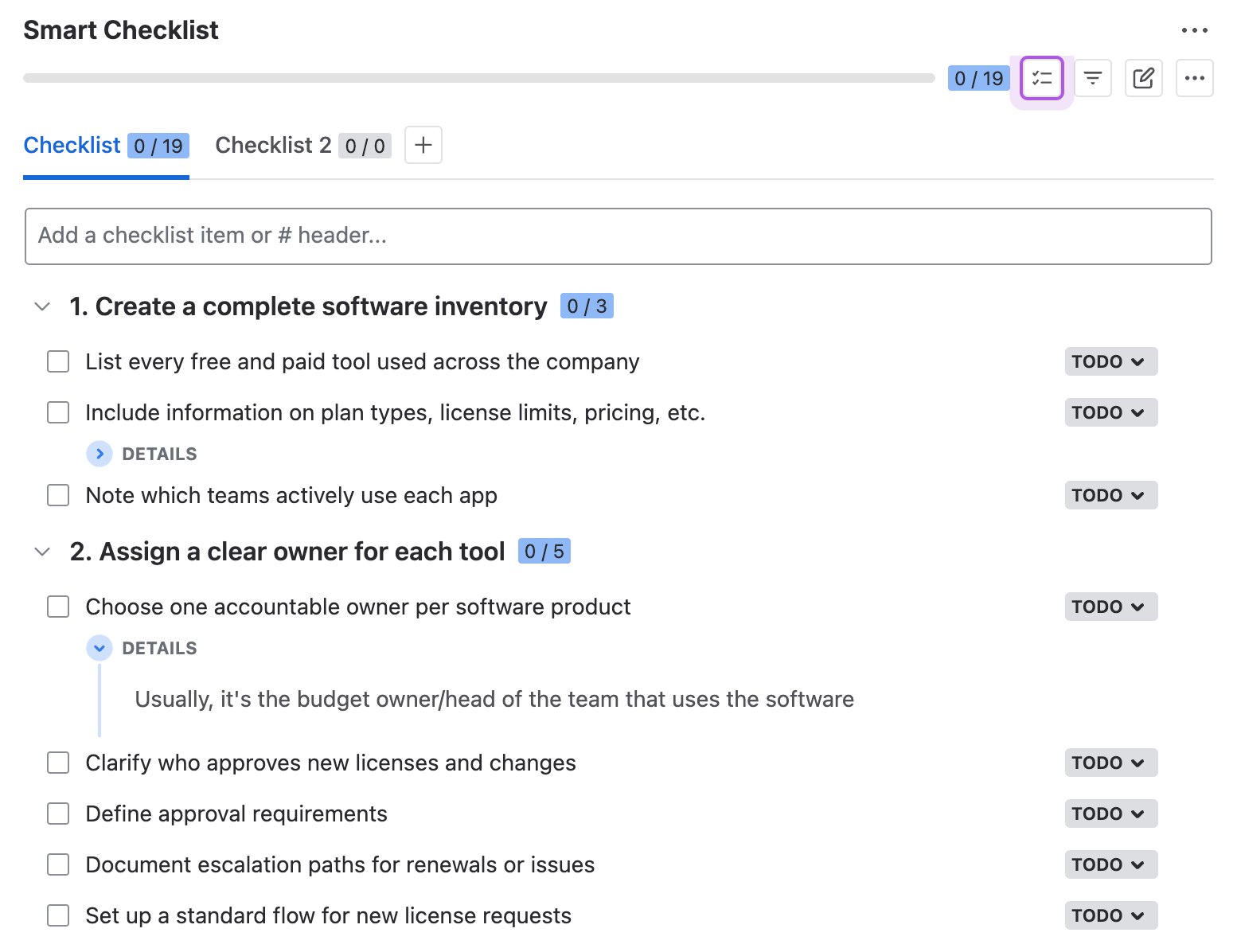
How to Organize Software Licensing Management in 4 Stages – a Free Checklist
## 1. Create a complete software inventory
- List every free and paid tool used across the company
- Include information on plan types, license limits, pricing, etc.
> Other details you can include (optional):
>* billing company
>* credit card (if applicable)
>* notice period
>* start/end date
>* budget owner
>* list of users
>* where to download invoices
>* how to log in to the account
- Note which teams actively use each app
## 2. Assign a clear owner for each tool
- Choose one accountable owner per software product
> Usually, it’s the budget owner/head of the team that uses the software
- Clarify who approves new licenses and changes
- Define approval requirements
- Document escalation paths for renewals or issues
- Set up a standard flow for new license requests
## 3. Track license assignment and changes
- Record who received access and when
- Set up a process for tracking role changes and temporary assignments
>* Define who should track this and how
>* Decide how they will be notified about changes
- Devise a standard flow for revoking software access when employees leave
## 4. Monitor license usage and renewals
- Schedule regular reviews for license usage
- Compare paid license limits to actual usage
>* Tip: Set separate virtual cards for each subscription to avoid unexpected charges
- Assign a team to regularly review user databases and inventory
- Identify underused or unused seats
- Flag tools that no longer provide value
- Define next steps for budget optimization
- Record renewal dates and notice periods
- Collect all contracts and licence agreements in one place
> For example, you can organize them in a knowledge base on Confluence. Then, it will be easy to find the information you need and search for specific contract terms and conditions.
## 1. Create a complete software inventory
- List every free and paid tool used across the company
- Include information on plan types, license limits, pricing, etc.
> Other details you can include (optional):
>* billing company
>* credit card (if applicable)
>* notice period
>* start/end date
>* budget owner
>* list of users
>* where to download invoices
>* how to log in to the account
- Note which teams actively use each app
## 2. Assign a clear owner for each tool
- Choose one accountable owner per software product
> Usually, it’s the budget owner/head of the team that uses the software
- Clarify who approves new licenses and changes
- Define approval requirements
- Document escalation paths for renewals or issues
- Set up a standard flow for new license requests
## 3. Track license assignment and changes
- Record who received access and when
- Set up a process for tracking role changes and temporary assignments
>* Define who should track this and how
>* Decide how they will be notified about changes
- Devise a standard flow for revoking software access when employees leave
## 4. Monitor license usage and renewals
- Schedule regular reviews for license usage
- Compare paid license limits to actual usage
>* Tip: Set separate virtual cards for each subscription to avoid unexpected charges
- Assign a team to regularly review user databases and inventory
- Identify underused or unused seats
- Flag tools that no longer provide value
- Define next steps for budget optimization
- Record renewal dates and notice periods
- Collect all contracts and licence agreements in one place
> For example, you can organize them in a knowledge base on Confluence. Then, it will be easy to find the information you need and search for specific contract terms and conditions.
Once the overall framework is in place, you need to set up clear processes for your daily software licensing management tasks, such as:
- New software access request
- Security review for a new SaaS tool request
- Employee onboarding: software access setup
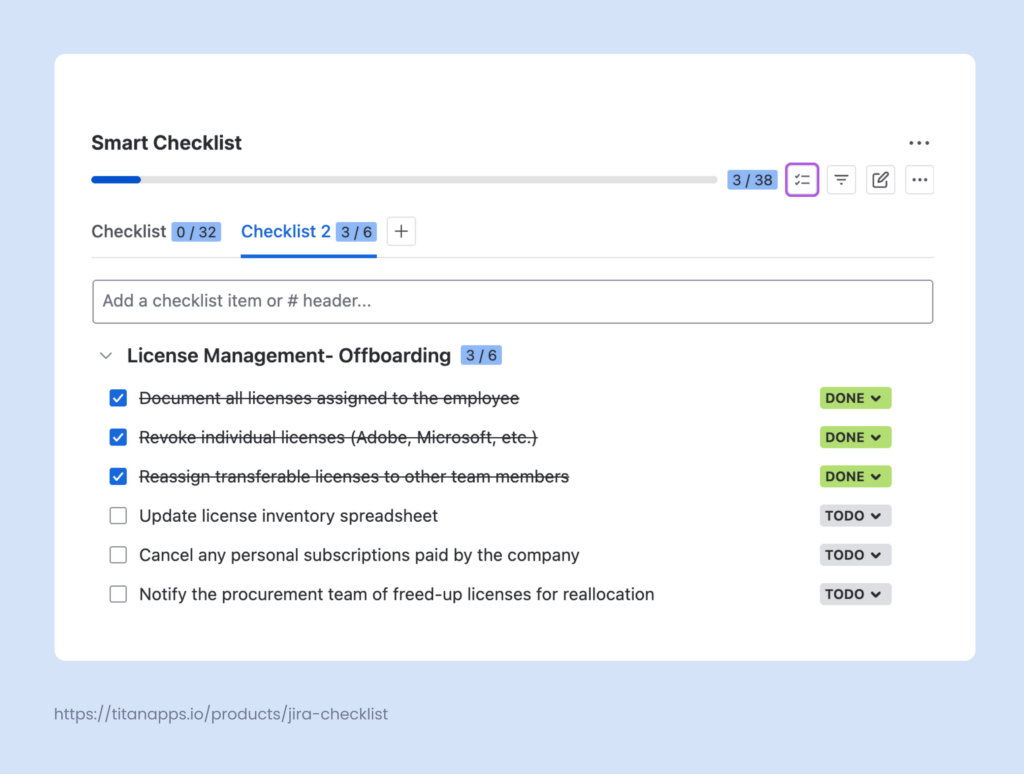
- Employee offboarding: license reclamation
- License renewal review
- Quarterly license usage audit
- New software purchase evaluation
Below are examples of checklists for two processes: Managing an Existing SaaS Subscription and Managing a New SaaS Request. You can save them as a template and set up an automation in JSM.
Once a new ticket of the selected type is created, this checklist will be automatically added to it. As a result, the person who starts working on the ticket will have a ready plan with clear steps. This helps you maintain consistency and keep the process standard across your organization. The same can be done for other types of requests.
Checklist for Managing an Existing SaaS Subscription
- Log in to the account
- Check billing details to see if everything is correct
> * legal entity
> * legal address
> * payment source details, be it credit card, SWIFT, or ACH bank details
- Make requested changes to the subscription:
> * cancel paid plan, but keep the account itself alive
> * fix payment issues
> * upgrade to a higher plan
> * downgrade to a lower plan
> * other
- If the total amount of the upgrade exceeds `1000 USD`, ask `Budget Owner` for approval in the comment field
- Provide all relevant details regarding changes in the comment field
- Edit the data in your Software licensing management app (if applicable)
- Close the ticket
Checklist for Managing a New SaaS Request
~ `Security`: Create `IT Security Request`, if applicable
- Log in to the account
- Add billing details to the account
- If the total amount of the upgrade exceeds `1000 USD`, ask `Budget Owner` for approval in the comment field
> * don’t forget to add person(s) who should be informed as `Request Participants`
- Select the requested Pricing Plan
- Make the payment
- Provide all relevant details regarding the purchase in the comment field
- Create a new Purchase Subscription entry in your license management system (if applicable)
- Close the Help ticket
The Value of Checklists for Software Licensing Management
IT asset management involves many small but critical actions. Access requests, approvals, and renewal steps are easy to miss when they are scattered across emails, chats, or separate documents.
Smart Checklist helps bring all this information together exactly where it’s needed – in Jira and JSM tickets. This ensures that nothing is skipped and the process is robust.
- Reuse proven processes: Common structures for onboarding, offboarding, or access reviews can be saved as templates and reused for recurring tasks. This helps teams follow the same process every time.
- Apply the right checklist automatically: Checklists can be added based on request type, issue status, or other conditions, so the correct steps appear without manual setup.
- Easily scale the process: As your organization grows, checklists help new people and teams follow the same steps in the same order. The process is documented directly in Jira or Jira Service Management, where requests are handled. This provides scalability without sacrificing consistency or precision.
- Keep instructions across tickets in sync: When access rules or review steps change, you can update the checklist once and push those changes to all related Jira work items. This can be done using the Smart Checklist’s Linked Templates feature. This prevents outdated instructions from lingering in older tickets and keeps everyone working with the most up-to-date flow.
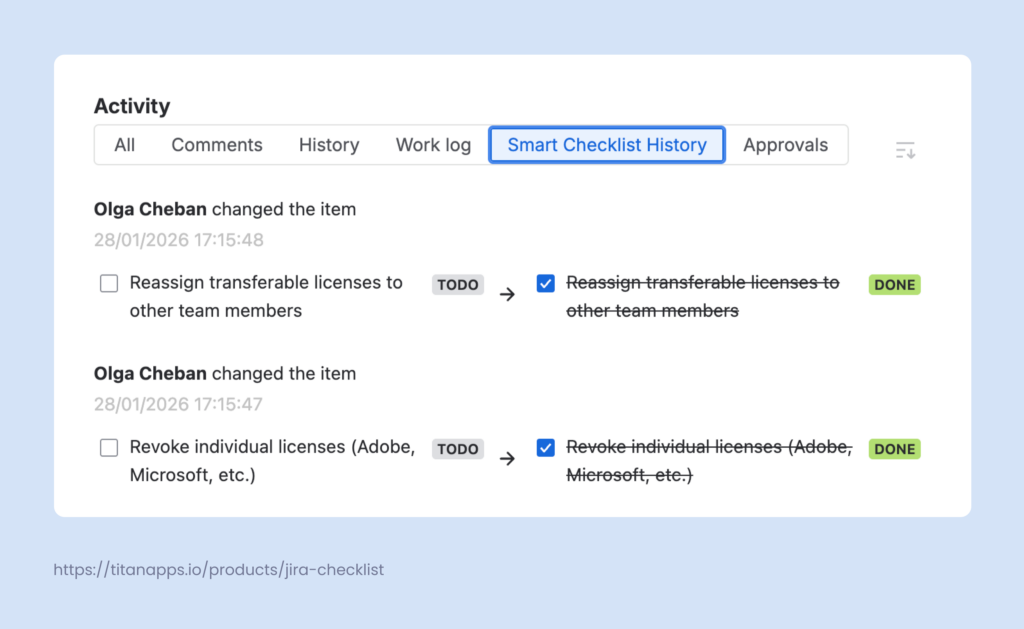
- Create an audit-ready trail by default: Completed checklist items are timestamped, showing what was done and when. This makes audits and internal reviews easier.
- Enforce required steps before closing requests: You can mark selected checklist items as mandatory and set up workflow automation to check whether those steps are completed. This way, you can prevent tickets from being closed until all Mandatory Items are Done. Using mandatory items helps you set priorities, avoid incomplete reviews, and prevent non-compliance.
How to Use These Checklists in Jira
- Install Smart Checklist for Jira from the Atlassian Marketplace.
- Copy the software licensing management template shared in the previous section and paste it into the Smart Checklist section of your Jira work item.
- Customize the checklist to better fit your process. You can add or remove steps, include links to pricing details and other materials, and add short notes in expandable sections for extra context.
Here’s how you can adjust our checklist templates to your needs:
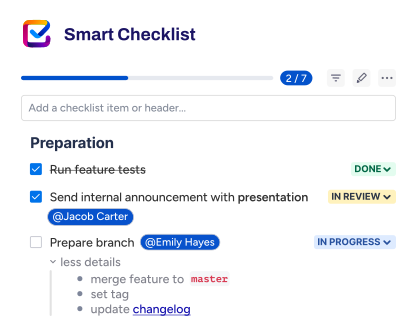
- Tag approvers, system owners, or responsible team members directly in checklist items. This makes ownership clear and reduces back-and-forth during access requests or reviews.
- Add due dates to individual steps to reflect real approval timelines, renewal windows, or offboarding dependencies. Deadlines stay visible where the request is handled.
- Use custom step-level statuses to track progress. This is especially useful when there are many checks to complete or multiple tools to disable, such as during offboarding. This makes it easy to see which actions are already done, which are in progress, and which still need attention.
- Group related actions under headers of different hierarchical levels – H1, H2, H3, and so on. This keeps longer checklists easy to scan and manage.
To streamline the software licensing management process, save the checklists for day-to-day tasks as templates. For example, this can be one of the checklist templates we shared earlier – for handling a new tool request or managing an existing subscription. You can also prepare similar checklists for other tasks.
This allows you to easily add them to new Jira work items with just a few clicks or apply them automatically based on your settings.
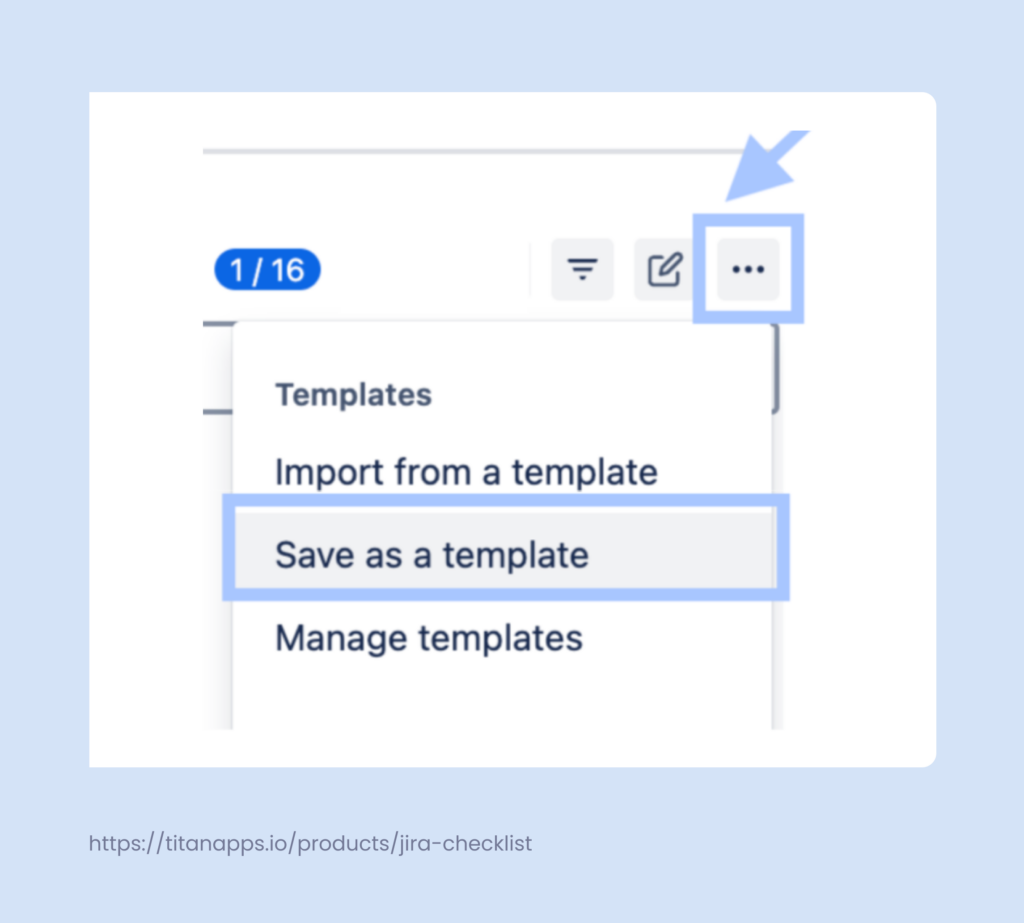
To save your checklist, open the Smart Checklist menu, click the three dots, and select Save as a template, as shown below:
Additionally, Smart Checklist has native automation features. It can assign checklists to work items automatically based on their type or other conditions.
How to Add Checklists to Jira Tickets Automatically
- Open a work item that already contains a Smart Checklist. Click the three-dot menu in the upper-right corner of the checklist section and select Manage Templates.
- Locate the checklist template you want to assign automatically and expand it. In the panel on the right, open the Advanced settings. If you want to assign a checklist to a specific work type, switch to the General tab instead.
- Define the trigger for adding the checklist. For example, you can choose Issue created, then set a condition such as Field ? Summary, Condition ? Contains, and specify the value you want to match.
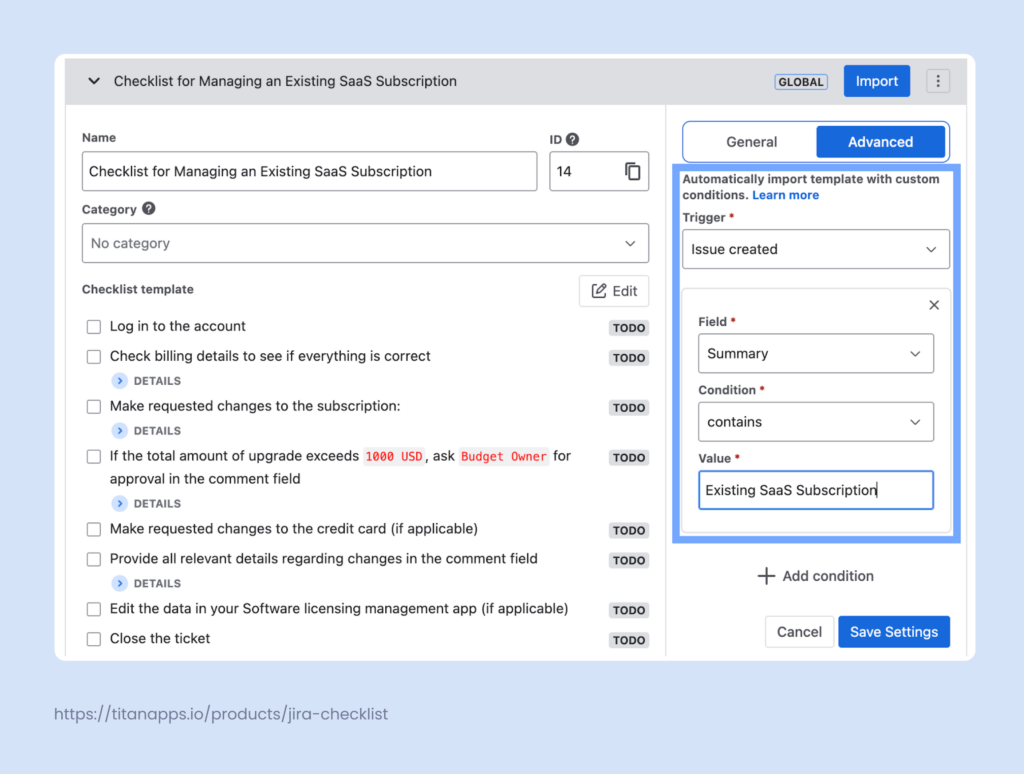
Once configured, the selected checklist template will be added automatically to all work items that meet the defined conditions.
For advanced automation setups, you can also use Smart Checklist with Automation for Jira.
Please refer to our Automation for Jira Guide for additional information.
Software Licensing Management for Compliance and Audit
The Role of Inventory And Documentation
With a structured license management process in place, audits become much easier to handle. First, you will already have a clear inventory of tools, licenses, and owners. This means you can quickly show what software is in use and under which terms.
It’s also good to have the whole process documented – for example, on Confluence or in Smart Checklist templates. This will help you demonstrate exactly how access is granted, reviewed, and removed, rather than relying on verbal explanations.
Request Tickets as Audit Evidence
The key thing auditors love to see is evidence trails, and your ticketing system becomes your best friend here. When someone requests access via a ticket, you automatically create a record that shows who requested what, when they received it, and who approved it.
This is also a good way to demonstrate you have role-based access control. Request tickets will serve as proof that each person received only the access they needed for their job responsibilities.
The Importance of Offboarding Records
Offboarding often receives significant attention during security audits and compliance checks. Luckily, your offboarding tickets will serve as timestamped evidence that you properly revoked access when someone left.
If you’re using Smart Checklist, you can see exactly when each step was completed. This provides a more granular view of the process.
Smart Checklist History preserves the information about all changes made by you or other collaborators:
Another source of evidence is system logs. For instance, this can be Google Admin logs showing when a departing user was moved to a restricted org unit. Sometimes, onboarding tickets are also reviewed during audits to verify the other side of the access lifecycle.
The great thing about this is that most of this documentation is generated naturally through your day-to-day activities. With a well-designed software licensing management process, you’re not scrambling to search for evidence when an audit begins. Instead, you’re simply presenting the ongoing work you’ve already been doing.
Best Practices for Sustainable Software Licensing Management
This section focuses on what actually works in day-to-day license management. These best practices are based on conversations with our procurement and security teams, who handle license requests, renewals, and audits every day. They reflect how software licenses are handled in real life, not in theory.
We’ve been using these approaches for a while, refining them along the way, and they have already proven useful and effective.
1. Keep All Access Requests Ticket-based
Sometimes, people may request access in a private Slack message or during an informal conversation on a coffee break. However, it’s important that every license request be processed through a ticket with a transparent approval or rejection decision. This creates an audit trail that makes it clear who has access to what and why that access was granted.
At the same time, if you provide access ad-hoc and outside the formal process, this can create confusion and cause issues during an external audit. Among all software license management best practices, this is arguably the most important.
2. Use Separate Virtual Cards for Each Subscription
Paying for each tool with its own virtual card makes license costs easier to control and review. You can set a specific spending limit for each card, so the budget for a tool cannot be exceeded without authorization. This helps avoid unexpected charges, silent price increases, or renewals that go unnoticed.
When a subscription is no longer needed, the card can be frozen or closed without affecting other tools. It also makes it easier for finance to trace spending back to a specific product and owner.
3. Review Licenses Regularly, Not Only Before Renewals
Periodic check-ins make it easier to spot unused or underutilized licenses early and to track renewal dates. With this information, you will know in advance which subscriptions need to be cancelled/continued when the paid period ends. Otherwise, you may have a bottleneck in December, before the new financial year begins.
4. Utilize Password Management Tools
This tip is especially helpful when you have many apps with shared credentials. For example, you can use 1Password or a similar solution to manage them. It allows you to share access by groups (marketing, sales, etc.) or freeze access for multiple users at once. It’s also convenient when you need to change passwords after an employee leaves: the new password is immediately accessible to everyone.
Another use case is providing access to newcomers. Simply share the “vault” used by the new hire’s team, and they will have access to all the necessary tools at once.
5. Use Checklists to Coordinate Across Teams
Licensing decisions can involve the procurement, IT security, and finance departments. When collaboration is needed, a shared checklist in Jira will help everyone understand the broader picture and contribute on time. This improves clarity and reduces back-and-forth when responsibilities overlap.
6. Assign Ownership and Monitor Software Usage
Every tool should have a clear owner (most often it’s a team lead). Their role is to identify when a tool is no longer in use and to inform procurement. Even simple signals, such as tools no one logs into anymore, are enough to trigger a cancellation.
When a tool allows it, use its native dashboards or reports showing usage data. For example, Google Workspace’s admin console shows per-tool real-time usage reports. They highlight how many users engage with features such as Gemini and other AI capabilities. To track ownership and policies, you can use tools like Drata. All this helps you assess the situation and make informed decisions.
7. Manage Notifications Efficiently
Finally, ensure important updates are not lost. You can set up a dedicated email list or a Slack channel for license-related notifications. This is especially useful for price changes, contract updates, or vendor announcements that require a quick response.
Taken together, these practices turn software licensing management into a steady, predictable process. Instead of reacting to problems, teams stay in control and make decisions based on clear information.
Building a Software Licensing Management Process That Matters
Software asset management doesn’t have to be complicated, but it does need to be intentional. Start with a clear inventory, define simple rules for managing software licenses, and set up predictable processes for access requests, reviews, and offboarding. This creates a solid foundation for software license tracking, so you always know what tools are in use and under which licensing terms.
The time you invest here pays off quickly. You reduce software spend by understanding real usage patterns and avoiding overspending on seats that are no longer needed. You also prevent situations where teams get blocked because a subscription from one of your software vendors was missed or renewed too late. Just as importantly, clear processes help you maintain license compliance and stay prepared for software audits rather than reacting at the last minute.
Smart Checklist helps you document and run this process in a consistent way. You can create shared templates for onboarding, offboarding, and access reviews to ensure everyone follows the same steps. Each completed action is timestamped automatically. This supports software license compliance by showing how access decisions and changes were handled over time. As a result, it will be easy to confirm entitlements, avoid compliance issues, and achieve real cost savings as your tool stack grows.
Software Licensing Management FAQ
1. Who is responsible for software licensing management in a company?
It depends on the company size and structure, but typically it’s a shared responsibility between IT, procurement, and finance. IT handles access and technical setup, procurement manages vendor contracts and renewals, and finance tracks costs. In smaller companies, one person often covers all three roles.
2. What is a software audit?
A software audit is a review of your software licenses. Its goal is to verify that usage aligns with what you’ve purchased and agreed to in vendor contracts. Audits can be initiated internally or by a vendor.
3. How often should we review our software licenses?
A full review once a quarter is a good starting point. You should also trigger a review whenever there’s a significant change – like a team restructure, a round of layoffs, or a major renewal coming up.
4. Where do I start with the licensing management process?
Start with an inventory. Go through your finance and procurement records to list every tool you’re paying for, who owns it, and how many seats are in use. From there, you can identify gaps and build a process around what you find.
5. How do I build a software license inventory from scratch?
Collect data from three sources: finance records for what’s being paid, IT systems for what’s installed or active, and department heads for what tools their teams are using. Consolidate everything into a single document or tool, and assign an owner to each license.
6. Why is it necessary to also track free tools?
Free tools still carry risks. If teams adopt them without oversight, you can end up with sensitive company data stored in unsanctioned apps, potential compliance issues, and no visibility into what’s actually being used across the organization.
7. How to manage software access during onboarding and offboarding?
The most reliable approach is to handle both through tickets with a standardized checklist. This ensures no steps are missed and creates a timestamped record of when access was granted or revoked – which is useful both operationally and during audits.
8. How do I know if we have unused licenses?
Check usage data in your admin consoles – most SaaS tools show last login dates and activity levels. If someone hasn’t logged in for 60-90 days, that’s a good sign the license isn’t being used and can be reassigned or canceled.
9. What happens when a former employee still has active licenses?
You’re paying for access that serves no business purpose, and more importantly, you’re leaving a security gap. A former employee with active credentials is a real risk – even if unintentional, it can lead to unauthorized data access or compliance issues.
10. What tools can help manage software licenses?
Dedicated SaaS management platforms like Torii, Zluri, or Productiv give you visibility across your entire software stack. For managing the process itself – access requests, onboarding and offboarding checklists, and renewal workflows – Smart Checklist for Jira keeps everything documented and traceable.