





 Tools for Jira
 Tools for monday.com





Atlassian’s State of Teams 2025 research found that teams spend over a quarter of the workweek searching for information. In Jira, that may include the same search typed again. What’s open in this release, what closed last week, what nobody has picked up yet.
A Jira filter narrows the list of work items down to what you need. This guide covers the filter types in Jira, how to create and manage them, and how they drive dashboards. It ends with the filter examples you can copy and advice on how to work with them most efficiently.
Jira Filters: Key Takeaways
- A Jira filter is a set of search criteria. Share the query as a URL, or save it and rerun it from Filters in the sidebar.
- Jira has several filter types: saved searches, the default ones it ships with, board quick filters, team-managed custom filters, and view filters.
- One saved search can drive a company-managed board, several dashboard gadgets, a scheduled email delivered by filter subscription, and a live list on a Confluence page.
- Classic dashboards have no single control that filters every gadget. To emulate that, point all gadgets at one saved search, then edit it in one place instead.
- Keep saved searches scoped to their spaces, named for what they return, shared no wider than the audience, and owned by someone still around.
What Is a Jira Filter?
 Definition
A Jira filter is a set of search criteria that narrows the list of work items you see. You can build one with basic search or JQL, then share its URL as it is. Saving the query turns it into a saved search you can rerun and reuse across Jira. Atlassian uses two names interchangeably: filters and saved searches. Saved searches set the scope of company-managed boards and feed dashboard gadgets and email subscriptions.
What Types of Filters Does Jira Have?
Not all filters in Jira are saved searches. In Jira Cloud, boards, backlogs, and views have filters of their own. Let’s have a closer look at each type.
| Filter type | Where you find it | Scope | Best for |
|---|---|---|---|
| Saved searches | Filters in the sidebar and Saved filters in the list view | Any spaces your criteria cover | Searches you rerun, share, or reuse elsewhere |
| Default filters | Filters in the sidebar and Saved filters in the list view | Preset criteria defined by Jira | Common checks, like your open work items |
| Board quick filters | Company-managed boards | One board | Switching board views, like showing only bugs |
| Team-managed custom filters | Boards, backlogs, and timelines in team-managed spaces | One space | Narrowing a team-managed board, backlog, or timeline |
| View filters | Filter menu in list, calendar, and timeline views | The current view | Narrowing a single view while you work |
What Are Saved Searches Used For?
- Repeat searches. Run the saved query again from Filters in the sidebar. New filters are starred by default, which keeps them easy to find.
- Company-managed boards. A company-managed Jira board runs on a saved search that defines which work items it shows.
- Dashboard gadgets. Gadgets like Filter Results can use a saved search as their source.
- Email subscriptions. Jira can email a filter’s results to you or your teammates on a schedule.
- Other queries. You can reference a saved search inside another JQL query to build on its criteria.
- New boards. You can build a company-managed board from an existing saved search, yours or one shared with you. In team-managed spaces, that is the required way to add extra boards.
- Work item lists in Confluence pages. Paste a Jira search URL that points to a saved search, and the page lists the work items it returns.
How to Create a Filter in Jira
Create a Filter (Saved Search)
- Select the Search bar in the top navigation, then select View all work items. Or go to the sidebar and find Filters > Search work items. Either way, you’ll reach the page that displays all work and the search criteria to filter it.
- Set your search criteria with basic search, using fields like assignee, status, or labels. If you need conditions that basic search can’t express, such as OR grouping or functions like startOfDay(), switch to JQL.
- Select Save filter.
- Enter a name for the filter, add a description, and specify who can view and edit the filter. Until you add viewers or editors, only you and Jira admins can see it. Once you are ready, click Save.
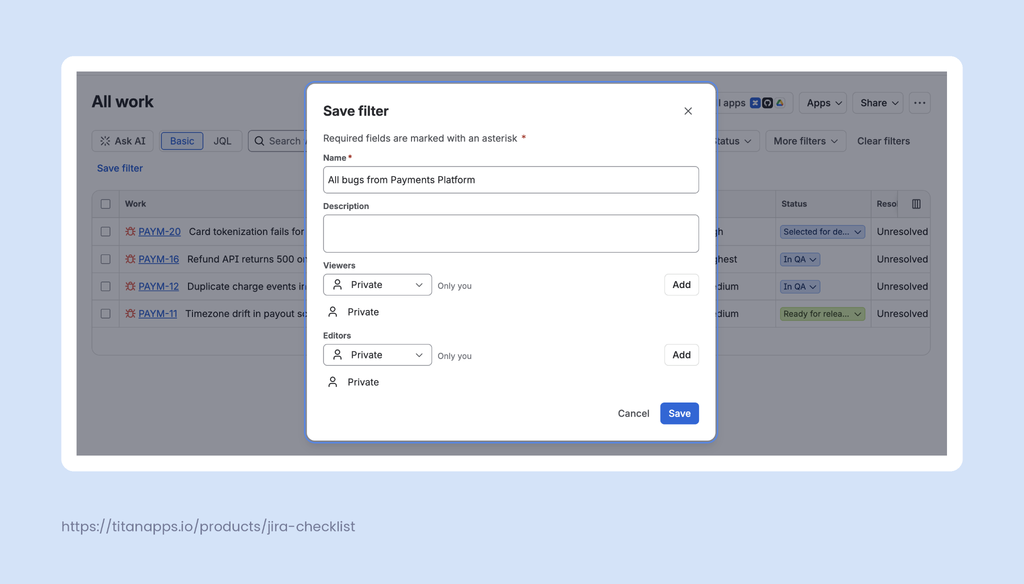
A filter has several roles:
| Role | What they can do |
|---|---|
| Viewer | Access the filter, run it, and read the results |
| Editor | Everything a viewer can, plus change the filter name and description, and add viewers and other editors |
| Owner | Everything an editor can, plus delete the filter and change its owner |
Pro Tip
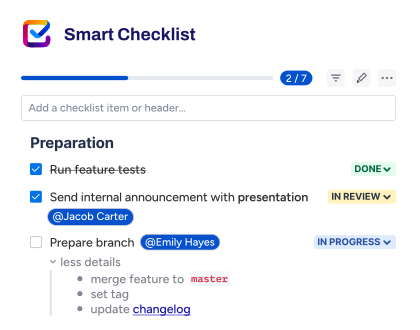
Teams often need to add a set of checks in a work item: a definition of done, acceptance criteria, or release checks. Subtasks can include details like due dates and assignees, but they clutter the board. Jira’s action items add checkboxes to the work item description, but they have limited functionality.
Smart Checklist for Jira adds those checks or steps in one work item as a checklist with due dates and assignees. At the same time, they remain searchable. Using JQL, you can filter work items by checklist progress, checklist items, and checklist assignees as well as user mentions. For instance, you can search for SmartChecklistItemAssignee ~ “<user ID>” to list the work items with checklist items assigned to a particular person and save this search. Our JQL guide shows how to find the user ID.
Also, there is an Assigned Checklist Items page that provides an overview of checklist items requiring your attention across all Jira spaces – no filter required.
Add Quick Filters to a Company-Managed Board
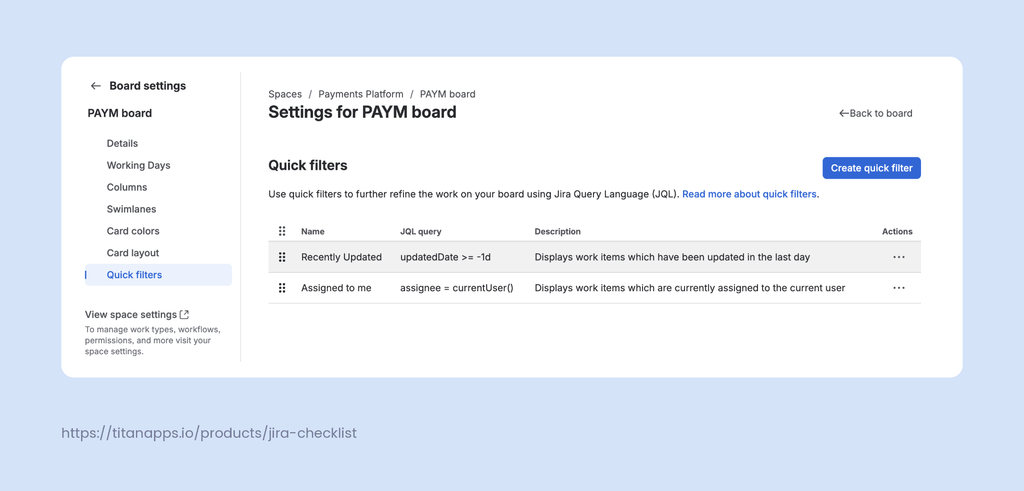
Jira quick filters sit on the board itself rather than in search. Here is how to add quick filters in Jira to a company-managed Scrum or Kanban board:
- Open your board, then go to Board settings.
- Select Quick filters.
- Select Create quick filter.
- Enter a name, a Jira Query Language (JQL) query, and a description.
- Save the filter.
 Note
Note
Configuring quick filters requires admin permissions. You need to be an admin of the board itself or of the space where the board is located.
Create a Custom Filter in a Team-Managed Space
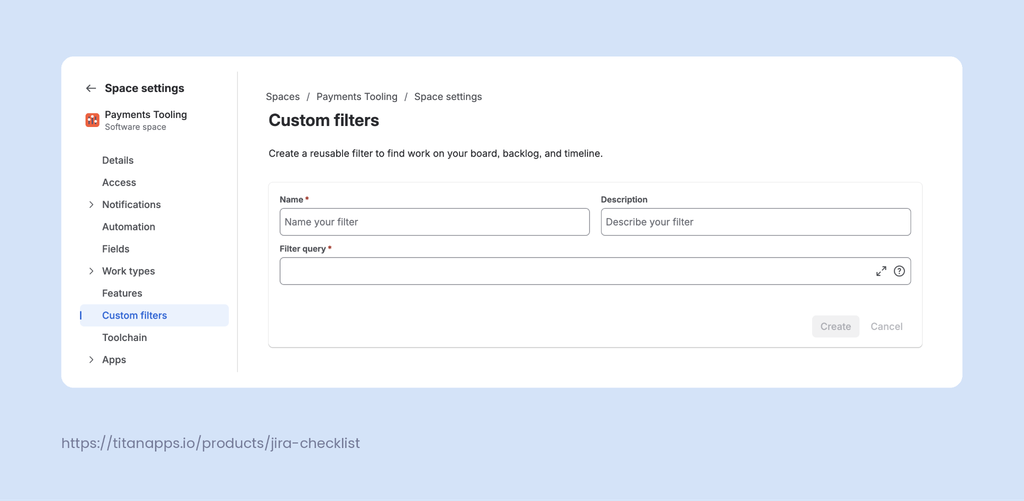
- From your board or backlog, select More actions > Manage custom filters. Or go to Space settings and choose Custom filters.
- Select Create custom filter.
- Name the filter, then enter the JQL query and a description.
Custom filters apply to the backlog, timeline, and board.
 Note
Note
You need to be a space admin to manage custom filters.
How to Find, Edit, and Manage Filters
Find Your Filters
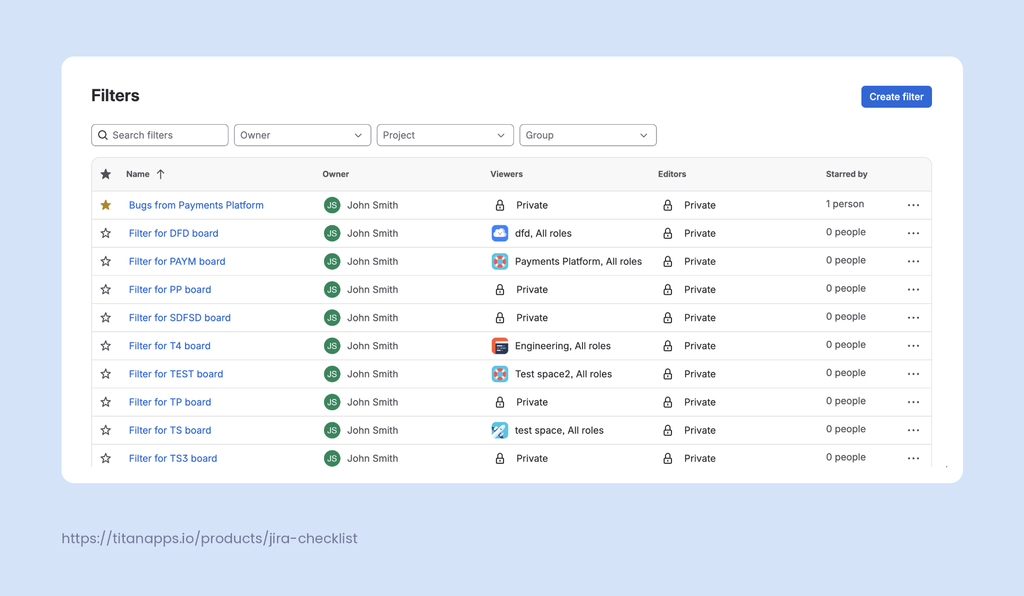
Open Filters in the sidebar and select View all filters. Search by name, or narrow the list by owner, space, or group.
Edit, Star, or Delete a Filter
- Edit. Open the filter, change its search criteria, then run the search again. The Save option appears only after the updated query runs. You can save changes in the existing filter or create a new filter by saving it as a copy. If you don’t own the filter, Jira lets you save it only as a new one.
- Copy. Select More actions (…), then Copy filter. You can copy any filter shared with you, which lets you adapt someone else’s filter to your needs.
- Star. Star filters you created or that others shared with you. A starred filter moves to the top of the Filters menu.
- Delete. Select more, then Delete. You can only delete a filter you own. You can copy or star the default filters Jira offers in the sidebar, like My open work items, but you can’t delete them. A filter can be used by a board, a gadget, or someone’s subscription. Check what depends on it before you delete a filter.
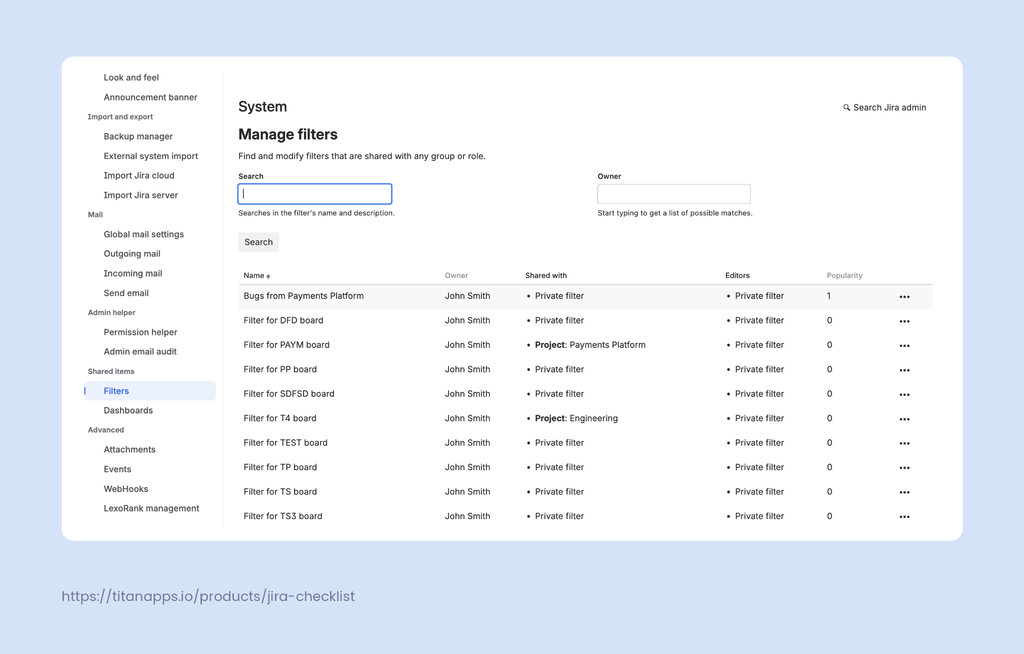
Some filters outlive their owners. A Jira admin can take those over from Settings, then System, then Filters under Shared items. That page lists private and shared filters, and lets you search by name or owner, change a filter’s owner, or delete it. Note that this needs the Administer Jira global permission. Atlassian also recommends checking with the current owner before you change anything.
This matters most when someone leaves. Filters owned by a deactivated or deleted user with no other editors can’t be changed or deleted until an admin hands them to a new owner.
- Select Filters in the sidebar, then View all filters.
- Select More actions (…) > Edit
- Add or change the viewers and editors. You can set permissions for users, groups, or spaces.
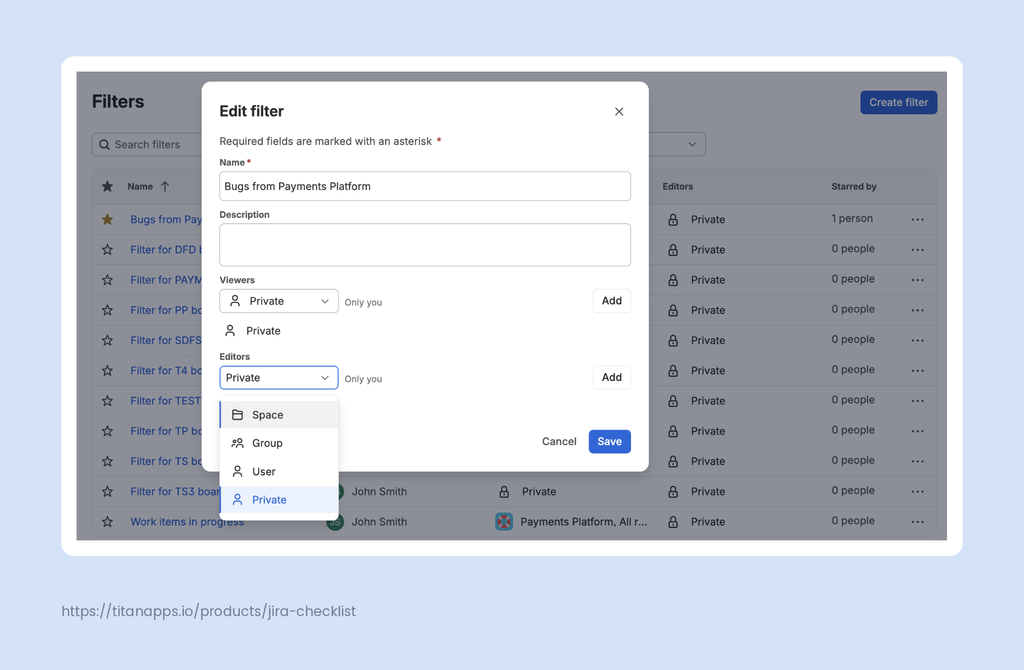
Share a filter when more than one person needs the same view. Your team then works from one query instead of each person rebuilding it. Anyone who hasn’t learned JQL yet can run it without writing one. What each person sees still depends on their own permissions, so results can differ.
Note
Sharing depends on a global permission of its own: Share dashboards and filters. A private filter stays visible to you and Jira admins only. That is also why a gadget or board built on a private filter breaks for everyone else.
Subscribe to a Filter
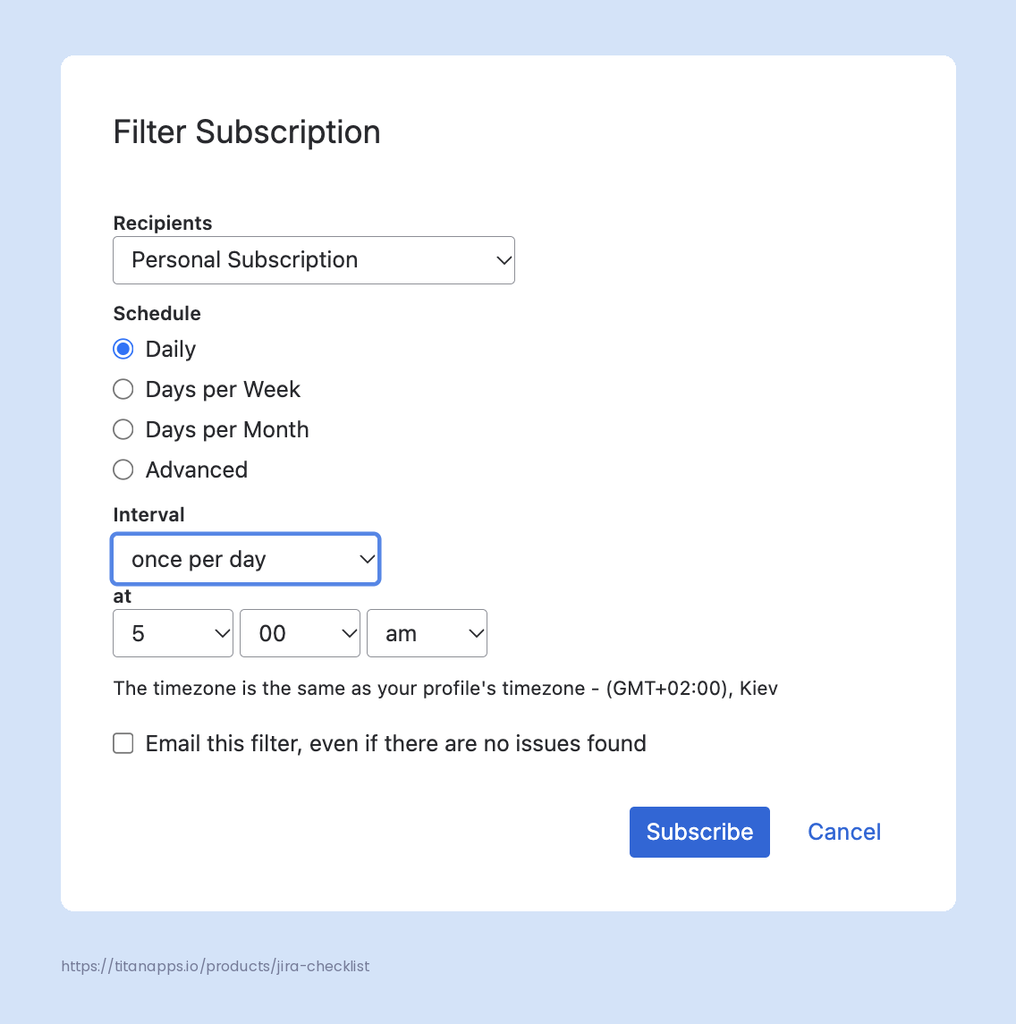
A Jira filter subscription emails the filter’s results on a schedule. You get the work items the query returns when it runs. Jira reruns the query for each email. You can only subscribe to a saved search, so create one first.
- Go to Add subscription. You can use either Filters > View all filters > More actions (…) > Manage subscriptions > Add subscription or open your filter (from Filters or otherwise) > Filter details (next to the filter name) > Subscriptions > Add subscription.
- For each new subscription, choose the recipient, yourself or a group, then set the frequency.
 Note
Note
Each email carries only the first 200 results. Subscribing a group needs the Manage group filter subscriptions global permission. For more details, like constructing cron expressions for scheduling, see Subscribe to a filter in Atlassian documentation.
Embed Filter Results on a Confluence Page
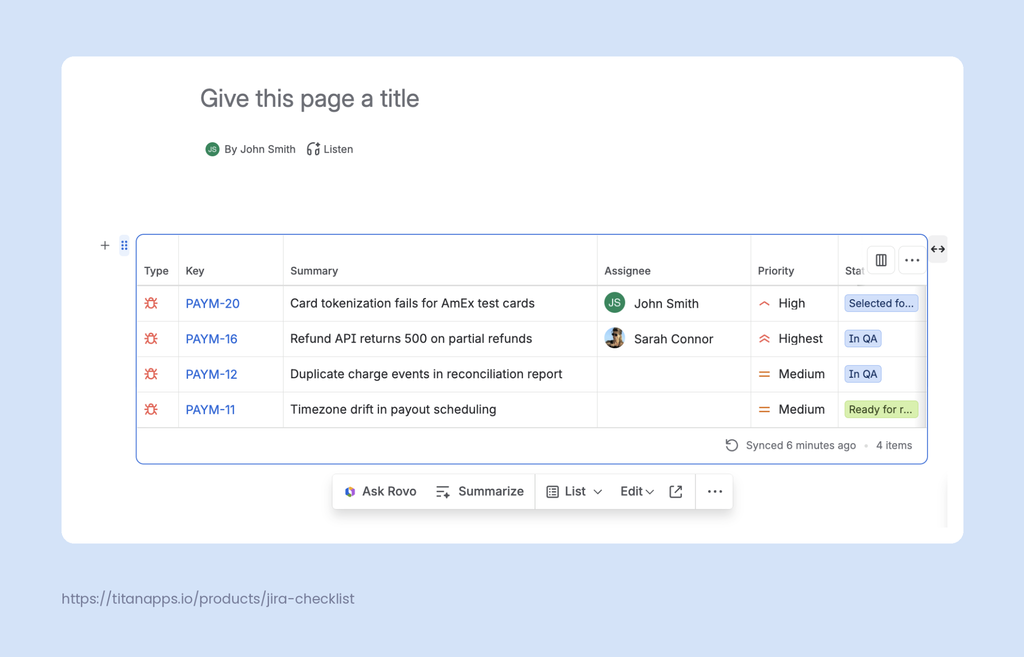
Email isn’t the only way to reach people outside Jira. Run your filter, copy the URL, and paste it into a Confluence page. Confluence converts the link into a live list of matching work items. The page keeps following the filter, so when you change the criteria in Jira, the list on the page changes too. Use the column picker to add fields, including custom ones, and the List menu to switch between a list, a card, and an inline link.
How to Use Filters in Jira Dashboards
Classic dashboards in Jira show work through gadgets, and most gadgets need a source. Native gadgets take a space or a saved search, while app gadgets can take a JQL query instead. A saved search is the reusable option: create it once, then feed several gadgets from it. Our guide to Jira dashboards covers building the dashboard itself, so this section will focus on how the filters fit into them.
Note
Atlassian started rolling out an upgraded Jira dashboard experience, however, it is still in the early access phase. In this article, we refer to the existing functionality most users know as dashboards, or classic dashboards.
Point a Gadget at a Filter
- Open the dashboard and switch to edit mode.
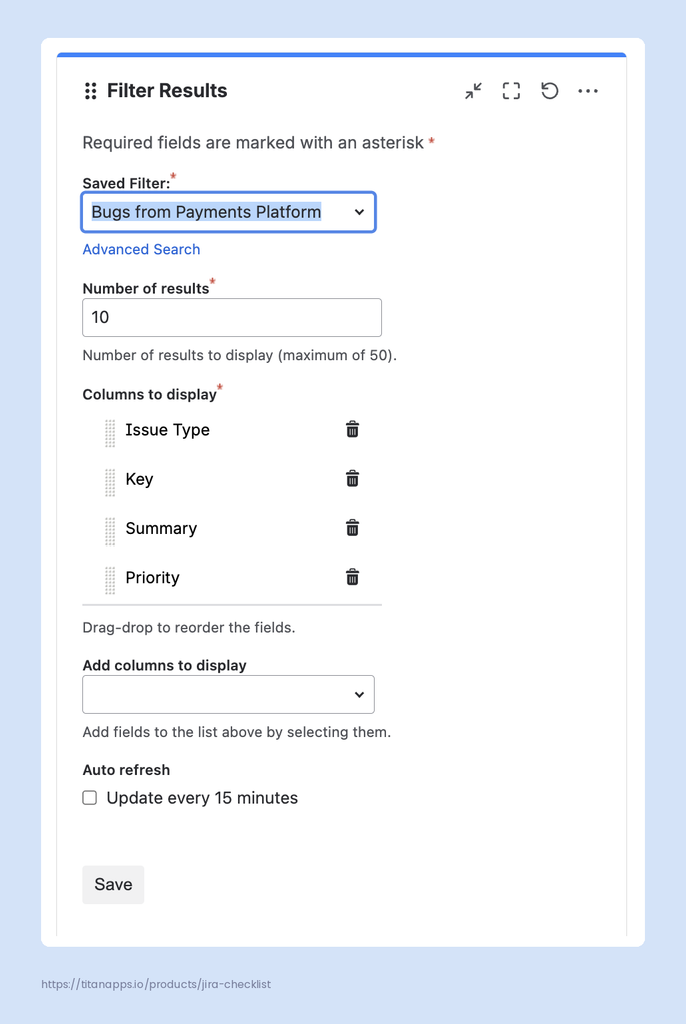
- Add a gadget, such as Filter Results or the Jira Two Dimensional Filter Statistics gadget.
- In the gadget settings, choose your saved filter as the source.
- Configure and save the gadget.
Track Checklist Progress and Ownership on a Dashboard
Native gadgets count work items. Teams that accommodate work steps or checks as checklists can use three Smart Checklist gadgets:
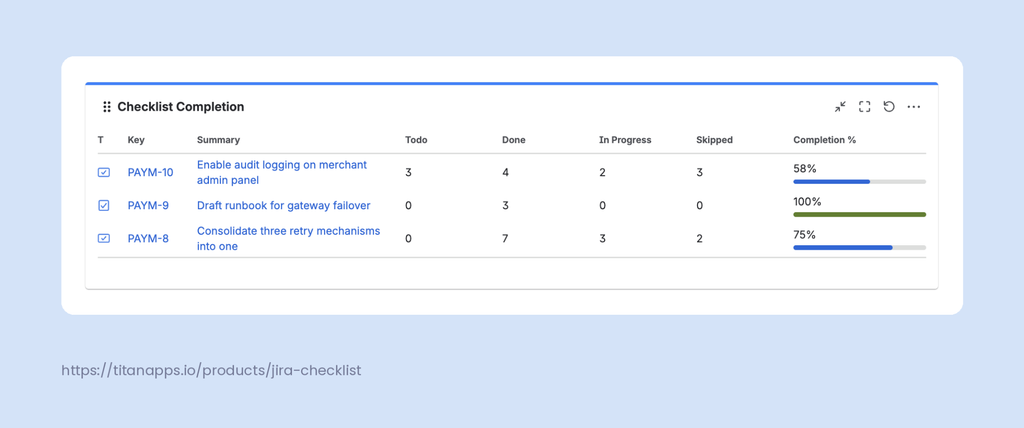
- Checklist Completion. Checklist progress across work items, epics, and spaces, grouped by Project, Epic, or Issue, with completion rates and an optional breakdown by Todo, In Progress, Skipped, and Done.
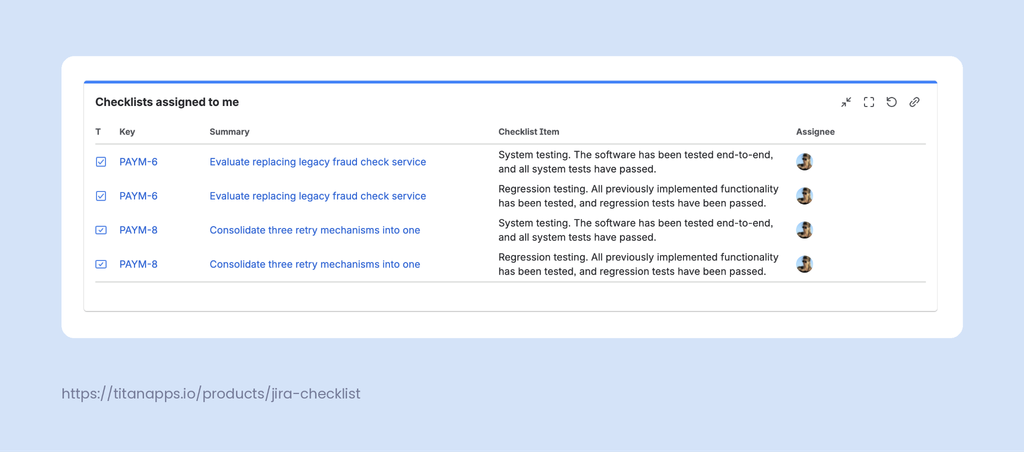
- Checklists Assigned to Me. Despite the name, this one isn’t limited to the creator. You pick the users to monitor, so a manager can watch a whole team.
- Checklist Pie Chart. Item distribution as a chart, grouped by status category, status, or assignee.
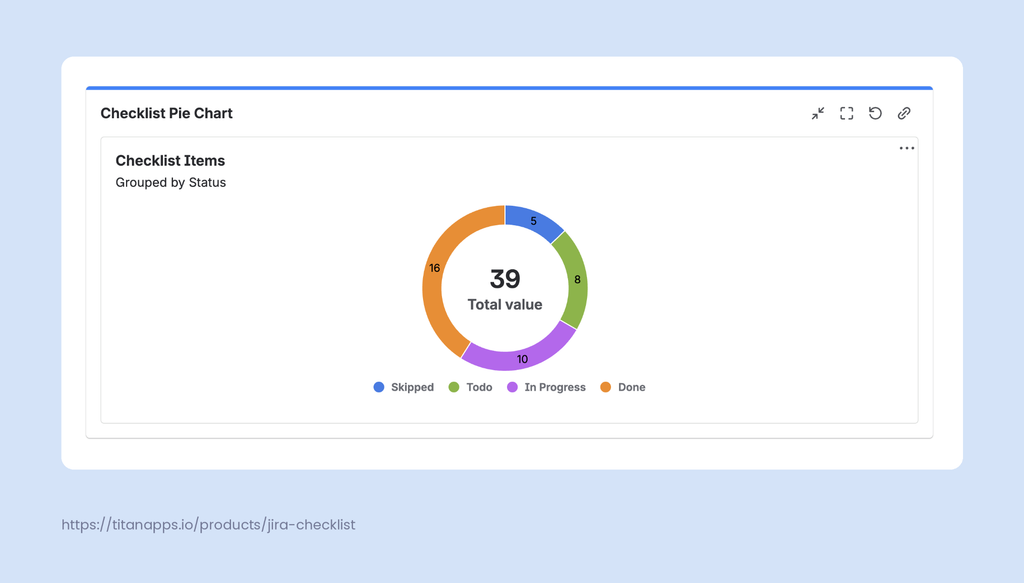
Checklist completion and Checklist Pie Chart scope their data with JQL rather than a filter picker. That still works with your saved searches, because a query can reference one by ID, as in filter = 10369. The gadget then follows the filter, so editing the filter changes what the gadget counts. The assigned items gadget works differently: it has no JQL field at all, and gathers checklist items for the users you selected.
To add any of those gadgets, open a dashboard, select Edit dashboard, then search for the gadget name and click Add.
Note
You can add the same gadget more than once. Teams often run several Checklist Completion gadgets side by side, each with its own query and grouping.
How to Filter a Whole Jira Dashboard at Once
Classic Jira dashboards have no single control that filters every gadget at once. Each gadget carries its own source, so changing the view means editing them one by one. However, there is a workaround.
Point Every Gadget at One Filter
Save one filter that holds the scope you keep changing, such as the space and the sprint. Then build each gadget’s query on top of it by referencing that filter by ID:
filter = 10369 AND statusCategory != Done
When the sprint rolls over, you edit the base filter once, and every gadget built on it follows.
Use a Board When People Want to Toggle Between Views
If your team wants to switch between views in no time, a classic dashboard is the wrong tool. Board quick filters toggle on and off in one click, and gadgets have no equivalent. A dashboard suits a relatively fixed picture that several people read the same way.
Atlassian Marketplace apps take another route. Some of them let you filter every gadget at once, which is worth a look if none of the above fits how your team works.
Jira Filter Examples for Common Team Needs
Jira’s default filters already cover personal and recency slices. You get your own open work, what you reported, and what changed in the last week. A saved search earns its place when it adds something those don’t already have: a cross-space scope, a parent-child relationship, or a field condition. Here are the examples, grouped by the job they do.
Filters for Release and Sprint Planning
- Open work in the next release. The fixVersion field ties a work item to a release, and unreleasedVersions() returns the ones that haven’t been shipped yet. This filter shows what has to be done before the release in a specific space is ready:
fixVersion in unreleasedVersions(PAYM) AND statusCategory != Done ORDER BY duedate ASC
- Filter by epic. Jira uses the parent field for this, so you point parent at one or more epic keys. Opening an epic already shows its children. A filter pays off when you need more. It spans several epics, takes a condition, and feeds a dashboard or an export. Note that parent returns direct children only, so subtasks under those tasks or stories won’t show up. To include them, use parentEpic instead. It returns the epic itself as well, so add AND issuetype != Epic if you only need the work underneath.
parent in ("PAYM-25", "PAYM-27") AND statusCategory != Done
- Work due in the next two weeks. Deadlines are the other half of release planning, and the due date field takes relative values. This one lists open work due between today and two weeks out, soonest first. Drop the first condition to pull in everything already overdue as well:
duedate >= startOfDay() AND duedate <= 14d AND statusCategory != Done ORDER BY duedate ASC
Filters That Catch Messy Data
- Work items without labels. To filter by label, you use something like labels = urgent or labels in (frontend, backend). Labels are optional, so plenty of work carries none. However, their absence matters when boards, dashboards, or automation rules route on labels, since unlabeled items drop out of every view built on them. This is how you find such work items, and the same EMPTY keyword works on fields that support IS and IS NOT, including many custom fields:
labels IS EMPTY AND created >= -30d ORDER BY created DESC
Filters for Keeping Track of the Team Workload and Progress
- What landed on people’s plates today. The Updated recently default filter moves on any edit, including a comment. This one fires only when the assignee field changes, so it catches fresh assignments and handovers alike. Add CHANGED TO currentUser() for your own work, or scope it with project in (…):
assignee CHANGED AFTER startOfDay()
- What closed this week. A status tells you where an item sits now, not when it got there. This query reads the move itself. It goes by status category rather than status name, so it works whether your workflow ends at Done, Ready for release, or something else:
statusCategory = Done AND statusCategoryChangedDate >= startOfWeek()
For more examples, our guide to JQL functions and fields works through triaging unassigned work, tracking workload across spaces, and finding stalled items.
Best Practices for Managing Jira Filters
- Scope each filter to its spaces first. A query with no space boundary returns everything you can see, which buries the rows you wanted. Name the spaces, then add status, assignee, or dates on top.
- Use functions instead of fixed values.
currentUser()lets one filter serve everyone who opens it. A Jira JQL query for current sprint work uses sprint inopenSprints(), which follows the active sprint. Jira JQL date functions do the same for reporting windows. PairstartOfMonth()withendOfMonth()for a date range that rolls forward on its own. - Build on fields that can’t drift. Labels take free text, and anyone can create one by typing it, so a typo or a plural can drop results out of your report. Fields with a defined set of values, like a dropdown or a select list, hold their shape over time. Jira components work the same way, which makes them a steadier grouping.
- Name filters for what they return. “Payments project open bugs” tells the person what they are looking at, while “My filter 2” tells them nothing. A shared filter gets read by people who weren’t there when you built it.
- Share no wider than the audience. A board or gadget inherits visibility from its filter, so a private filter leaves teammates with an error instead of results. Sharing with everyone is risky, since filter names and results can carry information some people shouldn’t see.
- Check ownership when people leave. Filters outlive their owners. So one left behind by a deactivated account with no other editors is stuck – others can use it, but not change it or delete it. A quarterly sweep of the admin Filters page catches such cases before anything based on those orphaned filters breaks.
Wrap-Up: Getting Started with Jira Filters
If you have never saved a filter, start with the search you type most often. Run it, then save it with a name that says what it returns.
Keep in mind that it can do more than show a list of work items on your Search page. Try adding it as a board’s filter, or put it behind a dashboard gadget, so it works without you opening search at all.
If your filter can be of use to someone else on the team, share it. Swap the hardcoded details for functions like currentUser() and add viewers and editors.
When you catch yourself rebuilding the other queries several times, add new filters. Star the ones you need most often to keep them one click away.
Frequently Asked Questions about Jira Filters
Can I add quick filters for Jira dashboard gadgets?
No, not on classic dashboards. Quick filters belong to boards, not dashboards. A gadget uses a saved search or a space as its source, and it has no row of buttons to toggle. To change what several gadgets show at once, point them all at one saved search and edit it in one place. Some Marketplace apps let you filter every gadget at once.
What is the difference between a filter and a quick filter in Jira?
A saved search is a query you store and reuse anywhere: on boards, in gadgets, in subscriptions, or inside another query. A board quick filter is an extra condition that narrows one board when you click it. You configure quick filters on the board itself.
Where do I find filters in Jira?
Select Filters in the sidebar. The menu lists your starred filters first, then the ones Jira ships with under Default filters. View all filters opens the full list of filters people created, which you can search by name, owner, or space. The default ones don’t appear there. The Filter panel in the list view has its own Saved filters menu, and admins reach everyone’s shared filters in Settings, then System, then Filters under Shared items.
How can I use JQL filters in Jira?
Switch to JQL in search, write your query, then select Save filter. From there, the filter works as a gadget source, a board filter, an email subscription, or a reference inside another query, written as filter = 10369. Our JQL guide covers the syntax.
Can other people see my Jira filters?
Only if you share it. A filter you haven’t shared is private, so only you and Jira admins can see it. Sharing adds viewers, who can run it, and editors, who can change it. What each person sees still depends on their own permissions, so results can differ.
Share both. A dashboard carries its own sharing settings, and each gadget still reads the filter behind it. If you share the dashboard while the filter stays private, your teammates open the dashboard, and the gadget shows an error instead of results. Our dashboard guide covers the dashboard side.
Is there a way to see all filters and dashboards?
Not as a regular user. You see your own filters and the ones shared with you under View all filters. Jira admins see every filter, private ones included, in Settings, then System, then Filters under Shared items, with Dashboards listed beside it. Note that the default filters appear in neither list.