






 Tools for Jira
 Tools for monday.com





Jira has a variety of views, built-in filters, and search configurations for sifting through work. However, that is not enough to cover every scenario for every team. This is where JQL, or Jira Query Language, comes in. It offers a variety of building blocks, including fields and JQL functions, to handle search cases that the basic filters cannot express.
Still, that versatility makes JQL harder to pick up. You need to know how to construct a query before it pays off. Jira JQL functions that return values dynamically when the query runs can be especially puzzling. This article shows how to use them alongside other JQL building blocks, like fields, to address three common project management scenarios.
TL;DR
- JQL combines fields, operators, keywords, and values that can be supplied by functions. The latter make JQL queries more flexible and easier to maintain by providing the right values when queries run.
- Basic search handles most everyday lookups, but it can’t replace JQL. It mostly joins simple comparisons with AND, more complex scenarios (with OR/NOT and grouped statements) are out of reach. Most functions have no UI equivalent either. Automation rules and board card colors need a JQL string and offer no query builder.
- For triaging new, unassigned work across spaces, use
startOfDay()orstartOfWeek()functions instead of hardcoded dates. - For tracking active work across spaces, try
currentUser()ormembersOf()functions rather than inserting user IDs. - To find stalled work across several spaces with multiple workflow statuses, consider using the
statusCategoryfield to filter unfinished work andstatusCategoryChangedDateto see when it last moved between status categories (To Do – In Progress – Done).
JQL Quick Start Guide
What is JQL?
 Definition
Jira Query Language (JQL) is Atlassian’s advanced search syntax for Jira. JQL handles complex search cases like compound conditions, changelog history, functions like currentUser(), etc. It works across Jira Cloud and Data Center and combines fields, operators, functions, and keywords into queries you can save, share, and reuse.
Where Can I Use JQL?
- Advanced search. In the Search work items bar, toggle from Basic to JQL and enter your query. You can sort and export the resulting list.
- Saved filters. Save any JQL query as a named filter. You can share the filter with your team, subscribe to it for email digests, or use it to power the surfaces below.
- Dashboard gadgets. Add a saved filter to a gadget like Filter Results or Pie Chart. The JQL behind the filter determines what the gadget shows on your dashboard.
- Board scope. A company-managed Jira board runs on a filter that defines which work items appear on it. When you want a board that spans more than one space, JQL in that filter is how you get there.
- Automation rules. A scheduled trigger can include a JQL query that defines which work items the rule runs against. A JQL condition can check the current work item and decide whether to continue to action.
- Board card colors. In company-managed spaces, you can color-code board cards based on JQL queries. Cards matching your query take the assigned color, turning signals like aging or high priority into visual cues on the board.
- Confluence Jira work items macro. Embed a live Jira query into a Confluence page or live doc using the Jira work items macro. Type /jira in the editor to insert it. The page shows the matching work items and updates automatically as they change.
The Building Blocks of a JQL Query
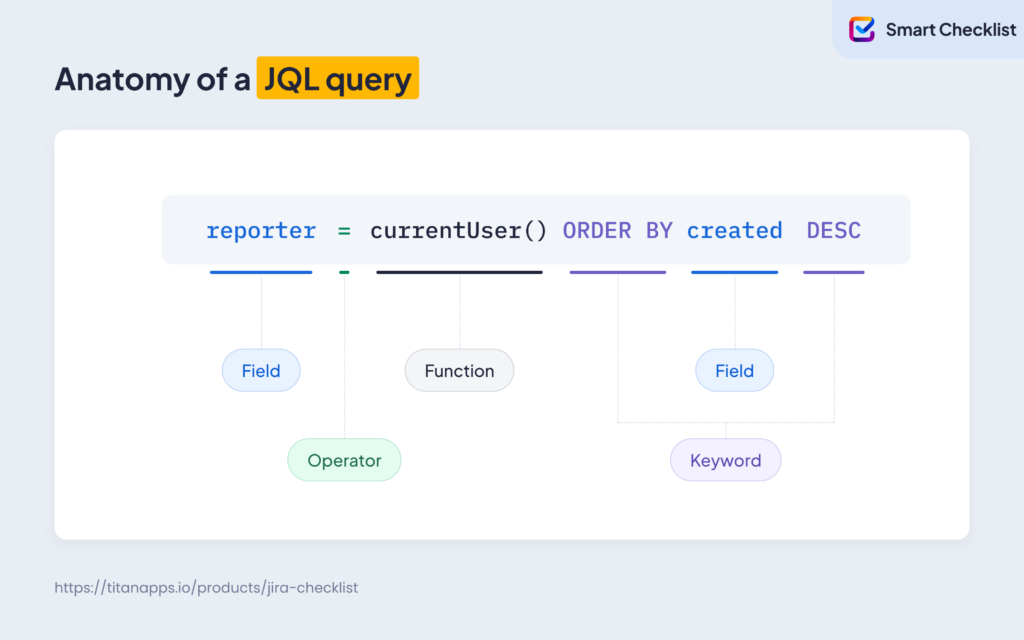
| Part | What it does | Example |
|---|---|---|
| Field | The work item attribute you want to search on | status, assignee, created, project, issuetype |
| Operator | Defines how the field is compared to the value | = (equals), != (Not equals), > (greater than), < (less than), IN, IS |
| Value or function | What the field is compared against – either a fixed value or a function that returns a value dynamically | "In Progress", currentUser(), startOfDay(-7d) |
| Keyword | Combines multiple parts of the query or sorts the results | AND, OR, NOT, ORDER BY, EMPTY |
Here is how they come together:
What is a JQL field?
Definition
A JQL field is how you refer to a Jira field in a query – the same fields you see in the work item view (like status, assignee, priority), plus a few that Jira exposes only through JQL (like resolved). Each Jira field has a corresponding JQL name, including any custom fields your team creates. In a query, a field comes first, followed by an operator, then the value it is compared against, for example, assignee = currentUser().
What is a JQL Function?
Definition
A JQL function is a predefined command that returns one or more values when the query runs. It appears as a word followed by parentheses. Instead of hardcoding a value like a specific date or username, you use a function to calculate it at query time. For example, currentUser() returns whoever is running the query, and startOfDay(-7d) returns midnight at the start of the day seven days ago. See the Atlassian document on Jira Functions for the list of available functions and how to use them.
Basic Search vs JQL: Why Do We Need Both?
Basic search is a user-friendly query builder that covers most common cases. JQL is the underlying search syntax that makes it work. Basic search does allow you to build JQL queries with various fields, operators, keywords, and even functions. However, it has its limits and can’t fully replace writing JQL queries:
- Basic search can’t accommodate all that JQL can do. Mostly you get a series of Equals and Not Equals comparisons joined by AND. What it can’t do is group conditions like assignee is
EMPTY AND (labels != triaged OR labels is EMPTY). You can’t pick a function in Basic search – the UI inserts it for you. Choose a group in the Assignee filter, and the query underneath is assignee inmembersOf("some_group_name").However, most functions have no UI equivalent. Also, some fields appear in the filter list but can’t be filtered. Pick Linked Issues or Attachment in Basic search, and Jira offers you a “Switch to JQL” link instead of a filter.

- Some Jira features, such as automation and conditional card color, require JQL queries, but don’t have a query builder. You can still build the query in Basic search, then switch to JQL to reveal the syntax and copy it across. However, what you carry across is syntax, not a set of Basic search toggles.
So the two work together. Basic search is quicker for everyday lookups, and switching to JQL shows you the query it wrote, which is a good way to learn the syntax and a solid starting point when you need to extend it.
JQL Query Examples for Three Common Scenarios
Scenario 1 – Triaging Newly Created Work Items
Ideas from customers and stakeholders, plus spotted bugs, tend to spawn multiple work items. Unsupervised, they pile up in the backlog. For a single space, this may be manageable. A team lead or a product manager lives in the space, knows what came in, and assigns as they go. However, a cross-space initiative can strain this model to the breaking point.
Can you solve the problem without JQL? Not quite. A board won’t single out what arrived this morning, and it covers one space at a time. Jira Plans (Premium and Enterprise) does give you a cross-space view, but it is built for planning and timelines rather than daily inflow filtering.
The basic search comes close, as it can surface work items “created in the last 1 day”. However, it uses created >= -1d, a rolling 24 hours. Run it at 9 a.m., and yesterday afternoon comes with it. For a daily triage pass, you want everything since midnight, which is what the startOfDay() function gives you (more on that below).
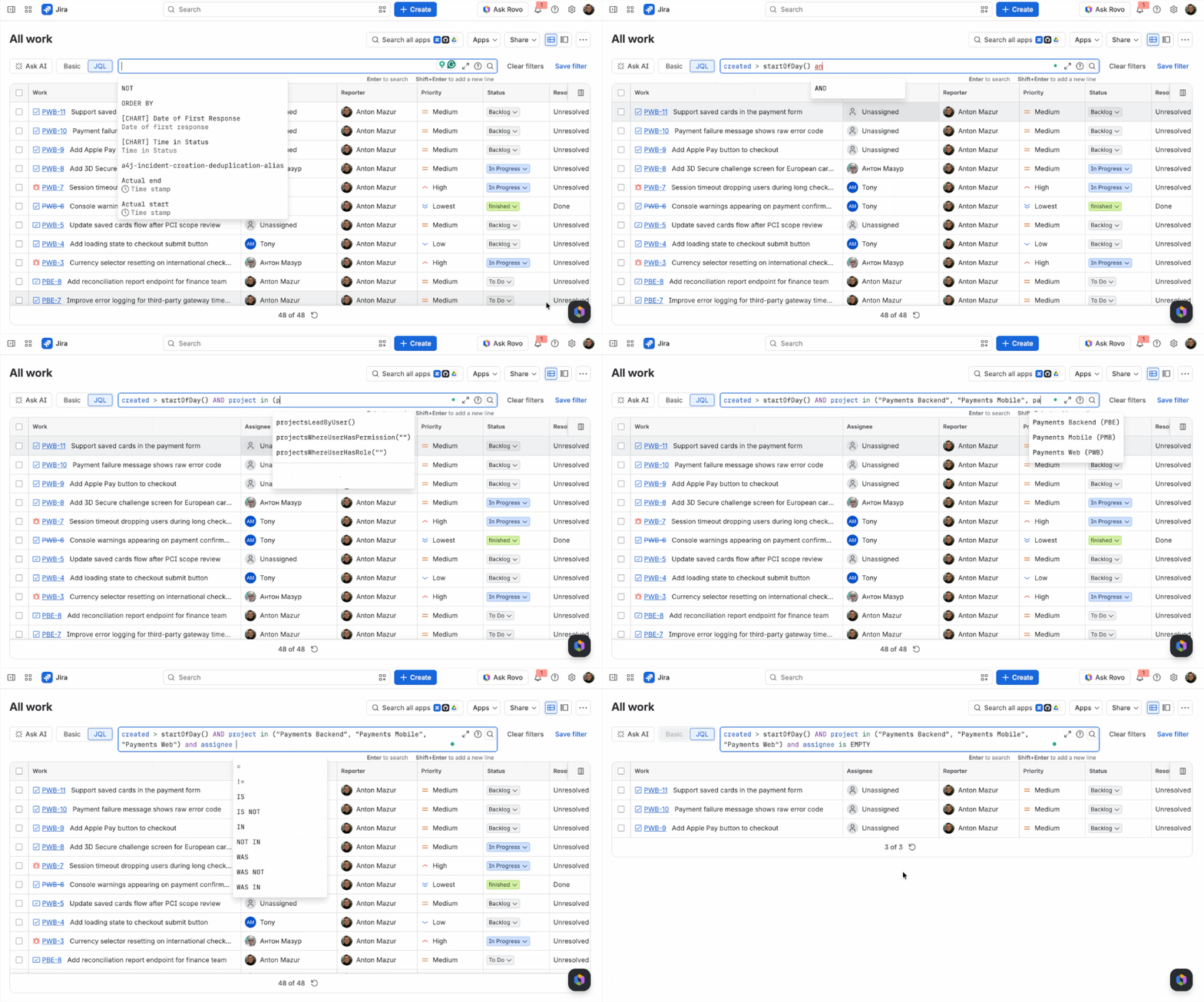
JQL Query Example. A delivery manager coordinates a payment app initiative spanning three Jira spaces: Payments Backend (space key: PBE), Payments Mobile (PMB), and Payments Web (PWB). To see all unassigned work items created in all those spaces since the start of the day, they can create the following filter:
created > startOfDay() AND project in ("Payments Backend", "Payments Mobile", "Payments Web") AND assignee is EMPTY
To list the required spaces, you can insert their space keys (like PBE, PMB, PWB for the example above) or start typing each name and use Jira JQL autocomplete. It also suggests available users, fields, operators, JQL keywords, and functions. Type a few letters, then choose the right option from the dropdown.
Pro Tips
- Avoid hardcoded dates. Filtering dates in JQL is tricky. For instance, if you need work items created on August 18,
created <= 2026-08-18might seem logical. However, this query has two flaws: a) it won’t surface the work created on August 18, because the boundary is implicitly midnight; b) it will surface the work created before August 18. To make this syntax work, you can usecreated >= 2026-08-18 AND created < 2026-08-19.And you will need to update the dates each time.
Relative date functions like startOfDay offer a better way, as you don’t have to update your query. To find the work items created since the start of the day when the query is run, you can use created > startOfDay(). If you need the work items created since the start of the day X days ago, use created > startOfDay(-Xd).
Note
This family of functions also includes startOfWeek(), startOfMonth() and startOfYear(). JQL also has their opposites: endOfDay(), endOfWeek(), endOfMonth(), endOfYear(), and startOfDay(). To learn more, see the JQL functions documentation.
- Account for empty values while filtering. An unassigned item isn’t always unattended. It may be triaged and parked for later. If you mark those with a label like triaged, you’ll want to exclude them. But
labels != triagedalone won’t work: JQL doesn’t return work items with no value in the field, so every unlabeled item disappears too. Add(labels != triaged OR labels is EMPTY)to the query above. The parentheses matter, since without them the OR overrides the rest of your conditions.
Scenario 2 – Tracking active work across spaces
Shared platform teams, work rotations, or cross-functional initiatives pull engineers into several spaces at once. Imagine a team lead trying to answer a question: Is a particular team member’s effort distributed as planned, or is one project taking up too much effort? They have to open multiple boards, click through each backlog, and mentally aggregate what they find, which is far from efficient or convenient.
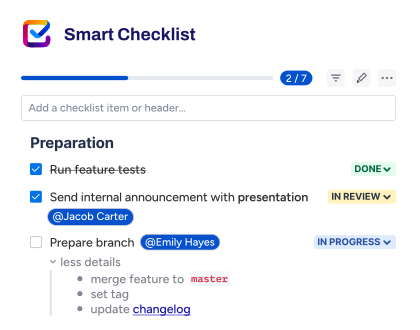
Sometimes the work distribution doesn’t live at the work level. Teams that use checklists like Smart Checklist for Jira by TitanApps to keep boards clean instead of spawning multiple subtasks run into a different visibility challenge. A work item assignee owns the work item, but individual items on its checklist may be assigned to different people. In this section, we will explain how to use JQL to search both on work-item and checklist-item level.
Can you solve the problem without JQL? The built-in “Your Work” page shows one person’s own work across spaces, but you can’t use it to watch someone else. Jira Plans, as we mentioned, wasn’t designed for this task either. Multi-space boards, dashboards, and calendars can span spaces, but they all require JQL queries or saved filters.
With Basic search, you can query the uncompleted work assigned to a particular person across different spaces. Nonetheless, there are two caveats. Firstly, the interface supports Atlassian groups, but not teams. If you specifically need a team view, that can be a problem. Secondly, you can’t search the assignees for checklist items with basic search.
JQL Query Examples: Work-Item level
Let’s return to the payment software Jira setup from the previous scenario. The query below shows work items from three spaces assigned to a particular person that aren’t marked as Done. Also, they are sorted to show those that haven’t been updated the longest on top:
assignee = <user> AND statusCategory != Done AND project in ("Payments Backend", "Payments Mobile", "Payments Web") ORDER BY updated ASCReplace <user> with the target person – just type in their name and Jira will offer suggestions. To check your own workload, use the currentUser() function instead.
To see the whole team’s work, use the membersOf():
assignee in membersOf("team_name") AND statusCategory != Done AND project in ("Payments Backend", "Payments Mobile", "Payments Web") AND ORDER BY updated ASCTo spot work-effort imbalance across spaces, sort by space first, then by update recency. If one space has eight unfinished items and another has one, it may suggest an imbalance:
assignee = <user> AND statusCategory != Done AND project in ("Payments Backend", "Payments Mobile", "Payments Web") ORDER BY project ASC, updated ASCJQL Query Examples: Checklist-item level
To find all the work items on the instance that are not yet Done and have checklist list items from Smart Checklist for Jira assigned to a particular person, you can use the following JQL query:
SmartChecklistItemAssignee ~ "userID" AND statusCategory != DoneTo find the required <userID>, go to Administration / Directory / Users, click the user from the list, and copy the string of numbers and letters in the URL after “/users/”. Watch out for things like “?tab=productAccess” – they are not part of the ID.
You can also add to the query a list of specific spaces using project in (<project 1>, <project 2>,…). For more details, see the JQL Search section in the Smart Checklist documentation.
Pro Tip
Use status categories, not status names. status != Done looks right, but it breaks if a team renames their Done status to something like Finished, Shipped, Closed, or Completed. However, every custom status in Jira maps to one of three underlying categories: To Do, In Progress, or Done. statusCategory != Done catches finished work regardless of how the team named it.
Scenario 3 – Finding work that has stalled
Two work items are marked as In Progress. The status name suggests something is happening. However, this is true for only one of them, which was worked on this morning. The other stalled a while ago after the engineer got pulled onto something urgent, switched to other tasks, and never got back to it. The problem is, you can’t tell the difference unless you remember how each item got where it is or check their history logs. Cross-team work with multiple tasks makes both options especially challenging.
Can you solve the problem without JQL? Sprint reports and burndowns track completed work and remaining scope, not “actively working” versus “just sitting there.” The native Average Age Report tracks the average age of unresolved work since creation, which isn’t the same as time since anything last happened. It also returns a trend chart rather than a list of specific items to act on. Board card colors can visually highlight aging cards – but the feature needs a JQL query.
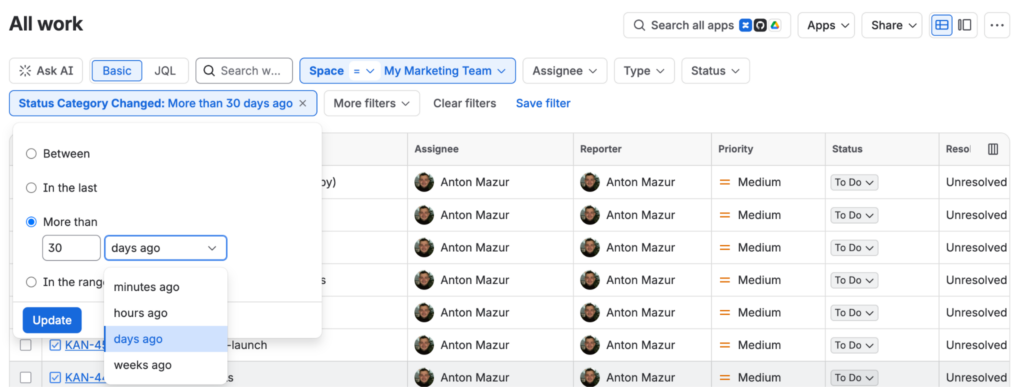
With the basic search, you can find Status Category Changed in More filters and set it to “more than X days before.” However, Status Category Changed tracks movement specifically between status categories (To Do – In Progress – Done). Some workflows have several statuses within the In Progress category – In Progress, In Review, Changes Requested, Blocked, Waiting for Customer, and so on. Status Category Changed won’t tell you when a work item last changed status inside a category, which needs status changed and has no filter equivalent.
JQL query example
The query below returns work items in the Payments Backend space that are currently In Progress and changed status more than 30 days ago:
project = "Payments Backend" AND status = "In Progress" AND status changed before -30dIf you are interested only in work items that progressed from To Do to In Progress status category but moved no further for a long time, use statusCategoryChangedDate. For the same reason, you might want to employ statusCategory rather than status to find the work items that are In Progress.
project = "Payments Backend" AND statusCategory = "In Progress" AND statusCategoryChangedDate < -30dOne Atlassian knowledge base article calls statusCategory and statusCategoryChangedDate functions. In JQL syntax, they behave as fields: no parentheses, and they sit to the left of the operator, where a field goes. You can’t pass them an argument the way you can with startOfDay(-7d).
To spot stalled work across several spaces, use project in (project 1, project 2,…). To see work assigned to one person, add assignee = <user>.
Pro tips
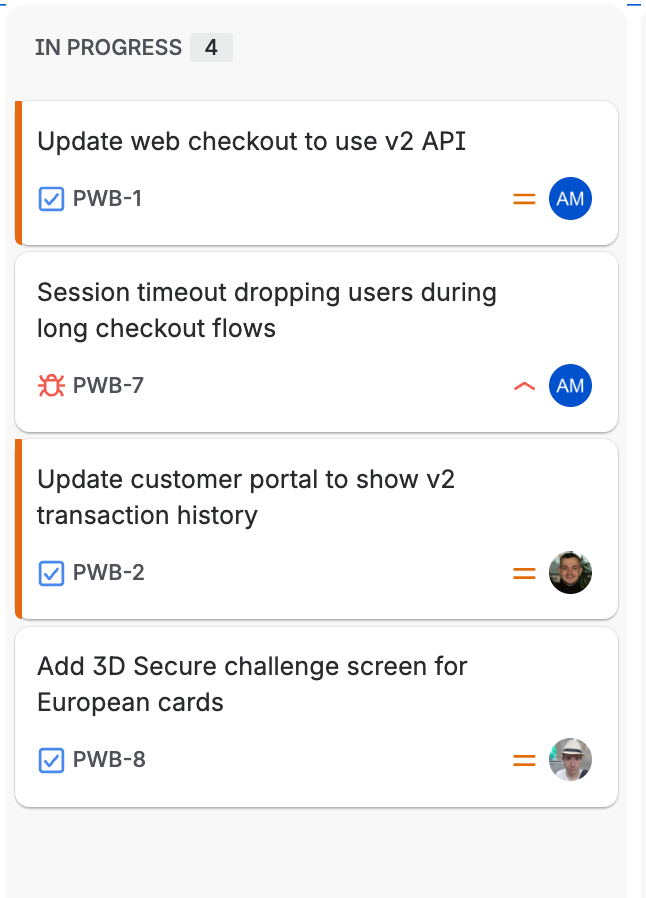
updatedwon’t show you the full picture. The natural first attempt for stale work isupdated < -30d.It looks right and returns results. But updated moves for every edit on a work item – a comment added yesterday, a priority changed last week, a label added by an automation rule. A work item with an active comment thread but no actual workflow movement in months would still be “updated”.status changed,however, tracks specifically when a work item’s status transitioned.statusCategoryChangedDategoes even further and lets you check when the status category changed.- Make aging work items visible on the board. If your space is company-managed, you can set the work item card color based on how recently it changed status. Go to Board settings / Card colors / Select method / Query / Add color, select color, and paste the query similar to the examples above. The work items that fit the conditions are marked by the chosen color (red in the example screenshot below). Read more in the Customize cards Atlassian documentation.
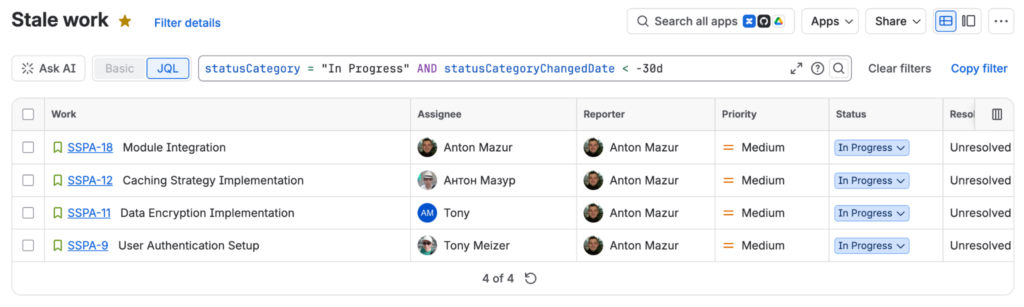
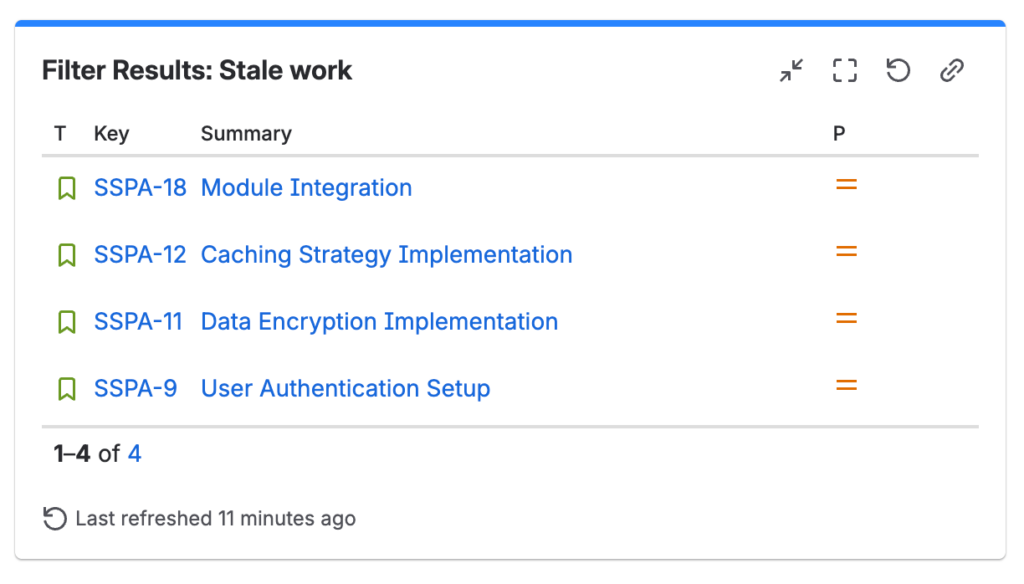
- Use a saved filter or a dashboard. If you regularly need a JQL query for stale work, save it as a filter or create a dashboard gadget (Filter Results). More on how to set up a dashboard in our dedicated article on Jira dashboards.
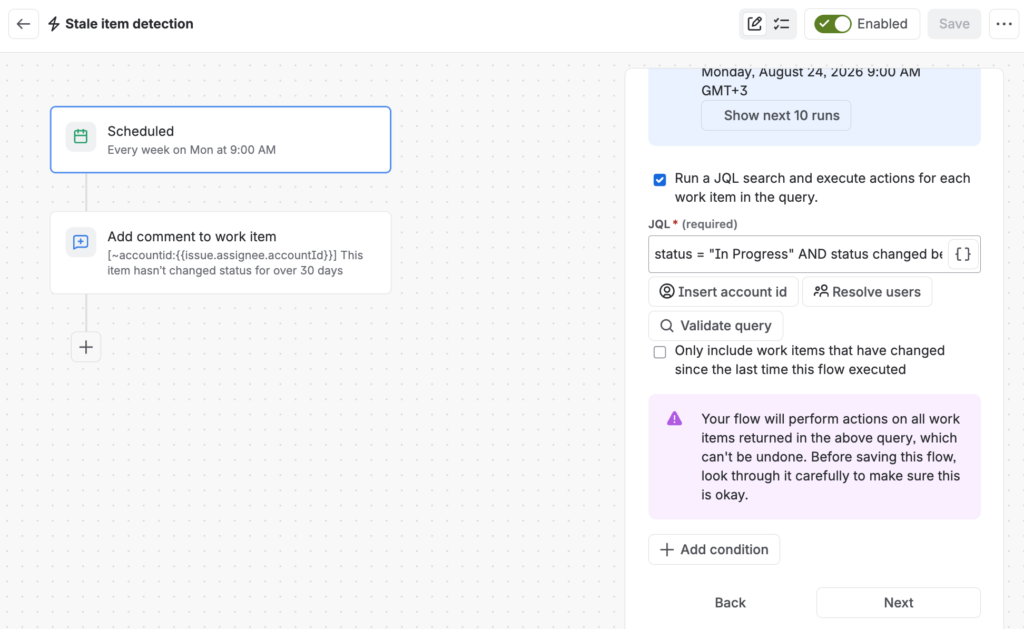
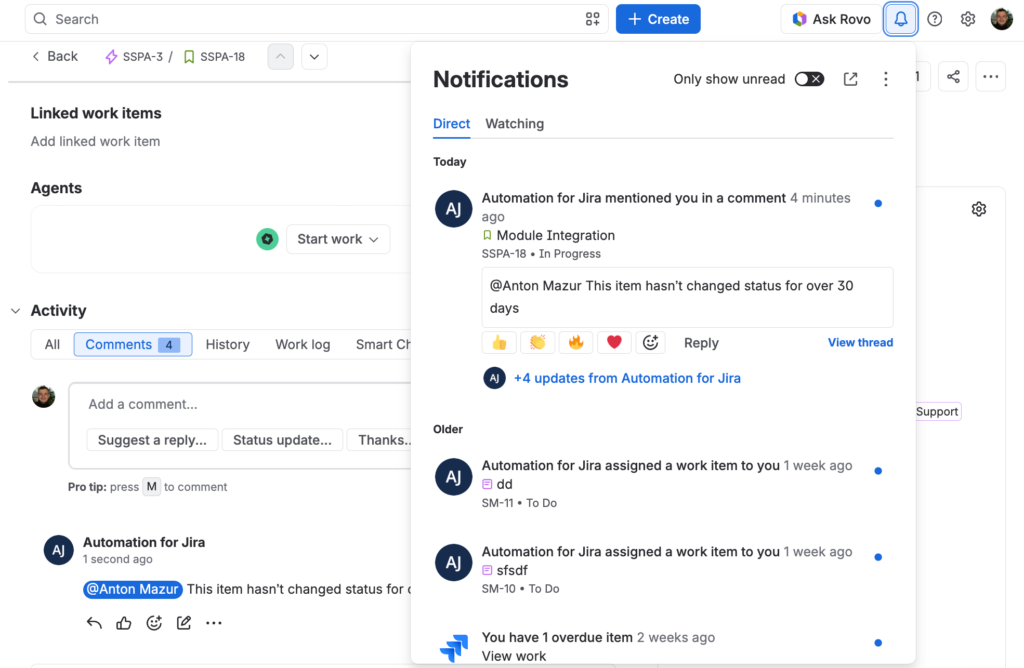
- Automate the stale items sweep. A filter or dashboard works well if you remember to check it regularly. Automation can bring the stale work to your attention at specific intervals. Create a scheduled Jira automation rule to run the JQL condition like in the example above and add a comment tagging the assignee or reporter (e.g., @Assignee_Name This item hasn’t changed status for over XX days) in each item that matches the condition. See the example below:
The result this automation produces: a comment with a mention and, subsequently, a notification.
Learn more about automation in Jira from our article A 2026 Jira Automation Guide With the Top 10 Most Common Use Cases.
Wrap-Up
JQL keeps Jira customizable and flexible to meet a wide variety of needs. It handles search cases the filter UI can’t express, and it gives you a query string you can reuse in automation rules, dashboards, and board card colors. In this article, we offered several JQL query examples featuring different functions and fields to handle scenarios like backlog triage, cross-team workload management, and stalled work. We hope they will make configuring JQL for your needs less daunting and your work in Jira more efficient.
Frequently Asked Questions about JQL and Jira JQL Functions
What’s the difference between JQL operators and functions?
JQL operators and functions do different jobs. An operator compares a field to a value – =, !=, >, IN, and so on. A function returns a value dynamically when the query runs. For instance, currentUser() returns the person running the query, startOfDay() returns midnight today, membersOf(“Engineering”) returns everyone in the Engineering team. Functions fit into queries wherever a value would go. For example, in assignee = currentUser(), = is the operator, and currentUser() is the function that provides the value.
Is there a cheat sheet for Jira JQL?
Yes. Atlassian maintains an official JQL cheat sheet that covers the query structure, common operators, key functions, and example queries you can copy. That said, the JQL editor inside Jira does a lot of the work for you. As you type, it autocompletes field names, functions, and values, highlights syntax, and flags errors on the spot.
What is advanced search in Jira Cloud?
Advanced search is Jira Cloud’s JQL-based search mode – the alternative to basic filters. You access it from the work items search page, where you can toggle from Basic to JQL. Advanced search lets you write text queries using fields, values, operators, and functions to match complex conditions the basic search can’t handle. With their help, you can filter work by changelog history, use relative dates, and run subqueries that reference a saved filter, etc.
How do I use JQL functions to filter issues by custom fields in Jira?
To filter by a custom field in JQL, reference the field by its name, like "Story Points" > 5. The JQL editor’s autocomplete suggests custom field names as you type. Custom fields work with the same operators as standard fields, though which operators apply depends on the field type. Functions work with custom fields too, as long as the types match. For instance, startOfDay() supports Date/Time custom fields, and user functions like currentUser() support custom fields of type “User”.
Can I create my own custom JQL functions in Jira Cloud?
No, Jira Cloud does not let users create their own JQL functions. For that, you will need to install dedicated Atlassian Marketplace apps. However, the list of built-in JQL functions is extensive and includes dozens of options that cover most day-to-day scenarios. Unless you need something really niche, you’ll likely find the function you need without constructing a new one.
Does JQL work in Jira Service Management?
Yes. JSM runs on the same JQL engine, so everything in this article applies. It also adds fields and functions you won’t find in a software space. SLA functions like breached() and remaining() filter requests by how they’re tracking against their target. Approval functions like pending() and pendingBy() surface requests waiting on a decision.