





 Tools for Jira
 Tools for monday.com





Dark mode went from a nice-to-have to a must-have across nearly every digital product. Jira was no exception. For years, the Atlassian Community voted dark theme as the number one feature request for the development team.
Delivering it wasn’t simple. Jira had been built over 20 years using hard-coded color values across thousands of screens. As a result, there was no centralized way to swap a color palette. Atlassian had to rebuild its entire approach to color management, coordinate with thousands of Marketplace app vendors, and process over 5,000 pieces of user feedback before the feature reached general availability.
Today, dark mode is available in Jira Cloud and Jira Data Center starting with version 10.3. This tutorial covers how to enable it, what to expect, and how to get the most out of it.
What Is Jira Dark Mode and Why Do People Use It?
 Definition
Jira dark mode is a built-in theme option that replaces the default light background with darker tones across the interface. Text, icons, and UI elements are adjusted for contrast, so everything stays readable against the dark background.
Why do people use Jira dark mode? The reasons vary. Some find it easier on the eyes during long sessions. Others prefer the aesthetic – a darker workspace feels more focused and less cluttered. For users with light sensitivity or certain visual conditions, it’s an accessibility improvement. And if you already use Jira alongside tools like VS Code, Slack, or Notion in dark mode, switching Jira over keeps your whole setup consistent.
Apart from the Data Center, Jira dark mode applies across Atlassian Cloud products. Jira, Jira Service Management, and Confluence all support the dark theme independently. This means you can enable it in each of them separately.
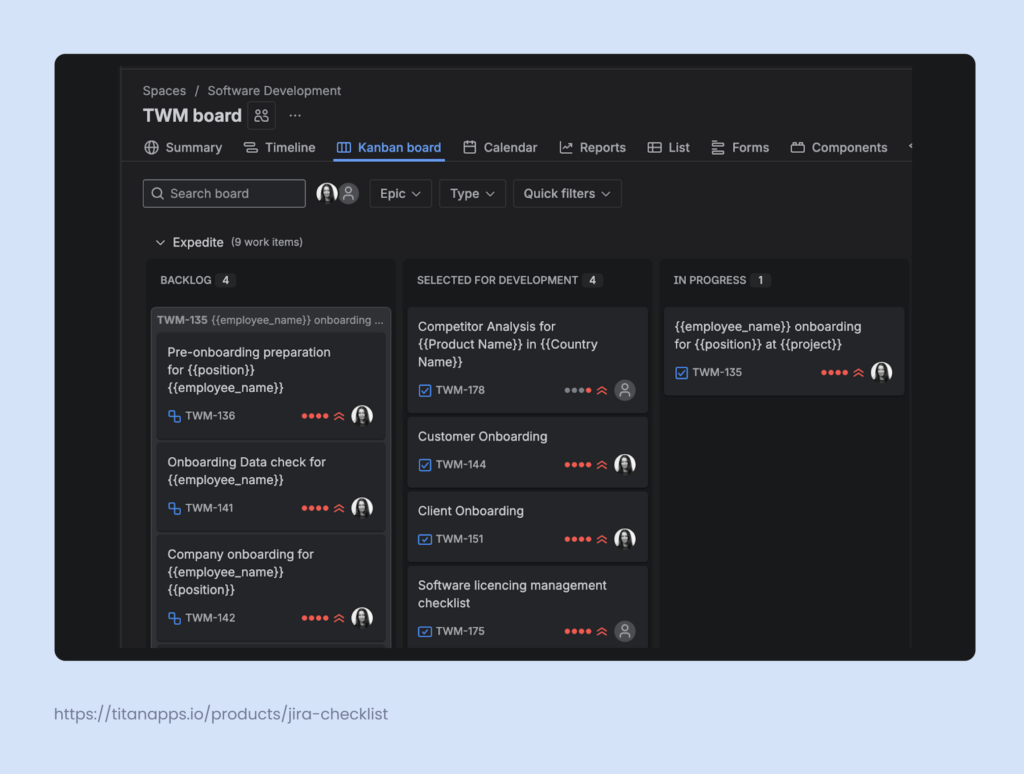
Here’s an example of a Jira board in the dark theme:
How to Enable Dark Mode in Jira?
Switching to dark mode only takes a few seconds. There are two ways to do it, and both lead to the same set of theme options.
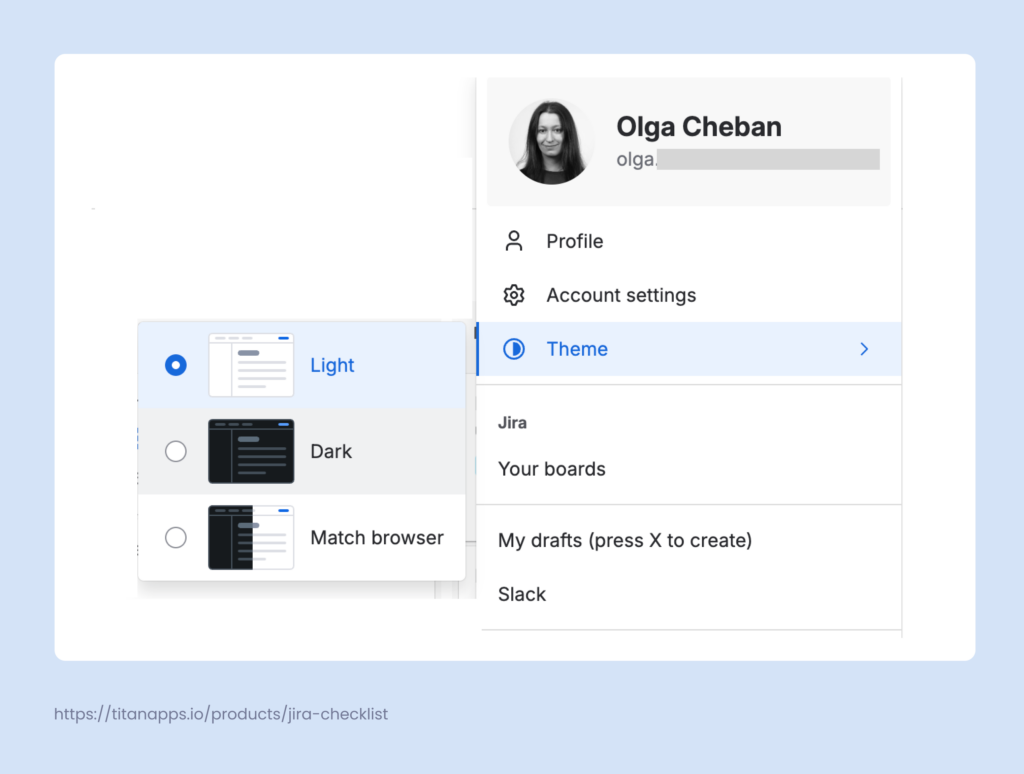
Method 1: Via your profile
- Click your Account icon (profile picture) in the top-right corner of the Jira screen.
- Select Theme from the dropdown menu.
- Choose Dark.
Method 2: Via your personal settings
- Click the gear icon (Settings) in the upper-right corner.
- Go to General settings (under Personal Jira Settings).
- Scroll down to the Theme section.
- Select Dark.
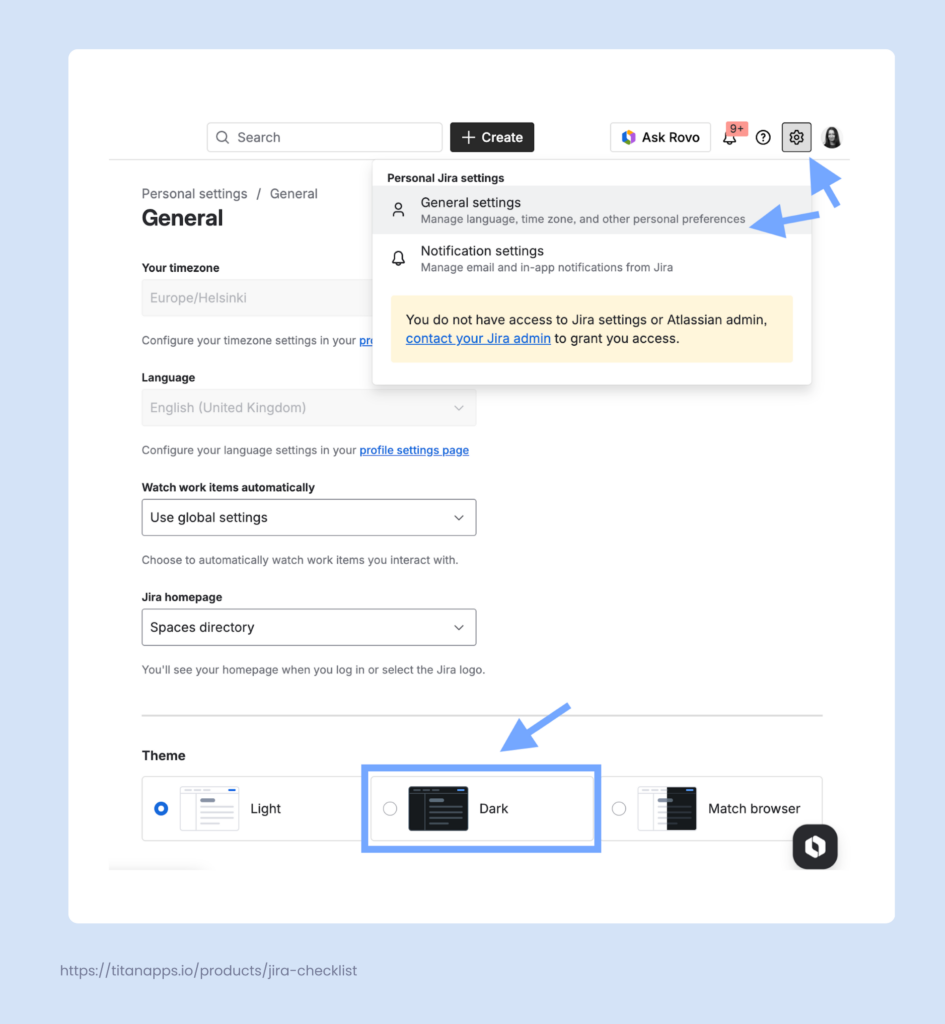
Both methods give you three theme options: Light, Dark, and Match Browser. The latter one syncs Jira’s appearance with your browser’s theme. So, if your browser is set to dark mode, Jira will follow automatically.
Please note that this is a per-user setting. Everyone on the team picks their own theme. Admins cannot push dark mode (or any theme) to all users at once. On Jira Cloud, admins with more than 10 users on their site can contact Atlassian support to disable the theme switcher entirely if needed.
If you work with several spaces (projects) in your Jira instance, dark mode should be enabled in each of them separately. Turning on the dark theme in one space (project) doesn’t affect your other spaces.
How Does Dark Mode Work With Jira Marketplace Apps?
When Atlassian introduced theming, it also published its design token API, enabling Marketplace app developers to adapt their interfaces. Many popular apps now support dark mode natively. However, adoption varies. Some apps display perfectly in the dark theme, while others may still show light-colored panels or elements that haven’t been updated yet.
To give you a concrete example, here’s how two Marketplace apps from TitanApps look and work in Jira’s dark theme.
Jira Dark Mode With Smart Checklist
Smart Checklist is a solution that lets you add feature-rich checklists directly inside Jira work items. You can create checklists from scratch, save them as reusable templates, and automatically add checklists to work items based on conditions.
It’s a popular choice for agile teams that often work with multi-step tasks or need to review assets against multiple criteria. Here are some use case examples: the Definition of Done checklist, Code Review template, Employee Onboarding checklist, and Software licensing checklist.
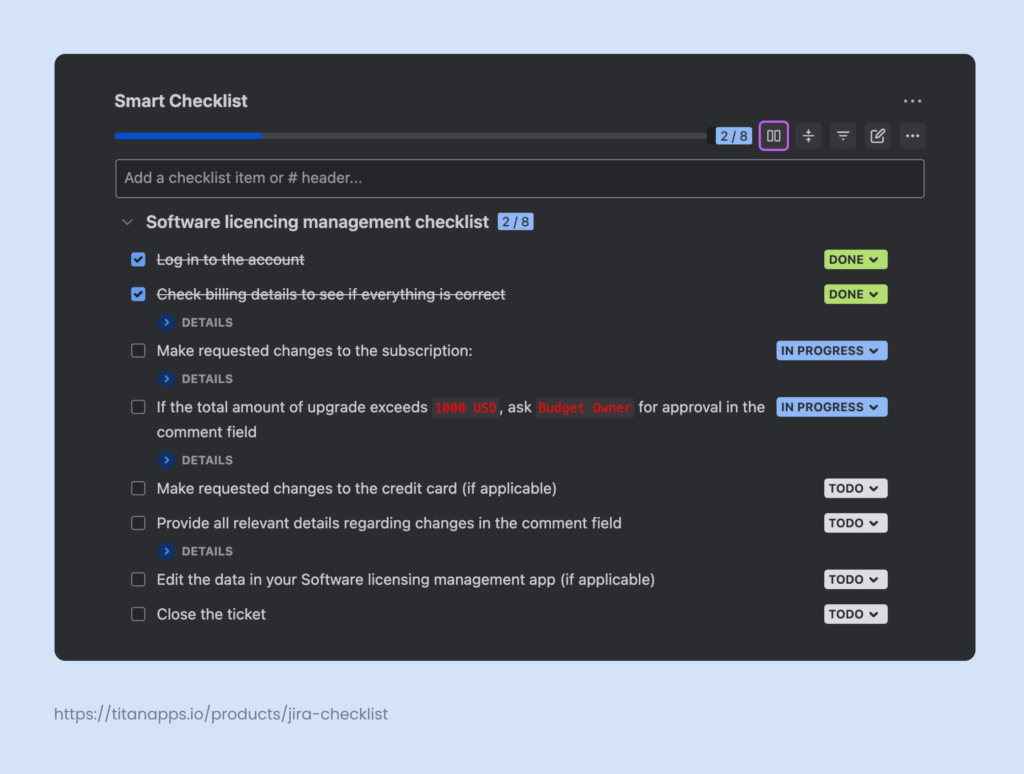
Smart Checklist fully supports Jira’s dark theme. When you switch to dark mode, your checklists on the issue panel render with the dark color palette automatically – no extra configuration needed. This includes checklist items, statuses, progress bar, and other elements.
If you’re a product manager who wants to run processes in your team consistently, consider trying this solution. Smart Checklist ensures that no critical steps are accidentally skipped or forgotten. It allows you to document processes in detail so that everyone can follow the same plan and best practices.
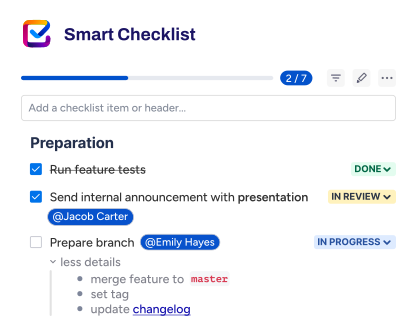
Dark Mode for Jira With Smart Templates
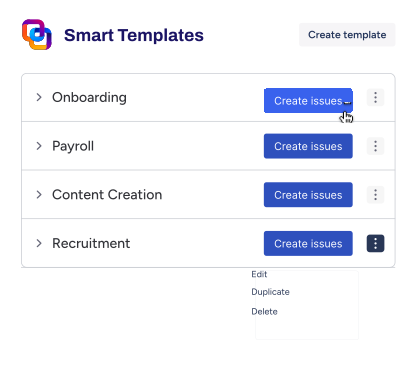
Smart Templates is a solution for creating reusable work item templates. It’s very useful for handling repetitive tasks and recurring processes. Instead of manually re-creating or cloning work items and filling in the same fields every time, you can use a ready template.
It only needs to be created once. Such a template can include child work items, pre-set field values, descriptions, assignees, and even checklists. Then, you can easily generate new work items from the saved template.
Smart Templates also support scheduling, so you can automate work item creation on a recurring basis. This can be useful for onboarding management, recurring regression testing of the same functionality, and for many other processes where you need to create the same set of work items repeatedly.
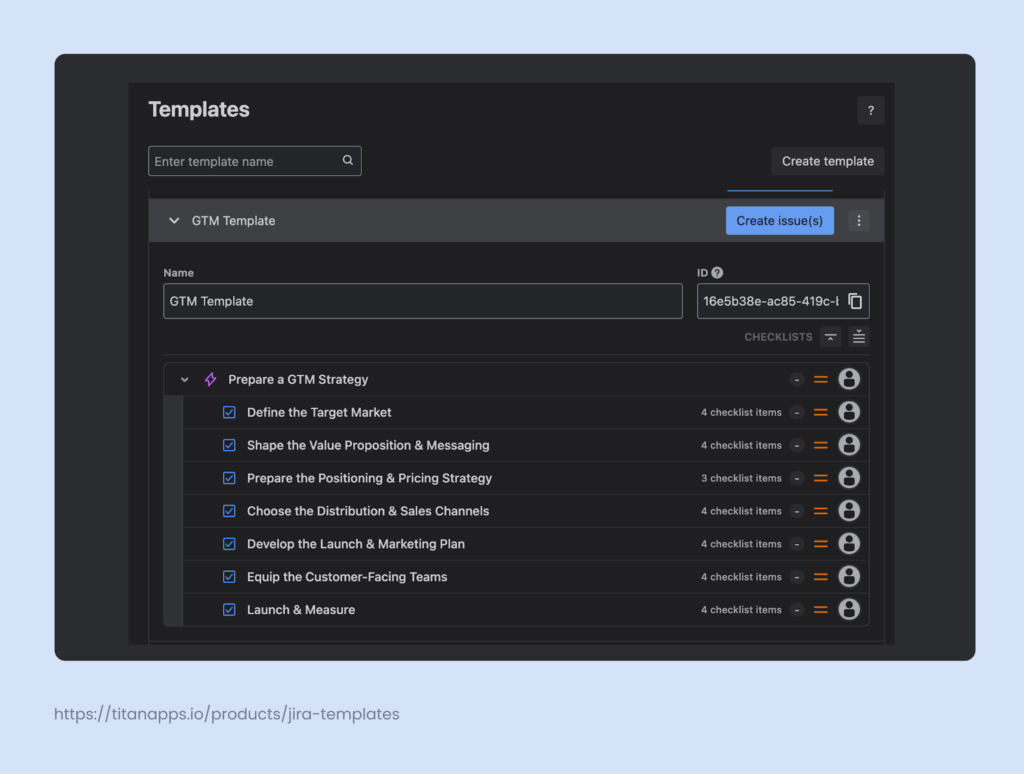
Smart Templates also work with Jira’s dark theme. The template creation interface, template list, and issue creation flow all adapt to the dark background. Whether you’re building new templates, applying them to work items, or reviewing template history, the UI follows your selected Jira theme.
This matters for teams that use templates across multiple projects and want a seamless workflow experience regardless of their color scheme.
Tips for a Better Jira Dark Mode Experience
Enabling dark mode is the easy part. These tips will help you get the most out of it:
- Match your browser and OS theme. If Jira is in dark mode but your browser and OS are still light, the contrast can be jarring. Set everything to dark for a consistent look, or use Jira’s “Match Browser” option. Since most browsers inherit their color preference from the OS, it effectively follows your system-wide dark mode schedule too.
- Adjust your monitor brightness. Dark mode on a bright screen defeats the purpose. Lower your display brightness to a comfortable level so you actually benefit from the reduced glare.
- Enable Confluence dark mode too. If you use Confluence alongside Jira, switch it to dark mode as well. Each product has its own theme setting, so you’ll need to enable it separately. But once both are dark, moving between them feels seamless.
- Watch out for miscommunication. When you share your screen or screenshots with teammates on the light theme, the UI won’t match what they see on their screen. This can cause confusion in how-to guides, bug reports, or training materials. If you share Jira visuals often, consider switching to the light theme before capturing screenshots.
- Check your Marketplace apps. After switching to dark mode, scan through the Marketplace apps you use most. If any functionality renders poorly in the dark theme, check whether the vendor has released an update or has dark mode support on their roadmap.
How to Fix Common Issues With Jira Dark Mode
Running into problems? Here’s a quick overview of the most common issues and tips on how to fix them:
| Issue | Solution |
|---|---|
| Dark mode isn’t showing up | Make sure you’re on Jira Cloud or Jira Data Center 10.3+. Older Server/Data Center versions don’t have native dark mode. Also, verify you’ve selected “Dark” in your theme settings in the current space specifically. |
| Theme keeps reverting to light | This is often caused by a browser extension conflict. Extensions like Night Eye or Dark Reader can override Jira’s native theme. Try disabling them for your Jira domain and re-selecting your theme. |
| Flickering or inconsistent colors | Usually, it’s a browser extension issue. Disable any dark mode or CSS-modifying extensions and reload Jira. If the problem persists, try a different browser to isolate the cause. |
| Marketplace app elements appearing in light mode | The app likely hasn’t adopted Atlassian’s design tokens yet. Contact the app vendor and ask about dark mode support. In the meantime, the rest of the Jira interface will still display correctly in dark mode. |
| Images or icons look wrong | Some images and illustrations in Jira were designed for light backgrounds. Atlassian has been updating these over time. If specific icons look off, submit feedback through Jira’s built-in feedback tool. |
What are the Benefits of Using Jira Dark Mode vs Light Mode?
Dark mode isn’t just a cosmetic choice. Here’s what it brings to the table:
- Reduced eye strain. Working in Jira for hours – triaging tickets, updating boards, reviewing backlogs – takes a toll. A dark background emits less light, which means less strain on your eyes, especially in dimly lit environments.
- Better battery life on certain displays. If you’re working on a laptop or tablet with an OLED or AMOLED screen, dark mode can extend battery life. These displays turn off individual pixels for true blacks, which means less power consumption.
- Easier focus. Fewer bright UI elements competing for your attention. A darker interface puts more visual emphasis on the content itself – the issue titles, descriptions, and data you’re actually working with.
- Accessibility. For users with light sensitivity, migraines, or certain visual conditions, a dark UI can make a meaningful difference in comfort and usability.
- Consistency with your toolkit. If your IDE, terminal, Slack, and browser are all in dark mode, switching Jira over removes the one bright tab that throws off your visual flow.
The light theme still has advantages, too. It offers better readability in bright environments, more accurate color representation for design-heavy work, and broader Marketplace app compatibility (since some apps haven’t fully adopted dark mode yet).
FAQ About Jira Dark Mode: All You Need to Know
1. Is Jira dark mode available on Jira Server or Data Center?
Yes – but only in newer versions. Jira Data Center received dark theme support as part of the Jira Software 10.3 release. If you’re on an older version, you’ll need to upgrade or use a browser extension like Dark Reader as a workaround.
2. Can a Jira admin enable dark mode for all users at once?
No. Dark mode is a personal preference, not an admin-level setting. Each user chooses their own theme from their profile or personal Jira settings. Admins managing sites with more than 10 users can contact Atlassian support to disable the feature entirely, but there’s no way to force dark mode on for everyone.
3. Does Jira dark mode work on mobile?
Yes. Dark mode is available in the Jira mobile app on both iOS and Android. You can enable it in the app’s Settings under Theme. On iOS 13+ and Android 10+, you can also use the “System Default” option so Jira follows your device’s system-wide theme automatically.
4. Will Jira dark mode affect how my Jira dashboards and reports look?
The layout and data stay the same, only the colors change. Backgrounds become dark, and text switches to light. Charts, gadgets, and dashboard widgets adapt to the dark palette.
If you notice any elements that don’t render properly, it’s likely a third-party gadget or Marketplace app that hasn’t been updated for dark theme yet.
5. Do Jira Marketplace apps support dark mode?
It depends on the app. Marketplace vendors have been working on dark theme compatibility since Atlassian introduced the feature, but not every app has shipped full support yet. Some apps may still display light-colored panels or elements inside the dark Jira UI.
Smart Checklist and Smart Templates by TitanApps both support dark mode. This means your checklists and work item templates will look right in a dark-themed workspace.
6. Can I schedule Jira dark mode to turn on automatically at night?
Yes. Set your Jira theme to the Match Browser / System Default option, which syncs Jira’s appearance with your operating system’s theme. Then, schedule dark mode directly in your OS settings to switch to dark mode at a specific time (e.g., after 9 PM). Jira will adjust its theme automatically. This works on both desktop and mobile.
7. Does dark mode in Jira apply to Confluence?
Each Atlassian product has its own theme setting. Enabling dark mode in Jira won’t automatically change the theme in Confluence or Bitbucket. You can enable dark mode in Confluence separately.
8. Is there a way to customize the colors in Jira dark mode?
No. Jira’s dark theme uses a fixed color palette, and custom color scheme configuration is not currently supported for the dark theme. You can choose between Light, Dark, and Match Browser / System Default, but you can’t tweak individual colors, such as background shades or accent hues.
9. How to enable Jira Dark Mode on iOS?
Open the Jira Cloud app on your iPhone or iPad, tap your profile icon, and go to Settings -> Theme. Select Dark to switch the app to dark mode.
10. How to enable Jira Dark Mode on Android?
Open the Jira Cloud app on your Android device, tap your profile icon, and go to Settings -> Theme. Select Dark to switch the app to dark mode.