





 Tools for Jira
 Tools for monday.com





Yeah, I realize that I probably sound like a total nerd but I do love my checklists and Jira templates.
Checklists are an amazing tool for maintaining productivity and clarity of direction. They are a great fit when there’s a need to assess the progress. Or they can be of great help when something goes wrong and you need to trace your own – or even someone else’s – steps.
That said, checklists, just like the processes they are designed to guide people through, are often repetitive. As such, there’s no reason to open the editor every time you create a new Jira work item (issue).
Use a checklist template instead!
What’s a checklist template in Jira?
Every company deals with recurring processes. Let’s take onboarding as our example: you need every newbie to finish certain predefined steps like logging into their corporate accounts, reading through the company’s or product’s wiki, etc.
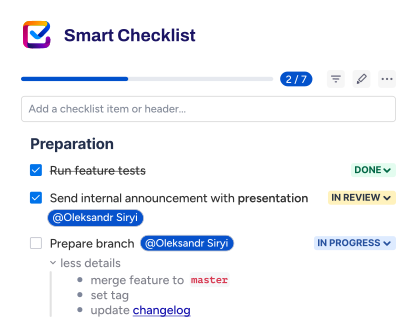
Our Jira Checklist allows you to make checklist templates for these kinds of recurring tasks. Decide which tickets you’d want to come with a pre-generated checklist, set it up once, and every following ticket that’s related to the process – like every new onboarding ticket for example – will come with this checklist from the get-go.
How to set up Jira templates with the Smart Checklist?
There are two primary ways you can create a checklist template with the Smart Checklist add-on:
- Save an existing Jira work item (issue) checklist as a template
- Create a fitting checklist using an input box or Full-Screen Editor available by clicking the “pen” icon.
- Then go to the Smart Checklist menu and click “Save as a Template”.
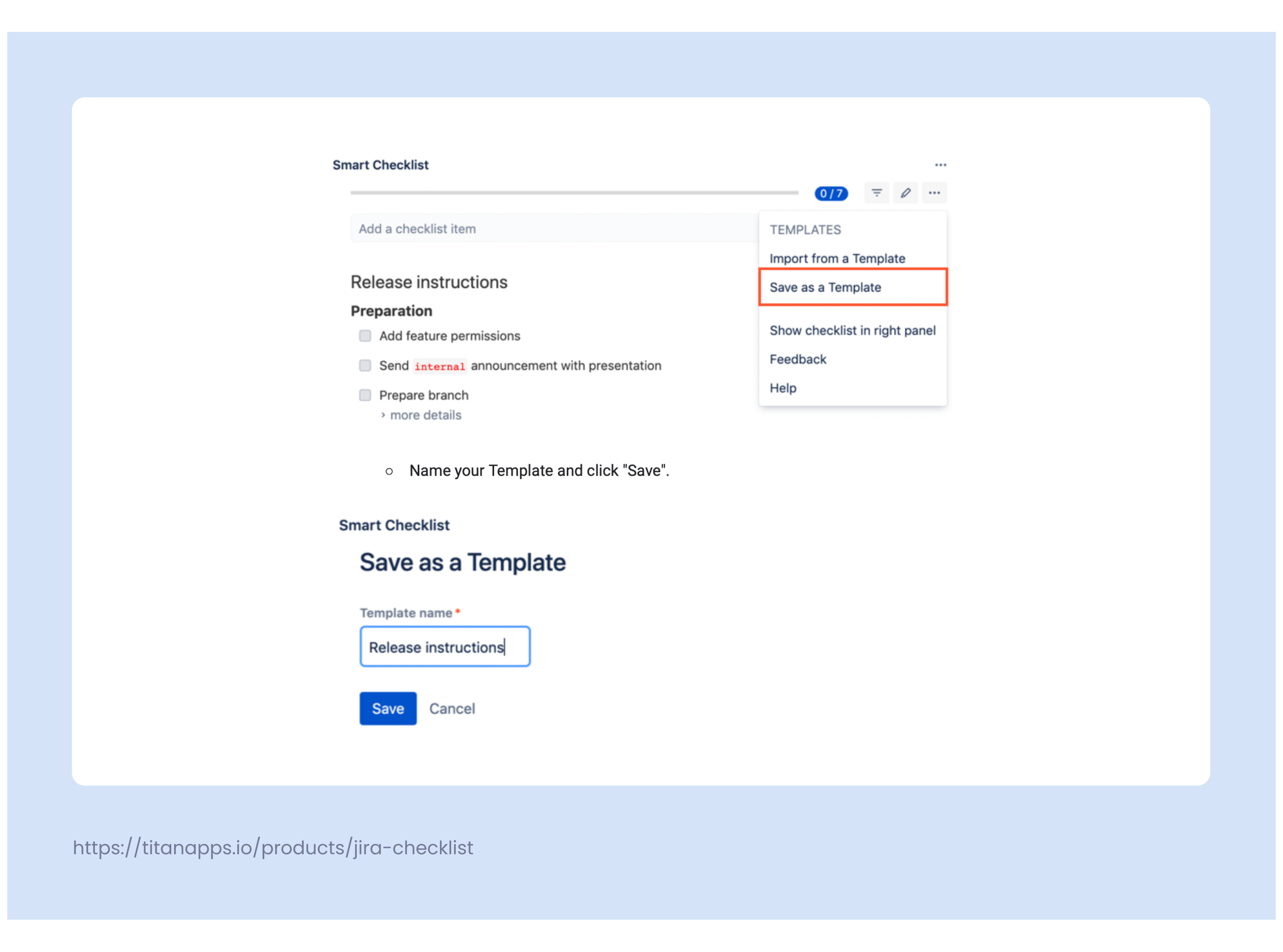
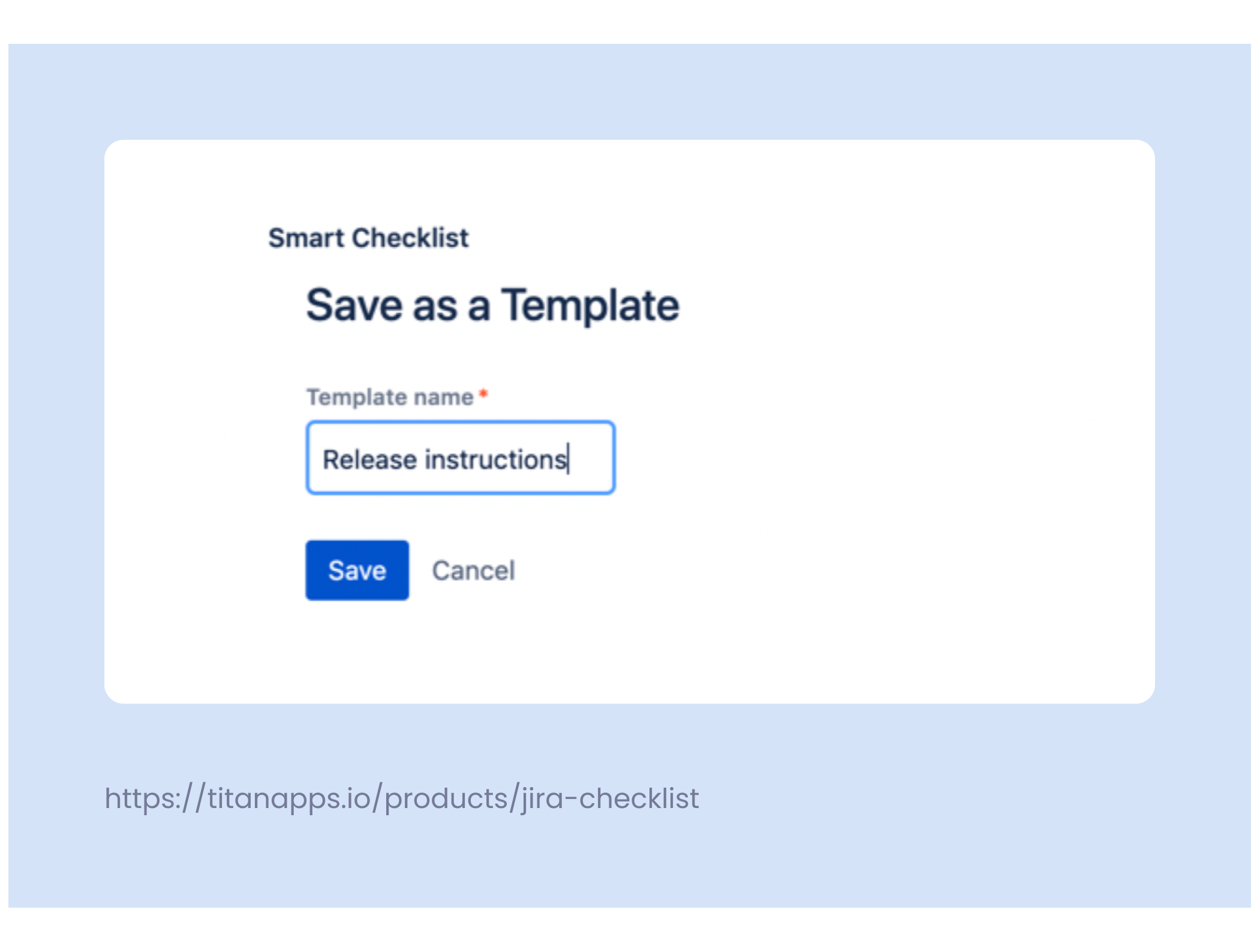
- Name your Template and click “Save”.
- Create a new template from the Templates list on Jira work item view
- Navigate to your Jira work item
- Open the Smart Checklist menu (click on 3-dot menu)
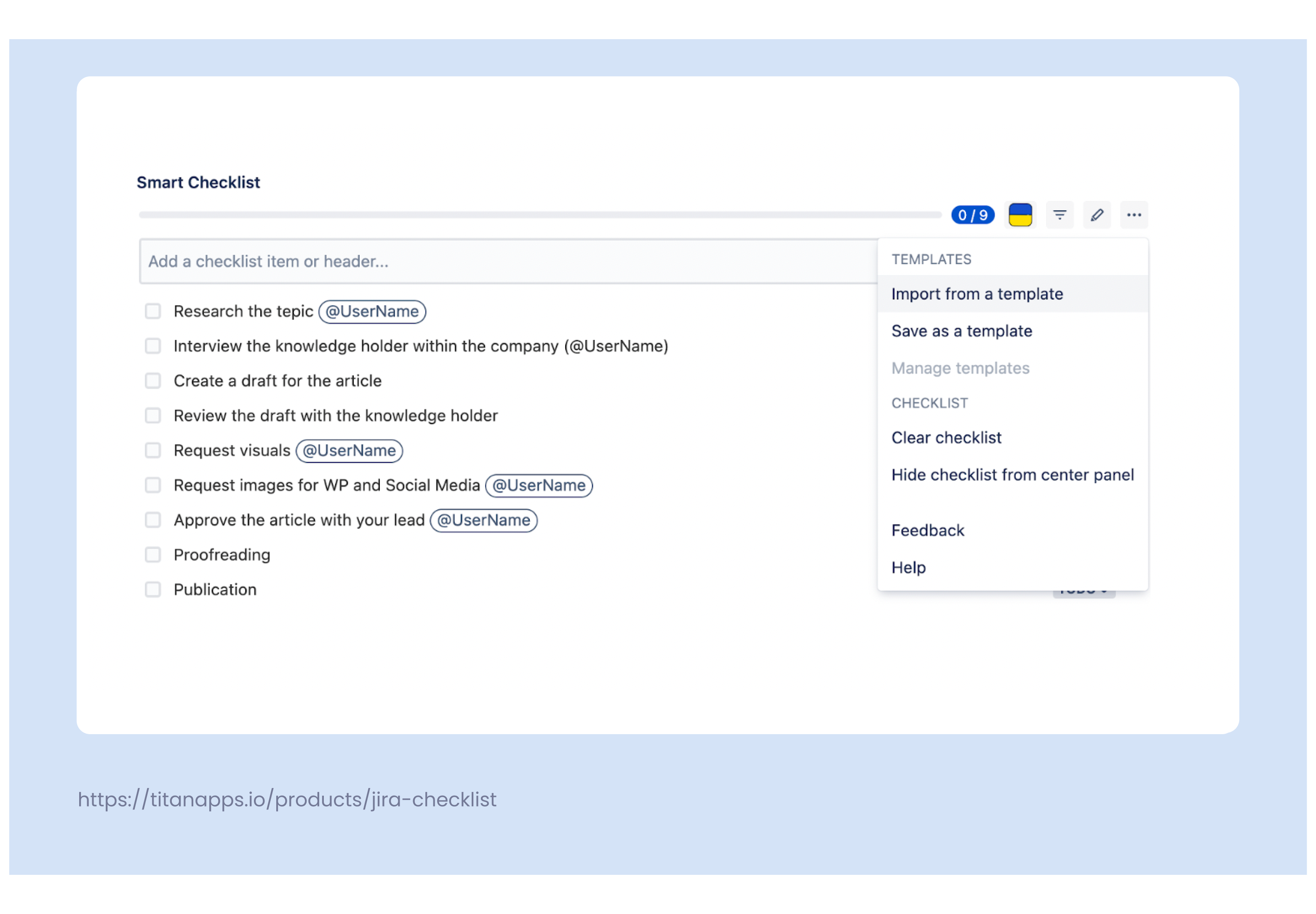
- Click the ‘manage templates’ button and create a template
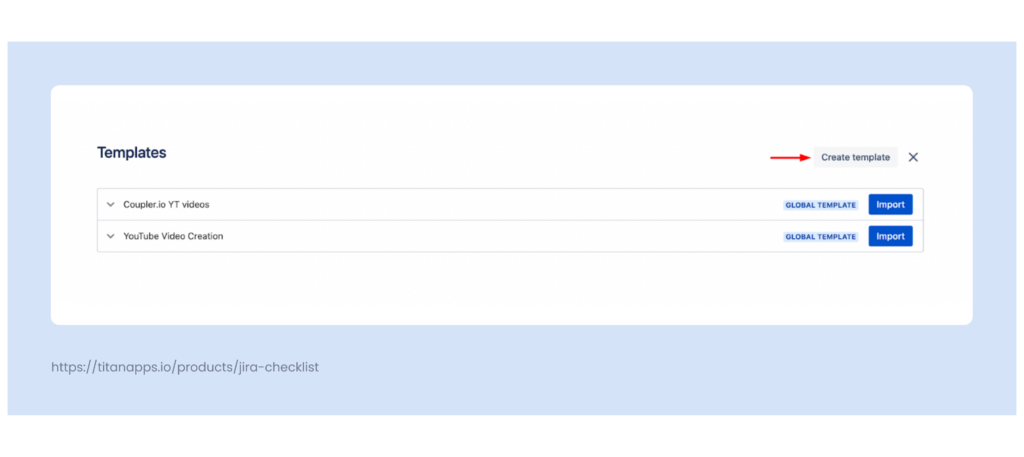
- Fill in the details of your checklist template
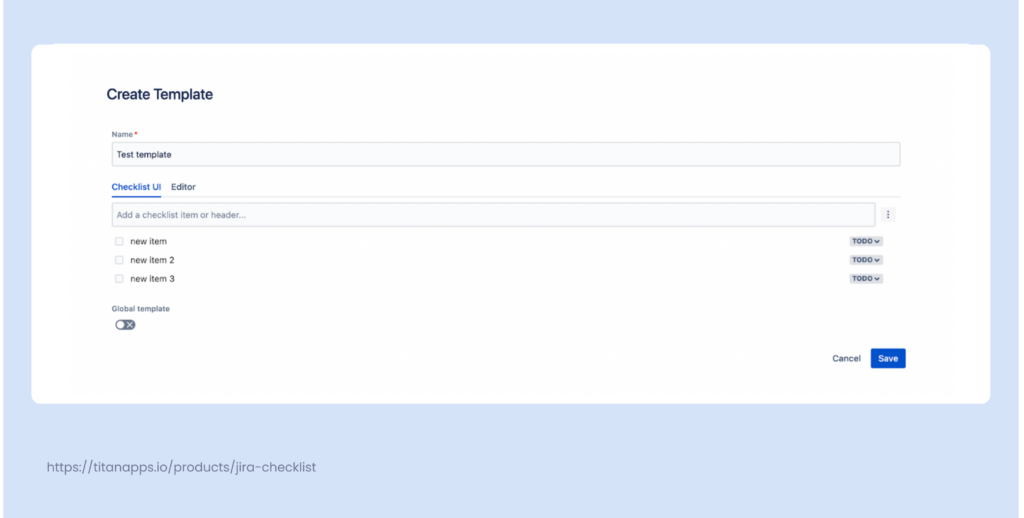
 Note
Note
You can create a template from the templates popup in the Cloud version only. There’s an option to create a template from Smart Checklist global settings for the server/DC version.
Checklist template examples
We’ve selected a couple of checklist template examples. They serve as an illustration of what can be done with the Smart Checklist. We understand that every case is unique so feel free to modify and change them as you see fit. The full-screen Markdown editor makes this process much simpler.
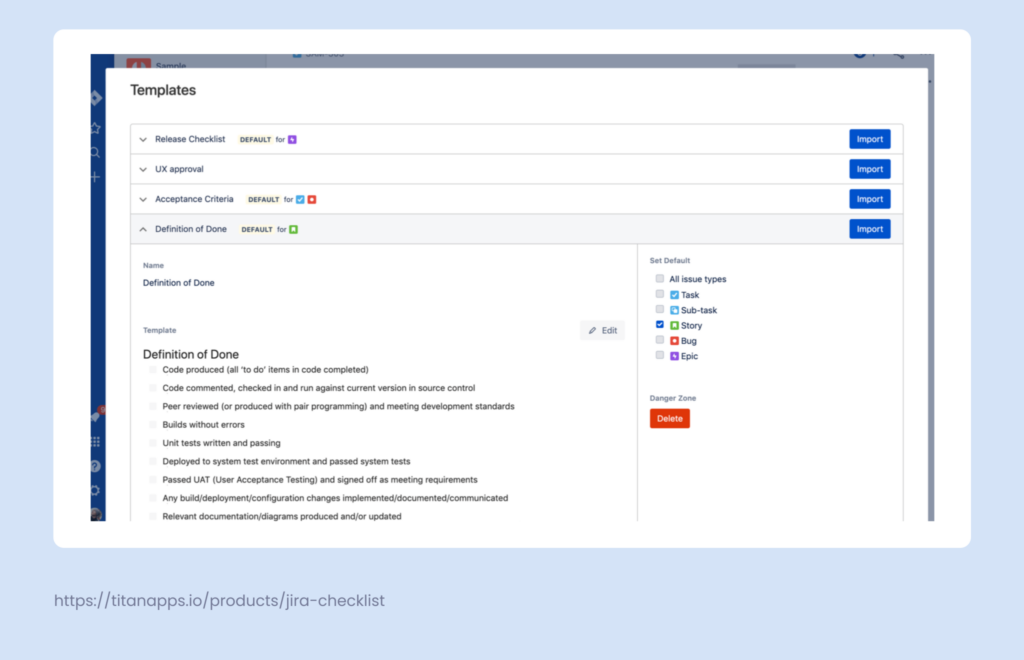
Definition of Done checklist template
Going by the definition (no pun intended), the definition of done (DoD) is a set of agreed-upon criteria that should be met so that a piece of work is considered as done. Having a clearly defined set of requirements makes the DoD a perfect candidate for becoming a template.
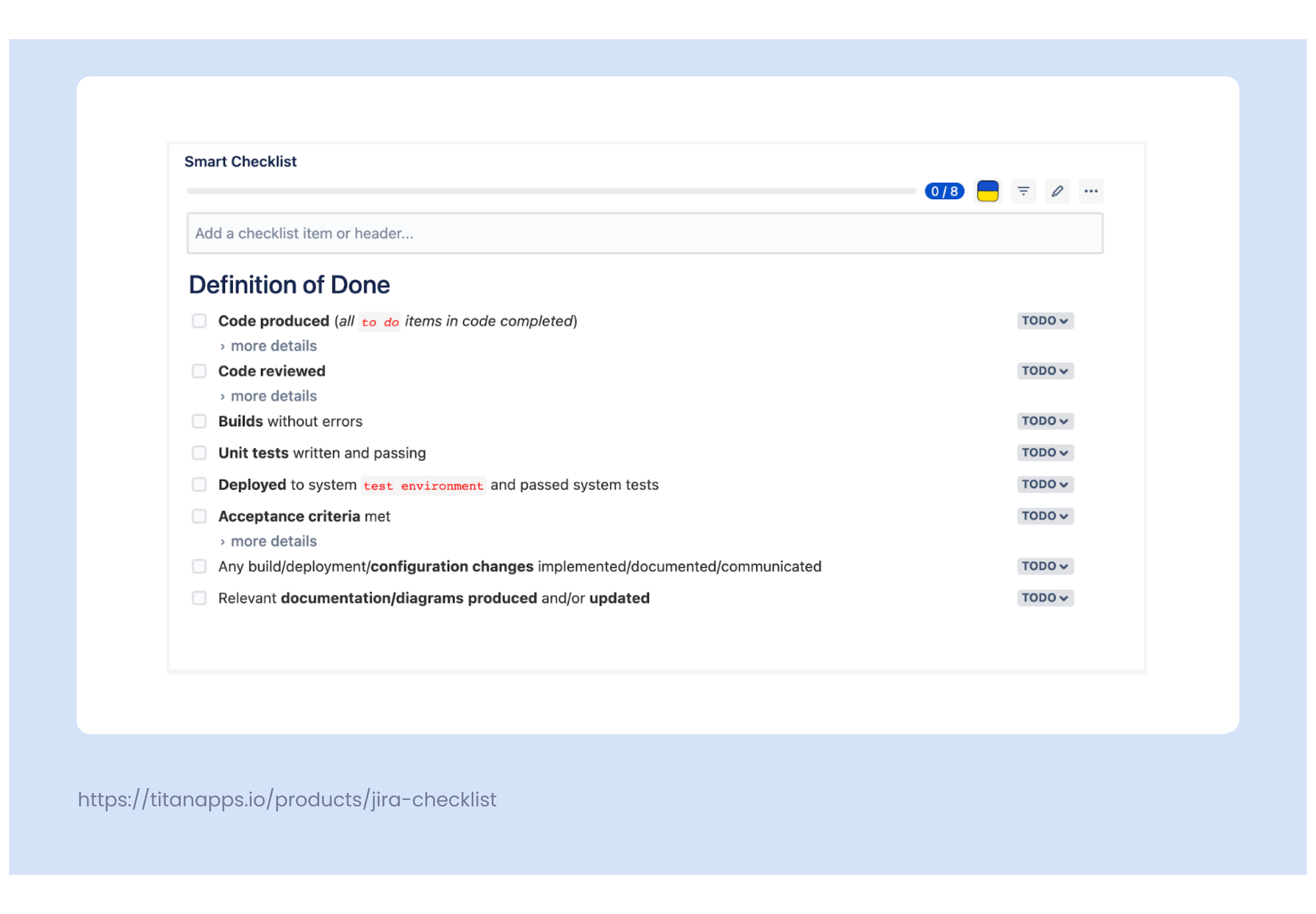
Here’s an example of a DoD checklist you can copy and paste into your Jira work items.
# Definition of Done
- **Code produced** (_all `to do` items in code completed_)
> Code commented, checked in and run against current version in source control
- **Code reviewed**
> * @Peer reviewed (or produced with pair programming)
> * meeting development standards
- **Builds** without errors
- **Unit tests** written and passing
- **Deployed** to system `test environment` and passed system tests
- **Acceptance criteria** met
> * Passed UAT (User Acceptance Testing)
> * signed off as meeting requirements by @ProductOwner
- Any build/deployment/**configuration changes** implemented/documented/communicated
- Relevant **documentation/diagrams** **produced** and/or **updated**
Acceptance criteria checklist template
The Acceptance Criteria is a set of clearly defined requirements your feature should meet in order to be accepted. You can configure the Acceptance Criteria to be applied to every “Story” work type. Quality Assurance specialists can use the Acceptance Criteria checklists as the initial information for the creation of detailed test scenarios.
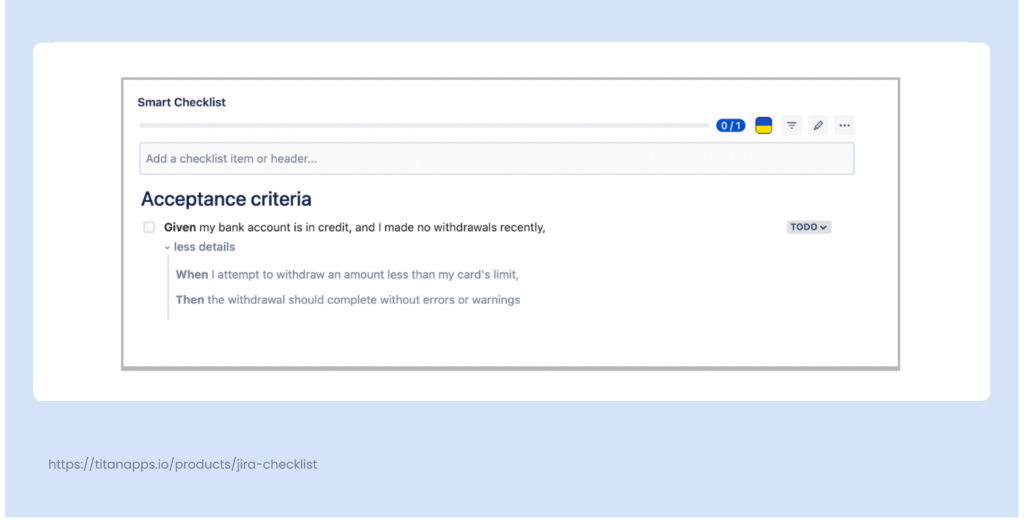
The fact that the Smart Checklist supports the Markdown syntax formatting, makes it easier to create a suitable acceptance criteria checklist following the given-when-then formula. Here’s an example of it in action.
# Acceptance criteria
- **Given** my bank account is in credit, and I made no withdrawals recently,
> **When** I attempt to withdraw an amount less than my card’s limit,
> **Then** the withdrawal should complete without errors or warnings
Onboarding checklist template
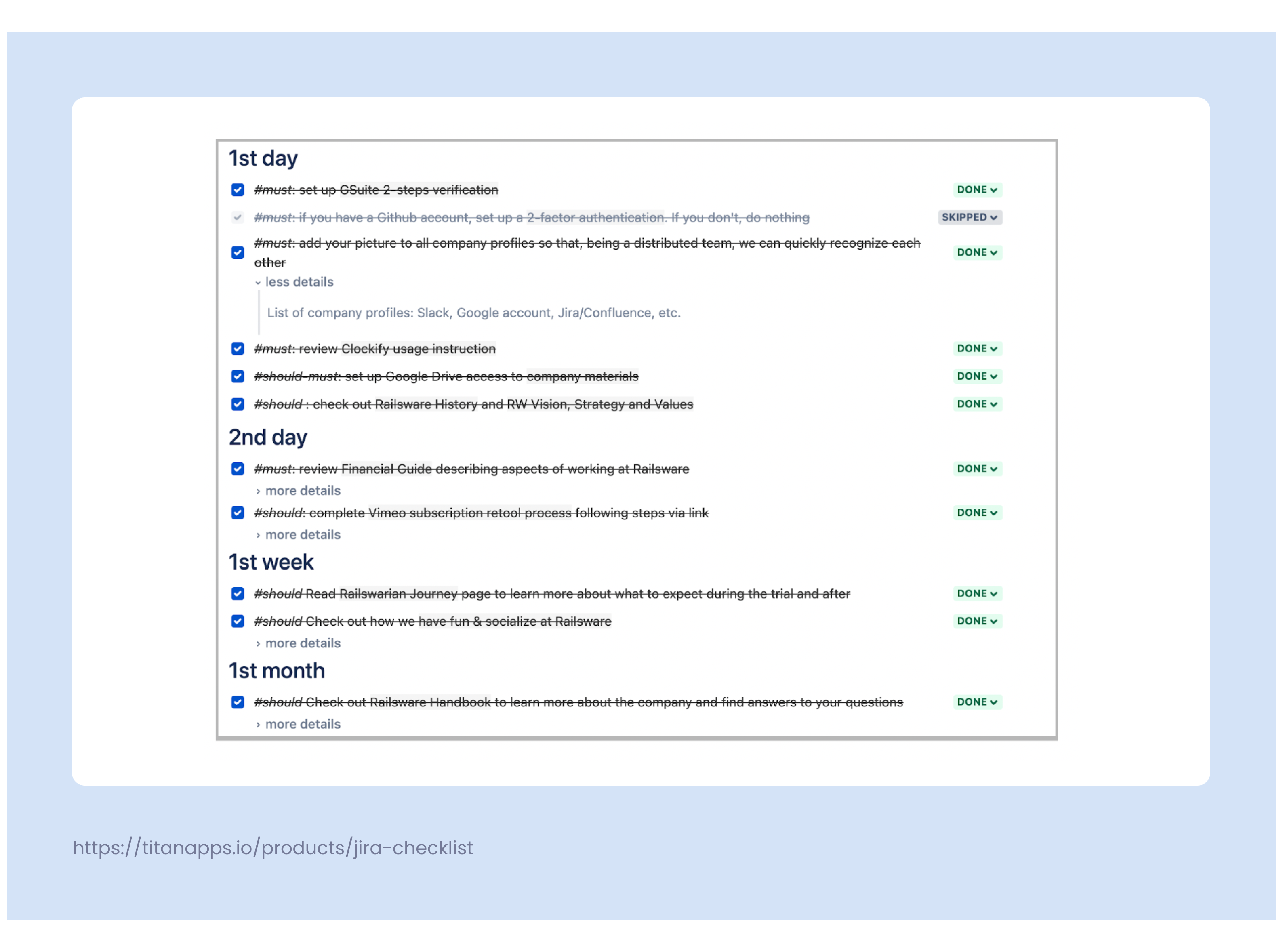
We use checklists in onboarding knowledge transferring tickets for new Railswarians. This way we can offer them insight and guidance on what’s expected of them during the trial period. A checklist is also a great place to guide users towards the knowledge they’ll need to learn throughout their onboarding.
# 1st day
+ *#must*: set up GSuite and accounts
> examplelink.com
x *#must*: if you have a Github account, set up a [2-factor authentication]. If you don’t, do nothing
> examplelink.com
+ *#must*: add your picture to all company profiles so that, being a distributed team, we can quickly recognize each other
> List of company profiles: Slack, Google account, Jira/Confluence, etc.
+ *#should-must*: set up Google Drive access to [company materials]
> examplelink.com
+ *#should* : check out [Railsware History](examplelink.com) and [RW Vision, Strategy and Values](examplelink.com)
# 2nd day
+ *#must*: review [Financial Guide](examplelink.com) describing aspects of working at Railsware
> Please check out Legal Aspects of collaboration in your country in [Collaboration type, Services agreement & NDA](examplelink.com) section of the guide
+ *#should*: complete [Tool_name subscription retool process](examplelink.com) following steps via link
> We use Tool_name for internal video updates. To keep those secure, we share videos only with people WE follow. Once you complete the process, our Tool_name account will follow you back for you to get access to the internal video updates.
# 1st week
+ *#should* Read [Railswarian Journey](examplelink.com) page to learn more about what to expect during the trial and after
+ *#should* Check out how we [have fun & socialize at Railsware](examplelink.com)
> Sign up for [RW Events Calendar](examplelink.com) to see all the upcoming events
# 1st month
+ *#should* Check out [Railsware Handbook](examplelink.com) to learn more about the company and find answers to your questions
> Make sure to check not only the first page but the overall structure of the Handbook
+ *#should-must*: update Linkedin position / Github company
> example: *Full Stack Engineer at Railsware*
+ *#could*: You can also add a Railsware branded image to your LinkedIn page background. Download it [here](examplelink.com)
+ *#must*: make sure you add all of your **time entries with projects and tags** in Clockify `before the last day of each month`.
# Company materials to review during the 3-months trial
+ Read [Collaboration at work guide](examplelink.com)
> - [Learn How to use your Google Calendar to the fullest](examplelink.com)
> - [Working with sensitive information](examplelink.com)
> - [Slack Usage Rules, Portals and Channels RWNs use](examplelink.com)
+ Learn [How to Give Feedback at Railsware](examplelink.com)
### How-we-work approaches
+ [Core RW approaches](examplelink.com)
+ [T-shape concept](examplelink.com)
+ [Documenting things](examplelink.com)
### Company policies
+ [Benefits and policies](examplelink.com)
> Here are the [policies that work for you during the trial](examplelink.com)
### Other
+ [More info about Railsware team](examplelink.com)
+ *#could*: add interests, commitments, and expertise to [OrgMap](examplelink.com)
> Learn how to do it [here](examplelink.com). Fill in only the areas that sound clear to you.
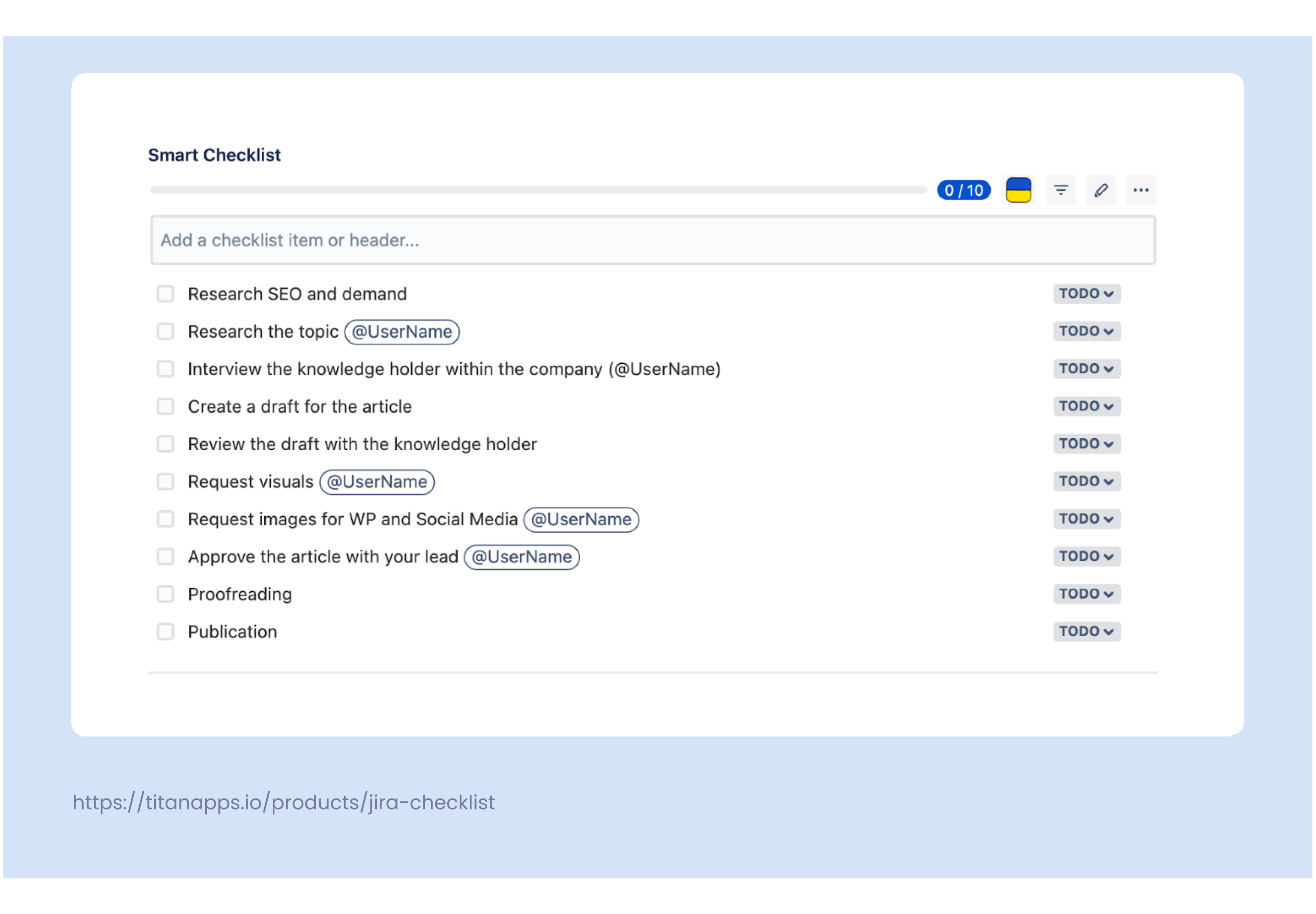
Content publishing checklist template
This checklist will be handy for the content marketing team in your organization. This simple flow will ensure that a content writer can create a piece of content that’s written with the intention of helping others regardless of them possessing or currently lacking a certain skill set. For example, a copywriter without coding experience can work in tandem with a developer to create a useful and actionable guide for a more tech-savvy audience.
- Research SEO and demand
- Research the topic @UserName
- Interview the knowledge holder within the company (@UserName)
- Create a draft for the article
- Review the draft with the knowledge holder
- Request visuals @UserName
- Request images for WP and Social Media @UserName
- Approve the article with your lead @UserName
- Proofreading
- Publication
This humble assembly of checklists barely scratches the surface of what you can streamline and simplify with a cleverly put together set of context-rich Jira templates. I’ll make sure to keep this list updated with new checklist templates. Still, I’ll need a bit of your help. So, feel free to share your ideas in the comments section below.
FAQ
Q: Can you make checklists or checklist templates in Jira?
A: Jira does not have checklist or checklist templates functionality by default. You can download a checklist add-on like Smart Checklist for Jira from the Atlassian Marketplace to add this functionality to your Jira instance.
Q: How do I enable templates in Smart Checklist?
A: Jira Checklist templates are enabled by default in Smart Checklist. You can create a checklist and make it a template by clicking on the button with three dots.
Q: What can I automate with a checklist template?
A: You can automate any recurring process that requires the responsible person to follow a certain set of steps. Some of the most common use cases include checklist templates for Definition of Done, Acceptance Criteria, Onboarding, SEO, and financial reporting.
Q: Why do people typically use checklist templates?
A: Checklists help design clear, consistent, and actionable workflows in Jira. They encourage transparency and ownership. A checklist can help the team stay on target as the task is broken down and you can always see the assignees and how much work is left before a task can be considered completed.
Q: Can I automatically add Jira checklist templates?
A: Yes, Smart Checklist is integrated with Script Runner, JMWE, and Automation for Jira. Our users can set up their automation in a way where a checklist is added based on the content of a work item and their workflow setup. You can read more about the matter in this checklist automation guide.